
An upload progress bar reaching the end is encouraging, but it is not proof. Networks drop packets, phones sleep mid-transfer, and providers occasionally accept a file while a folder listing lags behind. If the file you uploaded is the only copy of a contract, a child’s first steps, or a month of field notes, hoping it arrived is not a strategy. Verifying an upload takes under a minute and turns hope into knowledge.
This guide sets out a calm integrity routine for X-plore uploads: compare sizes, compare counts, spot-download a sample, and open files from the provider’s side rather than trusting the phone’s cache. You will find more transfer background on the APKPod homepage and in our guide to encrypting files before upload, which pairs naturally with the checks below.
The Three Checks That Catch Almost Every Bad Upload
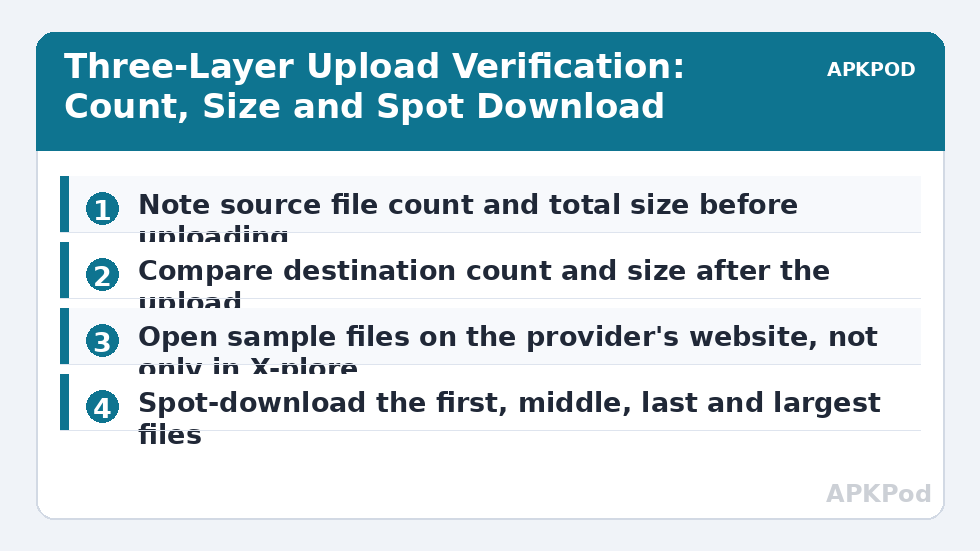
No single check is perfect, but three quick checks together are very strong. Size comparison catches truncated files. Count comparison catches missing files. Opening a sample catches files that are present but damaged or in the wrong format. Professionals moving data between systems use exactly this layered approach, scaled down here to fit a phone screen.
Check one: sizes must match
Before uploading, open the source folder’s properties in X-plore and note the total size and the sizes of the largest files. After the upload, open the destination folder’s properties in the cloud pane and compare. A destination total that is smaller by roughly one file’s size tells you exactly what to look for. Remember that providers sometimes display rounded sizes, so compare the largest individual files precisely and treat small rounding differences in totals with judgement rather than panic.
Check two: counts must match
Count files, not folders alone. If the source holds 240 photos and the destination shows 238, the upload is not finished no matter what the progress bar claimed. Note the count before you start, because afterwards you will not remember whether 238 was the right number or a worrying one.
Bottleneck:
Tip:
All figures are estimates under good local conditions — strong signal, no competing traffic, both devices on the same network. Real speeds drop with distance, walls, channel congestion and slow storage on either device. Protocol options (SMB, FTP, SFTP) assume a 5 GHz-class Wi-Fi link.
A Worked Example With Real Numbers
Suppose you are uploading a folder of 240 phone photos averaging 4.2 MB each, plus 6 short videos of about 95 MB each. The arithmetic is simple and worth doing before you start. Photos: 240 × 4.2 MB = 1,008 MB. Videos: 6 × 95 MB = 570 MB. Expected total: 1,008 + 570 = 1,578 MB, roughly 1.58 GB, across 246 files.
| Item | Count | Size each | Subtotal |
|---|---|---|---|
| Photos | 240 | 4.2 MB | 1,008 MB |
| Videos | 6 | 95 MB | 570 MB |
| Expected destination | 246 files | — | 1,578 MB |
If X-plore afterwards shows 246 files totalling about 1,578 MB in the cloud folder, your size and count checks pass together. If it shows 245 files and 1,483 MB, the missing 95 MB is almost certainly one video, and you can re-upload just that file instead of repeating the whole batch. This is why the numbers matter: they turn a vague worry into a precise repair.
Spot Downloads and Opening From the Provider’s Side
The strongest quick test is to prove the cloud copy works without your phone’s help. Open the provider’s website or its own app, find the uploaded folder, and open several files there: the first photo, one from the middle, the last photo, and the largest video. Then, inside X-plore, download two or three files into a fresh local folder with a name like Verify Test, open the downloaded copies, and delete the test folder afterwards.
Why opening inside X-plore alone is not enough
When you open a cloud file in the same app moments after uploading, you may be looking at a cached local copy rather than data freshly fetched from the provider. The provider’s website cannot show you a phone cache, so a file that opens there has genuinely arrived. For especially important archives, this distinction is the whole point of the exercise.
Habits that make verification effortless
- Upload in named batches. A folder called Site Survey 2026-10 keeps its count and size meaningful; a mixed pile does not.
- Keep the source until checks pass. Never delete or move originals in the same session as the upload.
- Verify large files individually. One 800 MB video deserves its own size check, not a share of a folder total.
- Re-check after interruptions. If the phone slept or the network changed mid-upload, verify the whole batch again, not just the end of it.
These habits travel well. The same routine protects the downloads in our guide to downloading cloud files for offline trips, where a corrupted file discovered on a plane is a file you cannot fix until you land. And if the material is sensitive, combine verification with the pre-upload protection in our AES-256 guide: encrypt, upload, verify the encrypted package opens, and only then relax.
What to Do When a Check Fails
Stay methodical. Note which files are missing or mismatched, delete the incomplete destination copies so nothing half-finished masquerades as a backup, and re-upload only those files on a stable Wi-Fi connection with the phone plugged in. Verify again after the repair. If the same file fails repeatedly, try uploading it alone, and test it in the provider’s own app: a file that fails everywhere may be damaged at the source, which is important to learn while the original device still works.
Special Cases: Big Files, Archives and Cloud-Only Traps
Some uploads deserve stricter treatment than the standard three checks. A single large archive holding a whole project should be downloaded back in full once and opened, because a damaged archive can show the correct size while its contents are unreadable; size proves the container arrived, not that everything inside survived. The same applies to phone backup files and disk images, whose entire value sits in being restorable. Download, open, and where the creating app offers a test or verify function, run it before you delete any source.
Watch for the opposite trap on the source side: files that look local but are actually cloud-only placeholders from another app. A placeholder can report a full size while holding no data until it is fetched, and uploading from it produces confusion at both ends. If a file behaves strangely, open it fully on the phone first, confirm it plays or reads to the end, and only then include it in an upload batch. And remember that uploads fail at the account level too: if an entry starts erroring on every file, the connection itself may need attention before any file does, a situation our wider cloud security and privacy audit checklist helps you review account by account.
Keep a tiny verification log for important work
For work that matters, one line in a note per batch, folder name, file count, total size and the date you verified it, ends all future arguments about whether a backup exists. Three months later, when you are deciding whether the phone copies can finally be deleted, that line is the difference between confidence and another evening of re-checking. Verification is a habit, but the log is what makes the habit pay off over time.
Frequently Asked Questions
Is a completed progress bar enough proof that an upload worked?
No. A progress bar shows that data was sent, not that the provider stored a complete, readable file. Compare the destination’s file count and total size with the source, and open a sample of files from the provider’s website before treating the upload as finished.
How do I find a missing file in a large upload?
Compare counts first, then compare total sizes. The size of the shortfall usually identifies what is missing: a gap of about one video’s size points to a video, while a tiny gap suggests a small document. Re-upload only the missing items and verify again.
Why should I open files on the provider’s website instead of only in X-plore?
Because X-plore may display a cached copy from your phone shortly after an upload. The provider’s website can only show what actually reached its servers, so a file that opens there has genuinely arrived complete.
What is a spot download, and how many files should I test?
A spot download means pulling a few uploaded files back down into a fresh folder and opening them. Test the first, a middle and the last file, plus the largest one. For a small folder, test everything; for hundreds of photos, that sample plus matching counts and sizes is a strong check.
A file keeps failing verification. What should I try?
Delete the bad destination copy, upload that single file alone on stable Wi-Fi, and verify it again. If it still fails, open it in the provider’s own app and check the original on your phone, because repeated failure across routes usually means the source file itself is damaged.