There is an important distinction hidden inside the phrase encrypt files aes 256 before upload xplore users search for: encrypting a file on your phone, and encrypting a file in a form you can upload, store anywhere, and reopen later on another device, are two different jobs. X-plore File Manager does the first job well through its Vault. It does not do the second job, and pretending otherwise would leave you with a false sense of security — or worse, with files you cannot open when you need them.
This guide separates the two jobs: what the Vault actually does, what dedicated tools do for portable encrypted files, and how to judge an “AES-256” claim properly.
What the X-plore Vault Actually Encrypts
The Vault in X-plore is a protected area inside the app. When you move photos, documents, or other files into it, X-plore encrypts those files at rest on the device and hides them from other apps and casual browsing. You open the Vault with the password or biometric unlock you set, browse the contents inside X-plore, and the app decrypts files on the fly while you use them.
That design is excellent for privacy on the phone itself. If someone picks up your unlocked device, or another app scans your storage, Vault contents are not sitting there in plain form.
What the Vault is not is an export format. Files inside it are encrypted for X-plore, on that device, under your Vault password. X-plore does not offer a “save as AES-encrypted file” function that produces a standalone encrypted file you can upload to any cloud drive and later decrypt on a laptop with a standard tool. If you copy a file out of the Vault, you are copying the decrypted original — which is exactly what you would expect, but it means the Vault alone does not solve pre-upload encryption.
Encrypt Files AES 256 Before Upload Xplore Workflow Options
Once that limit is clear, the real workflows become straightforward. You have three honest options, and choosing between them depends on where the encrypted file needs to be opened later.
| Method | What you upload | How you open it later | Best for |
|---|---|---|---|
| X-plore Vault only | Nothing encrypted — the file stays on the device | Inside X-plore, with your Vault password | Local privacy on the phone |
| Password-protected archive (for example 7z with encryption enabled) | One archive file containing encrypted contents and, if enabled, encrypted file names | Any device with an archive tool that supports the format, using the password | Backups and document bundles sent to any cloud drive |
| Dedicated encryption app or container format | An encrypted container or individual encrypted files | The same app or a compatible tool on the other device, using the password or key | Ongoing encrypted storage you update regularly |
For most people, the archive route is the most practical. You gather the files, create an archive with strong encryption and a long password, check that file-name encryption is turned on if the format offers it, and upload the single archive through X-plore to your cloud account like any other file. The cloud provider then stores only the encrypted archive. Even full access to that account does not reveal the contents without the password.
The container route suits files you open and update often: unlock the container, work, lock it, upload the updated version. It is convenient, but ties you to tools that understand that format on every device.
Whichever route you choose, X-plore still has a role: it is the file manager you use to collect the files, create or move the encrypted result, and upload it. Related guides in this cloud security section cover the storage side, including how to use the X-plore Vault to encrypt and hide private photos for local protection.
Bottleneck:
Tip:
All figures are estimates under good local conditions — strong signal, no competing traffic, both devices on the same network. Real speeds drop with distance, walls, channel congestion and slow storage on either device. Protocol options (SMB, FTP, SFTP) assume a 5 GHz-class Wi-Fi link.
AES-256 Explained Without the Marketing
AES is the Advanced Encryption Standard, a widely studied cipher used by governments, banks, and ordinary apps. The number 256 is the key length in bits, and no realistic attacker breaks AES-256 by guessing the key itself.
That is precisely why the interesting questions are elsewhere. Attackers and accidents do not defeat the cipher; they go around it. Three factors decide whether your encrypted upload is genuinely protected:
- The password, not the key length. Your password is turned into the actual encryption key by the tool. A short, predictable password can be guessed quickly even though the cipher is AES-256. A long, unique passphrase — several unrelated words, or a generated password stored in a password manager — is what makes the maths work in your favour.
- The implementation. The tool must generate keys from passwords using a proper, slow key-derivation process, use random values correctly, and encrypt in a mode that also detects tampering. A reputable, maintained tool matters more than the number printed in its description.
- What is left unencrypted. File names, folder structure, sizes, and upload timing can reveal a lot. Some archive encryption leaves file names visible unless you specifically enable name encryption. Check what a casual viewer of your cloud account would still see.
So treat “AES-256” as a baseline, not a conclusion: it says nothing about your password, the app’s quality, or leaking metadata.
A Step-by-Step Pre-Upload Routine That Holds Up
- Decide what actually needs encrypting. Tax documents, scans of ID, financial records, and private photos deserve it. Music and public documents usually do not, and encrypting everything makes backups slower to restore.
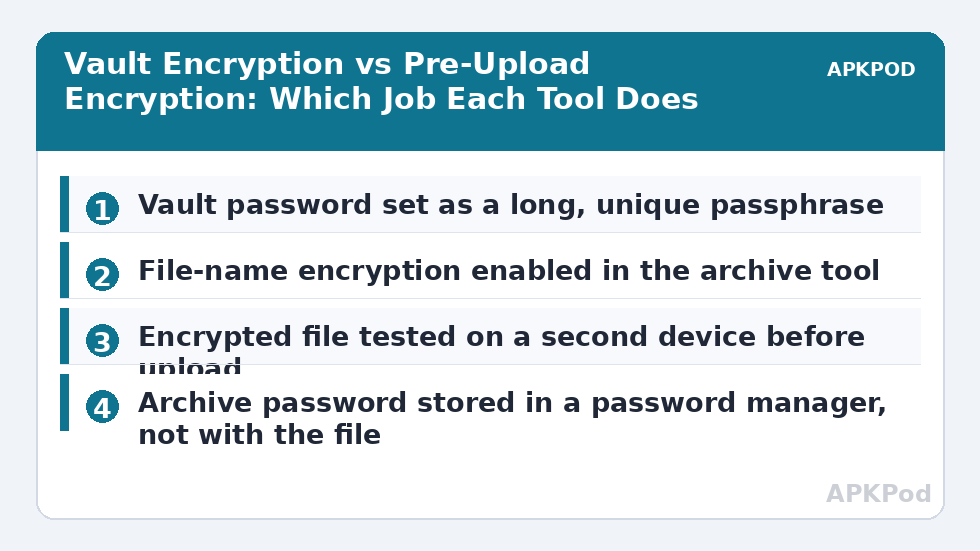
- Protect the originals locally first. Keep sensitive originals in the Vault so they are encrypted at rest on the phone while you prepare the upload. Setting a strong Vault password is covered in the guide to configuring master password protection in X-plore.
- Create the encrypted package. Use your chosen archive tool or encryption app, set a long unique passphrase, and enable file-name encryption if offered. Do not reuse your cloud account password, your phone PIN, or your Vault password.
- Test before you trust it. Copy the encrypted file to another folder or device and try opening it with only the password. If you cannot reopen it in a test, you will not reopen it in an emergency either.
- Upload the encrypted file, not the originals. In X-plore, navigate to your cloud account and upload the archive or container. Afterwards, check the cloud folder in a browser to confirm only the encrypted item is there.
- Store the password separately. Put it in a password manager. A password written in a note stored in the same cloud account as the encrypted file protects nothing.
- Keep an eye on your backup copies. If the same files sit unencrypted in an automatic photo backup, encrypting the manual upload achieved little. The guide to backing up phone photos to cloud storage explains how those automatic copies accumulate.
Mistakes That Quietly Remove the Protection
The most common failure is uploading first and encrypting later — the plain copy is already on the server, and deleting it from the app does not always mean it is gone from trash folders or version history. Encrypt first, verify, then upload, and if a plain copy did reach the cloud, empty the provider’s trash as well.
The second failure is password reuse and password hints. A hint stored alongside the file, or a password based on a pet’s name and a birth year, collapses the whole exercise. The third is losing the password entirely: proper encryption has no recovery path, by design. If the files are irreplaceable, keep that reality in mind before you encrypt the only copy — a topic the Vault password recovery guide in this category treats in full.
Finally, be sceptical of apps that promise military-grade encryption but cannot explain their format and lock files into a format nothing else can open. Open, documented formats are boring — and boring is what you want for files you may need in five years.
Frequently Asked Questions
Can X-plore itself create an AES-encrypted file I can upload and open anywhere?
No. The X-plore Vault encrypts files at rest inside the app on your device, and that protection is tied to X-plore and your Vault password. To upload a portable encrypted file, create a password-protected encrypted archive or use a dedicated encryption app, then upload that file through X-plore.
Is AES-256 encryption unbreakable?
The cipher itself is not realistically breakable by guessing keys. Real-world failures come from weak passwords, poor app implementations, and unencrypted metadata such as file names. A long unique passphrase and a reputable tool matter far more than the difference between key lengths.
Should I encrypt files before uploading them to a reputable cloud provider?
For genuinely sensitive documents, yes. Cloud providers encrypt data in transit and on their servers, but they hold the keys, so account compromise or provider access exposes readable files. Encrypting before upload means the provider stores only data it cannot read.
What happens if I lose the password to an encrypted archive I uploaded?
The contents are effectively unrecoverable. That is not a flaw; it is how real encryption works. Store the password in a password manager, and test opening the archive before deleting any other copy of the files.
Does encrypting a file hide its name and size in the cloud?
Not automatically. Some archive formats expose file names inside the archive unless name encryption is enabled, and the uploaded file’s own name and size are always visible to the provider. Use a neutral file name for the encrypted package if that matters to you.