Most people add a cloud account and never ask what protocol is underneath it. WebDAV is the rare option you can host yourself. To configure WebDAV server inside Xplore properly, you need two halves working together: a server that speaks WebDAV over HTTP, and a correctly entered address, path, and credential on the phone. Get either half slightly wrong and the error looks identical — a spinning indicator, then a failure — even though the causes are completely different.
WebDAV stands for Web Distributed Authoring and Versioning. Despite the formal name, in everyday use it is simply a way of treating a folder on a server as a network drive, using ordinary web requests to list, download, upload, rename, and delete files. That simplicity is its strength. It passes through the same ports as web traffic, it works on almost every NAS and home server platform, and it does not need the broadcast discovery that makes local sharing protocols so fragile.
What WebDAV Gives You That SMB and FTP Do Not
SMB is excellent inside a Windows-centred home network, and SFTP is excellent when you already run SSH. WebDAV fills a different gap. It suits a self-hosted storage server — a NAS, a small home server, or a Nextcloud-style installation — that you want reachable from several kinds of devices with one consistent address. Because it rides on HTTP, the same server can serve a browser, a desktop client, and your phone without separate file-sharing services for each.
It also separates the account from the device. Create a user on the server with access to specific folders, and any client presenting those credentials sees exactly that view. Revoking access later is a server-side change, not a hunt through every connected device.
| Setting | Typical value | What it means |
|---|---|---|
| Plain HTTP port | 80 | Unencrypted WebDAV. Acceptable only on a trusted home LAN, if at all. |
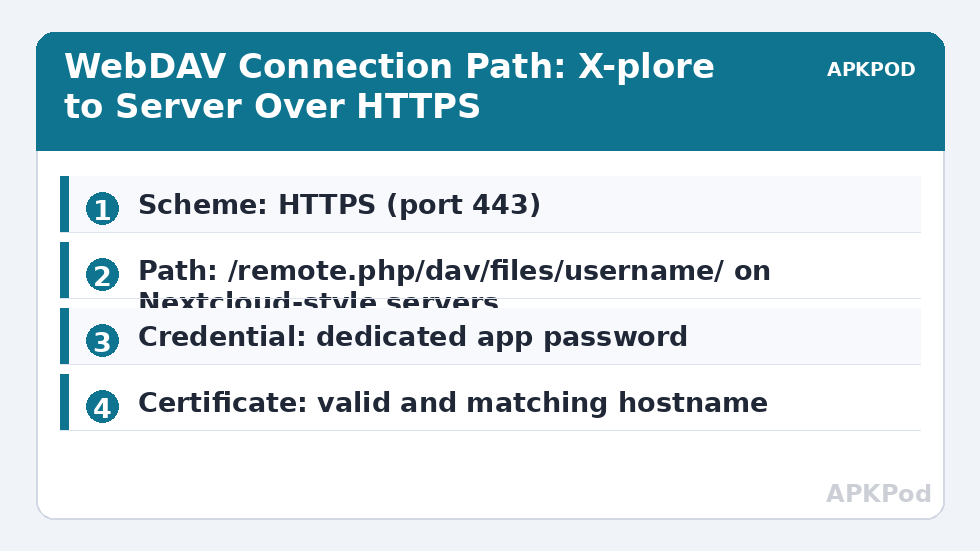
| HTTPS port | 443 | Encrypted WebDAV. The strongly preferred option, everywhere. |
| Server path | /remote.php/dav/files/username/ on Nextcloud-style servers, or a share path on a NAS | The folder root the client will browse. A wrong path is the most common setup error. |
| Authentication | Username plus password or app password | Use an app password where the server offers one, not your main account password. |
| Certificate | Valid, matching the hostname | Self-signed certificates will trigger warnings or outright refusal in many clients. |
How to Configure WebDAV Server Inside Xplore, Step by Step
Start on the server, not the phone. Confirm the WebDAV service is enabled, note its exact address, and create the account the phone will use before you touch X-plore at all. On a NAS, that usually means enabling the WebDAV service in the control panel and checking which port it listens on. On a Nextcloud-style server, WebDAV is built in and the address follows a predictable pattern shown in the web interface’s Files settings. On a general Linux server, it may be provided by a web server module, in which case the path is whatever directory you configured.
- Record the full server address. Write down the scheme (https, not http, wherever possible), the hostname or IP address, the port if it is not the standard one, and the full path to the files root.
- Create a dedicated account. Make a user for phone access with permission only for the folders it needs, and generate an app password if the platform supports it.
- Open the WebDAV entry in X-plore. Add a new WebDAV server from the network storage options, rather than reusing a cloud or FTP entry, which store different fields.
- Enter the address exactly. A missing path segment, a trailing folder that does not exist, or http entered where the server redirects to https will all break the listing.
- Enter the username and app password. Usernames on some servers are case-sensitive, and app passwords are shown once — paste carefully and store the original in a password manager.
- Save and browse before you copy anything large. Open two or three folders, preview a small file, then upload a throwaway file and delete it. That proves read and write permissions separately.
If the folder list loads but uploads fail, you almost certainly have a permissions problem on the server, not an X-plore problem. If nothing loads at all, check the address and path first, then the port, then credentials — in that order, because that is the order of how often each is wrong. Readers working through the wider Network Setup category will recognise that ordering: most connection failures are addressing failures wearing a disguise.
App Passwords, Main Passwords, and Why the Distinction Matters
Nextcloud-style servers and many NAS platforms let you create app passwords: separate, revocable credentials intended for one client or one purpose. Use one for X-plore. If the phone is lost, you revoke that single app password on the server and nothing else changes — your main account, your browser sessions, and your other devices keep working. If you instead typed your main password into the phone, losing the phone means changing the password everywhere.
App passwords also bypass some interactive sign-in steps that a file manager cannot perform, such as a web-based two-factor prompt. That is not a weakening of security when it is done deliberately: the app password is long, randomly generated, scoped to file access, and revocable in seconds. Treat it like a key cut for one door, not like a copy of the master key.
HTTPS Is Not an Optional Extra
Plain HTTP WebDAV sends credentials and file contents without encryption. On a wired home network you fully control, the practical risk is low, but phones rarely stay on one network. A WebDAV entry saved with http will happily try to connect from a café or office network too, exposing the exchange to whoever controls that network. The security doctrine used throughout this site is blunt: never expose FTP, SMB, or plain WebDAV to the open internet, and prefer encrypted protocols even at home. For anything beyond your own LAN, use WebDAV over HTTPS with a valid certificate, SFTP, or a VPN back into your home network.
If your server only has a self-signed certificate, fix the certificate rather than training yourself to ignore warnings. A free, automatically renewed certificate for a hostname you control is standard practice now, and a client that trusts the connection silently is far safer than tapping through a warning every week.
Bottleneck:
Tip:
All figures are estimates under good local conditions — strong signal, no competing traffic, both devices on the same network. Real speeds drop with distance, walls, channel congestion and slow storage on either device. Protocol options (SMB, FTP, SFTP) assume a 5 GHz-class Wi-Fi link.
Performance and Behaviour to Expect
WebDAV is not the fastest local protocol. Each file operation is an HTTP request, so folders containing thousands of tiny files list and copy more slowly than they would over SMB on the same network, where typical local transfer speeds on a healthy Wi-Fi 5 or Wi-Fi 6 link might sit anywhere from roughly 10 to 60 MB/s depending on the router, the phone, and the storage at both ends. For documents, photos, and media libraries, WebDAV is entirely comfortable. For bulk first-time copies of tens of gigabytes, a local protocol or a wired connection to the server may be the better tool, after which WebDAV is ideal for day-to-day access.
Two related guides pair naturally with this one. If your server is actually a Windows PC sharing folders, connecting X-plore to Windows shared folders over SMB is the more direct route, and if the server is a dedicated box, accessing NAS storage from X-plore covers share-level setup. WebDAV earns its place when one address must work for many clients, or when the server is a self-hosted cloud rather than a simple share.
When the Connection Works on Wi-Fi at Home and Nowhere Else
That pattern usually means the address you saved is a private LAN address such as 192.168.1.20, which only exists inside your home network. There is nothing wrong with that if home is the only place you need it — a LAN-only address is a privacy advantage. If you need outside access, use HTTPS with a proper hostname and certificate, or connect through a VPN so the phone behaves as if it were at home.
Frequently Asked Questions
What is the correct WebDAV path for a Nextcloud-style server?
It is typically the server address followed by /remote.php/dav/files/ and your username. The exact address is shown in the Files section of the server’s web interface, and copying it from there is safer than typing it from memory, because one missing segment prevents the folder listing entirely.
Should I use http or https for WebDAV in X-plore?
Use https wherever the server supports it. Plain http sends your password and files unencrypted, which is a poor trade even on a home network and unacceptable on any shared network or across the internet.
Why does X-plore list my folders but refuse uploads?
Listing only needs read permission, while uploading needs write permission on that folder for the account you used. Check the folder permissions and quota on the server, and confirm you are not using a read-only share or a guest account.
Can I use WebDAV instead of a commercial cloud for documents?
Yes, if you are comfortable maintaining the server, its updates, its certificate, and its backups. WebDAV gives you the access pattern of cloud storage while the files stay on hardware you control, but the responsibility for uptime and backup moves to you as well.
Is WebDAV safe to open to the internet through port forwarding?
Only in its encrypted HTTPS form, with strong unique credentials and an up-to-date server — and even then a VPN is the more conservative choice. Never forward plain HTTP WebDAV, FTP, or SMB ports to the internet.