Most people now live in two Google worlds at once. There is the personal account holding family photos, scanned letters and holiday videos, and the work or college account holding shared documents, spreadsheets and files colleagues expect you to handle during the day. Keeping those worlds apart matters: a personal photo uploaded to a work drive by mistake can become an embarrassment, and a confidential work file saved into a personal account can become a genuine data problem for your employer.
X-plore can hold both accounts at the same time, each as its own Web storage entry with its own sign-in token. This guide shows how to add the second account cleanly, how to name and organise the two entries so you never guess which one you are browsing, and how to build small habits that stop cross-account mistakes. If you have not connected Drive at all yet, start from our APKPod homepage guides and the walkthrough on how to link Google Drive, MEGA and OneDrive first, then return here for the two-account setup.
How Two Google Accounts Sit Side by Side in X-plore
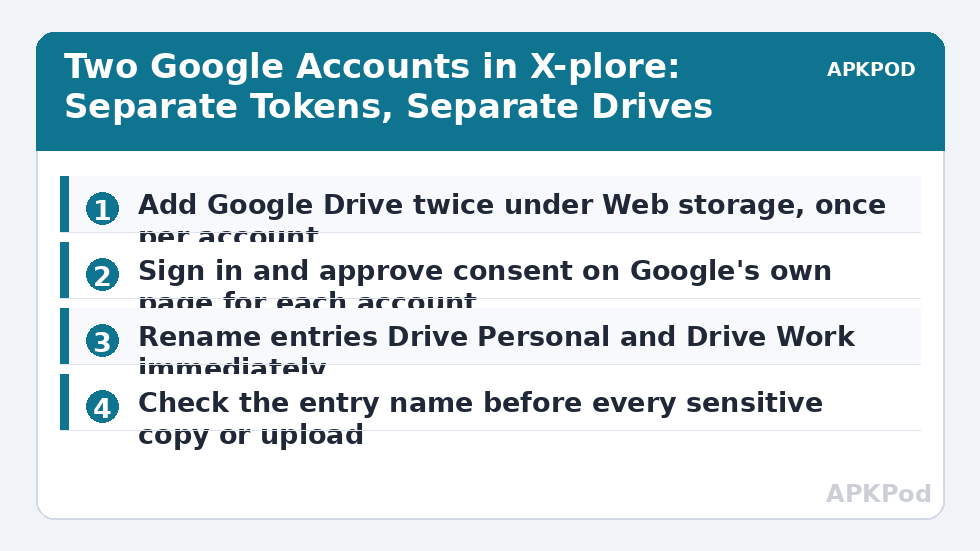
Each time you add Google Drive in X-plore, the app opens Google’s own sign-in page, you choose an account, approve the consent screen, and Google returns an access token for that account only. Adding Drive a second time does not replace the first entry. It creates a second, independent entry with a second token, and the two entries never merge, share folders or see each other’s files.
Before you add the second account
Decide in advance which account is which and what each one is for. A simple rule that works well is: the personal account holds things you own, and the work account holds things your organisation owns. Also check on the Google website that you can sign in to both accounts in a browser. If the work account is managed by an employer or college, its administrator may block third-party apps entirely, and no setting inside X-plore can override that policy.
Adding the second Drive step by step
- Open X-plore, go to Web storage and choose to add Google Drive.
- On Google’s sign-in page, pick the account you have not added yet, or choose Use another account and type its address.
- Read the consent screen, which lists what the app is asking to access, and approve it only if it matches what you expect.
- Wait for the new Drive entry to appear in the X-plore tree, then open it and confirm you can see that account’s folders.
- Repeat a small test: create a harmless test folder in each account and check it appears in the correct account on the Google Drive website.
Bottleneck:
Tip:
All figures are estimates under good local conditions — strong signal, no competing traffic, both devices on the same network. Real speeds drop with distance, walls, channel congestion and slow storage on either device. Protocol options (SMB, FTP, SFTP) assume a 5 GHz-class Wi-Fi link.
Naming and Visual Habits That Prevent Costly Mistakes
Two entries both called Google Drive are an accident waiting to happen. Rename each entry the moment you add it, using names that state the owner plainly, such as Drive Personal and Drive Work. Put the account’s email address in your own notes if the rename field is short, and keep the order consistent: many people keep personal first and work second, on every device, so muscle memory works for them instead of against them.
Check the account before every sensitive copy
Build a two-second habit: before pasting anything sensitive, glance at the entry name at the top of the pane and open a folder you recognise as belonging to that account. In dual-pane work, say the direction out loud in your head, for example phone to Drive Work, before you confirm the copy. It feels trivial until the day it stops you sending a payslip to a family shared folder.
Keep a wall between the two accounts
- Never use one account as a bridge for the other. Copying work files into personal Drive so you can reach them at home may break your employer’s rules even when your intention is innocent.
- Share deliberately, account by account. A file shared from the work account belongs to work sharing rules; check the recipient list before sharing from either entry.
- Download work files only when needed. Every work document left in your phone’s local folders outlives the task it was downloaded for.
These habits pair well with a periodic review. Our cloud security and privacy audit checklist walks you through listing every connected account and removing the ones you no longer need, which is exactly the discipline a two-account setup depends on.
What Happens With Tokens, Sign-Outs and Account Changes
Because each entry holds its own token, signing out of one account leaves the other untouched. If your work password changes, or your employer revokes third-party access, only the work entry will fail, usually with a sign-in or token error. Remove that entry and add it again to get a fresh token; your personal entry keeps working throughout.
| Situation | Personal entry | Work entry |
|---|---|---|
| You change your personal Google password | May need re-adding if Google revokes its token | Unaffected |
| You leave your job or course | Unaffected | Remove the entry and revoke access promptly |
| You get a new phone | Add again and sign in fresh | Add again only if you are still entitled to the account |
| Work admin blocks third-party apps | Unaffected | Cannot connect until the admin allows it |
When a job ends, treat the work entry as borrowed property. Download nothing further, remove the entry from X-plore, and let the organisation handle its own data. Keeping a quiet copy of a former employer’s Drive on your phone helps nobody and can create real liability for you. For the wider question of what happens to tokens when you tidy up, see our companion guide on how X-plore cloud access tokens work and how to revoke them, and for households rather than workplaces, our guide to a family shared cloud folder without sharing passwords.
A Weekly Routine for a Clean Two-Account Life
Once a week, spend two minutes inside each account. Check the work Drive for anything you saved into the wrong place during a busy day, and check the personal Drive for work documents that wandered in. Move strays to their correct home immediately, while you still remember what they are. Once a month, open Google’s security page for each account, confirm X-plore is listed as a connected app you still want, and remove any session or device you do not recognise. Small, regular tidying is what keeps the separation real instead of theoretical.
Handling Shared Drives, Storage Quotas and Notifications
Two details surprise people in the first month. The first is shared material: a folder a colleague shares with your work account appears inside the work entry, not the personal one, because sharing follows the account it was sent to. If a family member shares photos with your personal Gmail address, look for them in the personal entry even if you were browsing the work drive when the invitation arrived. The second is quota: each account has its own storage allowance, and a full work drive says nothing about your personal space. When an upload fails for space, check which account’s quota you are actually spending before deleting anything.
Notifications and recent-file lists on the phone also mix accounts without labelling them clearly. A document preview left in a recent list can reveal a work filename on a personal screen, which is one more reason to download work files only for the task at hand and to clear them when the task ends. Treat the two entries as two filing cabinets in one corridor: sharing the corridor is convenient, but the cabinets still need separate keys, separate labels and separate tidying days.
Frequently Asked Questions
Can X-plore hold two Google Drive accounts at the same time?
Yes. Add Google Drive as a Web storage entry once for each account. Each entry keeps its own sign-in token, so the two accounts appear as separate locations in the tree and never merge or share folders with each other.
How do I stop myself uploading a file to the wrong account?
Rename the entries clearly, such as Drive Personal and Drive Work, keep them in the same order on every device, and glance at the entry name before confirming any copy or upload. A two-second check before sensitive transfers prevents almost every cross-account mistake.
Will signing out of my work account affect my personal Drive in X-plore?
No. Each entry holds an independent token, so removing or re-adding one account leaves the other connected and working. Only the account whose password changed or whose access was revoked needs attention.
My work account will not connect at all. Why?
Many employers and colleges block third-party apps or require administrator approval for them. If Google’s sign-in page mentions policy or an administrator, the block sits in the organisation’s account settings, and only the organisation can allow the connection.
Should I copy work files into my personal Drive as a backup?
No. Work files belong to your organisation and its rules, even when you created them. Copying them into a personal account can breach policy and create problems if you leave. Back up personal files to personal storage, and let work systems back up work files.