When you need to fix cloud file download failure xplore users usually hit, resist the urge to reinstall everything at once. A download that stalls, restarts, or fails near the end is telling you something specific, and the pattern of the failure, the percentage it reaches, the network you are on, whether one file or every file fails, narrows the cause faster than any single setting. Change one thing at a time, retry the same file, and note what changed.
Most interrupted cloud transfers in a file manager come from a short list of causes: an expired or revoked sign-in token, a phone that changed networks mid-transfer, no free space at the destination, Android putting the app to sleep, a corrupted cached partial file, or a limit or problem on the provider’s side. Work through them in the order below, cheapest test first. The order is deliberate, because the most common cause, an authentication token that silently aged out, is also the quickest to prove.
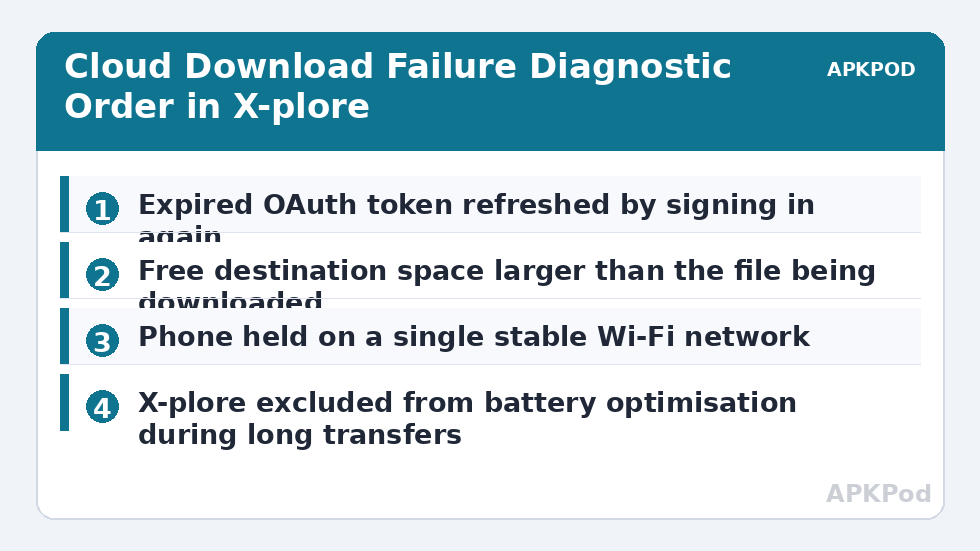
A Diagnostic Order to Fix Cloud File Download Failure Xplore Sessions
- Retry one small file. Pick a file under a megabyte from the same cloud folder. If it downloads cleanly, the connection and account basically work, and the problem is size, sleep, or stability. If even that fails, think account or network, not file size.
- Refresh the folder listing. Pull a fresh listing of the cloud folder. A folder that will not list, or that asks you to sign in again, points straight at the token. Sign out of that cloud account inside X-plore and sign in again through the provider’s OAuth flow.
- Check destination space. A download needs at least the file’s full size free on the phone, plus working room. Videos fail near the end when space runs out during the copy, which looks like a network error but is not.
- Hold the network still. Turn off mobile data for the test or stay firmly on one Wi-Fi network, so the phone cannot hop between Wi-Fi and data, or between two access points, mid-file.
- Keep the app awake. Plug the phone in, keep X-plore in the foreground, and if your version of Android offers it, exclude X-plore from battery optimisation while you run the retry.
- Clear the partial and retry. Delete the incomplete file at the destination, and if failures persist across files, clear X-plore’s cache from Android Settings, then try again before considering anything more drastic.
Matching the Symptom to the Likely Cause
| Symptom | Likely cause | First fix to try |
|---|---|---|
| Every download fails immediately, folder may not list | Expired or revoked OAuth token, or signed in to the wrong account | Sign out of the cloud account in X-plore and complete the provider OAuth sign-in again. |
| Failure near 90 to 100 percent on large files | Destination storage filling up, or the app being put to sleep at the end of a long job | Free space well beyond the file size, plug in, keep the app foregrounded, and retry. |
| Download stalls at the same percentage every time | Corrupted partial file or cache, or a damaged source file | Delete the partial copy, clear the app cache, and test the same file from the provider’s website. |
| Works on home Wi-Fi, fails elsewhere | Network switching, captive portal, or restrictive network | Complete any portal sign-in, stop the phone hopping between networks, or wait for a trusted network. |
| One account fails, others work | Provider-side limit, outage, or that account’s token | Check the provider’s own app and status, re-authenticate that account only. |
| Certificate or secure connection error appears | Date and time errors, or a certificate problem on the connection | Set automatic date and time, then follow the dedicated certificate guide linked below. |
That table also tells you when to stop blaming X-plore. If the same file fails in the provider’s own app and downloads incompletely from the provider’s website on a computer, the problem lives with the file or the service, and no file manager setting will cure it. Note the file name, try again later, and if the file matters, ask the person who shared it to upload a fresh copy.
Bottleneck:
Tip:
All figures are estimates under good local conditions — strong signal, no competing traffic, both devices on the same network. Real speeds drop with distance, walls, channel congestion and slow storage on either device. Protocol options (SMB, FTP, SFTP) assume a 5 GHz-class Wi-Fi link.
Token Trouble, the Quiet Cause Behind Many Failures
Cloud sign-in inside X-plore is OAuth token based. Tokens expire, get revoked when you change a password or review connected apps, or fall foul of a provider changing its API policies or scopes, which has happened repeatedly across the industry. The symptom is rarely a clear message saying your token died. It is vague failures, folders that spin, or downloads that refuse to start. The cure is equally unglamorous: remove or sign out of the account in X-plore, add it again, and complete the provider’s sign-in and approval in full, including multi-factor authentication if asked. The same pattern, worked through in detail for a different provider, is laid out in fixing a Google Drive sign-in error, and the steps transfer directly.
Do not stack accounts while troubleshooting. If you hold two accounts with the same provider, confirm which one owns the file before re-authenticating the wrong one three times. Open the provider’s website, sign in as the account you believe owns the file, and check the file is visible there. That one check eliminates an entire family of confusion, especially with shared files, where a file shared to your second account will never appear under the first.
When the Error Mentions Certificates or Secure Connections
A certificate error is a different animal from a stall, and it should not be waved through. First, check the phone’s date and time are set automatically, because a wrong clock makes valid certificates look expired or not yet valid. Second, be suspicious of the network: a captive portal or an intercepting network can produce certificate warnings that vanish on your home Wi-Fi. Never accept a prompt to ignore a certificate problem just to get a file down. Follow fixing security certificate errors for SFTP and WebDAV for the full reasoning, and keep the wider advice in our Cloud & Security section in mind: a security warning is information, not an obstacle.
If ordinary cache clearing does not shift a persistent failure, read wiping corrupted app cache and logs before you reach for the nuclear option of clearing all app data, because clearing data can remove your configured accounts and settings, and you would then rebuild every cloud connection from scratch. Sometimes that rebuild is genuinely the fix for a deeply confused configuration. Just do it knowingly, with your account details and multi-factor method to hand, rather than discovering the consequences mid-repair.
Preventing the Next Interrupted Transfer
Once the file finally lands, spend two minutes making the next one boring. Download large files at home, on your main Wi-Fi, with the phone charging. Split very large jobs into folder-sized batches and verify each batch before starting the next, so a failure costs you one folder’s time, not an evening’s. Keep a sensible margin of free space on the phone permanently, not just when an error forces you to. Update X-plore and the provider’s own app when updates appear, because token and API behaviour changes arrive through those updates. And when a provider announces API or app-access changes, expect a re-authentication shortly afterwards and do it calmly at home rather than in a hurry on hotel Wi-Fi.
Downloads fail for mechanical reasons far more often than for dramatic ones. A systematic pass, token, space, network, sleep, cache, provider, solves the large majority without reinstalling anything or losing a single setting. The file that finally downloads after that pass is not luck. It is what happens when you fix the cause the symptom was pointing at all along.
Frequently Asked Questions
Why do my cloud downloads in X-plore fail near the end?
The common causes are destination storage filling up during a large file, Android putting X-plore to sleep near the end of a long transfer, or the phone switching networks. Free more space than the file needs, plug the phone in, keep the app in the foreground, and stay on one Wi-Fi network for the retry.
How do I fix a cloud account that suddenly fails every download?
Sign out of that account inside X-plore and sign in again through the provider’s OAuth flow, completing any multi-factor step. Tokens expire and get revoked silently, and re-authentication is the quickest fix. Also confirm you are signed in to the account that actually owns the file.
Is it safe to clear X-plore’s cache to fix download failures?
Clearing the cache from Android Settings is safe and does not remove your accounts or files. Clearing all app data is different: it can remove configured accounts and settings, so treat it as a last resort and be ready to set up your cloud connections again.
What if the same file also fails in the provider’s own app?
Then the problem is with the file or the provider’s service, not with X-plore. Try the file from the provider’s website on a computer, check the provider’s status and your account limits, and if the file is shared with you, ask the owner to upload a fresh copy.
Why do downloads work at home but fail on other networks?
Other networks may use captive portals, restrict traffic, or cause your phone to hop between Wi-Fi and mobile data, any of which interrupts a transfer. Complete any portal sign-in, prevent network switching during the download, or wait until you are on a trusted network for large files.