Small text files run a surprising amount of a phone: application settings exported as JSON, subtitle files, reading lists, automation rules, server addresses and notes to your future self. X-plore’s built-in text editor is exactly the right size for these jobs — quick to open, honest about saving, and close to the file’s real location. It is also powerful enough to break something with one careless character, which is why safe editing is a method, not a mood.
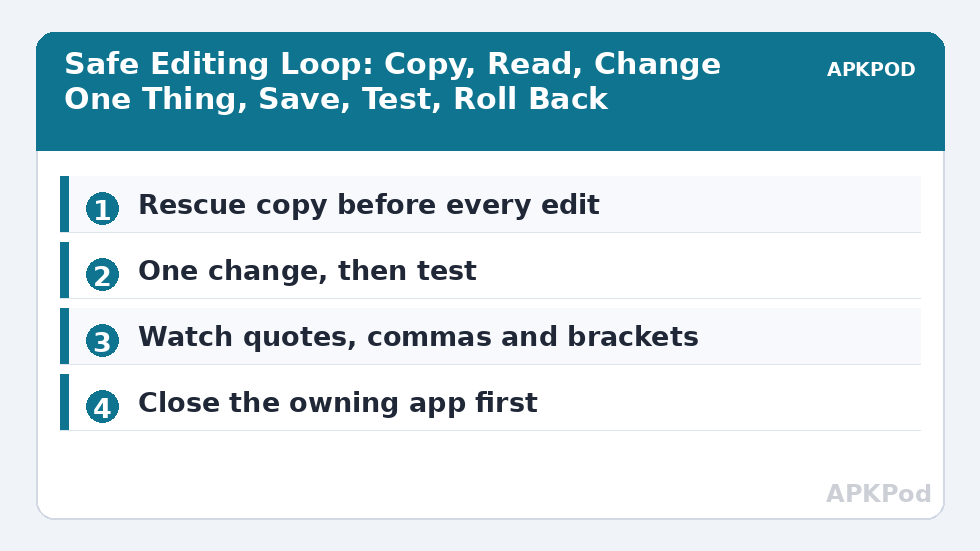
The golden rule is simple: never edit the only copy. Duplicate the file first, edit the duplicate or keep the duplicate as the untouched rescue copy, and test the result before deleting anything. A configuration file is often only a few kilobytes. Keeping a backup costs almost nothing and turns a mistake from a disaster into a two-minute reversal.
This guide builds on the inspection habits in our earlier hex and text introduction, and on the APKPod homepage collection of X-plore workflows. The emphasis here is safety: copies, characters, saving and testing.
Make the Rescue Copy First
Open the folder in one pane and a backup location in the other. Copy the file and rename the copy with a clear suffix or date, such as settings-before-server-change.json or subtitles-original.srt. Names matter because a folder containing file.txt, file-copy.txt and file-new.txt will confuse you at the exact moment you need certainty. State what the backup is and when it was made.
Which Files Are Suitable for the Built-In Editor?
- Good candidates: plain notes, .txt lists, .srt subtitles, simple .json and .xml exports, .ini-style settings, and readable scripts you understand.
- Be cautious: files owned by a running app, files with no extension but structured content, and anything whose format you cannot identify.
- Do not edit as text: photos, videos, archives, APK files, databases and compiled binary files. Opening them as text can look like gibberish because they are not text.
The two-pane rescue-copy setup follows the same source-and-destination logic as our dual-pane copy and move basics, and a growing collection of configuration backups can be audited later with Disk Map. If you are unsure what a file is, inspect it before editing. A viewer or hex view can reveal whether the beginning is readable text or a binary signature. That check takes seconds and prevents the most damaging misunderstanding in file management: treating a database or archive as if it were a note.
Open, Read, Then Edit
Long-press the file or use the menu to open it as text, choosing X-plore’s editor when offered. Read the whole file before changing a line, or at least read the section around your target plus the beginning and end. Configuration files often repeat a setting, define it in more than one place, or include an example line that looks real but is commented out. Editing the first match you see is a classic way to change nothing except your confidence.
Characters That Deserve Respect
| Character or feature | Why it matters | Safe habit |
|---|---|---|
| Quotation marks | JSON and many configs pair them strictly | Change the value, keep both quotes |
| Commas and brackets | They separate and close data structures | Count opening and closing brackets after an edit |
| Hash or semicolon | Often marks a comment line | Do not assume the line is active |
| Line breaks | Subtitles and scripts depend on them | Avoid joining lines unless you mean to |
| Encoding | Accented characters can break in the wrong encoding | Reopen and check names after saving |
Make one change at a time when the file controls something important. Change a server port, save, test. Then change a timeout, save, test. If you alter five values and the app fails, you have five suspects. If you alter one, you have an answer. This discipline feels slow until the first time it saves you an evening.
Saving Without Traps
Save in the editor, then reopen the file to confirm the change is present and the surrounding text still looks sane. Watch for two traps. The first is a file extension added or changed by habit: a subtitle saved as .txt may no longer be picked up by the player, and a JSON file saved without its extension may be ignored by the app that imports it. The second is location: if you opened a file from inside an archive or a temporary preview, saving may not mean what you expect. Edit files in ordinary folders whenever possible.
Where the app that owns the file is running, close it before editing and keep it closed until you reopen the edited file to test. Apps can overwrite external changes with their in-memory state on exit, which leads to the baffling experience of a correct edit that vanishes. Our guidance on using the Open-With picker without breaking defaults helps when the wrong editor or viewer keeps claiming these files.
Bottleneck:
Tip:
All figures are estimates under good local conditions — strong signal, no competing traffic, both devices on the same network. Real speeds drop with distance, walls, channel congestion and slow storage on either device. Protocol options (SMB, FTP, SFTP) assume a 5 GHz-class Wi-Fi link.
Testing and Rolling Back
Test the smallest observable behaviour. If you changed a subtitle, play the exact line. If you changed an exported setting, import it or restart the owning app and look at the relevant screen. If you edited a list, open it in the app that consumes it. Only after the test passes should the backup be retired, and even then many people keep the previous version until the next successful change.
Rollback is equally deliberate. Close the owning app, delete or rename the failed edit, and restore the backup’s original name and location. Then reopen and test the restored state. Restoring a backup while an app is running can repeat the overwrite problem in reverse, so sequence matters as much as the file itself.
A Worked Example: Fixing a Subtitle Line
Suppose one subtitle line shows a wrong name at 00:14:32. Copy movie.srt to movie-original.srt in the other pane. Open movie.srt as text, find the timestamp block, change only the name, and preserve the line break before the next block. Save, reopen to check the spelling, then play the film around that timestamp. The whole job takes minutes, and if the player dislikes the edit, the untouched subtitle is one copy away. The same pattern scales to the tidy archive habits in sorting and view modes and to comparing destinations before a move in the internal-to-SD safety guide.
Root-Owned and App-Private Files
On an unrooted phone, many app-private files cannot be reached at all. On a rooted device, reaching them does not make editing them wise. Leave system configuration alone unless you know the owning service, the exact syntax and your recovery route. The editor is a scalpel for your own documents and exported settings, not a dare directed at the operating system.
Edit small, copy first, test immediately: three habits that make a modest built-in editor entirely trustworthy.
Keep a Small Editing Log for Repeated Files
Some files return for editing again and again: a server list, a set of subtitle preferences, a configuration you adjust for travel and then restore at home. For those, keep a plain note — in the same folder or in your notes app — recording the date, the setting changed, the old value and the new one. The rescue copy protects the file; the log protects your memory of why the file looks the way it does.
The log also settles arguments with your past self. When an app behaves oddly in November, a line written in September saying the timeout was raised for a slow hotel network explains the mystery in seconds. Without it, people restore an old backup and silently lose three later, deliberate changes. Two lines per edit is enough. Brevity is what keeps the habit alive.
Store the log as ordinary text, never inside the configuration file itself as stray comments unless the format is known to tolerate them. Some parsers are forgiving about extra lines and some are not, and an editing note should never become the reason the file it describes stops loading.
Frequently Asked Questions
How do I edit a text file in X-plore safely?
Copy the file first and give the copy a clear dated name. Open the original as text, make one change, save, reopen it to check, and test it in the app or player that uses it before deleting the backup.
Which file types can X-plore’s text editor handle?
Plain-text formats such as .txt, .srt, readable .json, .xml and simple configuration files are suitable. Photos, archives, APKs, databases and other binary files are not text and should not be edited this way.
Why did my edited configuration file stop working?
Common causes are a removed quotation mark, bracket or comma, a changed file extension, or the owning app overwriting your edit because it was still running. Restore the backup, close the app, and make one change at a time.
Why do accented characters look wrong after I save?
That usually indicates a character encoding mismatch. Reopen the file, check the affected names or lines, and save or convert the file in the encoding the receiving app expects, commonly UTF-8.
Can I edit system files with X-plore’s editor?
On a rooted device some system files are reachable, but reach is not a recommendation. Only edit files whose owner, syntax and recovery method you understand, and keep a verified backup outside the edited folder.