Split-screen is where a file manager stops being a place you visit and becomes a tool you keep beside the real work. Put X-plore in one half of the screen and a browser, email app, notes app or media player in the other, and questions that normally need constant switching stay visible together: the attachment name beside the message asking for it, the download beside the web page that produced it, the document beside the notes you are writing about it.
Android’s split-screen behaviour is set by the system and the other app, not by X-plore alone. Some apps support resizing well, some insist on a minimum size, and some refuse split-screen altogether. X-plore’s dual panes add a second kind of division inside its own half, so on a tablet you can end up with three useful views: two file panes and the companion app. On a small phone, restraint works better: one clear task per side.
Start from the APKPod homepage if you are building this into a wider X-plore routine, and remember the pane basics from our dual-pane interface guide before adding a second app to the screen.
Starting Split-Screen the Android Way
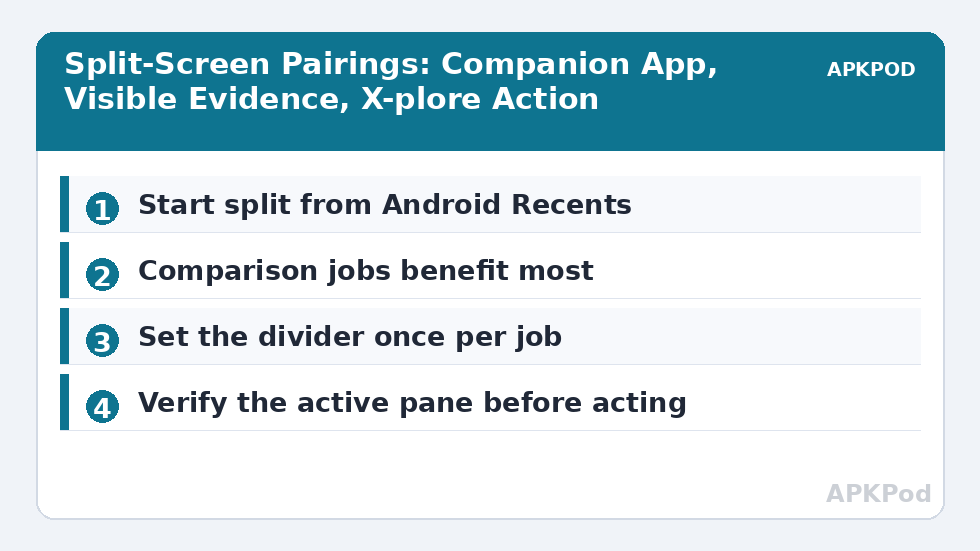
Open X-plore first and navigate to the folder involved in the job. Then open Android’s Recents screen, tap the X-plore app icon or menu, and choose the split-screen option if your device offers it. Select the second app from Recents or the app drawer prompt that follows. The exact labels differ between manufacturers, but the sequence is consistent: choose the first app for split, then choose its partner.
Which App Should Go First?
Put the app you will touch less often in the smaller portion when resizing is available. For an email attachment check, X-plore may need only a narrow strip showing file names while the message gets the reading space. For a photo selection job, X-plore deserves the larger share and the chat app can wait in a narrow column. On foldable phones and tablets, experiment with the divider once, at the start, rather than dragging it every few minutes.
- Browser plus X-plore: confirm a download finished, compare its size with the website’s stated size, then rename it sensibly.
- Email plus X-plore: check the exact attachment name, date and size while reading the request that mentions it.
- Notes plus X-plore: write a folder inventory or archive list without memorising names between switches.
- Player plus X-plore: test a video or audio file while its folder and possible duplicates remain visible.
- Gallery plus X-plore: compare what the gallery shows with the actual files, including items hidden from media scans.
Workflows That Genuinely Benefit
The best split-screen jobs share one trait: information must be compared across apps. Renaming downloads from a receipt is a good example. The browser or email shows the supplier, order reference and date; X-plore shows a file called document-final2.pdf. With both visible, you can rename it to a meaningful name without guessing. Pair that with the naming discipline in our batch rename guide when a whole set of files needs the same treatment.
A Worked Example: Course Materials
Imagine a course page lists twelve readings by week, while Downloads holds twelve PDFs with unhelpful names. In split-screen, scroll the course list in one half and rename each PDF in X-plore as its week becomes clear. Work top to bottom, tick nothing mentally that you have not actually renamed, and finish by sorting the folder by name. The visible list is your checklist. Without split-screen, the same job becomes a memory test and errors creep in by the fourth file.
| Pairing | Visible in the other app | Action in X-plore |
|---|---|---|
| Requested filename and deadline | Locate, check size, share the right version | |
| Browser | Download page and stated file size | Verify completion and rename |
| Notes | Archive checklist | Copy items and tick them off as verified |
| Calendar | Trip or event dates | Group related documents into one folder |
Living With Two Panes Inside Half a Screen
X-plore’s own two panes can feel crowded in a narrow split, especially in portrait. Rotate to landscape on phones, use a compact list where detail allows, and consider working with one dominant folder rather than constantly rearranging both panes. On tablets and Chromebooks the constraint mostly disappears, but the organisational rule remains: decide which pane is source and which is destination before selecting files. Split-screen adds a companion app; it does not change the grammar of a copy or move.
If text becomes too small, do not struggle on. Enlarge X-plore’s share temporarily for the selection step, then give reading space back to the companion app. Split-screen is adjustable during a job on most devices, and using the divider deliberately is part of the technique.
Bottleneck:
Tip:
All figures are estimates under good local conditions — strong signal, no competing traffic, both devices on the same network. Real speeds drop with distance, walls, channel congestion and slow storage on either device. Protocol options (SMB, FTP, SFTP) assume a 5 GHz-class Wi-Fi link.
Dragging, Sharing and Their Limits
Do not assume you can drag a file from X-plore into every other app. Drag-and-drop support depends on Android version, the receiving app and the device maker. The dependable route is the system Share sheet or the other app’s own attach picker, covered in depth in sharing files from X-plore to any app. Use split-screen to prepare and verify the file, then share it through the supported route while the context is still visible.
Likewise, some apps open in split-screen but pause, resize poorly or hide controls. That is a limitation of the pairing, not a file problem. Switch that job back to full-screen X-plore, finish the file work, and return to the companion app afterwards. A workflow that fights the device is not a productivity trick.
Tablets, Foldables and Chromebooks
Larger screens reward a calmer layout. Keep X-plore on the side where your hand or pointer naturally works, keep reference material opposite, and use the extra width for detailed list views rather than more clutter. Foldables can change shape mid-job when opened or closed, so check your selection after any posture change. If you use a keyboard with these devices, the companion guide on Bluetooth keyboard shortcuts for X-plore adds navigation habits that make split-screen feel even less like a compromise.
End split-screen when the comparison ends. Full-screen focus is still the right mode for large transfers, careful deletions and reading long documents. Use each layout for the work it suits.
A Simple Routine for Trying Split-Screen Well
If split-screen has always felt cramped, give it one fair trial with a job designed for it rather than judging it on a random attempt. Choose the course-materials task or an email attachment check, set the phone in landscape or open the tablet, and arrange the divider before selecting any file. Work for fifteen minutes without switching to full screen, even if the first minutes feel slower. New layouts always tax the first session; the comparison habit is what you are practising, not raw speed.
Notice where your eyes go. If you keep enlarging the same side, that app is the primary tool for this job and should start with more space next time. If you keep losing track of which X-plore pane is active, shrink the companion app for the selection phase and restore it for reading. These small observations become your personal layout rules, and they transfer to every future pairing.
End the trial by asking one blunt question: did seeing both apps at once prevent an error or a switch that would have cost more time than the smaller screen did? For comparison jobs the answer is usually yes. For reading, editing or a large transfer it may honestly be no, and knowing that boundary is exactly what makes the feature useful rather than a novelty you force onto every task.
Frequently Asked Questions
How do I open X-plore in split-screen on Android?
Open X-plore, go to Android Recents, tap the app icon or menu for X-plore, choose split-screen if offered, and then select the second app. Exact labels vary by manufacturer, but the sequence is the same.
Can I drag files from X-plore into another app in split-screen?
Sometimes, but support depends on Android, the device and the receiving app. The reliable method is to prepare the file in X-plore and use the Share sheet or the other app’s attach picker to send it.
Why does the other app refuse to open beside X-plore?
Some apps do not support split-screen or require a minimum window size. That limitation belongs to the app or device, not to your files. Use those apps full screen and switch back to X-plore afterwards.
Is split-screen useful on a small phone or only on tablets?
It is useful on phones for short comparison jobs in landscape, such as renaming a download while reading a receipt. Tablets, foldables and Chromebooks simply give both apps more comfortable room.
Does split-screen change how X-plore copy and move work?
No. X-plore’s active pane is still the source and the other pane is still the destination. Split-screen only adds a companion app beside X-plore; it does not change file operations.