A media drive that only appears after you crawl behind the television to replug it is a drive you will stop using, which is why owners work to setup auto mounting usb drive boot android tv behaviour that is boringly reliable: turn the TV on, and the drive is simply there, in X-plore File Manager and everywhere else. Android TV normally mounts attached USB storage automatically at boot — when it does not, the cause is almost always the drive’s state, the TV’s power habits, or the order in which devices wake up, not a missing setting with that name. This guide explains how mounting actually works on TV builds, what “auto-mount” can and cannot be configured, and the fixes that make a permanently attached drive behave like internal storage.
How Mounting Works (and Why There Is No Magic Toggle)
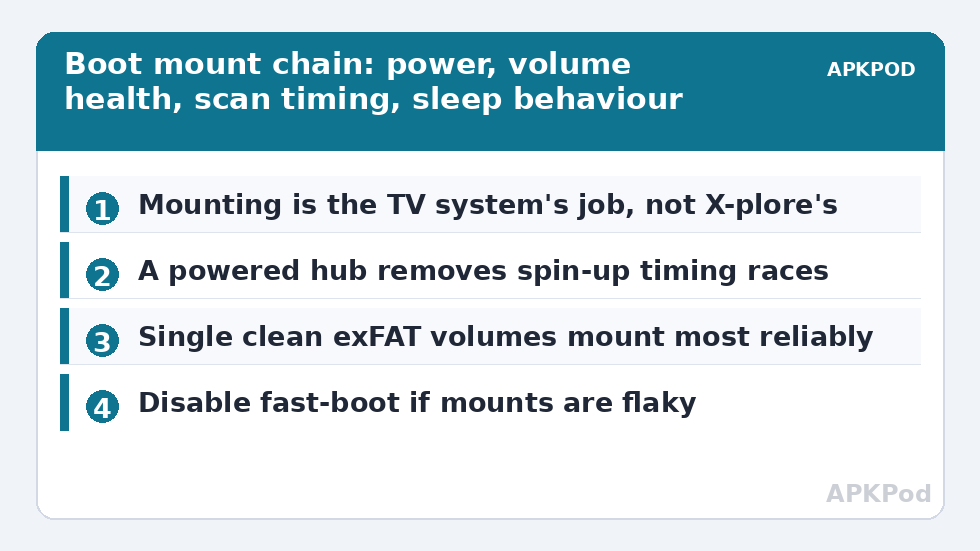
When an Android TV boots or a drive is inserted, the system’s volume daemon detects the device, checks its partition and file system, mounts it under /storage, and announces it to apps. X-plore then shows it as a root entry. There is no user-facing “auto-mount” switch in X-plore or in standard TV settings because mounting is the operating system’s job, not the app’s. So when a drive “fails to auto-mount”, one of these is true:
- The drive was not electrically present when the TV scanned (slow spin-up, a hub that woke late, a port that loses power in standby).
- The volume was flagged dirty from an unclean removal, and the system refused it pending a check.
- The file system or partition layout is one the TV mounts reluctantly or only on manual browse.
- The TV’s fast-boot/resume mode never truly reboots, so a drive that dropped off is never rescanned.
Each cause has a different cure, which is why the fixes below are ordered from the physical layer upwards. If the drive is never recognised even when hot-plugged, stop and work through the unrecognised-drive triage first — auto-mount tuning assumes a drive the TV can mount when asked.
Fix 1: Give the Drive a Head Start (Power and Order)
Spinning hard drives take seconds to become ready; a TV that scans USB in the first moments of boot can simply miss one. Practical remedies, in order:
- Powered hub between TV and drive. The hub is awake instantly, keeps the drive powered through TV sleep on many sets, and eliminates the spin-up race. This single change resolves most boot-mount complaints — the power reasoning is the same as in connecting external drives to Android TV.
- Flash drives and SSDs wake almost instantly and rarely race; if a HDD is chronically missed at boot and a hub does not cure it, moving the always-attached library to an SSD does.
- Full restart vs sleep: many TVs “power off” into a resume state. If the drive dropped during the day, a true restart (Settings → Restart, or unplug for 30 seconds) forces a clean rescan that sleep-wake never performs.
Fix 2: Make the Volume Boring (Clean, Single, exFAT)
The system mounts a healthy single-partition exFAT volume without drama. Drives formatted on the TV itself, or prepared as one clean exFAT partition on a PC per the formatting guide, mount most reliably; multi-partition and recorder-formatted drives are the ones that need manual coaxing. Always eject the drive from a PC properly and from the TV’s storage settings before unplugging — a dirty volume flag is the silent cause of “it worked yesterday, invisible today”. If X-plore shows the drive but a media app does not, the mount is fine and the app lacks permission — check its storage grant, and for folder-level blocks use the SAF permission fix.
Fix 3: Keep the Mount Alive (Sleep and Power Settings)
Appearing at boot is only half the contract; staying mounted through a film matters too. Audit these TV behaviours:
| Setting/behaviour | Effect on USB drives | Recommended |
|---|---|---|
| USB power in standby (if offered) | Cuts port power when the TV sleeps; drive must remount on wake | Keep powered, for always-attached drives |
| Fast start / quick boot | Resumes without rescanning devices | Disable if mounts are flaky, accept slower starts |
| Screen-off timers during playback | Sleep mid-copy corrupts transfers | Extend or disable while reorganising libraries |
| Per-app battery optimisation for X-plore | Can kill long copies in background | Exclude X-plore on sets that offer the control |
After any change, test the realistic cycle: restart the TV, wait two minutes, open X-plore, and confirm the drive is present; then play a file from it, let the TV sleep overnight, and confirm it again in the morning. Certainty beats optimism here. Permanently attached drives also benefit from the housekeeping in the Smart TV storage management checklist, and adopted-storage drives (a different mechanism, where the drive becomes part of internal storage) follow the rules in expanding TV storage with a USB drive instead.
Verifying Your Library Is Where You Left It
Once the drive mounts reliably at boot, a weekly glance in X-plore — drive present, free space sane, a recent file plays — keeps small problems from becoming library losses. If you periodically mirror the drive’s contents to a PC or NAS as insurance, that job is worth timing so it does not run into viewing hours:
Bottleneck:
Tip:
All figures are estimates under good local conditions — strong signal, no competing traffic, both devices on the same network. Real speeds drop with distance, walls, channel congestion and slow storage on either device. Protocol options (SMB, FTP, SFTP) assume a 5 GHz-class Wi-Fi link.
Setup Auto Mounting USB Drive Boot Android TV: The Morning Test
Certify any auto-mount fix with a named ritual rather than a feeling: the morning test. After changing anything — hub, settings, drive, format — let the TV sleep overnight in its normal pattern. In the morning, before opening any other app, open X-plore and check three things: the drive is listed, its free space matches last night’s figure (proving it is the same mount, not a rescan), and one file plays. Pass all three on two consecutive mornings and the configuration is done; fail any one and you have a specific symptom to take back to the fix sections instead of a vague sense that the TV is “flaky about USB”.
Expect to re-run the morning test after television firmware updates and after any power cut long enough to drain the hub — both shuffle the boot-order deck again. Households that adopt the test stop having USB mysteries entirely, because every regression is caught the morning it is introduced, while the change that caused it is still obvious. That test-and-verify instinct is the through-line of our TV & Storage guides.
If a drive passes the morning test twice and still occasionally vanishes mid-week, look at the household’s power reality before the software: televisions and hubs on a strip that gets switched off at night reset the mount lottery daily, and the fix is a different socket, not a different setting.
Frequently Asked Questions
Is there an auto-mount setting inside X-plore?
No, because mounting belongs to Android TV itself, not to apps. X-plore displays whatever the system has mounted. When a drive is missing, fix power, volume health or the TV’s boot behaviour — reinstalling or reconfiguring X-plore cannot mount a drive the system skipped.
Why does my drive mount when I replug it but not at boot?
Timing. The drive (especially a spinning HDD) was not ready when the TV scanned USB during boot, or its hub woke after the TV did. A powered hub that stays awake, or a faster SSD, removes the race.
The drive disappears every time the TV sleeps. How do I stop that?
Look for a USB-power-in-standby option in the TV’s power settings and keep the port powered; if none exists, a powered hub achieves the same effect by keeping the drive alive independently of the TV.
Will a dirty or previously uncleanly removed drive auto-mount?
Often not — the system refuses volumes flagged as needing a check. Connect the drive to a PC, run its disk check, eject it properly, and the TV will usually mount it at the next boot without complaint.
Do adopted (device) storage drives need auto-mount fixes?
Adopted drives are handled by a different mechanism and are expected at every boot; if an adopted drive stops appearing, that signals drive or encryption problems rather than mount timing — back up what you can through X-plore immediately, because adopted volumes fail hard.