Not every cloud service gets a tidy built-in button in every file manager, and the two services in this guide are the classic examples. If you want to access yandex disk pcloud xplore gives you a route that does not depend on either company maintaining a special integration: WebDAV. Both Yandex Disk and pCloud support WebDAV access, and a WebDAV connection set up once keeps working through app updates that break flashier integrations.
That framing matters, so it comes first: direct, named integrations for specific providers vary by app version and region, and they come and go. WebDAV is the durable method. This guide shows the connection details for each service, the credential each one expects — they differ, and mixing them up is the main cause of failure — and how the dual-pane view turns two lesser-known clouds into fully usable storage.
Access Yandex Disk pCloud Xplore: Two Services, One Protocol
Yandex Disk is the storage service from Yandex, widely used in its home markets, with a free tier that has historically been moderately sized. pCloud is a Swiss-based provider known for lifetime-plan offers alongside subscriptions. What unites them for a file-manager user is standards support: each publishes a WebDAV endpoint intended for third-party clients, which is exactly what X-plore’s WebDAV storage option consumes.
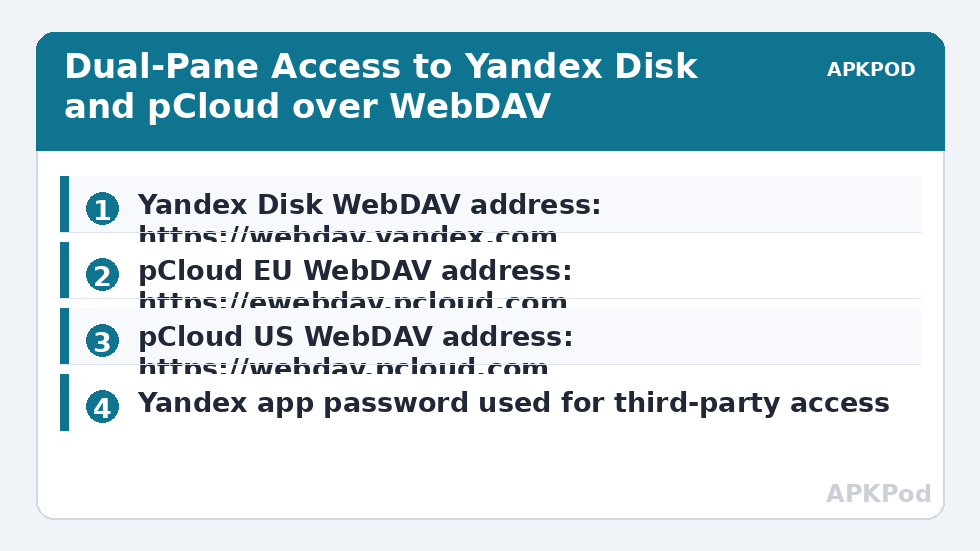
| Service | WebDAV address | Credential to use |
|---|---|---|
| Yandex Disk | https://webdav.yandex.com | Your Yandex account login, with an app password if the account requires one for third-party access |
| pCloud (European data region) | https://ewebdav.pcloud.com | Your pCloud account email and password |
| pCloud (US data region) | https://webdav.pcloud.com | Your pCloud account email and password — use the endpoint matching the region your account was created in |
The pCloud region point catches people out. Accounts are created in a specific data region, and the WebDAV address differs between them. If your credentials are correct but the connection fails or shows an empty account, trying the other region’s endpoint is a legitimate diagnostic step — your files live in one region only. Yandex has no such split; the single address above is the one to use.
Credentials: Where Each Service Differs
For pCloud, the WebDAV login is normally your account email and password. If you signed up through a third-party identity button and never set a pCloud password, set one in the account settings first — WebDAV needs a password it can check, and a social login alone does not provide one.
Yandex has tightened third-party access over the years, and accounts may require an app password for external applications rather than the main account password. If your main password is rejected by the WebDAV login, generate an app password in your Yandex account’s security settings, name it for this device, and use that in X-plore instead. This is the same pattern recommended for self-hosted servers in this cloud security category: per-device credentials that can be revoked without disturbing the main account.
In both cases, enter credentials only into X-plore’s own storage form over the https addresses above. A WebDAV login prompt that appears somewhere unexpected — a web page, a message link — is not a place your cloud password belongs.
Bottleneck:
Tip:
All figures are estimates under good local conditions — strong signal, no competing traffic, both devices on the same network. Real speeds drop with distance, walls, channel congestion and slow storage on either device. Protocol options (SMB, FTP, SFTP) assume a 5 GHz-class Wi-Fi link.
Adding Each Account in X-plore
- Prepare the account in a browser first. Confirm you can sign in, set a password if the account only has a social login, and create an app password for Yandex if its security settings require one.
- Add a WebDAV storage location in X-plore and enter the service’s address from the table — for pCloud, the endpoint for your account’s region.
- Enter the username the service expects: your Yandex login for Yandex Disk, your account email for pCloud, plus the password or app password as appropriate.
- Save, open the location, and test both directions with one small file: download it, upload another, and confirm in the service’s web interface that the upload arrived.
- Repeat for the second service, giving each location a clear name so the dual pane never leaves you guessing which cloud you are looking at.
With both added, the workflow that makes X-plore valuable appears: open Yandex Disk in one pane and pCloud in the other, and copy directly between them through the phone. The same technique generalises to any pair of accounts, as the guide to transferring files between cloud drives explains in full.
Working Habits for WebDAV-Based Clouds
WebDAV connections are dependable but not identical to a provider’s own app, and three expectations keep the experience smooth. First, speed depends on your connection and the service’s WebDAV performance; large batches are best run on Wi-Fi, in the foreground, in sensible chunks rather than one enormous operation. Second, streaming media directly from a WebDAV location works when the connection is strong, but for offline viewing, download deliberately — the guide to streaming cloud movies without downloading covers where that line sits in practice. Third, provider-specific features — shared-link controls, version history, pCloud’s built-in media or crypto offerings — live in each service’s own app and website, not in a WebDAV view. X-plore shows you files; account features stay with the provider.
Storage organisation carries over unchanged: keep the same folder structure you use on your other clouds, prune trash on the provider side when quotas feel tight, and remember that free tiers change. Treat any quota figure, including ones mentioned in guides like this, as a snapshot to verify in your account, not a promise.
One more naming habit pays off over time. Give the two locations distinct, explicit names inside X-plore — “Yandex – personal” and “pCloud – archive”, for example — rather than accepting defaults that differ by a single character. In a dual-pane view, most costly mistakes are not technical at all: they are uploads sent to the wrong cloud, deletions made in the wrong pane, and duplicates created because two similar-looking folders were confused at a glance. Clear names, and pausing to read the pane header before confirming a move or delete, prevent nearly all of them.
When a Connection Stops Working
Diagnose in this order. Credentials first: passwords change, app passwords get revoked, and an account that enabled stronger security may start refusing the old login — re-check by signing in to the web interface. Region second, for pCloud: confirm you are using the endpoint for the region the account belongs to. Address third: the Yandex and pCloud endpoints above contain no account-specific path, unlike self-hosted servers, so a typo is the likely fault if the address was edited. Certificate warnings last: a genuine endpoint presents a valid certificate, so treat a warning seriously rather than tapping through — the certificate error guide for SFTP and WebDAV explains how to judge what you are seeing.
If everything checks out and the service’s own status or support pages report an outage, wait. WebDAV endpoints go down with the rest of a service, and no amount of re-entering passwords fixes someone else’s server.
Frequently Asked Questions
Does X-plore have built-in Yandex Disk and pCloud integrations?
Direct integrations vary by app version, but the reliable and durable method is WebDAV, which both services officially support. Adding each service as a WebDAV location in X-plore gives you full file access that does not depend on a provider-specific integration remaining available.
Which WebDAV address should I use for pCloud?
Use https://ewebdav.pcloud.com if your account is in the European data region and https://webdav.pcloud.com if it is in the US region. Accounts exist in one region only, so if correct credentials fail against one endpoint, the other region’s address is the first thing to try.
Why does Yandex Disk reject my main account password in X-plore?
Yandex may require an app password for third-party access instead of your main password. Generate one in your Yandex account security settings, name it for this device, and enter it in X-plore. This also lets you revoke the phone’s access later without changing your main password.
Can I copy files directly between Yandex Disk and pCloud in X-plore?
Yes. Open one service in each pane of the dual-pane view and copy or move as you would between any two locations. The files pass through the phone, so use Wi-Fi for large batches and keep the operation in sensible chunks.
What should I check first if a working connection suddenly fails?
Start with credentials — sign in to the service’s web interface to confirm the account and password state — then verify the WebDAV address and, for pCloud, the data region. If those are correct and the service reports problems on its side, the fault is not in your setup.