A television with 8 or 16 GB of internal storage runs out of room the moment you start keeping local media, which is why learning to connect external usb hard drive android tv xplore workflows matters more than any other TV file skill. A spare flash drive or a 2 TB portable hard disk turns the TV into a small media vault — but only if the drive is formatted in a file system the TV can read, powered correctly, and mounted where X-plore File Manager can see it. This guide covers the physical connection, the format question that decides success or failure, and what to do with the drive once it appears in X-plore’s device list.
Choosing and Connecting the Drive
Almost every Android TV device — Chromecast with Google TV, Nvidia Shield, Mi Box, and Android TV televisions from Sony, TCL and Hisense — exposes at least one USB-A port, and many TVs add a second. Three hardware realities decide whether your drive works at all:
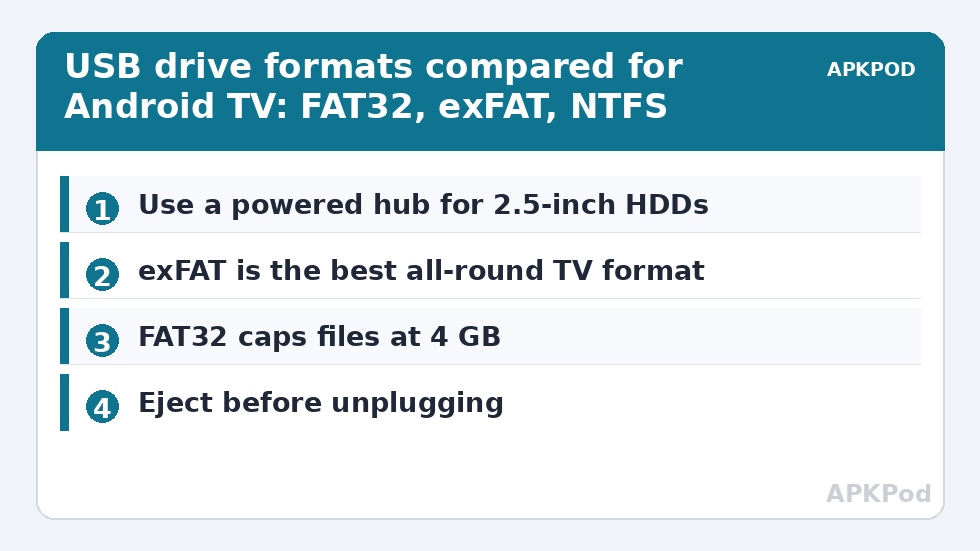
- Power. Flash drives sip power and work anywhere. A 2.5-inch portable hard drive usually runs from a single USB port, but some TV ports supply only 500 mA; a drive that clicks or repeatedly disconnects needs a powered USB hub or a Y-cable drawing from two ports.
- Hubs and docks. The Chromecast with Google TV has no USB-A port at all — you need a USB-C hub with power delivery pass-through. Use a reputable hub; cheap ones drop the Ethernet and storage under load.
- 3.5-inch desktop drives always need their own mains adapter; the TV cannot power them.
Plug the drive in with the TV on, wait ten seconds, and Android TV usually shows a notification that a USB device was detected. Do not format anything yet if the system offers — first check whether X-plore can already read the drive as-is.
The Format Question: FAT32, exFAT and NTFS on TV Hardware
File system support is decided by the TV’s firmware, not by X-plore — X-plore reads whatever the system mounts, and can add its own access for some drives. The practical picture:
| File system | Read on most Android TVs | Write from X-plore | File size limit | Notes |
|---|---|---|---|---|
| FAT32 | Yes, universally | Yes | 4 GB per file | Safest choice for compatibility; useless for full-length 4K rips |
| exFAT | Yes on Shield, Google TV and most recent sets | Usually yes | Effectively none | Best all-round choice for media drives |
| NTFS | Yes on Shield and many TVs | Varies — read-only on many models | Effectively none | Fine for a drive you fill from a PC and only play from on TV |
| ext4 / HFS+ | Rarely | Rarely | — | Drives formatted by a Mac or Linux DVR often appear “unsupported” |
If the drive was previously used as adopted storage on another Android device, or formatted by a satellite receiver, the TV will likely offer to format it — that erases everything, so copy the contents off on a computer first if they matter. When you do need to reformat, our step-by-step on formatting external USB drives to FAT32 or exFAT inside Android TV covers the safe order of operations.
Finding and Using the Drive Inside X-plore
Open X-plore and look at the root of either pane: mounted USB storage appears as its own entry (labelled by volume name or as a USB/OTG device) alongside Internal storage. From there the dual-pane model pays off — put the USB drive in the left pane and Internal storage or a LAN share in the right, and you can copy in both directions without changing screens. Typical jobs that become trivial:
- Copying a film from the USB drive to internal storage so it plays even if the drive is later removed.
- Moving downloaded files from internal storage out to the drive to relieve a nearly full TV — see also troubleshooting storage-full errors on 8 GB TV boxes.
- Playing media directly from the drive: X-plore hands video files to your chosen player, so a 2 TB drive becomes a no-network movie library.
Transfer speeds on TV USB ports are modest. USB 2.0 ports — still common on televisions — typically deliver 15–30 MB/s in real copies, so a 10 GB file takes roughly six to eleven minutes. Before starting a big move, it is worth estimating the time so you do not interrupt it halfway:
Bottleneck:
Tip:
All figures are estimates under good local conditions — strong signal, no competing traffic, both devices on the same network. Real speeds drop with distance, walls, channel congestion and slow storage on either device. Protocol options (SMB, FTP, SFTP) assume a 5 GHz-class Wi-Fi link.
Making the Drive Stay Mounted and Behave
Two settings prevent most USB annoyances on TV. First, in the TV’s Settings → Device Preferences → Storage (wording varies), confirm the drive shows as connected and note whether the system mounted it as removable storage. Second, disable aggressive sleep for the USB port if your TV offers it; some sets cut port power in standby, which makes the drive vanish and re-scan on every wake, occasionally corrupting a copy that was in progress when the TV slept. If the drive disappears and reappears randomly under load, suspect power before software — a powered hub cures more “faulty drive” reports than any app setting. For drives that never appear at all, our guide to fixing an unrecognised USB drive on Android TV works through the detection chain in order. And if you would rather the TV treat a fast flash drive as an extension of internal storage instead of a removable disk, that is a different mechanism entirely — covered in expanding Android TV internal storage with a USB drive.
Connect External USB Hard Drive Android TV Xplore Jobs: A Pre-Flight Check
Before a drive becomes your TV’s library, give it ten honest minutes. On a PC, check its health (the drive maker’s diagnostic, or at minimum the operating system’s disk check) and clear any file-system errors, because a drive that arrives dirty will be blamed on the TV later. Give the volume a short, recognisable name — MOVIES or TVDRIVE — since that label is what you will hunt for in X-plore’s device list on a dark evening. Use the shortest decent cable you own and, for spinning drives, the powered hub from the start rather than after the first mysterious disconnect.
One reassurance for playback: a USB 2.0 port’s 15–30 MB/s dwarfs what films actually need — even a heavy 4K stream at 40 Mbps is only about 5 MB/s — so an older TV’s port is a copying bottleneck, never a watching bottleneck. Load the library in batches, verify one file from each batch plays, and the drive graduates from “attached” to “trusted”. The rest of our TV & Storage guides build on a drive in exactly this state.
Frequently Asked Questions
Why does my TV see the USB drive but X-plore does not?
Usually the drive mounted after X-plore was already open, or storage permission was granted before the drive existed. Fully close X-plore from the TV’s app settings, reopen it, and check the device list again; the drive should appear as its own root entry.
Can X-plore write to an NTFS hard drive on Android TV?
It depends on the television. The Nvidia Shield writes to NTFS natively; many other sets mount NTFS read-only, in which case X-plore can play and copy from the drive but not to it. Reformatting to exFAT is the reliable fix when you need two-way access.
Is it safe to unplug the drive while the TV is on?
Use the Eject option in the TV’s storage settings first, especially after copying files. Yanking a drive mid-write can corrupt the file system; ejecting flushes pending writes and unmounts cleanly.
How big a hard drive can Android TV handle?
Most current devices handle 2 TB and larger drives without issue when formatted exFAT or NTFS. Very old TVs occasionally stumble over drives above 2 TB because of partitioning scheme limits; using a GPT-partitioned exFAT drive works on the widest range of sets.
Why are copies to my USB drive so slow?
Most television USB ports are USB 2.0, which caps real-world copies around 15–30 MB/s, and flash drives with slow NAND write far below their advertised read speeds. The drive and port — not X-plore — set the ceiling.