Television storage problems are never really about gigabytes — they are about the absence of a routine, which is why this smart tv storage management checklist xplore owners can run from the sofa, on a schedule, exists. Everything in this category — caches, USB drives, adopted storage, cloud links, backups — collapses into a short recurring pass with X-plore File Manager at its centre. Run the weekly five-minute glance and the monthly twenty-minute pass below, and the storage-full ambush that ruins other people’s evenings simply stops happening. The checklist is written to be followed literally, in order, with a remote in hand.
The Weekly Glance (Five Minutes)
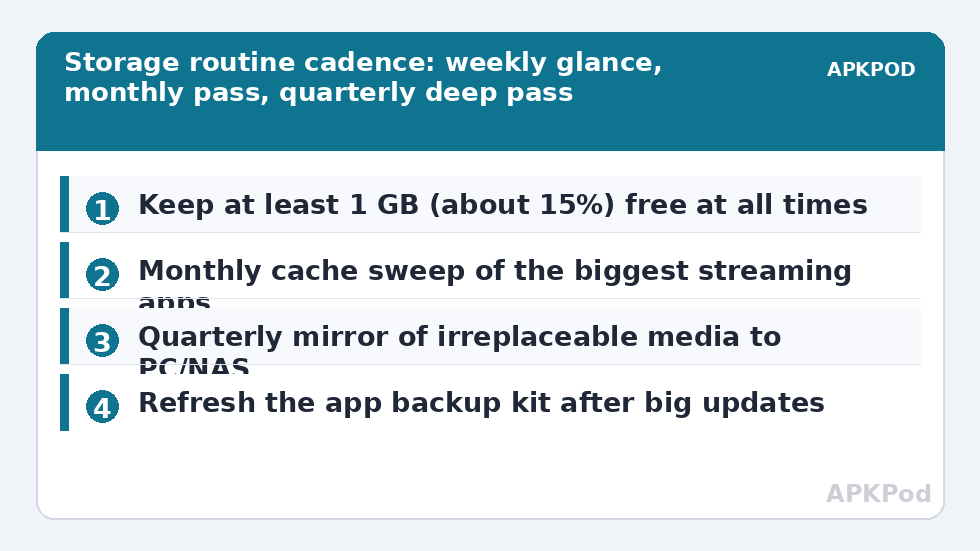
- Free space check: Settings → Storage. You want at least 1 GB free on an 8 GB box, proportionally more on larger TVs. Below that, jump straight to the monthly pass.
- Drive presence check: open X-plore; confirm the USB drive and any network shares appear. A drive missing today is next week’s mystery — rescan it now with the guidance in reliable auto-mounting at boot.
- Download folder glance: delete anything you already installed from or no longer recognise the purpose of.
- Playback sanity: play ten seconds of one file from the USB drive and one from the network. Both working means your two storage arteries are healthy.
The Monthly Pass (Twenty Minutes)
1. Cache sweep. Clear the caches of the two or three largest streaming apps from their system info pages, exactly as in cleaning cached app data on Android TV. This is routinely worth 1–2 GB and is the highest-value item on this page.
2. Disk Map review. Run X-plore’s Disk Map over internal storage. Investigate anything in the top five you cannot name in one sentence; orphan folders of uninstalled apps (reachable after the SAF grant in fixing SAF permission denied) and forgotten downloads are the usual finds.
3. Media relocation. Move new keepers — recordings, downloaded films you will rewatch — from internal storage to the USB drive or NAS, using the dual-pane method from navigating X-plore by remote. Internal storage is for apps; media lives elsewhere. That one policy prevents most crises described in troubleshooting storage-full errors.
4. Backup kit refresh. If you sideload apps or run a carefully tuned setup, re-extract updated apps to your USB backup folder per backing up installed TV apps, and refresh the note listing which apps must come from the store.
5. Cloud and account health. Open each linked cloud account in X-plore once; an expired token discovered now beats a failed family slideshow later. Re-link anything stale, as in accessing cloud storage on the TV.
6. Vault check (if used). Unlock Vault, confirm you still know the password without guessing, and confirm your password manager holds it. The stakes of forgetting are spelled out in using X-plore Vault on a Smart TV.
The Quarterly Deep Pass
| Task | Why quarterly |
|---|---|
| Mirror the USB media drive’s irreplaceable contents to PC/NAS | Drives fail; the checklist that never backs up is a postponement, not a plan |
| Review adopted storage health (if used) | A slowing adopted drive warns before it dies — apps lagging on launch is the tell |
| Audit installed apps: uninstall the unused | Every unused app is cache, data and update traffic you do not need |
| Check TV firmware and X-plore updates | File-system and SAF behaviour genuinely improves between builds |
| Re-verify subtitle and player defaults after updates | Updates reset player preferences more often than users expect |
For the mirroring job, treat it like any big copy — estimate first, run it when the TV is idle:
Bottleneck:
Tip:
All figures are estimates under good local conditions — strong signal, no competing traffic, both devices on the same network. Real speeds drop with distance, walls, channel congestion and slow storage on either device. Protocol options (SMB, FTP, SFTP) assume a 5 GHz-class Wi-Fi link.
Seasonal and Event-Driven Items
- Before a TV firmware update: refresh the app backup kit and note your free space; updates want headroom and occasionally revoke SAF grants.
- Before travel: download what the household will watch to the USB drive; do not depend on hotel-grade streaming of your own library negotiations.
- After adding a new drive: run it through the recognition and format checks in connecting external drives and the formatting guide before loading it with the library.
- When a new app joins the household stack: note where it stores downloads inside its settings, so the monthly Disk Map review has no mysteries.
Smart TV Storage Management Checklist Xplore: Print-and-Follow Version
Condensed to one screen, the whole system is this. Weekly (5 min): free space at or above 1 GB (about 15%); USB drive and shares present in X-plore; Download folder empty of dead files; ten seconds of playback from USB and from network. Monthly (20 min): clear the top two or three streaming apps’ caches; Disk Map top five reviewed; keepers moved off internal storage to drive or NAS; app backup kit refreshed if anything changed; cloud accounts opened once to prove their tokens live; Vault unlocked once to prove the password is known. Quarterly: mirror irreplaceable media to a second home; review adopted storage health; uninstall the unused; take firmware and app updates deliberately, with headroom cleared first. Event-driven: before updates, refresh backups; before travel, preload the drive; after adding hardware, run the recognition checks before loading it with the library.
Adapt the cadence to the household without abandoning the structure: a light-use bedroom TV can stretch monthly to bimonthly, while a family box that records, downloads and games should run the monthly pass fortnightly and treat the 15% headroom as law. What does not scale down is measurement — every item on this page starts from looking at the actual numbers in Settings and X-plore rather than from how the TV feels. Households that keep this one page reachable, with the detailed procedures behind it in our TV & Storage guides, essentially stop having storage emergencies; the television goes back to being furniture that plays films, which was the point all along.
Print the condensed version — literally, on paper, taped inside the cabinet door if that is what your household will actually use — because a checklist’s value is measured on the tired evening, not the motivated one. Tick items with a pencil; the visible accumulation of ticks is its own argument for continuing. When the routine has run four times without finding a surprise, you have reached the steady state this whole category aims at: storage as a solved, boring, background property of the television, noticed only in the way one notices a roof — by its silence. Everything after that is just watching films.
Start this week, not next. The first run of any routine is the slowest and the most revealing; every run after it is shorter, because the system you are maintaining is now one you understand.
Frequently Asked Questions
How often does a TV really need storage maintenance?
A five-minute weekly glance and a twenty-minute monthly pass keep an 8 GB box healthy indefinitely for most households. Heavy downloaders may need the cache sweep fortnightly; the trigger is the free-space figure, not the calendar.
What free-space level should trigger action?
Act at 1 GB free on an 8 GB TV (scale proportionally: about 15% of user space). Installs and updates need working room beyond their final size, and boxes begin failing quietly before they read zero.
Which single checklist item gives the most space back?
Clearing the caches of the largest streaming apps — typically 1–2 GB in a couple of minutes, at zero risk to logins or downloads. It is first in the monthly pass for a reason.
Can I automate this checklist?
Only partly. Android TV does not let a file manager clear other apps’ caches on a schedule, so the cache sweep stays manual; calendar reminders for the monthly and quarterly passes are the practical automation, and they are enough because the tasks themselves are short.
What should I do before selling or giving away the TV?
Beyond this checklist: copy off anything of yours, sign out of cloud accounts in X-plore, remove the Vault or export its contents, eject and keep your drives, then factory reset the TV. The checklist’s backup-kit and mirroring steps make that exit painless.