A folder can hold the right files in the wrong order, and on a phone that is often enough to make a simple job feel hard. Sorting decides which file you see first, grouping decides how a long list is broken into readable chunks, and view mode decides how much information each pane shows at once. Used together, these three controls turn X-plore from a plain list of names into a working desk where the file you need is usually near the top.
Start with a practical example. Your Downloads folder may contain invoices, photos, a firmware file and three versions of the same contract. Sorted by name, the contract versions sit together but new downloads hide among old ones. Sorted by date, the newest items lead. Sorted by size, the firmware dominates. None of these orders is correct for every job, so the useful skill is not memorising one setting. It is choosing an order for the task in front of you, finishing that task, and then returning to a calm default.
If dual-pane copying is still new to you, keep the APKPod homepage open as your starting point for the wider X-plore guides, and treat this article as the next layer: not how to move a file, but how to arrange both panes so the right file is obvious before you move anything.
Where Sorting and View Controls Live
Open a folder in either pane and use the pane menu or the sort control offered by your version of X-plore. Depending on layout and device, sorting may appear in the main menu, in a pane-specific menu, or behind a long press on a column or path area. Labels vary slightly between releases, but the ideas stay stable: sort by name, date, size or type, choose ascending or descending direction, and decide whether folders are shown first or mixed with files.
Set One Pane at a Time
Change the left pane first and look at the result before touching the right. A common mistake is changing both sides, losing track of which setting caused which change, and then blaming the app for a confusing display. Work in a sequence: open the source folder, choose its order, open the destination in the other pane, and only then decide whether the destination should match. Matching orders are helpful when comparing folders. Different orders are better when, for example, the source is sorted by date to find new photos while the destination is sorted by name to file them into labelled albums.
Folders First Is Usually the Safer Default
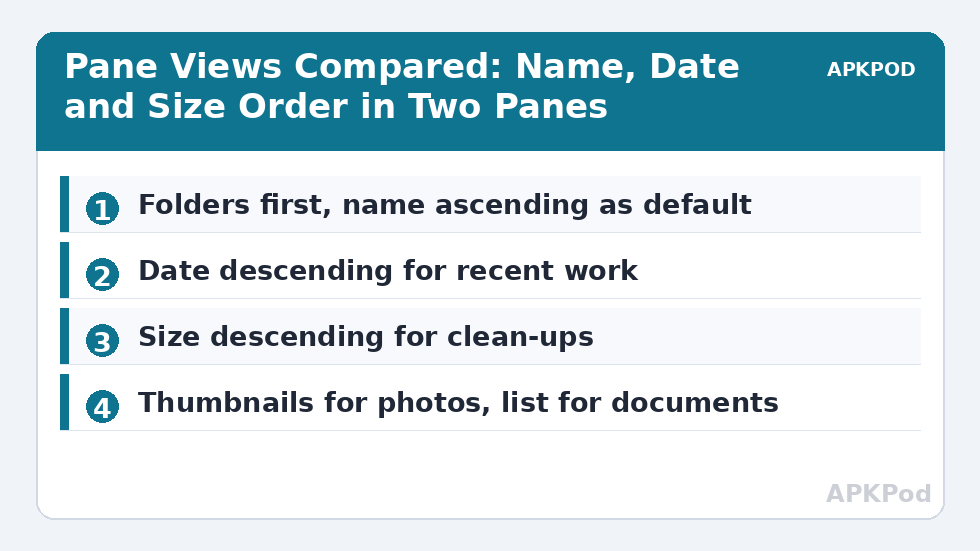
For most people, folders first with names in ascending order is the least surprising home position. It keeps navigation landmarks at the top and makes a folder behave the same way each morning. Turn that habit off only with a reason. If you sort purely by size, a huge video can push subfolders far down the list. If you sort by date, a folder you created years ago but edited today can jump unexpectedly. Neither result is wrong, but both demand more attention from you.
Sorting by Name, Date, Size and Type
Name is best for known items and tidy archives. It rewards consistent naming, which is why it pairs well with the routine in our batch rename guide: once files share a sensible prefix, name order becomes a real filing system rather than a lottery. Date is best for recent work, camera imports and downloads. Size is best for storage problems. Type or extension, where offered, groups PDFs, images or archives together and is ideal when a folder mixes document formats.
| Sort choice | Best job | Watch out for |
|---|---|---|
| Name, ascending | Archives, projects and music folders | Camera names give little meaning |
| Date, descending | Downloads, screenshots and recent edits | Copies may carry a newer modified date |
| Size, descending | Finding what fills storage | Large does not automatically mean unwanted |
| Type or extension | Mixed document folders | Similar formats may still be scattered by name within each group |
Direction matters as much as the field. Descending date puts today’s file first but buries the oldest backup you may be hunting. Descending size is the right direction for a clean-up and the wrong direction for finding a tiny configuration file. Before scrolling, say the job out loud in one sentence: newest first, largest first, or alphabetical. That small pause prevents most aimless browsing.
A Worked Example: Finding the Newest Invoice
Suppose a supplier folder contains 84 PDFs named by client rather than date. Sort by date descending and the three most recently modified invoices rise to the top, even if their names begin with different letters. Check the dates before acting, because opening and re-saving an old invoice can make it look new. If the task is auditing rather than filing, return to name order afterwards so the folder keeps its familiar client-by-client map.
Grouping and What It Can and Cannot Do
Grouping is best understood as visual separation, not as a new folder structure. Where your version offers grouping by date, type or size, use it to read a long list in sections: today, yesterday and older; images, documents and archives; or large, medium and small. The files have not moved, and no new folders have been created. Only your view has changed. That distinction matters because a tidy-looking grouped view can tempt you to select across a boundary without noticing that the selection now spans several weeks or several formats.
If a particular build does not expose a separate grouping control, you can achieve much of the same reading effect with sort order plus X-plore’s size and date information. Sort by type to create natural blocks, or by date to create a timeline. The lesson from our search by size, extension and date guide applies here too: combine one strong criterion with your eyes, rather than expecting a single switch to understand the whole job.
Select Carefully Inside a Grouped List
Select a small test set first, read the selection count, and confirm the items belong to the same job. This is especially important after sorting by size, where one accidental checkmark on a large video can change a quick copy into a long transfer. Grouping helps you see, but selection is still your responsibility.
Bottleneck:
Tip:
All figures are estimates under good local conditions — strong signal, no competing traffic, both devices on the same network. Real speeds drop with distance, walls, channel congestion and slow storage on either device. Protocol options (SMB, FTP, SFTP) assume a 5 GHz-class Wi-Fi link.
List, Icons and the Information Density Choice
View mode is a trade between seeing more files and seeing more about each file. A compact list suits a large folder on a phone, because names, dates and sizes stay readable and scrolling is fast. A more spacious or icon-oriented view suits photos and visual material, where a thumbnail is more useful than a precise byte count. On a tablet, you can afford more detail on screen. On a small phone in bright light, fewer columns and larger touch targets usually win.
- Choose a detailed list for documents, backups and clean-ups where date and size decide the action.
- Choose thumbnails or icons for camera folders, artwork and screenshots where recognition is visual.
- Choose a compact view when a folder has hundreds of entries and you are scanning for one name.
- Return to one default view after a special job, so tomorrow’s first screen feels familiar.
Remember that both panes do not need the same density. During a photo sort, let the source pane emphasise thumbnails and let the destination pane stay a clear list of album names. During a storage rescue, reverse the logic: the source needs sizes and dates, while the destination only needs enough detail to prove you are dropping files in the right place.
A Calm Default to Come Back To
Finish by setting a home position and writing it down if you share the device with someone else: folders first, name ascending, detailed list for documents, thumbnails only where pictures dominate. Then borrow ideas from neighbouring jobs without letting them take over. When you later work through moving files between internal storage and an SD card, date order will help you pick recent items; when you compare choices in handling copy conflicts, name order will make matching files easier to spot. Different settings serve different operations, and the default is simply the place you rest between them.
Frequently Asked Questions
How do I sort files in an X-plore pane?
Open the folder, use the sort option in the pane or main menu, and choose name, date, size or type plus ascending or descending direction. Check the result in that pane before changing the other pane.
Can the two X-plore panes use different sort orders?
Treat each pane as its own working view and set the order that suits its job. A source pane sorted by date and a destination pane sorted by name is a practical combination, but labels and persistence can vary slightly by version.
Does grouping files move them into new folders?
No. Grouping or sorting changes only how the current folder is displayed. The files stay in the same location until you copy, move, rename or delete them.
Which view mode is best for photos?
A thumbnail or icon-oriented view is usually best for recognising photos, while a detailed list is better for documents and clean-ups where date and size matter more than appearance.
What is a good default sort order in X-plore?
Folders first with names in ascending order is a calm default for most folders. Switch to date for recent work or size for storage problems, then return to the default when the special job is finished.