
“It’s on the phone somewhere” is not a filing system, but it is where everyone starts. The file was a PDF, it was big, and you downloaded it sometime in March. That is enough — if your search tool can think in size, type and date simultaneously. Learning to search files size extension date xplore provides turns those three vague memories into a query that returns one file, and it is the skill that quietly ends folder-diving forever.
X-plore’s search works across local storage and, importantly, starts from wherever you stand: search inside one folder and its subfolders for a needle in a known haystack, or search from a storage root when the haystack is the whole phone.
Search Files Size Extension Date Xplore Queries That Actually Narrow
Open the Search function from the menu in any pane and you get more than a name box. The useful searches combine criteria. Name fragments still matter — even three remembered letters help — but the filters do the heavy lifting. Extension first: .pdf, .docx, .mp3, .zip. Extension is the most reliable memory people have, because we remember what a thing was long after we forget what it was called.
Size is the second blade. “It was a big file” translates into a minimum size that instantly discards ten thousand small fry. A scanned contract is megabytes; a voice note is hundreds of kilobytes; a downloaded film is gigabytes. Search results that show size beside every hit let you keep narrowing by eye when the numbers ring a bell.
Date is the third. A modified-date range around “sometime in March” excludes everything your phone has touched since spring. Date searching has one trap: copying a file usually preserves or resets its modified time depending on method, so a file you moved in June may wear a June date while being a March creation. When a date search fails, widen it and lean on extension and size instead.
Searching With a System, Not Hope
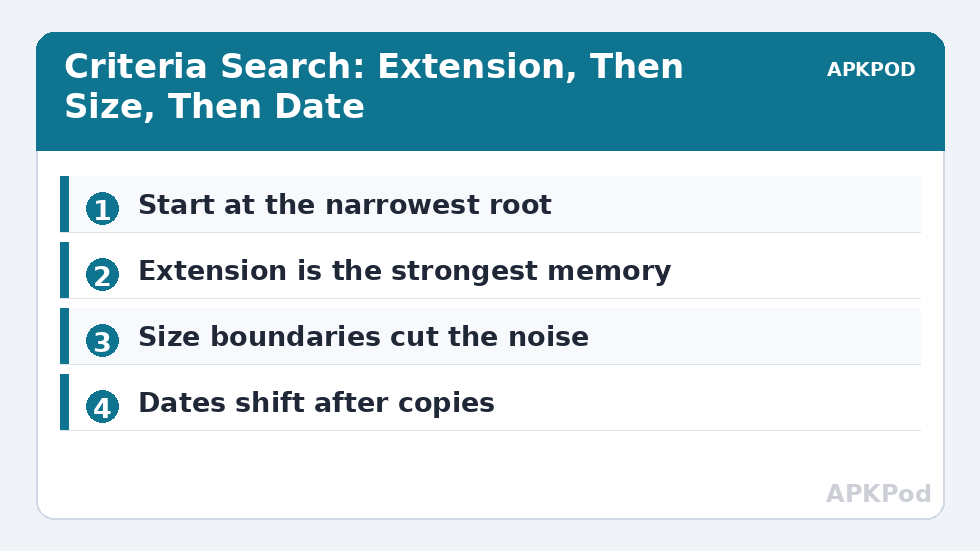
- Start at the narrowest plausible root: the folder, then the storage, then the device.
- Apply the extension filter for the file type you remember.
- Add a size boundary — minimum for documents and media, maximum when hunting clutter.
- Add the widest honest date range; tighten only if results flood in.
- Sort results by the criterion you trust most and scan.
Results are not a dead end; they are a workbench. From the results list you can open files in X-plore’s viewers, select several, and copy or move them into the other pane — which is how a search becomes a rescue: find the seventeen scattered PDFs, select them all, and file them properly in one motion. That rescue workflow plugs straight into the dual-pane copy system, and found files often deserve the naming treatment from our batch renaming guide so they never need finding again.
| You remember | Search with |
|---|---|
| “A big video from the trip” | Extension .mp4, size above 500 MB, date of the trip |
| “The contract I signed” | Extension .pdf, size 100 KB–10 MB, date range of signing month |
| “That song file” | Extension .mp3 or .flac, whole storage, sort by size |
| “Something is eating my storage” | No name, size above 1 GB, whole device, then Disk Map |
Searching Network Shares and Cloud Locations
The criteria method travels, with caveats stamped on it. On a LAN share, search works but walks the network for every answer, so narrow roots matter twice as much: search the plausible folder, not the whole NAS, unless patience is abundant. Results also depend on the share staying awake; a sleeping server returns a partial silence that looks exactly like “file not found”. Wake the machine, then judge the results.
Cloud locations are the most conditional of all. What search can see is what the service exposes through its connection, and listing large cloud folders can be slow enough to change your strategy: search cloud storage from the service’s own app or web interface when the folder is huge, and use X-plore’s search there for the small, known neighbourhoods. Knowing which tool owns which territory is not a limitation of the method — it is the method, applied honestly.
Turning Search Results into a Filing System
The deepest use of search is diagnostic: it shows you your own filing habits. If the same search rescues the same kind of file monthly — PDFs in Downloads, screenshots scattered across three folders — the search is reporting a missing folder in your system, not a recurring accident. Build the folder the searches keep implying, route the next arrivals there directly, and notice the searches retire themselves.
Keep a tiny note, in a notes file X-plore can open, of your three most-used search recipes: the extension-size-date combinations that find your contracts, your media and your downloads respectively. Recipes turn a skill into a possession — and on a new phone, they are the difference between a stranger’s file manager and yours within the first day.
One more refinement for media hunters: combine search with the viewers. A results list of images is a list of names; opening the first and swiping the results as a gallery — where the set is browsable — turns identification from reading into recognising, which for photographs is several times faster. Search finds candidates; eyes make verdicts.
And when a search returns nothing, treat the empty result as data, not failure: the file is not under that root, not of that type, or not on this device — three facts that redirect the hunt better than any guess.
A note on names, for the searches that still start there: Android search is generally indifferent to case but not to spelling, and your memory of a filename is least reliable exactly where it feels most confident. When a name search fails, search for a shorter fragment — four or five certain letters from the middle of the name beat a full name remembered almost-right. Fragments forgive typos at the edges, partial downloads that renamed the file, and the sender who saved it under a variant you never saw. Precision is a virtue in criteria; in names, humility finds more files.
Bottleneck:
Tip:
All figures are estimates under good local conditions — strong signal, no competing traffic, both devices on the same network. Real speeds drop with distance, walls, channel congestion and slow storage on either device. Protocol options (SMB, FTP, SFTP) assume a 5 GHz-class Wi-Fi link.
When Search Is the Wrong Tool
Search answers “where is the file that matches”. It does not answer “what is taking all the room” — that is a distribution question, answered visually by the Disk Map, which shows the heavy branches before you know any filenames. Nor does search fix a filing system; it forgives one, repeatedly. The healthiest pattern is search to rescue, then file deliberately, then let search retire to emergencies.
One more boundary: search respects the same visibility rules as the tree. Hidden files stay out of results unless hidden-file display is enabled, and app-private storage stays private on unrooted phones no matter how clever the query. Within those honest limits, criteria search is the highest-leverage feature in the Dual-Pane Tips set — the one that returns afternoons.
Frequently Asked Questions
Can X-plore search by file size and date, not just name?
Yes. X-plore’s search combines name fragments with criteria such as extension, size and modified date, and results display sizes so you can keep narrowing visually.
Why did my date search miss a file I know exists?
Copying or moving a file can change its modified date, so the file may wear the date of its last move rather than its creation. Widen the date range and lean on extension and size.
Can I act on files directly from the search results?
Yes. Results can be opened in the built-in viewers, selected in groups, and copied or moved into the other pane, which makes search a practical rescue-and-file tool.
Does search find hidden files too?
Only when hidden-file display is enabled in Configuration. App-private storage on an unrooted phone remains outside search, as it does for every file manager.
Search or Disk Map: which finds my storage problem?
Search finds a specific file you can describe. Disk Map shows what occupies space overall, so start there when you cannot describe the culprit.