File permissions decide who may read, write or execute a file, and on Android that sentence needs an immediate qualification: for ordinary files in shared storage, you neither need nor get fine-grained permission control, and X-plore does not pretend otherwise. Permission and attribute editing becomes real on rooted devices, in system and app-private territory, where the Unix-style permission model underneath Android is exposed. This guide is therefore honest about its audience. If your phone is not rooted, read it to understand the concepts; the editing steps are for rooted devices only.
Why would anyone change a permission? Typical legitimate jobs include restoring the correct permissions on a file you placed in a system-related folder, making a script executable, or fixing an app data file whose ownership or access bits were mangled by a careless copy from a computer. These are specialist repairs. They are not a routine tidy-up tool, and changing permissions at random is an excellent way to make an app fail in ways that look unrelated.
Before any root work, revisit the backup discipline in the root storage guidance linked from the APKPod homepage, and treat this article as the careful companion to it.
Reading Permissions Before Changing Them
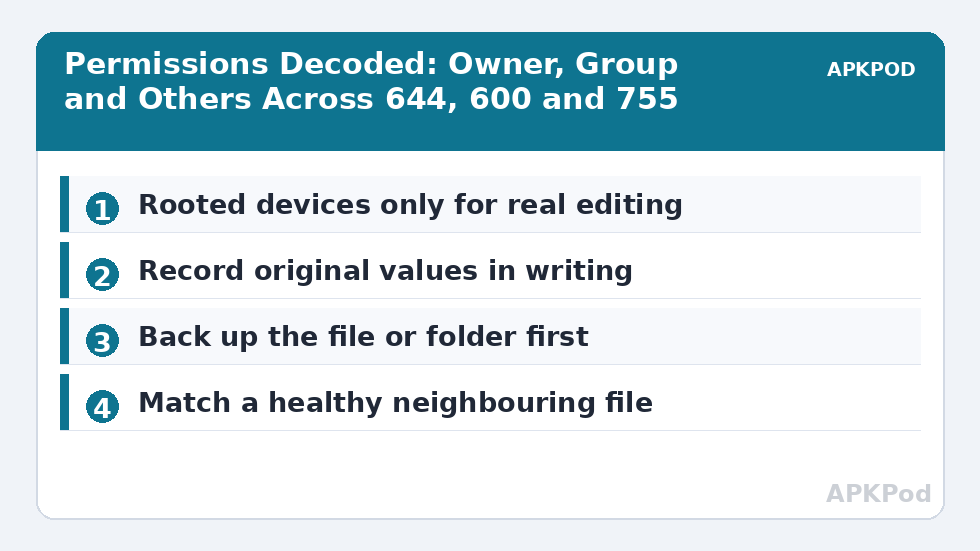
Long-press a file in X-plore and open its Properties to see what the app reports: location, size, dates and, where the filesystem and your access level allow, permission information. Learn to read the classic three groups. Owner is the user account that owns the file, group is its assigned group, and others is everyone else. Each group can have read, write and execute access, often written as rwx letters or as an octal number such as 644 or 755.
| Notation | Meaning | Typical use |
|---|---|---|
| 644 (rw-r–r–) | Owner can read and write; others can read | Ordinary data and configuration files |
| 600 (rw——-) | Owner only | Private files meant for one account |
| 755 (rwxr-xr-x) | Owner can write; all can read and execute | Scripts, programs and folders that must be enterable |
| 777 (rwxrwxrwx) | Everyone can do everything | Almost never the right answer; a warning sign, not a fix |
Folders Are Special: Execute Means Enter
For a folder, execute permission means permission to enter and access its contents. A folder can be readable in the sense that its listing shows, yet unusable if the execute bit is missing. This is why copying permission patterns from a file onto a folder, or the reverse, so often breaks things quietly. Note the original values of anything you plan to touch, in writing, before you touch it.
Back Up, Then Change One Thing
Copy the file — and for app data, ideally the whole folder — to a safe location in the other pane before editing attributes, using the ordinary workflow from our dual-pane copy and move guide. Close the app that owns the file. Then long-press the file in X-plore, open Properties or the permissions option offered on rooted setups, and change only the value you came to change. Save, reopen Properties to confirm the new value stuck, and test the owning app or script immediately.
- Record the original permissions and ownership exactly as shown.
- Copy the file or folder to a backup location outside the working folder.
- Close the owning app or stop the relevant process if you know how.
- Change one permission value, and nothing else in the same visit.
- Test the app or script, then restore from backup if behaviour worsens.
Ownership matters as much as the rwx bits on rooted systems. A file restored with the right permissions but the wrong owner can still be refused by its app. If X-plore shows ownership controls on your rooted setup, treat them with even more caution than permissions: record them, change them only for a documented reason, and expect app-private folders under Android’s data directories to be the most sensitive territory of all. The root-access background in our earlier root storage article, reachable through the bookmarks guide topic cluster on this site, is worth rereading before working there — and no, a bookmark will not make root work safer; preparation does that.
Attributes Beyond Permissions
Depending on the filesystem and location, X-plore’s properties and options may also touch attributes such as read-only state or hidden behaviour. Read-only on a file you own in shared storage can be a useful guard against accidental edits to a master copy. Hidden on Android usually means a name beginning with a dot or a .nomedia marker for media, which is a different mechanism from Unix permissions and should not be confused with them. Our earlier hidden-files coverage explains that layer; the safe editing habits in editing config and text files safely apply whenever the file you are repairing is text.
Bottleneck:
Tip:
All figures are estimates under good local conditions — strong signal, no competing traffic, both devices on the same network. Real speeds drop with distance, walls, channel congestion and slow storage on either device. Protocol options (SMB, FTP, SFTP) assume a 5 GHz-class Wi-Fi link.
Common Repairs and False Fixes
A script that will not run may genuinely need its execute bit set. A configuration file an app suddenly ignores may have been restored with permissions so tight that the app, running as a different user, cannot read it; matching a neighbouring healthy file’s permissions is the soundest repair, because the neighbour shows the pattern the app expects. Copying a healthy sibling’s values beats inventing values from memory almost every time.
The false fix to avoid is the universal 777. Granting everyone everything sometimes makes a symptom disappear, which is exactly why it is dangerous: it hides the real mismatch, weakens the file’s protection, and leaves you with no idea what the correct value was. If a guide or forum post tells you to chmod 777 and move on, treat it as a last-resort diagnostic on your own device, restore sane values afterwards, and never use it on anything private.
Limits, Risks and the Unrooted Reality
On an unrooted device, Android’s sandbox decides access, and no file manager setting overrides it. App-private folders stay closed, shared-storage files follow shared-storage rules, and that is the correct outcome for most people. Root removes those walls along with their protection: a mistaken permission change can corrupt app data or contribute to a device that misbehaves until repaired. If that risk is not plainly worth it for a specific job, the professional answer is to leave permissions alone and solve the problem at the app level instead.
Record, back up, change one thing, test. On rooted devices, that sequence is the difference between a repair and a new problem.
Learning From a Healthy Neighbour
The most underused reference on a rooted device is sitting in the same folder as the file you broke: its healthy neighbours. Apps usually store similar files with similar permissions and the same owner, because they were all created by the same code in the same way. Before changing a damaged file, open Properties on two or three neighbours that the app still reads happily and write down their pattern. If they agree with each other, they almost certainly describe the pattern your file should have.
Disagreement among neighbours is information too. It can mean the files play different roles — a database, its journal and a preference file are not obliged to match — so change your file only toward the neighbour whose role matches its own. A journal is compared with other journals, not with the main database. Role first, values second, is the order that keeps a comparison honest.
After the repair, write the restored values into the same note as the backup location. The next incident, if there is one, then starts from knowledge instead of archaeology, and a five-minute note written today becomes the difference between a repeat repair and a repeat panic.
Frequently Asked Questions
Can I change file permissions in X-plore without root?
For ordinary shared-storage files there is little permission editing to do, and app-private or system locations stay closed on an unrooted device. Meaningful permission and ownership editing in X-plore is a rooted-device activity.
What does 644 mean in file permissions?
It means the owner can read and write, while the group and others can only read. It is a common pattern for ordinary data and configuration files. 755 adds execute access and is typical for scripts and folders.
Why is setting everything to 777 a bad fix?
777 grants read, write and execute to everyone. It can mask the real ownership or permission mismatch, removes the file’s protection, and leaves you unsure what the correct value should be. Match a healthy neighbouring file instead.
What should I do before changing a file’s permissions?
Record the original permissions and ownership, copy the file or its folder to a backup location, and close the owning app. Change one value, confirm it in Properties, and test immediately so you can restore if behaviour worsens.
What is the difference between a file permission and the hidden attribute?
Permissions control which users can read, write or execute a file on filesystems that support them. Hidden behaviour on Android usually comes from a dot at the start of a filename or a .nomedia marker, which is a separate mechanism.