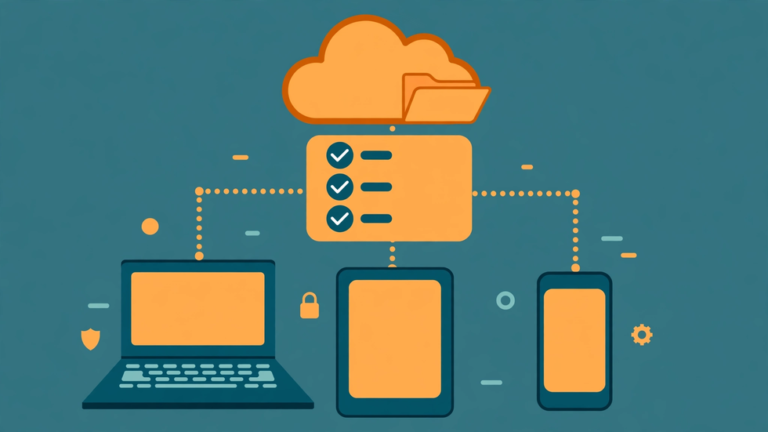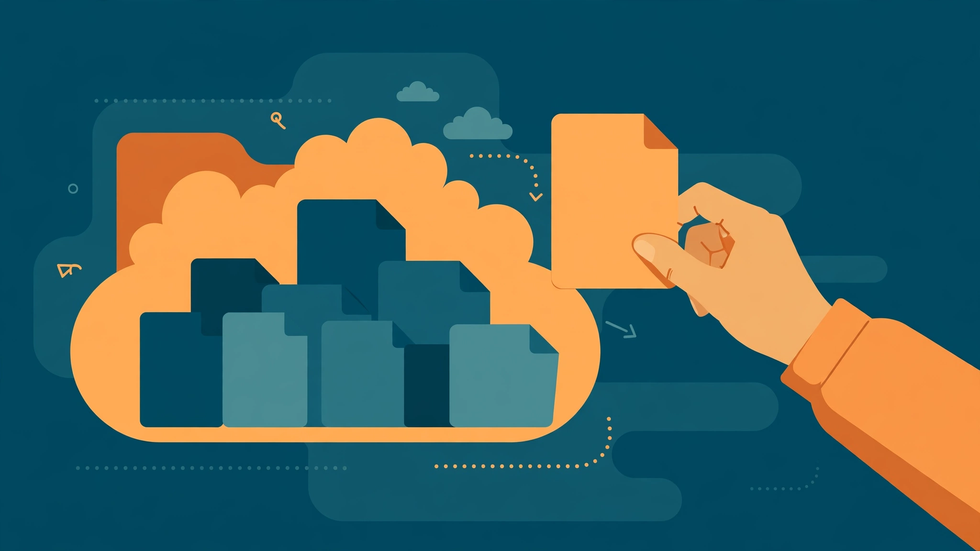
Shared cloud folders are generous and overwhelming in equal measure. A colleague shares a project folder, a family member shares a holiday album, a club shares its entire archive — and suddenly your phone is invited to download gigabytes you never asked for. The instinct to grab everything "just in case" is understandable, but it costs storage, mobile data, battery, and the time you spend hunting through files you never wanted. X-plore lets you take a selective approach: browse the shared folder in the cloud, pick exactly the files you need, and leave the rest where it is.
Selective downloading is not just about saving space. It is also about clarity. A phone holding only the files relevant to you is easier to search, easier to back up, and far less confusing when you need something quickly. This guide shows how to browse shared folders efficiently, choose wisely, download in a way you can verify, and keep the shared originals intact for everyone else.
Browse the Shared Folder Before Downloading Anything
The first step is patience: open the shared folder in X-plore's cloud view and look around before selecting anything. Check the folder structure, read filenames carefully, and sort by date or size to understand what is actually there. Shared folders often contain their own internal organisation — subfolders by event, by person, or by year — and understanding that structure prevents you from downloading a folder that duplicates another one.
Pay attention to file types and sizes as you browse. A folder of photos may hide a subfolder of raw video that dwarfs everything else. A documents folder may contain drafts, superseded versions, and final versions side by side. Ten minutes of browsing can save you from downloading hundreds of megabytes of drafts you would delete anyway. If the folder is very large, use search within it for the specific filenames or keywords you need, rather than scrolling endlessly.
Decide What "Need" Actually Means
Not everything useful needs to live on your phone. Ask yourself how you will use each file. Files you need offline — a presentation for a meeting, photos for a trip, a document to read on a flight — are genuine downloads. Files you only need to reference occasionally can stay in the cloud, where X-plore can open or preview them when you have a connection. Files you need to edit should be downloaded, edited, and then either returned to the shared folder or kept as your own clearly named copy, depending on what the folder owner expects.
It also helps to separate one-time needs from ongoing ones. A file you need for this week's task can be downloaded, used, and deleted from your phone afterwards, since the shared original remains available. A file you return to weekly earns a permanent local home. Making this distinction keeps your phone lean without cutting you off from anything, because the shared folder itself is your long-term archive.
Download Selectively, in Small Verified Batches
Once you know what you need, select only those files. In X-plore, you can multi-select individual files across a folder, skipping everything else, and copy them to a local folder you create for the purpose — for example, a folder named after the project or the person who shared it. Copy rather than move: moving a file out of a shared folder can remove it for everyone, which is almost never what you intend. Copying leaves the shared original untouched.
Work in small batches and verify each one. After a batch arrives, open the local folder, check the file count and sizes against the cloud selection, and spot-open one or two files. This verification is quick and catches the partial downloads that a weak connection can cause. If a file fails, download just that file again rather than repeating the whole batch. Small batches also make it obvious which files you already have, so you do not download the same thing twice.
Handle Videos and Large Files Differently
Large files deserve a separate decision. A video that you only need to watch once is often better streamed or previewed from the cloud than downloaded in full, especially on mobile data. If you do need it locally, download it over Wi-Fi, and consider whether a smaller version would do. Some shared folders contain both a full-resolution master and a smaller shareable version; grabbing the smaller one can save gigabytes with no practical loss for viewing on a phone screen.
For files you need in full quality — a video you will edit, photos you will print — accept the size, but download them deliberately and delete them from your phone when the job is done. Keeping a giant video "just in case" after its purpose has passed is exactly how phones fill up. The shared folder keeps it safe; your phone does not need to.
Respect the Shared Folder and Its Owner
Shared folders belong to a relationship as much as to a storage account. A few courtesies go a long way. Do not rename, move, or delete files inside the shared folder unless the owner has asked you to. Do not download the entire folder and re-share it elsewhere without permission, since the owner may have shared it with you specifically. And if you edit a downloaded copy, do not upload it back over the original under the same name unless that is the agreed workflow; instead, share your edited version separately and let the owner decide.
If you notice that a shared folder contains sensitive material — personal documents, private photos, anything that looks shared by mistake — tell the owner quietly rather than downloading it or passing it on. Selective downloading is partly a privacy practice: taking only what you need limits your own exposure as well as the spread of other people's files.
Organise Downloads So You Can Find Them Again
Downloaded files are only useful if you can find them later. Create a clear local structure for shared content: a main folder such as Shared, with subfolders named after the project or person. Avoid letting downloads pile up in a generic Downloads folder, where they mix with everything else and become hard to distinguish. When you download a file, give it a sensible name if the original is cryptic, and note the source in the folder name so you know where to look for updates.
Periodically review your shared downloads. Files tied to finished projects can be deleted from your phone, since the shared folder still holds them. Files you still need stay. This review takes a few minutes every month and keeps the selective approach working over time, rather than letting a lean downloads folder slowly grow into the same clutter you avoided in the first place.
When Selective Downloading Is Not Enough
Sometimes a shared folder is simply too disorganised to browse efficiently, or you genuinely need most of it. In that case, downloading a whole subfolder rather than the entire tree is still a selective choice, and it is far better than grabbing everything. Download the subfolder that matches your need, verify it, and ignore the rest. If even that is too large, ask the owner whether they can share just the relevant subfolder with you directly. Most owners are happy to narrow a share, and a direct share of the right subfolder solves the problem for everyone who comes after you too.
The principle behind all of this is simple: your phone should hold what you use, and the cloud should hold everything else. X-plore makes that split easy to maintain, one careful selection at a time.
A Practical Example: The Club Archive Share
A sports club shares an archive folder containing ten years of photos, programmes, and videos — well over twenty gigabytes. A new member needs only this season's fixtures and the team photo. Browsing first reveals a subfolder for the current season of under 300 megabytes, which downloads in minutes over Wi-Fi. The member gets everything needed for the season, the phone stays lean, and the full archive remains available in the cloud whenever older material is required. Downloading the whole archive would have filled the phone and buried the useful files under years of history nobody asked for.
Frequently Asked Questions
Does downloading a file from a shared folder remove it for other people?
No, if you copy it. Copying leaves the shared original untouched. Moving it, by contrast, can remove it from the shared folder, so always copy, never move, shared files.
Can I preview a shared file in X-plore without downloading it?
Often yes. Many file types can be opened or previewed from the cloud view when you have a connection, which lets you check a file before deciding whether it earns space on your phone.
What is the best connection for downloading large shared files?
Wi-Fi, with the phone kept awake and charged. Large downloads over mobile data can be slow, expensive, and more likely to stall partway through.
How do I avoid downloading the same shared file twice?
Keep shared downloads in a dedicated folder per project or person, and check that folder before downloading again. X-plore's overwrite warning also alerts you when a file with the same name already exists.
Should I delete shared downloads from my phone when I am done with them?
Yes, for one-time needs. The shared folder remains the archive, so deleting your local copy frees space without losing access, provided you still have permission to view the share.