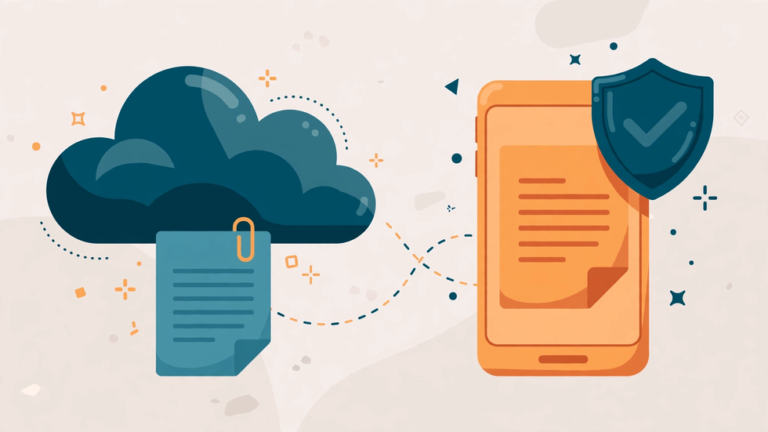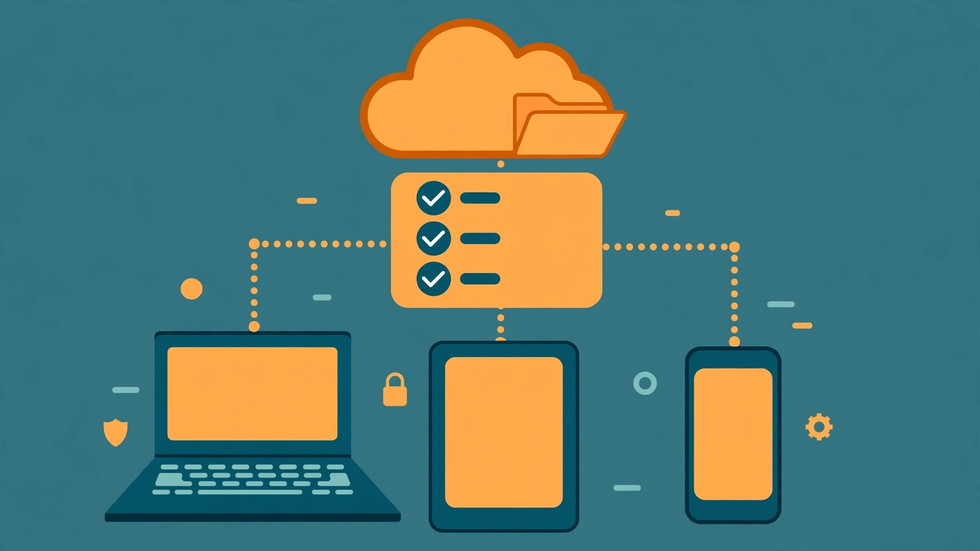
Your cloud folders are only as private as the devices signed into them. Over the years, phones get sold, tablets get handed to children, old laptops gather dust, and each one may still hold a live session to your cloud storage. X-plore shows you the files, but the question of which devices can reach those files is answered in your cloud account's own security settings. This guide walks you through auditing that access, recognising devices you no longer use, and revoking them cleanly — without locking yourself out of your own account.
The audit is worth doing regularly because access accumulates silently. Every time you sign into a cloud account on a new device, that device joins the list of trusted endpoints. Nothing reminds you to remove it later. A phone you sold two years ago may still appear as an active session, and if its new owner never signed out, your files are one tap away from a stranger. Checking takes less time than worrying about it.
Start in Your Cloud Account, Not in X-plore
X-plore is a file manager, not an account security console, so device access is managed where the account lives. For a Google account, that means the security section of your Google account settings, which lists devices that have signed in recently and sessions that remain active. Other cloud providers offer an equivalent page, usually under security, devices, or sessions. Open that page in a browser on a device you trust, and take your time reading it.
The list typically shows each device's type, model, location, and last activity. A phone you use daily will show recent activity and a familiar location. An old device will show a last-active date months or years ago. Anything you do not recognise deserves attention, but do not panic at an unfamiliar location: a device used while travelling, or through a VPN, can legitimately show a city you never visited. The combination of device model and timing is usually more informative than location alone.
Identify Every Device on the List
Go through the list entry by entry and sort it into three groups: devices you currently use, devices you used to use but no longer own, and devices you do not recognise at all. Current devices stay. Former devices should be signed out, especially any phone or tablet that has left your possession. Unrecognised devices should be signed out immediately, and if anything about them looks suspicious, change your account password and enable two-factor authentication before doing anything else.
Pay special attention to devices belonging to family members. A tablet signed into your account "just to watch something" can remain signed in for years, quietly giving access to your files. The same applies to a work computer where you once signed in to grab a file. These are not security breaches in the malicious sense, but they are access you no longer intend, and the audit is the moment to end them.
Revoke Access for Devices You No Longer Use
Revoking a device session is usually a single action: choose the device and select sign out, or remove access. The device will then need your password — and your second factor, if enabled — to get back in. Do this for every former device, starting with any phone or tablet that has been sold or given away. If you sold a phone without factory-resetting it, revoking its session is urgent, and you should also change your password, since credentials or tokens stored on that phone may survive a simple sign-out.
After revoking, check X-plore on your own phone to confirm your own access still works. Open the cloud location and browse a folder. If your own session was accidentally revoked — easy to do when two devices share a model name — simply sign in again in X-plore with your credentials. A brief inconvenience is far better than leaving a stranger's access open, so when in doubt, revoke and re-sign-in yourself.
Review App Permissions and Third-Party Access Too
Device sessions are only half the picture. Cloud accounts also grant access to third-party apps and services, some of which you connected years ago and forgot. In the same security settings, look for a section on third-party access or connected apps. Each entry shows what data the app can reach. Remove anything you no longer use, anything you do not recognise, and any app whose access looks broader than its purpose requires. A photo-editing app does not need full drive access, and a long-dead service needs none at all.
Also review the apps on your own phone that have storage permission. X-plore itself needs storage access to do its job, and that is expected, but a random game or flashlight app with full file access is not. Android's permission settings let you review this per app. Removing unnecessary storage permissions reduces the number of routes by which your files could leak, even on a device you trust.
Check Who Your Folders Are Shared With
Device access is about who can open your account; sharing is about who can open specific folders without your account at all. While you are auditing, review the sharing settings on your most sensitive folders. In your cloud provider's sharing view, each folder shows the people and groups with access and whether they can view or edit. Remove people who no longer need access — former colleagues, ex-partners, old project groups — and downgrade editors to viewers where editing is no longer required.
This step pairs naturally with the device audit because both answer the same question: who can reach my files right now? A folder shared with a former colleague whose own device is compromised is a risk even if your devices are all clean. Sharing should follow the same principle as device access: current need only, reviewed regularly, revoked promptly when the need ends.
Strengthen the Account After the Audit
An audit is the perfect moment to strengthen the account itself. Enable two-factor authentication if it is not already on, using an authenticator app or a security key rather than SMS where possible. Review your recovery options — recovery email and phone number — and make sure they point to accounts and numbers you still control. A recovery email belonging to an address you abandoned is a back door into everything you just secured.
Consider also turning on sign-in alerts if your provider offers them. An alert when a new device signs in gives you immediate notice of access you did not grant, turning a future audit from a scheduled chore into a real-time warning. Combined with a strong, unique password that you do not reuse elsewhere, these steps make the next audit a formality rather than a rescue operation.
Make the Audit a Habit
Set a recurring reminder, every three to six months, to repeat this check. The list changes slowly, but it does change: new devices arrive, old ones are forgotten, and shares accumulate. A regular audit takes ten minutes once you know where the settings live, and it is one of the highest-value security habits available to an ordinary phone user. Note the date of each audit and what you revoked, so you can see the pattern over time and spot anything that reappears unexpectedly.
Access control is unglamorous work, but it is the foundation everything else rests on. Encrypted folders and careful sharing mean little if a forgotten phone still holds a live session. Audit the devices, revoke the stale ones, and your cloud folders become genuinely yours again.
A Worked Example: The Old Phone You Forgot
A typical audit finds a phone sold eighteen months ago still listed as an active device, alongside a tablet given to a child and a work laptop from a previous job. Revoking all three takes minutes. The sold phone is the urgent one: combined with a password change, revocation closes the most serious gap. The child's tablet can be moved to a supervised account instead, and the old work laptop simply drops off the list. Afterwards, the device list matches reality — the phones and computers actually in use today — and the next audit will be a quick confirmation rather than another discovery exercise.
Frequently Asked Questions
Does X-plore itself show me a list of devices with access?
No. Device sessions are managed in your cloud provider's account security settings. X-plore shows your files, while the provider's security page shows which devices hold sessions to the account.
What should I do if I see a device I do not recognise?
Sign it out immediately, then change your account password and check that two-factor authentication is enabled. Review recent account activity for anything else unusual.
Will signing out a sold phone remove my files from it?
Signing out revokes its access to the cloud, but files already downloaded to that phone may remain on it. That is why factory-resetting a phone before selling it is essential.
How often should I audit device access?
Every three to six months is sensible for most people, and immediately after selling or giving away a device, or after any suspicious sign-in alert.
Does removing a device also remove folder shares I granted?
No. Device sessions and folder shares are separate. Revoke stale device sessions in security settings, and review folder sharing separately for people who no longer need access.