A private cloud only deserves the name if the road to it is private too. Many readers run Nextcloud or a NAS at home and reach it from X-plore over WebDAV, which is an excellent arrangement right up until the connection runs over plain HTTP. On HTTP, your username, your app password and your files travel as readable data across every network between the phone and your house. HTTPS closes that gap with encryption and server identity checking, and setting it up is mostly a matter of understanding a few screens.
This guide explains what HTTPS adds to a WebDAV connection in X-plore, how certificates fit in, and how to move an existing HTTP entry to HTTPS without breaking it. It assumes you already have a server; if you do not, our walkthrough on how to set up ownCloud and Nextcloud in X-plore covers the first connection, and the APKPod homepage gathers the rest of the series.
What HTTPS Actually Does for Your WebDAV Traffic
HTTPS is HTTP carried inside TLS encryption. When X-plore opens an https:// address, it first verifies the server’s certificate, which states the server’s name and is signed by an authority the phone trusts, or by the server itself in the case of a self-signed certificate. The two sides then agree encryption keys, and everything that follows, credentials, folder listings and file contents, travels encrypted.
Encryption plus identity, not just encryption
Encryption alone would not stop your phone connecting to an impostor server and encrypting its traffic to the impostor. The certificate check supplies the second half: proof that the machine answering really is the server named in the address. That is why certificate warnings deserve respect rather than a reflexive tap on Continue. A warning means the identity half of the system could not be confirmed.
What HTTPS does not do
HTTPS protects data in transit. It does not encrypt files stored on the server, it does not protect a weak server password, and it does not help if the phone itself is compromised. Think of it as an armoured van: essential for the journey, irrelevant to the strength of the vault at either end.
Bottleneck:
Tip:
All figures are estimates under good local conditions — strong signal, no competing traffic, both devices on the same network. Real speeds drop with distance, walls, channel congestion and slow storage on either device. Protocol options (SMB, FTP, SFTP) assume a 5 GHz-class Wi-Fi link.
Moving an X-plore WebDAV Entry From HTTP to HTTPS
Create the HTTPS entry as a new connection rather than editing blindly, so you can fall back if something is wrong. In X-plore, add a WebDAV storage entry, enter the same server path but with https:// at the front and the port your server uses for HTTPS if it is not the standard one, and sign in with your username and an app password where your server supports one. Test by browsing folders and downloading one small file, then upload a harmless test file. Only when both directions work should you delete the old HTTP entry.
| Aspect | WebDAV over HTTP | WebDAV over HTTPS |
|---|---|---|
| Credentials in transit | Readable to network observers | Encrypted |
| File contents in transit | Readable | Encrypted |
| Server identity checked | No | Yes, via certificate |
| Safe on public Wi-Fi | No | Yes, with a valid certificate |
| Typical use | Trusted home LAN only, at most | Home and remote access |
If the server is a NAS or a home Nextcloud box, HTTPS usually needs a certificate on the server side. Many NAS systems can obtain a free trusted certificate automatically when the box has a proper hostname, and Nextcloud installations behind a domain name commonly use the same free certificate services. A self-signed certificate also encrypts properly, but you must verify its fingerprint yourself before trusting it, as our audit guidance in the cloud security and privacy audit checklist emphasises.
Reading Certificate Warnings Like an Adult
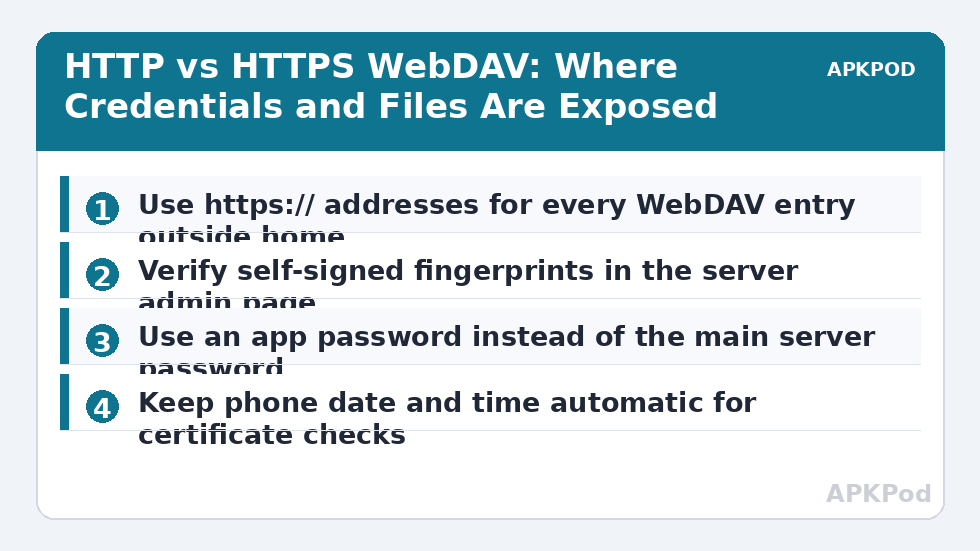
Warnings have causes, and the cause decides the response. An expired certificate on your own server usually means its automatic renewal failed; renew it on the server rather than teaching your phone to ignore expiry. A name mismatch means the address you typed is not a name on the certificate; connect using the exact hostname the certificate was issued for. A self-signed warning on a brand-new home server is expected, and the correct move is to compare the fingerprint X-plore shows with the fingerprint in the server’s own admin page, reached separately, and accept only if they match character for character.
The warning you should never accept
If a connection that worked yesterday suddenly presents a different certificate or fingerprint, and nobody in your household changed the server, stop. Do not enter your password. Check the server directly at home, confirm what changed, and only reconnect when the change is explained. Unexplained identity changes are precisely the attack HTTPS exists to expose. Our token guide’s companion, revoking cloud access tokens safely, covers the follow-up steps if you suspect the worst.
Practical rules for everyday use
- Never use an HTTP WebDAV entry outside your home network. Hotel and café Wi-Fi are exactly where readable credentials get harvested.
- Keep the phone’s date and time automatic. Certificate validity is judged against the clock, and a wrong clock makes good certificates look bad.
- Use an app password, not your main server password, so a phone problem never becomes a server-account problem.
- Keep the server updated. Old server software carries old flaws that no amount of transport encryption can excuse.
Testing That the Encrypted Route Really Works
Finish with three tests. First, browse the server over mobile data with Wi-Fi off: an HTTPS entry should work from outside the house if your remote access is configured, while reminding you that it is now safe to use there. Second, deliberately mistype the hostname and confirm X-plore complains, which proves identity checking is active. Third, open the server’s admin page and check its access log shows your phone’s connection arriving over the HTTPS port. A connection you have tested from both ends is one you can trust on the road.
How Certificates Get Renewed, and Why Connections Break in Spring
Owners of home servers often meet the same mystery: a connection that worked for months fails in a particular week with a certificate complaint. The common cause is mundane. Free trusted certificates are typically short-lived, commonly around ninety days, and are meant to renew automatically. If the renewal failed because the server was off, its domain records changed, or its storage filled up, the old certificate quietly expires and every client, X-plore included, starts warning at once. The fix belongs on the server: renew the certificate, confirm the new expiry date in the admin page, and check that automatic renewal is genuinely scheduled rather than merely assumed.
While you are in the server’s admin pages, note the certificate’s expiry date in your calendar with a reminder a fortnight earlier. That small habit converts a future surprise outage into a scheduled five-minute job. It also gives you an authoritative reference: if X-plore ever reports a fingerprint or expiry that disagrees with what your server says it issued, you have caught a discrepancy worth investigating before a single password is typed.
A note on speed
New users sometimes worry that encryption will slow their transfers noticeably. On any modern phone and home server, the TLS overhead is small compared with Wi-Fi and internet speeds, and connections reuse their negotiated session for many operations. If a WebDAV connection feels slow, the cause is almost always network quality, server load or very large folder listings, not the cost of encrypting the traffic.
Frequently Asked Questions
Is WebDAV over HTTP ever acceptable?
Only, at most, on a home network you fully control, and even there HTTPS is the better habit. Over HTTP your credentials and files are readable in transit, so the connection must never be used on public Wi-Fi or from outside your home network.
What does a certificate warning in X-plore mean?
It means X-plore could not confirm the server’s identity: the certificate may be expired, self-signed, issued for a different hostname, or changed unexpectedly. Verify the fingerprint in the server’s admin page before accepting, and never accept an unexplained change on a server that worked before.
Does HTTPS encrypt the files stored on my server?
No. HTTPS encrypts data while it travels between your phone and the server. Files at rest on the server need the server’s own protections, such as disk encryption and strong account passwords, and sensitive files can also be encrypted before upload.
Can I use a self-signed certificate safely?
Yes, if you verify it properly. Compare the fingerprint shown by X-plore with the fingerprint in the server’s admin interface, reached through a route you trust. Accept only on an exact match, and treat any later unexpected change as a stop sign.
Why does my HTTPS connection fail when the phone clock is wrong?
Certificates are valid only between fixed dates, and the phone checks those dates against its own clock. A clock set far from real time makes valid certificates look expired or not yet valid. Turning on automatic date and time fixes this class of failure immediately.