Moving three films is a copy. Moving a hundred and forty films, 380 GB of them, is a logistics problem wearing a copy’s clothes. People who treat a library move like a casual transfer discover the difference at hour two: a phone that filled up silently, a transfer that died on file ninety-one, a folder of half-written files with the same names as complete ones, and no reliable record of what actually arrived. X-plore is entirely capable of a job this size. The failures come from planning, not from the app.
This guide treats the move as a small project with four phases: audit, prepare, transfer in verified batches, and confirm. It is slower to read than tapping copy and hoping, and dramatically faster than doing the whole job twice.
Phase One: Audit Both Ends Before Copying Anything
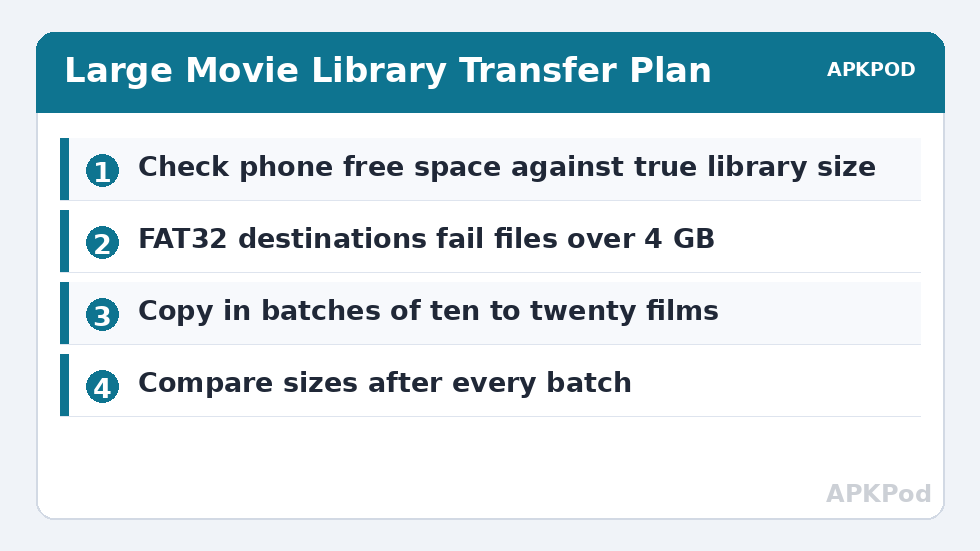
On the PC, get the true size of the library folder and count the files. On the phone, check free space in X-plore by viewing the storage entry’s properties or your Android storage settings, and be brutally realistic: a 256 GB phone with 90 GB free cannot receive a 140 GB library, and no setting in X-plore changes that arithmetic. Decide now what the phone actually needs. Favourites, unwatched films, travel selections: a curated subset moved well beats a complete library moved badly.
Check the Destination Filesystem’s Limits
If the destination is a microSD card or a USB drive formatted as FAT32, remember its 4 GB per-file ceiling. Many film files exceed that, and the copy will fail at exactly 4 GB per large file, which looks like random corruption until you recognise the pattern. Use exFAT or the phone’s internal storage for large video files. Also confirm the phone will be charged and stationary; a library move is not a pocket job. If your library lives on a network box rather than the PC itself, the setup in accessing NAS storage from X-plore is the version of this job you want.
Phase Two: Prepare the Library and the Route
Tidy names before the move, on the PC, where keyboards and batch tools live. Consistent filenames make verification later possible, and they make the phone’s video apps index the library properly. Remove true duplicates now, while deleting costs nothing, and note any unusually large files that deserve individual handling.
Choose the route deliberately. A saved SMB LAN server in X-plore pointing at the PC’s shared library folder suits this job best, because the phone can browse, select in batches, and resume browsing after an interruption without reconfiguring anything. The FTP server route works in reverse if you prefer driving from the PC. Weigh the trade-offs with the comparison of LAN, FTP and Wi-Fi server modes if you are unsure, and avoid browser-based Wi-Fi sharing for a job of this size; it is the wrong tool for hundreds of files. Set up the share first using the guide to connecting X-plore to Windows shared folders over SMB if the library sits on a Windows machine.
Phase Three: Transfer in Batches You Can Verify
Never select the entire library as one copy operation. Work in batches of perhaps ten to twenty films, grouped alphabetically or by folder, small enough that a failure costs minutes rather than a night. In X-plore’s dual pane view, keep the PC share on one side and the phone’s Movies folder on the other, select the batch with the checkboxes, copy, and watch the first minute of each batch to confirm the speed is sane before walking away.
Estimate the Whole Job From One Honest Batch
Suppose your first batch is 22 GB and it completes in twelve minutes. Your achieved throughput is 22,000 MB divided by 720 seconds, about 30 MB/s, a healthy figure for 5 GHz Wi-Fi 5. A 180 GB selection at that rate needs 180,000 ÷ 30 = 6,000 seconds, roughly one hour forty minutes of clean copying. If instead the batch crawled at 8 MB/s, the same selection needs over six hours, and the correct response is to fix the conditions, move the phone near the router, switch everything to 5 GHz, and copy overnight deliberately, not to start and pray. The method behind these sums is laid out in working out real transfer speeds in X-plore, and the estimator on the APKPod homepage does the same arithmetic for your own figures.
Bottleneck:
Tip:
All figures are estimates under good local conditions — strong signal, no competing traffic, both devices on the same network. Real speeds drop with distance, walls, channel congestion and slow storage on either device. Protocol options (SMB, FTP, SFTP) assume a 5 GHz-class Wi-Fi link.
| Library size | At 8 MB/s | At 30 MB/s |
|---|---|---|
| 50 GB | About 1 hour 44 minutes | About 28 minutes |
| 120 GB | About 4 hours 10 minutes | About 1 hour 7 minutes |
| 250 GB | About 8 hours 41 minutes | About 2 hours 19 minutes |
Survive Interruptions Without Corruption Panic
If a batch fails partway, through a dropped connection, a sleeping PC, or the phone’s battery protection, do not recopy the batch blindly over the top. First compare the destination folder: check which files arrived at full size against the PC originals, delete any file whose size is plainly short, and copy only the missing and damaged ones. X-plore’s habit of asking whether to overwrite or skip is your friend here, but size comparison is the evidence; a file that matches its source size to the byte is almost always intact, and a short file never is. Keep the PC awake for the duration by adjusting its sleep settings for the day, and keep X-plore in the foreground with the phone plugged in.
Phase Four: Confirm the Library on the Phone
When the batches finish, do three checks before you declare victory and, especially, before you delete anything from the PC. First, compare total counts and total size between the PC folder and the phone folder; they should match for the selection you moved. Second, spot-play several films in X-plore’s built-in player or your usual video app, including the largest file and the last file copied, because those are the two most likely casualties of a filesystem limit or a dying transfer. Third, let your video app index the folder and confirm the titles appear with sensible durations, which catches naming or format surprises while the PC copy is still untouched.
Only then decide the PC library’s fate. Many people keep the PC as the master archive and treat the phone as a travelling copy, which sidesteps the deletion question permanently. If space forces a true move rather than a copy, wait a few days of normal use before deleting the originals. Libraries are easy to copy and surprisingly emotional to lose, and storage regret is the one error in this entire process that no amount of re-copying can undo once the source is gone.
Frequently Asked Questions
What is the safest way to move a very large library with X-plore?
Work in verified batches of ten to twenty films rather than one giant copy. Check free space first, compare file sizes after each batch, and keep the phone plugged in, near the router, and on 5 GHz Wi-Fi throughout.
Why do some large film files fail at the same point every time?
If the destination is a FAT32 card or drive, its 4 GB per-file limit stops any larger file at exactly that boundary. Move those films to internal storage or to an exFAT-formatted destination instead.
How long should moving 120 GB of films take?
At a realistic 30 MB/s on good 5 GHz Wi-Fi, about 1 hour 7 minutes of clean copying. At 8 MB/s on a weak connection it stretches past four hours, so measure one batch first and plan from your real speed.
A batch failed halfway. Should I copy the whole batch again?
No. Compare the destination against the PC originals, delete any file that is short, and copy only the missing or incomplete files. Recopying everything wastes hours and risks overwriting good files for no benefit.
Should I delete the films from my PC straight after copying?
Wait. Verify counts and total size, play several films including the largest and the last copied, and use the phone library normally for a few days first. Keep the PC as the master archive if its storage allows it.