A NAS box does one job all day, every day, whether you are home or not: it holds your files and offers them to every device you own. Learning how to access nas storage xplore file manager turns your phone into a first-class citizen on that system, not a second-class viewer limited to whatever a vendor app chooses to show. With X-plore you can browse the same shares your PC sees, move photos off the phone onto redundant disks, and pull a film or a work document back down without a cloud service in the middle.
| Protocol your NAS offers | What it is best for from a phone | Encryption |
|---|---|---|
| SMB | General browsing, copying, and media streaming on the home LAN | SMB 3.x can encrypt; earlier dialects rely on your trusted LAN |
| FTP / FTPS | Simple transfers, broad client compatibility | Plain FTP has none. FTPS adds TLS encryption. |
| SFTP | Secure transfers, especially if remote access is properly configured | Yes, over SSH on port 22 |
| WebDAV | Access through varied networks, app-friendly connections | Only when used over HTTPS |
| DLNA / UPnP | Streaming media to players, not general file management | None, designed for local media discovery |
That table is the decision you actually need to make. Most home users should start with SMB because Windows, macOS, Linux, Synology, QNAP, TrueNAS, and almost every other platform speak it, permissions map cleanly to NAS user accounts, and X-plore handles it natively in its LAN section. Reach for the other protocols only when you have a specific reason, such as an SFTP-only workflow or a media library you mainly stream.
The Practical Way to Access NAS Storage Xplore File Manager Users Trust
Preparation happens in the NAS admin panel, not on the phone. Log into your NAS from a computer, confirm the shared folders you want exist, and confirm the user account you plan to use on the phone has permission to read, and if needed write to, each of those folders. Synology calls them shared folders under DSM’s Control Panel. QNAP manages them in QTS under Shared Folders. TrueNAS calls them datasets shared over SMB. The names differ, the principle does not. No phone app can grant access the NAS itself has not granted to that account.
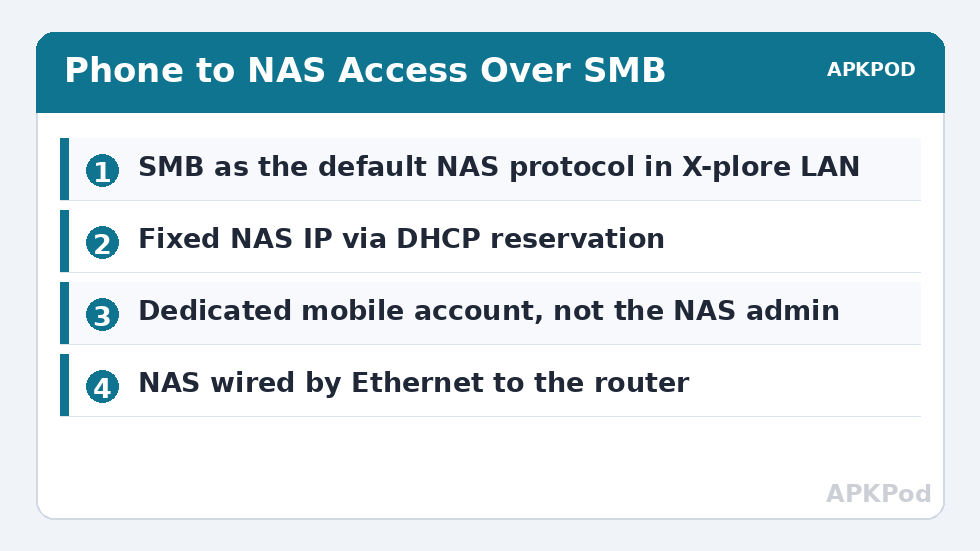
Create a dedicated account for mobile access if you share the NAS with family. Give it access to media and a personal folder, but not to backups of other people’s computers or admin settings. If the phone is lost, you can disable that one account without disrupting anyone else. It is a small step that separates a lost-phone inconvenience from a household data problem.
Note the NAS IP address while you are in the admin panel, and give the NAS a fixed address if you have not already. Use your router’s DHCP reservation feature so the NAS always receives, for example, 192.168.1.10. Every saved server entry on every device in the house depends on that address staying still. A NAS whose address drifts after every router reboot will generate a steady stream of mystery connection failures.
Adding the NAS in X-plore’s LAN Section
Open X-plore, go to LAN, and add a new server. Try the LAN server scan first if you like, since many NAS boxes advertise themselves and appear automatically. If yours does not appear, add it manually with the fixed IP address, the share name if requested, and the NAS username and password you just checked. Save the entry and open it. You should see exactly the folders that account is allowed to see, no more and no less. Seeing fewer folders than expected is almost always a NAS-side permission, not an X-plore bug.
Use X-plore’s dual pane layout to make the NAS relationship useful. Put phone storage in one pane and the NAS share in the other, then copy a batch of photos across. Settle into that pattern for regular offloads, and your phone stops being a device that constantly warns about storage. If you plan to do this weekly, the shortcut ideas in mapping network drives as shortcut buttons cut the navigation down to a tap or two.
Bottleneck:
Tip:
All figures are estimates under good local conditions — strong signal, no competing traffic, both devices on the same network. Real speeds drop with distance, walls, channel congestion and slow storage on either device. Protocol options (SMB, FTP, SFTP) assume a 5 GHz-class Wi-Fi link.
X-plore also supports other routes into the same box. If your NAS runs an FTP service and you prefer that route for a particular folder, the setup logic mirrors our FTP server guide for X-plore, except now the NAS is the server and the phone is the client. Keep plain FTP inside the home network only. A NAS holds far more than a single phone does, which makes exposing its FTP or SMB services to the internet an even worse idea than exposing a phone’s.
Streaming and Working With Files in Place
Not every interaction needs a copy. For video and music, X-plore can open media directly from the NAS share and hand it to a player, so a film stored on the NAS plays on the phone without first filling the phone’s storage. Large documents and archives are better copied locally before editing, because editing an office file live over Wi-Fi through a phone app invites save conflicts if the connection hiccups mid-edit. Adopt a simple rule. Stream media, copy documents you intend to change, and copy anything you need on a train or flight where the NAS is unreachable.
Speaking of reachability, decide now how you feel about remote access, because requests for it tend to arrive at the worst moment, usually from an airport. The safe options are a VPN into your home network or the NAS vendor’s relay service used with strong passwords and two-factor authentication where offered. The unsafe option is forwarding SMB port 445 or plain FTP port 21 from the internet straight to the NAS. Do not do that. Our broader Network Setup guides return to this point often because it is where home networks most often get compromised.
Permissions, Speed, and the Details That Decide Whether This Feels Good
A NAS connection that works but crawls will be abandoned within a week, so pay attention to the path between phone and box. If the NAS is wired to the router by Ethernet, which it should be, and the phone is on 5 GHz Wi-Fi in the same room, typical ranges for large file copies over SMB are roughly 10 to 35 MB/s, depending on the NAS CPU, disk speed, and Wi-Fi conditions. A NAS left on a weak 2.4 GHz link or buried behind two walls will deliver a fraction of that, and no app setting can compensate for physics.
- Wire the NAS: Ethernet from NAS to router or switch, always. Wi-Fi is for the phone, not for the storage.
- Use one account consistently: Mixed credentials across devices cause lockouts and confusing permission errors.
- Keep names simple: Share names with spaces and special characters work, but simple names avoid encoding surprises across clients.
- Test restore, not just backup: Copy a file to the NAS, delete the phone copy after verifying, then copy it back. A backup you have never restored is a hope, not a backup.
- Update both sides: NAS firmware and X-plore updates both fix protocol quirks, especially around newer SMB signing requirements.
Families often discover the NAS through the phone first, because the phone is where the photos are. That makes your X-plore setup the household’s front door to shared storage. Take the extra ten minutes to label saved servers clearly, Media NAS, Backups, or Family Share rather than a bare IP address, so other people can use what you built without asking you which numbers to tap. If discovery itself is your problem, and the NAS never appears in scans at all, work through fixing network discovery before changing any NAS settings, since the fault is often the router’s handling of local broadcasts.
Frequently Asked Questions
Which protocol should I use to reach my NAS from X-plore?
Start with SMB for general file access on your home network. It is supported by Synology, QNAP, TrueNAS, and Windows, and X-plore handles it natively. Use SFTP or FTPS when you specifically need encrypted transfers.
Why does X-plore show fewer folders than I see on my PC?
X-plore shows only the folders the NAS account you entered is allowed to access. Check that account’s permissions in the NAS admin panel for each shared folder that is missing.
Can I reach my NAS from outside my home with X-plore?
Yes, but do it safely through a VPN into your home network or the vendor’s secured remote service with a strong password and two-factor authentication. Never forward SMB or plain FTP ports directly to the internet.
Why are transfers to my NAS slower than I expected?
Typical causes are a NAS connected by Wi-Fi instead of Ethernet, a weak 2.4 GHz phone connection, or many small files instead of a few large ones. Wire the NAS, use 5 GHz Wi-Fi near the router, and archive small files when practical.
Should I use my NAS admin account on my phone?
No. Create a dedicated account for mobile access with permission only for the folders the phone needs. If the phone is lost, you can disable that account without affecting admin access or other household users.