The constraint is Windows, not your phone. Modern Windows installations block the old, insecure ways of sharing folders, so when you try to connect xplore to windows shared folders smb access on a current PC, the first attempt often fails even though both devices are on the same desk. The fix is rarely to weaken Windows. It is to configure the share properly, use SMB 2.0 or 3.0, and give X-plore a real username and password to present.
SMB, short for Server Message Block, is the protocol Windows has used for file sharing for decades. X-plore includes an SMB client under its LAN section, and it can browse shares, open documents, stream media stored on a PC, and copy files in both directions without any server software installed on the computer. What it cannot do is bypass Windows permissions. If Windows would refuse the connection for another PC, it will refuse it for your phone too, and that refusal is useful diagnostic information.
Prepare the Windows Share Before You Connect Xplore to Windows Shared Folders SMB
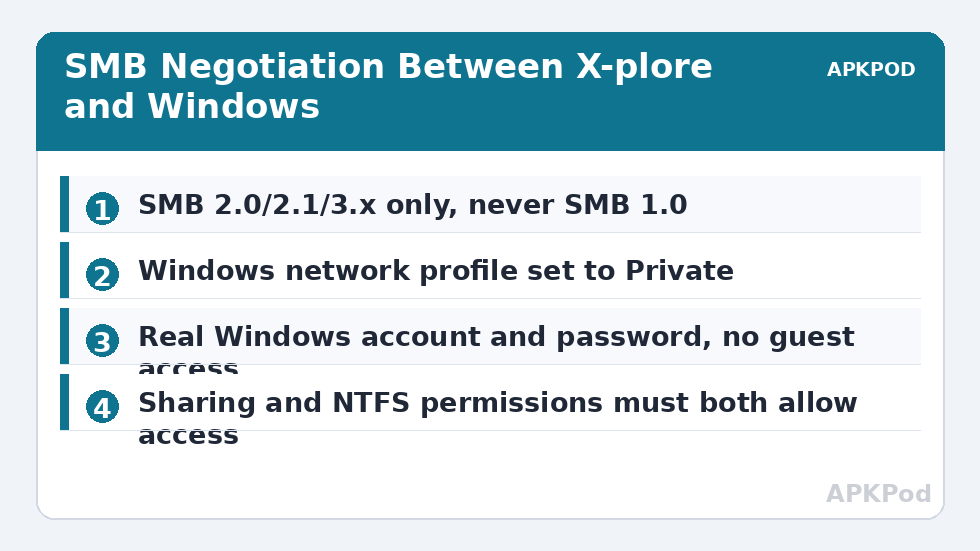
Start on the PC. Choose the folder you actually want on your phone. For most people that is a media folder, a documents folder, or a dedicated Shared Transfer folder, not the entire C drive. Right-click the folder, open Properties, go to the Sharing tab, and use Advanced Sharing. Tick Share this folder, give it a clear share name without spaces if you can, then open Permissions and make sure your Windows user account has the access you intend, Read for viewing and streaming, or Read and Change if the phone should also save files back to the PC.
Sharing permissions are only half the story. The Security tab controls NTFS permissions on the folder itself, and the more restrictive of the two sets wins. If sharing says Full Control but the Security tab denies your account, the connection will still fail. Home users trip over this mismatch constantly. Check both tabs for the same account before you touch the phone.
Next, confirm your network profile. In Windows Settings, your home connection should be set to Private, not Public. The Public profile blocks file sharing and discovery to protect you in airports and cafes. On Private, enable Network Discovery and File and Printer Sharing if asked. Note the PC’s IPv4 address from ipconfig, typically something like 192.168.1.25.
Why Guest Access No Longer Works
Older guides tell you to enable guest sharing and leave the password blank. That advice is obsolete. Microsoft disabled insecure guest logons by default in modern Windows editions because they allowed unauthenticated access to shares, a weakness that ransomware and worms exploited for years. SMB signing requirements have also tightened. If X-plore offers a guest or anonymous option, do not build your setup around it. Create or use a proper local Windows account with a password, even if that account exists mainly for phone access, and enter those credentials in X-plore. It takes two extra minutes and removes a whole class of connection failed errors.
SMB Dialects Explained: 1.0, 2.0, 2.1, and 3.x
| Dialect | Introduced with | Status today | Notes for X-plore users |
|---|---|---|---|
| SMB 1.0 | Legacy Windows, 1980s roots | Disabled by default, do not enable | Slow, chatty, and vulnerable. The WannaCry outbreak abused SMB 1.0 flaws. Leave it off. |
| SMB 2.0 | Windows Vista / Server 2008 | Supported, acceptable minimum | Much fewer round trips than 1.0, better performance on Wi-Fi. |
| SMB 2.1 | Windows 7 / Server 2008 R2 | Supported | Adds leasing improvements that help with repeated file opens. |
| SMB 3.0 / 3.1.1 | Windows 8 / 10 / 11 era | Preferred | Adds encryption options, stronger signing, and pre-authentication integrity in 3.1.1. |
The client and server negotiate the highest dialect they both support at connect time. You do not normally pick a number in X-plore. You simply need Windows to have SMB 2.0 or higher available, which every supported Windows version does, and you must resist forum advice that tells you to re-enable SMB 1.0 to make an old app connect. X-plore’s current SMB implementation handles modern dialects. If a connection only works with SMB 1.0 switched on, something else is misconfigured, and switching 1.0 on trades a small convenience for a well-documented security hole.
Signing adds a cryptographic check so SMB messages cannot be tampered with in transit. SMB 3.x encryption goes further and hides the file data itself. If Windows requires signing and a very old client cannot provide it, the session is refused. Keeping Windows and X-plore updated avoids most of that friction.
Bottleneck:
Tip:
All figures are estimates under good local conditions — strong signal, no competing traffic, both devices on the same network. Real speeds drop with distance, walls, channel congestion and slow storage on either device. Protocol options (SMB, FTP, SFTP) assume a 5 GHz-class Wi-Fi link.
Adding the Server in X-plore’s LAN Section
On your phone, open X-plore, go to the LAN section, and use the option to add a server. You can try the LAN server scan first, which probes your local network for devices advertising shares. Scanning is convenient, but manual entry is more reliable, especially when Windows discovery is quiet. Enter the PC’s IP address rather than its name if the scan finds nothing, because IP entry avoids name-resolution delays and failures entirely.
Fill in the share path if asked, then enter the Windows username and password exactly as at the PC login screen. With a Microsoft account, the SMB username may be your email address or the local name under Settings, Accounts. Run whoami in Command Prompt to see what Windows expects, and try that username in X-plore without the machine prefix if the full form fails.
Save the server in X-plore once it connects, and use its dual pane view to test a copy in each direction. Download a document, open it, then upload a photo from the phone into a test subfolder. If downloads work but uploads fail, you almost certainly have a sharing or NTFS permission set to read-only, not a network fault. That distinction saves a lot of aimless router rebooting, and it is covered in more depth in our guide to fixing the SMB connection failed error.
For a fuller map of related guides, see the Network Setup category, which groups SMB, FTP, NAS, and SFTP topics together. If your main goal is watching files rather than copying them, streaming video from PC to Android over LAN builds directly on the working SMB connection you have just created.
Performance Expectations on Wi-Fi
SMB carries more overhead than a raw FTP transfer, so typical ranges are a little lower. On a healthy 5 GHz home network, expect roughly 5 to 30 MB/s for large file copies as a typical range, with small-file jobs running slower because every file needs its own open, write, and close exchange. Creating thousands of tiny files will always feel sluggish over any network protocol. If you need to move a folder of 4,000 small photos, consider zipping it on the PC first, copying one large archive, and unzipping on the phone. That single change can turn a frustrating job into a short one.
Never expose SMB to the internet. SMB ports, especially TCP 445, are among the most scanned and attacked ports online, and Windows sharing was designed for trusted local networks. Do not forward port 445 on your router for remote access, under any circumstances. If you need files away from home, use a VPN back into your home network or a proper cloud sync service. Within the house, though, a correctly permissioned SMB share reached through X-plore is one of the most practical tools you can set up, and pairing it with shortcuts from mapping network drives as shortcut buttons makes repeat access almost instant.
Troubleshooting the Failures That Actually Happen
Work from the PC outward. Confirm the share opens from File Explorer on the PC itself, and that phone and PC are on the same subnet. Check whether a third-party firewall is blocking file sharing, then add the proper allowance rather than leaving it off. If you recently changed the account password, update the stored entry in X-plore.
Windows updates occasionally reset a network profile from Private back to Public, which silently breaks sharing until you set it back. If a connection that worked last month dies after an update, check the profile first. It is the most common cause of sudden SMB failure at home, and the quickest to fix.
Frequently Asked Questions
Why does X-plore say connection failed when my PC is on?
The usual causes are a Public network profile in Windows, file sharing turned off, wrong username or password, or a firewall blocking SMB. Set the network to Private, confirm sharing is enabled, and re-enter your Windows account credentials in X-plore.
Should I enable SMB 1.0 to make X-plore connect?
No. SMB 1.0 is obsolete and vulnerable, and modern X-plore connects over SMB 2.0 and 3.x. If a guide tells you to enable SMB 1.0, treat that as a sign the real problem, usually permissions or the network profile, has not been found yet.
Can I browse Windows shares without a password?
Modern Windows blocks insecure guest access by default, so reliable access needs a real Windows account with a password. Enter that account in X-plore rather than trying anonymous or guest login.
Why can I download files but not upload them to the PC?
Your share or NTFS permissions are almost certainly read-only for your account. On the PC, check both the Sharing tab permissions and the Security tab for the folder, and grant Change or Modify access if uploads should be allowed.
Is it safe to use SMB over my home Wi-Fi?
On a private, password-protected home network with SMB 2.0 or 3.x, it is a normal and reasonable setup. Never forward SMB ports to the internet, and keep Windows and X-plore updated.