Privacy on a local network is mostly about two unglamorous questions: who else can see this traffic, and what does the file itself reveal? Learning how to setup anonymized LAN transfer Xplore workflows — in the legitimate, home-network sense of keeping your transfers private from other people and devices sharing that network — means answering both. It does not mean hiding activity from a network you do not own, and nothing here is about evading the rules of a workplace, school, or any other administered network. It is about your files, on your network, not being casually visible to everyone else on it.
The Realistic Privacy Model for a Home LAN
Start with who you are actually protecting against. On a typical home network the realistic concerns are a compromised or nosy device on the same network, a guest you gave the Wi-Fi password to last year, and a future network you join absent-mindedly where a saved transfer setup reconnects automatically. Encryption handles the first two well: properly encrypted traffic is unreadable to other devices even when they share the network. The third is handled by habit — sensitive transfers belong on networks you trust, full stop.
What local encryption does not do is make you anonymous to your own router or internet provider for traffic that leaves the house, and it does not need to. Keeping this scope honest is what makes the measures below worth doing properly, rather than as theatre.
| Protocol in X-plore | Encrypted? | Privacy verdict for LAN use |
|---|---|---|
| SFTP (SSH) | Yes — credentials and contents | First choice. Strong encryption, one port, mature servers on every platform. |
| FTPS (FTP over TLS) | Yes, when explicit TLS is enforced | Good choice where an FTP server with TLS is already running. Verify TLS is required, not optional. |
| WebDAV over HTTPS | Yes, with a valid certificate | Good choice for self-hosted storage. The certificate check is part of the protection — do not bypass warnings. |
| SMB 3 | Encryption available per share | Acceptable on a trusted home LAN; enable share encryption where the server supports it for sensitive folders. |
| Plain FTP or HTTP WebDAV | No | Avoid for anything private. Credentials and files cross the network readable by other devices. |
How to Setup Anonymized LAN Transfer Xplore Habits That Actually Hold
The setup itself is a short list of deliberate choices, each made once.
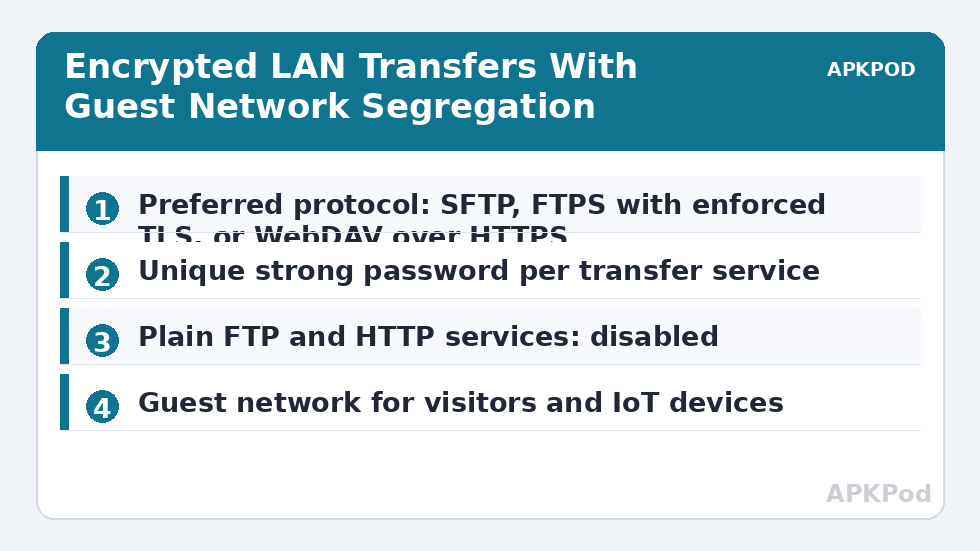
- Pick one encrypted protocol and standardise on it. SFTP suits most homes: enable SSH on the PC or NAS, create an account for transfers, and connect from X-plore as described in the SFTP transfer guide. Fewer protocols running means fewer forgotten plain-text services still listening.
- Use a unique, strong password per service. The transfer account’s password should exist nowhere else, be stored in a password manager, and not be your Wi-Fi password, your Windows sign-in, or your router admin password reused for convenience.
- Turn off the plain services. If the NAS still runs an unencrypted FTP server from an old setup, disable it. Privacy gained on SFTP is quietly lost if the same folders are also served in clear text next door. The password-protected FTP guide covers hardening that service if you must keep it — a password alone, without TLS, does not encrypt the files.
- Verify the server’s identity on first connection. SSH clients present a host key fingerprint; WebDAV over HTTPS presents a certificate. Confirming these on a trusted first connection is what stops a different device impersonating your server later.
- Keep transfers on your own network. Do sensitive copying at home, or on a direct phone-to-phone or phone-to-PC link you created — never over café, hotel, or other shared Wi-Fi, encrypted protocol or not.
Network Segregation Without New Hardware
Most modern routers already offer the two segregation tools that matter. A guest network keeps visitors’ devices away from your PC and NAS entirely, while your own devices stay on the main network where transfers happen — that single change removes the largest group of unintended onlookers. Some routers also let you place smart-home gadgets, which are rarely updated and frequently chatty, on the guest or a separate IoT network, shrinking the set of devices that share a broadcast domain with your file transfers at all.
Within the main network, per-service accounts do the remaining work. The transfer account on the PC or NAS should reach the folders it needs and nothing else, so even a correctly authenticated connection from a borrowed device sees a deliberately small view of your storage. Segregation is layered like that — network, account, folder — and each layer is cheap because you set it once.
The Metadata Inside the Files Themselves
Encryption protects files in transit. It does nothing about what a file carries inside it, and that is where many real privacy leaks happen. Photos typically embed the location they were taken, the device model, and the time. Documents can carry author names, revision history, and comments. Screenshots may show notifications, account names, or other people. Before sending sensitive files anywhere — even privately, even to yourself on another device — it is worth knowing what is inside them: view a photo’s details in X-plore, strip location data using your gallery or a metadata tool when sharing beyond your own devices, and remember that a file you received and forwarded keeps its original metadata unless you remove it.
File names deserve the same glance. A perfectly encrypted transfer of a document whose name spells out its contents announces those contents to anyone who later sees a folder listing, a backup catalogue, or a shared screenshot. Neutral names for sensitive material are a dull, effective habit.
Bottleneck:
Tip:
All figures are estimates under good local conditions — strong signal, no competing traffic, both devices on the same network. Real speeds drop with distance, walls, channel congestion and slow storage on either device. Protocol options (SMB, FTP, SFTP) assume a 5 GHz-class Wi-Fi link.
What to Refuse, Even When It Is Offered
Two refusals protect everything above. First, never expose transfer services to the open internet by forwarding FTP, SMB, or plain WebDAV ports on the router. If you need your files away from home, use the encrypted protocol through a VPN into your own network, or a properly secured HTTPS service — the Network Setup guides repeat this doctrine because it is the line between a private home setup and a public incident. Second, do not run private transfers over shared Wi-Fi you do not control, and do not use privacy techniques to move files on a network whose administrator has rules against it — your employer’s or school’s network policies govern that network, and the legitimate version of this topic is, and only is, your own network and your own files.
Done properly, a private LAN setup is almost invisible in daily use: an SFTP or HTTPS entry saved in X-plore, a guest network for everyone else, strong separate passwords, and a moment’s attention to metadata before sensitive files move. That ordinariness is the point. Privacy that depends on constant vigilance fails; privacy built into the defaults lasts.
Frequently Asked Questions
Which protocol in X-plore is most private for home transfers?
SFTP is the strongest default choice, encrypting both your credentials and the file contents with well-established SSH security. FTPS with enforced TLS and WebDAV over HTTPS with a valid certificate are also sound options. Plain FTP and plain HTTP WebDAV encrypt nothing and should not carry private files.
Does using an encrypted protocol make me anonymous online?
No, and it is not meant to. Encrypting LAN transfers keeps other devices on your local network from reading your files and passwords. It does not change what your router or internet provider can see about traffic leaving your home, and it is not a tool for bypassing the rules of networks you do not own.
Why is a strong separate password needed if the traffic is encrypted?
Encryption protects data while it travels; the password decides who can connect at all. A reused or weak password lets someone sign in legitimately through the front door, where encryption then faithfully protects their session instead of yours. Each transfer service deserves its own strong, unique password.
Should I transfer private files over café or hotel Wi-Fi?
No. Even with an encrypted protocol, shared public networks add risks and unknowns that your home network does not have. Wait until you are on your own trusted network, or use a direct device-to-device link you control, for anything sensitive.
What metadata should I check before sending a photo or document?
Photos commonly contain GPS location, device model, and timestamps, while documents can contain author names, comments, and revision history. Check a file’s details before sending, remove location and author data when sharing beyond your own devices, and use neutral file names for sensitive material.