An open FTP share on a phone is an invitation anyone on the same Wi-Fi can accept, so if you plan to setup password protected ftp server xplore style access instead of anonymous access, the password is only the first layer. X-plore can run an FTP server from the phone itself, turning Android storage into a folder a computer can open, but plain FTP was designed in an era when local networks were trusted by default. That design assumption shapes every choice in this guide: which folder you expose, how long you leave the server running, and whether the connection ever leaves your own LAN.
This article sits in the wider Network Setup collection because an FTP server is a network service, not just a file manager trick. If you have never run the basic service before, start with the plain setup FTP server X-plore file manager walkthrough, then return here to lock it down properly.
Setup Password Protected FTP Server Xplore Settings That Matter
Open X-plore, expand the Wi-Fi sharing or FTP server entry in the left pane, and open its configuration before you start the server for the first time. The settings that decide whether the setup is actually protected are few, and they are worth setting deliberately rather than accepting defaults.
| Setting | Recommended value | Why it matters |
|---|---|---|
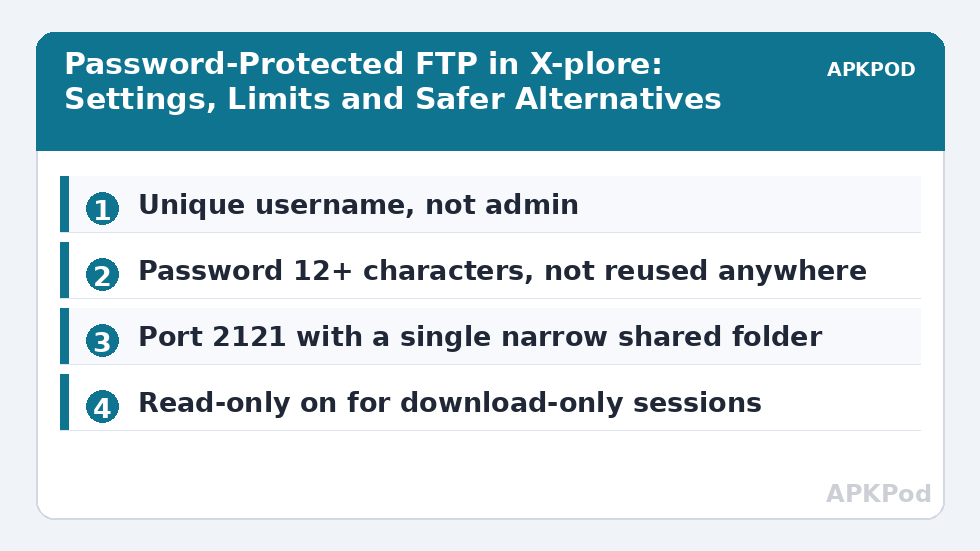
| Username | A unique name, not admin or your phone model | Predictable usernames make guessing the password easier |
| Password | 12 or more characters, unique to this service, not reused from any other account | It is the only authentication plain FTP offers |
| Port | Default 2121, or another high port you record | Android cannot use privileged ports below 1024 without root; a non-standard port also reduces casual scanning noise |
| Shared folder / root | The narrowest folder that serves the job, not the whole internal storage | Limits what a connected client can browse, copy, or delete |
| Read-only access | On when clients only need to download | Prevents accidental or malicious modification and deletion |
| Server state | Stopped whenever you are not actively transferring | A server that is not running cannot be probed at all |
Set the username and password first, then choose the root folder. In X-plore you can point the server at a specific directory, such as a dedicated Transfer folder on internal storage or a folder on the SD card, instead of exposing everything. Create that folder in advance, move only the files you intend to share into it, and treat anything placed there as visible to anyone who authenticates. This single habit does more for real-world safety than any port trick.
Starting the server and reading the address correctly
Start the server from the same pane and note the address X-plore displays, which will look like ftp://192.168.1.42:2121 — a private LAN address plus the port you set. On the computer, enter that address in a browser, Windows Explorer, Finder, or a dedicated FTP client such as FileZilla, and supply the username and password when prompted. If the prompt never appears and the folder opens immediately, anonymous access is still enabled somewhere, so stop the server and recheck the configuration before transferring anything you care about.
Bottleneck:
Tip:
All figures are estimates under good local conditions — strong signal, no competing traffic, both devices on the same network. Real speeds drop with distance, walls, channel congestion and slow storage on either device. Protocol options (SMB, FTP, SFTP) assume a 5 GHz-class Wi-Fi link.
The Plain Truth About FTP Passwords and Encryption
A password on an FTP server protects against casual access on the LAN: a housemate, guest, or coworker who finds the address cannot simply walk in, and random devices scanning the network will be turned away at the login prompt. What the password does not do is encrypt anything. Plain FTP sends the username, the password, and the file data itself unencrypted, in a form that other devices on the same network can potentially capture with packet-inspection tools. On a home network you control, that risk is modest. On shared, dormitory, office, or public Wi-Fi, it is a genuine exposure.
That is why the rules for this setup are strict:
- Use the password-protected FTP server on your own trusted LAN only, never on public or semi-public Wi-Fi.
- Use a strong, unique password that you do not reuse for email, banking, or any other service, because it travels unencrypted.
- Stop the server the moment the transfer session ends; do not leave it running overnight or in your pocket while you travel.
- Never expose the FTP port to the internet through router port forwarding. If remote access is genuinely required, read the port forwarding for FTP access guidance with its warnings, and prefer an encrypted alternative instead.
- For anything sensitive, switch protocols entirely and transfer files over SFTP and SSH in X-plore, where credentials and data are encrypted in transit. FTPS, which wraps FTP in TLS, is the other encrypted option where a server supports it.
Think of the password as a lock on a glass door inside your own house. It keeps honest people and casual snoopers out, and that is a worthwhile job. It is not a vault, and treating it like one — by leaving it running for days or opening it to the internet — is where the real trouble starts.
Choosing the Right Root Folder and Permissions
Folder scope deserves its own pass because FTP clients typically show the server root as if it were the whole device. If the root is your internal storage, a connected user can wander through DCIM, Download, WhatsApp or Signal media folders, and any document you forgot was there. Scoping the root to a single purpose-built folder changes the failure mode completely: even if the password leaks within the household, the exposure is limited to files you deliberately staged for sharing.
Read-only mode completes the picture for one-way jobs. When the computer only needs to collect photos or documents from the phone, read-only access means nothing on the phone can be altered or deleted through that connection, even by you by accident. Turn write access on only for sessions where the computer must deliver files to the phone, and turn it back off afterwards.
Typical transfer expectations on a home LAN
FTP is a lightweight protocol with very little overhead, so on a healthy home network it is usually limited by Wi-Fi quality rather than by the protocol itself. As typical ranges, a phone on a strong 5 GHz connection near the router may sustain roughly 15 to 45 MB/s, while a weak 2.4 GHz link at distance can fall to 2 to 8 MB/s. Large numbers of small files move more slowly than one large archive of the same total size, because each file carries its own command overhead. If speeds collapse entirely, the bottleneck is almost always signal quality, router load, or the storage speed of the phone or SD card — not the password, which adds no meaningful cost.
Troubleshooting Login and Access Problems
When a client cannot log in, work through the causes in order of likelihood. First, retype the password manually instead of pasting it, since trailing spaces and autocorrect substitutions are common on both phones and computers. Second, confirm the client is using the exact port shown in X-plore; a client assuming the standard port 21 will never reach a server listening on 2121. Third, check that both devices are on the same network and the same band or SSID, because guest networks and client-isolation features deliberately block device-to-device traffic. Fourth, confirm the phone has not changed Wi-Fi networks or had its IP address reassigned since you read the address.
If login succeeds but the folder looks empty, you are almost certainly looking at a different root folder than you expected, or the client is showing a cached listing; disconnect, reconnect, and compare the folder contents inside X-plore itself. If uploads fail while downloads work, read-only mode is enabled or the destination folder sits on storage Android has marked as restricted.
Frequently Asked Questions
Does a password make an X-plore FTP server safe to use?
A password protects against casual access on the LAN by stopping anyone who finds the address from browsing your files without logging in. It does not encrypt the connection: plain FTP sends credentials and data unencrypted, so use it only on a trusted home network, with a strong unique password, and stop the server when you finish.
What should I use instead of FTP for sensitive files?
Use SFTP, which encrypts credentials and file data over SSH, or FTPS, which wraps FTP in TLS encryption, where the receiving server supports it. Both protect the password itself in transit, which plain FTP cannot do at any password strength.
Why does X-plore use port 2121 instead of port 21?
Android does not allow ordinary apps to listen on privileged ports below 1024 without root access, and port 21 is the traditional FTP port in that reserved range. X-plore therefore defaults to a high port such as 2121, and clients must include that port in the address to connect.
Can I leave the FTP server running all the time?
You can, but you should not. A running server is a listening service that anyone on the network can probe, it drains battery, and the phone IP address can change and confuse saved bookmarks. Start it for a transfer session, then stop it when the session ends.
Why can my computer see the login prompt but not my files?
The server root is probably pointed at a different folder than the one holding your files, or the client is showing a cached empty listing. Check the shared folder setting in X-plore, disconnect and reconnect the client, and verify the files are visible in that exact folder inside X-plore.