Start with the risk, not the steps. If a transfer crosses a network you do not fully control, or the files would embarrass or harm you if they leaked, plain FTP and open shares are the wrong tools, and you should transfer files sftp ssh xplore file manager connections instead. SFTP encrypts everything, the login, the file listings, and the files themselves, inside a single SSH connection. Nothing readable travels across the network for anyone watching to collect.
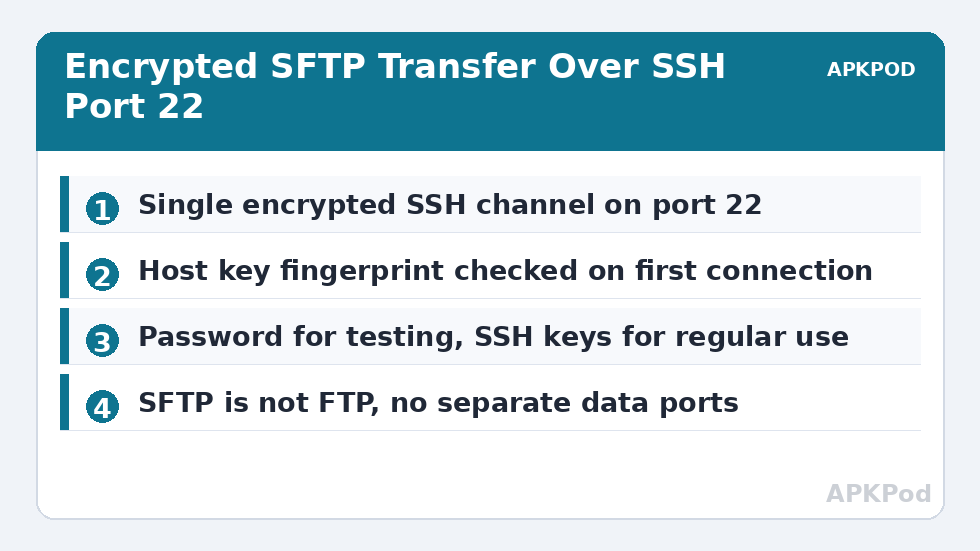
SFTP stands for SSH File Transfer Protocol. Despite the similar name, it is not FTP with a wrapper. FTP is a separate older protocol with a control channel and data channels. SFTP is a file transfer subsystem that runs over SSH, usually on port 22, using one encrypted connection for both commands and data. That single-channel design is why SFTP passes through firewalls so cleanly and why it has become the standard way administrators move files to servers, NAS boxes with SSH enabled, Linux machines, and rented web hosting.
Why You Should Transfer Files SFTP SSH Xplore File Manager Connections by Default for Sensitive Work
X-plore includes SFTP support as part of its network toolbox, alongside LAN and SMB, FTP, and Wi-Fi sharing. In practice that means the same app you use for local browsing can also hold saved, credential-protected connections to a home server in another city or a hosting account on another continent, with the same dual pane copying once you are connected. The learning cost is small. The security gain over plain FTP is not.
| Property | Plain FTP | SFTP over SSH |
|---|---|---|
| Default port | 21 for control, plus separate data ports | 22, single connection |
| Encryption | None. Passwords and data are readable in transit. | Full session encrypted, with host key verification |
| Authentication | Username and password in clear text | Password or SSH key pair |
| Firewall behaviour | Can be awkward, needs passive data ports | Simple, one port to allow |
| Suitable over the internet | No | Yes, when the server itself is properly secured |
| Typical speed range | Often faster locally due to zero encryption overhead | Roughly 4 to 20 MB/s as a typical range on phone hardware, limited by encryption and server CPU |
That host key point in the table matters and is easy to skip past. The first time X-plore connects to an SSH server, the server presents a host key fingerprint, its identity card. If you connect to that same server later and the key has changed unexpectedly, the app should warn you, because a changed key can mean you are talking to a different machine pretending to be your server. Note the fingerprint from your server provider or your own server setup, and compare it on first connection instead of tapping through the prompt on autopilot.
What You Need on the Server Side
X-plore is the client. Something else must run the SSH server. Common cases cover most readers. A Linux PC or home server usually needs OpenSSH server installed and running. Many NAS boxes offer SSH as an optional service you enable in their admin panel, often restricted to admin accounts. Web hosting accounts frequently provide SSH and therefore SFTP access with the same username you use for hosting, though budget shared hosting sometimes limits it. A Windows PC can run the optional OpenSSH Server feature, but for simple home sharing with a Windows machine, SMB is normally the easier path described in our Windows SMB guide.
Gather four facts before opening X-plore: the server address or hostname, the SSH port, which is 22 unless the server deliberately uses another port, the username, and either the password or the private key for key-based login. If any one of those is wrong, the connection fails, and SSH deliberately gives vague errors to avoid helping attackers guess which part was wrong. That vagueness is good security and annoying troubleshooting, so accuracy at this stage saves real time.
Adding an SFTP Server in X-plore
In X-plore, go to the section where network servers are managed and add a new server, choosing the SFTP or SSH type. Enter the server address, port, and username. For a first connection, password authentication is the simplest test because it proves address, port, and account in one go. Save the entry, connect, and confirm the host key prompt matches what you expect. Once connected, your remote folders appear in the pane, and copying works exactly as it does with a local folder or an SMB share.
After the password test succeeds, consider switching to key-based authentication for any server you use regularly, especially any server reachable from the internet. With keys, you generate a key pair, keep the private key protected on the phone, ideally with a passphrase, and install only the public key on the server. The server then proves nothing secret ever crosses the network during login, and password guessing attacks against your account become useless if the server is set to keys only. Keep a backup of the private key somewhere safe and private. Lose it, and you lose that route in, which is the system working as designed.
Bottleneck:
Tip:
All figures are estimates under good local conditions — strong signal, no competing traffic, both devices on the same network. Real speeds drop with distance, walls, channel congestion and slow storage on either device. Protocol options (SMB, FTP, SFTP) assume a 5 GHz-class Wi-Fi link.
Set a clear name for every saved SFTP entry. Home Server, NAS SSH, and Hosting will mean something to you in six months. A list of bare IP addresses will not. If you hold different accounts on the same server, include the username in the label too. Small labelling discipline prevents the genuinely dangerous mistake in file transfer work, which is not a failed copy but a successful copy to the wrong destination.
Working Safely and Verifying What Arrived
Encryption protects files in transit. It does nothing to protect you from uploading the wrong file to the wrong folder, overwriting a newer document with an older one, or deleting something on the server while you thought you were browsing the phone pane. X-plore’s dual pane layout helps, but only if you pause to check which pane is the server before a delete or overwrite. For important work, copy first, verify on the server side by opening or checking the file size and date, and only then delete the source if deletion was ever part of the plan.
Our Network Setup category places SFTP alongside the local protocols so you can compare routes honestly. SFTP is also the natural upgrade path from the method in setting up an FTP server in X-plore. If you started with FTP for convenience at home, moving sensitive folders to SFTP keeps the same app and habits while closing the clear-text hole. On Linux home networks, the companion guide to connecting X-plore to Linux Samba shares covers the local-network alternative on the same machine that may also be your SSH server.
When SFTP Feels Slow, and What Is Actually Happening
Encryption costs processing power on both ends. An older NAS CPU or a budget phone encrypting a large stream will top out well below raw Wi-Fi speed, and that ceiling is expected behaviour rather than a fault. Typical ranges on phone hardware sit noticeably below plain FTP on the same network. For a handful of documents, the difference is seconds and irrelevant next to the security gain. For a 30 GB media migration across your own living room, use a local method for the bulk and reserve SFTP for what actually needs protection. Security advice that ignores practicality gets ignored entirely, so choose per job, with eyes open about what each protocol exposes.
Connection drops on long SFTP sessions usually come from the network path, NAT timeouts on idle control channels, or the phone’s battery management suspending X-plore. Keep the app foregrounded and the phone awake for large jobs, and split archives into parts when a connection is known to be flaky. A resumed or repeated small part beats a failed giant file every time, and because the channel is encrypted end to end, you can safely use connections away from home that you would never trust with plain FTP.
Frequently Asked Questions
Is SFTP the same as FTP with a password?
No. SFTP is a different protocol that runs over SSH on port 22 and encrypts the whole session. Plain FTP, even with a password, sends that password and your files without encryption on ports including 21 and separate data connections.
What port does SFTP use in X-plore?
SFTP uses the SSH port, which is 22 by default. Some servers deliberately use a different port for SSH, in which case you enter that port in X-plore’s server settings exactly as your server or host specifies.
Should I use a password or an SSH key to log in?
A password is fine for a first test. For regular use, especially on any server reachable from the internet, SSH keys are stronger because no reusable password crosses the network and guessing attacks become ineffective.
Why does X-plore warn me that a host key has changed?
The server presented a different identity key than the one saved from your earlier connection. That can happen after a server rebuild, but it can also signal a spoofed server. Verify the new fingerprint with your server information before accepting it.
Can I use SFTP to reach my NAS or home server from outside home?
Yes, SFTP is designed to be safe over the internet when the server is properly secured with strong credentials or keys and kept updated. It is the recommended route for remote access, unlike plain FTP or SMB, which should never be exposed directly.