Play Store apps update themselves; sideloaded apps wait politely for you, forever, until something breaks. Knowing how to update sideloaded apps on Android TV with X-plore closes that gap with a tidy routine: keep a labelled installer archive on USB, bring the new APK in by the route you already trust, install it over the old version so your data survives, and verify the version number afterwards. The routine is simple, but two disciplines make it safe: only ever update from the same source you originally installed from, and never treat an update prompt inside an unfamiliar app as proof that a new version is genuine.
Android’s own rule helps you here. An update installs over an existing app only if it is signed with the same key as the original. That signature check is why a lookalike APK from a random site usually fails with an “App not installed” or signature error rather than silently replacing a good app — and why staying with the developer’s official page or the established open-source repository you first used matters more than any other step in this guide. If your original install route is hazy, the background in sideloading APKs on Firestick and Google TV is worth rereading, and our full set of guides lives on the APKPOD home page.
Build the Installer Archive First
On a USB drive, create a folder called Installers, and inside it, one subfolder per sideloaded app. When you install an app originally, copy its APK into its subfolder and rename it with the version: AppName_2.4.1.apk. X-plore’s App Manager can also extract an APK of an installed app, which gives you a rollback copy of the version you currently run — do that before any update you are unsure about. An archive built this way answers the two questions updates always raise: what version do I have, and can I go back?
Storage for this is trivial. Even twenty archived installers at an average of, say, 40 MB each total only about 800 MB — under a gigabyte on a drive that probably holds tens of gigabytes of media. Rollback insurance is cheap; take it.
The Update Routine, Step by Step
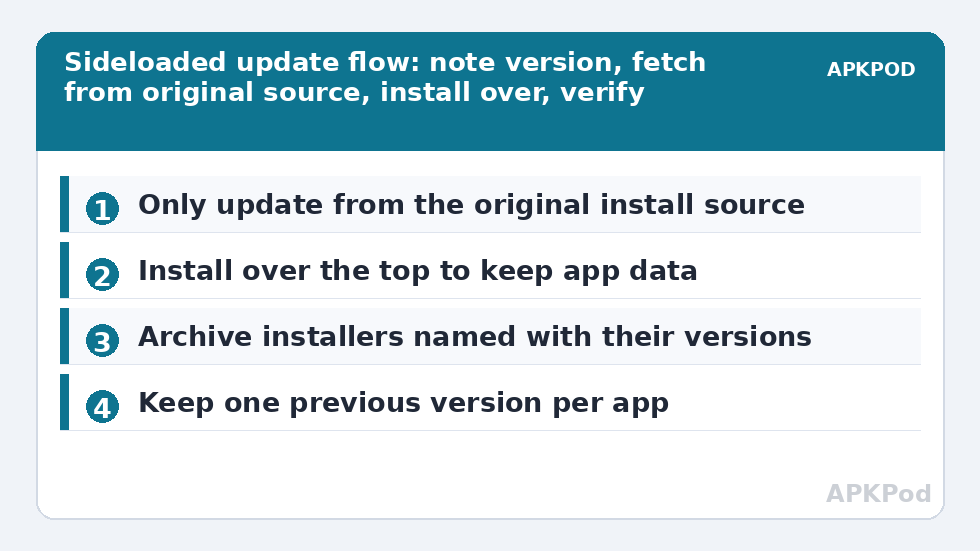
- Note the current version. In Settings, then Apps, open the app and read its version line, or check X-plore’s App Manager list. Write it down or rename your archived copy to match it.
- Fetch the new APK from the original source only — the developer’s site, their official repository page, or the same trusted archive you used before. Download it to your phone or PC, not via a random “update” link inside another app.
- Transfer it to the TV. Copy it onto the USB installer drive on the PC, or send it over the network: start X-plore’s Wi-Fi server on the TV and upload from a browser, or place it in a LAN share and browse to it in X-plore.
- Install over the top. In X-plore, open the new APK and confirm the install. Android recognises the same signature and offers an update rather than a fresh install; your sign-ins and settings remain.
- Verify. Reopen the app info page and confirm the version changed, open the app once, and only then replace the archived installer with the new one — keeping the previous version until the new one has survived a day of real use.
Keeping the Install Permission Tidy
Installing requires the “Install unknown apps” permission for X-plore, granted per app under Settings. Leave it on only if you update often and the TV is yours alone; on a shared family TV, grant it for the update session and revoke it afterwards. That single habit removes most of the risk people associate with sideloading, because nothing can be installed casually in between your deliberate sessions.
When an Update Refuses to Install
| Message or behaviour | Likely cause | Response |
|---|---|---|
| “App not installed” with no detail | Corrupt download, or APK needs a newer Android | Re-download from the original source; check its minimum Android version |
| Signature or package conflict | New APK is signed differently — a different build or source | Stop. Return to your original source; do not uninstall to force it unless you accept losing app data |
| Installs, then crashes on launch | Bad release, or data incompatibility | Clear the app’s cache; if it persists, uninstall and reinstall your archived previous version |
| No install prompt at all | X-plore’s install permission was revoked or never granted | Grant Install unknown apps for X-plore in Settings, then retry |
Notice what is absent from that table: uninstalling first as a routine step. Uninstalling deletes the app’s data — accounts, settings, offline content — and turns a two-minute update into a rebuild. It is the right move only for the signature-conflict case where you have consciously chosen a different legitimate build, and even then, back up what the app lets you export first. That caution is the same one behind backing up Android TV app data to USB, a routine worth having in place before any major round of updates.
Bottleneck:
Tip:
All figures are estimates under good local conditions — strong signal, no competing traffic, both devices on the same network. Real speeds drop with distance, walls, channel congestion and slow storage on either device. Protocol options (SMB, FTP, SFTP) assume a 5 GHz-class Wi-Fi link.
How Often, and Which Apps Deserve It
Update sideloaded apps when a release fixes something you care about — a bug you hit, a format you need, a security note in the changelog — rather than on a compulsive weekly sweep. Browsers and anything that handles network content deserve prompt security updates; a stable offline utility can sit happily for months. Batch the work quarterly: one session, installer drive attached, each app checked against its source page, updated in turn, versions verified. With the archive habit, that session takes minutes per app and leaves evidence of exactly what changed.
One more source of updates deserves an honest mention: some sideloaded apps can check for and download their own updates from within the app. That is acceptable when the app is itself from a source you trust and the update is served from the developer’s own infrastructure — the same trust you placed at install time. What should never happen is updating through a third-party “app updater” tool of unknown origin, which inserts exactly the middleman the signature system is designed to exclude.
After the Update Round
Finish by tidying the archive: rename the new installers with their versions, keep one previous version per app, delete anything older, and remove stray APKs from the TV’s Download folder so internal storage does not quietly refill — the sweep in cleaning cached app data on Android TV catches exactly that kind of leftover. Note the date and versions in a phone note if the TV runs anything important, like a home-server client. It feels like bureaucracy until the evening something misbehaves and the note tells you precisely what changed, and when.
Knowing Which Apps Are Sideloaded in the First Place
After a year or two, few owners remember exactly which apps came from the store and which arrived by hand — and the distinction decides who updates what. A practical audit takes ten minutes: list the apps you rely on, check each against the Play Store’s library on the TV, and treat any important app missing from that library as sideloaded for planning purposes. Add its source page to a note, extract its current installer into the archive described above, and it joins the quarterly round from then on. Apps you cannot identify at all, and do not use, are not update candidates; they are uninstall candidates, and removing them is worth more than any update.
Frequently Asked Questions
Will updating a sideloaded app erase my sign-ins and settings?
No, as long as you install the new APK over the existing app and it carries the same signature, which genuine updates from the original source do. Android treats it as an update and keeps the app’s data. Uninstalling first is what erases data, so avoid it unless a different build forces the choice.
Why does the update fail with a signature error?
The APK you are installing was signed with a different key than the installed app — usually a different build variant or a different source. Treat it as a warning, not an obstacle: go back to the source you originally installed from and fetch the update there.
Where should I download update APKs from?
Only from where the original came from: the developer’s official website or release page, or the established open-source repository you first used. Never from an update prompt inside an unrelated app or a generic APK aggregator.
Can sideloaded apps update themselves automatically?
Some can check and download their own updates from the developer’s infrastructure, which is reasonable when the app itself came from a trusted source. They will still ask you to confirm the install, because Android requires the install permission for the app doing the installing.
Should I keep old APK versions after updating?
Keep one previous version per app in a labelled Installers folder on USB. Twenty installers at roughly 40 MB each total only about 800 MB, and that archive is your rollback if a new release misbehaves on your TV.