Few error messages waste more time than a short one. You tap Start on the X-plore FTP server, expecting the familiar address to appear, and instead you get a refusal along the lines of the server failing to start or the port already being in use. Nothing has visibly changed since yesterday, when it worked. The good news is that this class of failure is narrow: something already holds the port, the app has lost a permission it needs, or Android itself has quietly shut the previous server down in a way that left the state confused.
Work through this in order, cheapest test first. Most people fix it in the first two sections. Resist the urge to reinstall anything or reset network settings until you have checked the simple collisions, because reinstalling cannot free a port that another app is holding.
Understand What Port Already in Use Actually Means
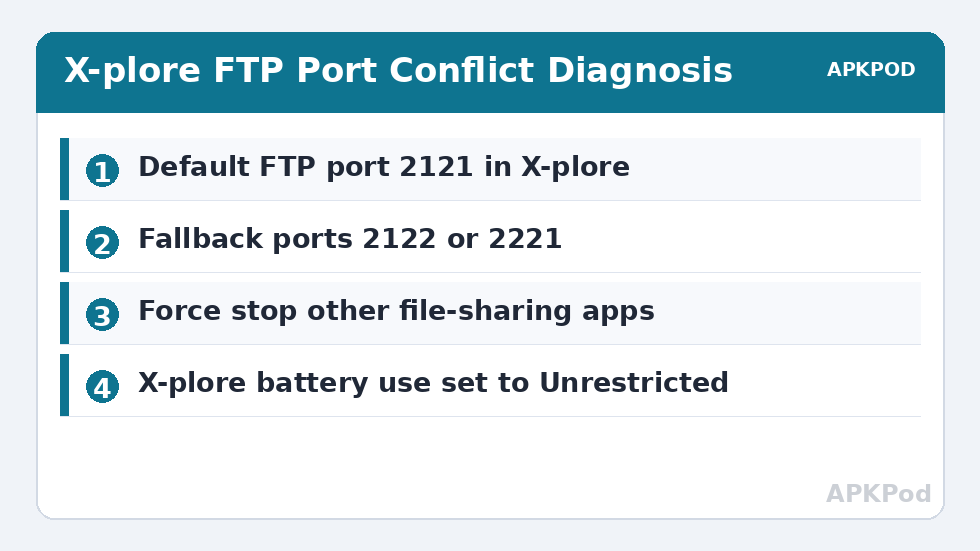
A port is a numbered door on your phone’s network address. Only one program can listen on a given door at a time. X-plore’s FTP server typically listens on port 2121. If another file manager, a second sharing app, or even a stuck earlier instance of X-plore itself already holds 2121, the new server cannot bind to it and refuses to start. The error is honest; it just does not tell you who the squatter is.
The same message can appear when the port is not truly busy but Android has denied the app something it needs, such as permission to run in the foreground during the transfer, or when the phone is not connected to any network at all. No Wi-Fi connection and no hotspot means no address to listen on, and some versions report that failure in similarly vague language.
Fix One: Prove the Port Is the Problem by Changing It
The fastest diagnostic is also a fix. Open X-plore, go to the FTP server settings where the port is shown, and change 2121 to a nearby unused high port such as 2122 or 2221. Start the server again.
- If it starts immediately: something else held 2121. You can simply keep using the new port, remembering to type it in the address on your computer, for example ftp://192.168.1.42:2122.
- If it still refuses: the port was probably never the real issue, and you should move to the permission and restart checks below.
- If it starts but the PC cannot connect: you likely typed the old port on the computer. The port in the address must match the port on the X-plore screen exactly.
Changing the port has one side benefit: it distinguishes your phone’s server from any other FTP server on the same network, in the same spirit as sharing one folder read-only with the X-plore FTP server, where a deliberately chosen setup prevents accidents later.
Fix Two: Hunt Down the App Holding the Port
Think about what else on the phone serves files. Other file managers with FTP features, Wi-Fi transfer apps, media servers, and tethering utilities can all claim a port and keep it after you close their main screen, because the serving part often runs as a background service.
- Open Android Settings, go to Apps, and force stop any other file-sharing or file manager app you have used recently.
- Force stop X-plore itself as well, then reopen it. This clears a stuck earlier instance, which is a common culprit after a crashed transfer.
- Restart the phone if force stopping changes nothing. A reboot releases every listening port at once and is faster than hunting process by process.
- After the restart, open X-plore first, before any other sharing app, and start the FTP server while the field is clear.
If the server starts after a reboot but fails again later in the day, the pattern points to another app starting its service automatically. Open the apps you installed most recently and look for auto-start or background service options in their settings, or simply make a habit of starting X-plore’s server before opening them.
Fix Three: Permissions, Battery, and Network State
Let X-plore Stay Awake and Unrestricted
Aggressive battery management can kill a server mid-start or seconds after it starts, which feels like a port fault. In Android Settings, open X-plore’s app info, go to Battery, and set it to Unrestricted while you are troubleshooting. Also allow the notifications permission if you declined it earlier, because the persistent notification is how Android keeps a foreground service, and a file server, legitimately alive. The background to this is covered on the APKPod homepage alongside the other reliability settings.
Confirm There Is a Network to Listen On
Join a Wi-Fi network or start the phone’s hotspot before starting the server. In aeroplane mode, or in the gap while Wi-Fi reconnects, there is no local address and the start can fail. Wait for the Wi-Fi icon to settle, check the phone has been given an address such as 192.168.1.42, then try again. If you deliberately work without a router, transferring files over a phone hotspot with no router explains the hotspot-first order of operations in full.
Bottleneck:
Tip:
All figures are estimates under good local conditions — strong signal, no competing traffic, both devices on the same network. Real speeds drop with distance, walls, channel congestion and slow storage on either device. Protocol options (SMB, FTP, SFTP) assume a 5 GHz-class Wi-Fi link.
When It Starts but the Computer Still Cannot Reach It
A running server that no computer can open is a different fault from a server that will not start, and confusing the two sends people back to changing ports pointlessly. If X-plore displays its address happily, test in this order: type the address exactly as shown, including the port, into a desktop FTP client rather than a browser; confirm the computer is on the same network and not on a guest SSID; and temporarily check whether the PC firewall is blocking the client app. The fuller baseline in setting up the FTP server in X-plore is worth re-reading here, because a fresh, careful setup clears most reachability faults.
Also verify the transfer itself is worth the wait once it connects. A 2 GB backup at a realistic 20 MB/s takes 2,000 divided by 20, which is 100 seconds; the same job at 4 MB/s on a weak signal takes 500 seconds. If your successful connection is that slow, the port was never your main problem, and fixing slow Wi-Fi transfer speed in X-plore will help more than further server tweaks.
| Symptom | Most likely cause | First action |
|---|---|---|
| Refuses to start on 2121, starts on 2122 | Another app holds 2121 | Keep the new port and note it |
| Refuses on every port | Stuck instance or permission problem | Force stop, check battery setting, reboot |
| Starts, then vanishes within a minute | Battery optimisation killing the service | Set X-plore battery use to Unrestricted |
| Starts but PC cannot connect | Wrong port typed, wrong network, or PC firewall | Retype the full address and test with an FTP client |
Prevent the Error Coming Back
Settle on one port and write it into your notes next to the server address. Use one sharing app for FTP rather than three, since every extra file manager with a server feature is a future port collision. Stop the X-plore server properly when you finish instead of swiping the app away mid-session, which reduces stuck-instance problems. And if you change phones or reset app data, expect to set the port and password again from scratch; that clean state is a feature, not a loss, because it guarantees no leftover service is holding anything.
Frequently Asked Questions
What does port already in use mean in X-plore?
It means another program, or a stuck earlier instance of X-plore, is already listening on the FTP port, usually 2121. Change the port in the FTP server settings to a free high port such as 2122, or force stop the other app and try again.
Which port should I choose instead of 2121?
Any unused high port works, such as 2122 or 2221. Pick one, keep it consistent, and remember the address you type on the computer must include that exact port, for example ftp://192.168.1.42:2122.
Why does the FTP server start and then stop by itself?
Usually Android battery optimisation is killing the background service. Set X-plore battery use to Unrestricted in Android Settings, keep the phone plugged in for long transfers, and leave the app in the foreground.
Can two phones run an X-plore FTP server on the same network?
Yes. Ports only clash on the same device, because each phone has its own IP address. Two phones can both use port 2121 as long as you type the correct phone’s address on the computer.
Will reinstalling X-plore fix a port error?
Rarely. Reinstalling does not free a port held by another app, and it wipes your saved servers and settings. Force stopping sharing apps, changing the port, and rebooting the phone fix the great majority of cases.