A self-hosted cloud changes the trust calculation: the server is yours, the storage is yours, and the phone app just needs a reliable way in. The reliable way to setup owncloud nextcloud xplore file manager connections is not a special integration at all — it is WebDAV, the standard protocol both ownCloud and Nextcloud expose for file access, and the one X-plore File Manager supports through its WebDAV storage option.
That is good news. WebDAV connections do not depend on a provider-specific login screen staying compatible with your file manager, and the same address format works across ownCloud, Nextcloud, and many NAS platforms. This guide covers the exact pieces you need: the correct server address for each platform, why you should create an app password instead of typing your main account password into X-plore, and how two-factor authentication changes the sign-in picture.
Why WebDAV Is the Right Door
ownCloud and Nextcloud both present their file storage over WebDAV as a core feature, not an add-on. When X-plore connects over WebDAV, it can list folders, download and upload files, rename, move, and delete — the full set of operations you expect from a cloud location in the dual-pane view. You are not using a cut-down sharing link or a read-only view.
There is also a maintenance argument. Provider integrations inside file managers break whenever a company changes its login flow or retires an API. A WebDAV endpoint changes rarely, and when your server address is correct, the same setup survives app updates on both sides. The broader cloud security section uses this same principle for other services: open protocols first, proprietary integrations second.
Setup OwnCloud Nextcloud Xplore File Manager: The Address
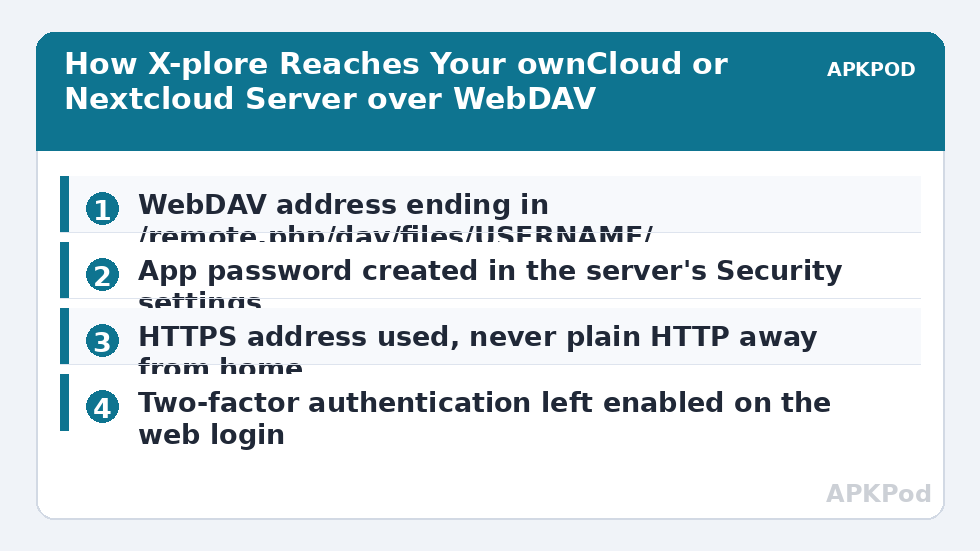
Most failed connections are address mistakes, so get this part exactly right. In a browser, sign in to your Nextcloud or ownCloud, open the Files app, and look for the WebDAV address shown in the interface — in Nextcloud it appears under Files settings, typically at the bottom left. Copy that address rather than typing from memory. The standard forms are:
| Platform | Typical WebDAV address | Notes |
|---|---|---|
| Nextcloud | https://your-server.example/remote.php/dav/files/USERNAME/ | Replace USERNAME with your account name; a subfolder install adds its path before remote.php |
| ownCloud | https://your-server.example/remote.php/dav/files/USERNAME/ | Modern ownCloud uses the same dav path; very old installs used /remote.php/webdav/ |
| Either, hosted on a subpath | https://your-server.example/nextcloud/remote.php/dav/files/USERNAME/ | The install folder is part of the address — omitting it is the most common error |
Always use the https version. WebDAV over plain http sends your credentials and files unencrypted, which defeats the point of running your own server. If your server only works over http on your home network, treat that as a local-only connection and do not use it over public Wi-Fi or mobile data away from home.
Bottleneck:
Tip:
All figures are estimates under good local conditions — strong signal, no competing traffic, both devices on the same network. Real speeds drop with distance, walls, channel congestion and slow storage on either device. Protocol options (SMB, FTP, SFTP) assume a 5 GHz-class Wi-Fi link.
Use an App Password, Not Your Main Password
Both Nextcloud and ownCloud let each user create app passwords — separate credentials intended for individual apps and devices. In your server’s web interface, open your personal settings, find the Security section, and create a new app password with a recognisable name such as “X-plore on phone”. The server shows the generated password once; that is the password you enter in X-plore.
This matters for three reasons. First, revocation: if you lose the phone, you delete that one app password on the server and every other device keeps working. Second, scope: an app password belongs to that device connection, so a compromise does not hand over your main account login. Third, two-factor authentication: if your account uses 2FA, your main password plus a second factor cannot be typed into a basic WebDAV login prompt at all — app passwords exist precisely to give legitimate apps a way in without weakening the account.
Do not work around 2FA by turning it off. Create the app password, use it in X-plore, and keep 2FA protecting the web login where your account settings, sharing controls, and password changes live. The same layered thinking applies to the app itself, as covered in the guide to fingerprint and face unlock authentication in X-plore.
Adding the Connection in X-plore, Step by Step
- Prepare the server side first. Confirm you can sign in to ownCloud or Nextcloud in a browser, note the exact WebDAV address from the Files interface, and create a named app password.
- Open the storage options in X-plore. In the app’s main view, choose the option to add storage and select the WebDAV type.
- Enter the server address exactly as copied, including the full path ending in your username folder. Trailing details matter; a missing path segment returns an error or an empty root.
- Enter your username and the app password — not your main account password.
- Save and open the new location. Your server’s folders should appear as a normal location, usable in either pane for copying and moving.
- Test both directions. Download a small file, then upload one, then check in the web interface that the uploaded file is really there. A connection that lists files but fails uploads usually has a permissions or address problem you want to find now, not during a real transfer.
Once connected, treat the self-hosted location like any other in X-plore: you can move files between it and Google Drive or local storage using the workflow described in the guide to transferring files between cloud drives, which is where a personal server earns its keep — your phone becomes the bridge between a public cloud and storage you control.
When the Connection Fails
Work through the causes in order of likelihood. A 401 or sign-in failure almost always means the credentials: re-check the username, and re-create the app password rather than retyping a long generated string from memory. A 404 or an empty folder points at the address path — compare it character by character with the address shown in the web interface, especially the subfolder segment on shared hosting installs.
Certificate errors are the third category. If your server uses a self-signed certificate, or its certificate has expired or does not match the hostname, X-plore will refuse or warn, and it is right to do so. The correct fix is on the server — a valid certificate for the exact hostname — and the guide to fixing security certificate errors on SFTP and WebDAV walks through how to tell a harmless home-lab situation from a real warning. Do not train yourself to tap through certificate warnings as a habit.
Finally, check the obvious: the server is awake and reachable. A home server that sleeps, a router that rebooted and changed an address, or a firewall update can all look like an app problem. Open the web interface from the phone’s browser; if that fails too, X-plore is not the broken half.
Keeping the Setup Healthy
Give each device its own app password and review the list once in a while in your server settings, deleting entries for phones you no longer own. Keep the server software updated — self-hosting moves the patching responsibility from a company to you. And remember that an always-reachable home server deserves the same care as any cloud account: a strong main password, 2FA on the web login, and backups of the server data itself, because WebDAV access from a nice phone interface does not protect you from a failed drive.
Frequently Asked Questions
Does X-plore connect to Nextcloud and ownCloud through WebDAV?
Yes. Both platforms expose their files over WebDAV, and X-plore’s WebDAV storage option uses that endpoint. Enter the full WebDAV address from your server’s Files interface, your username, and an app password, and the server appears as a normal location in X-plore.
Why should I use an app password instead of my account password?
An app password can be revoked for one device without affecting anything else, and it is the supported way for apps to sign in when your account uses two-factor authentication. Your main password plus a 2FA prompt cannot be entered into a WebDAV login, and disabling 2FA to make it work would weaken your account.
What WebDAV address should I enter for Nextcloud?
The standard form is https://your-server/remote.php/dav/files/USERNAME/, with the install subfolder included first if your Nextcloud lives in one. The safest source is the address shown inside your own Nextcloud Files settings — copy it exactly rather than reconstructing it from memory.
X-plore lists my server folders but uploads fail. What is wrong?
Listing working while uploads fail usually means a permissions limit on the account or folder, a slightly wrong address path, or a server-side restriction. Test with a small file, check the folder’s permissions in the web interface, and verify the address matches the one your server displays.
Is it safe to connect over plain HTTP on my home network?
On a trusted home network the risk is lower, but credentials and files are still unencrypted in transit. Use HTTPS wherever possible, and never use an HTTP WebDAV connection over public Wi-Fi or outside your home.