You are standing in a rented flat, a relative’s house, or a small office where nobody can tell you the printer’s address, let alone the NAS box’s. The router password is on a sticker, the network name is unfamiliar, and you need to find one particular device before you can move a single file. This is the situation X-plore’s LAN scan was made for: instead of guessing addresses one by one, you let the phone sweep the local network and show you what answers.
A scan is a discovery tool, not a magic key. It can tell you that something responded at a given address and, in many cases, which file-sharing services it offers. It cannot give you passwords, bypass logins, or see devices hidden behind a different subnet or a guest network. Used with that understanding, it turns an unknown network into a short, readable list within a minute or two.
Run Your First LAN Scan in X-plore
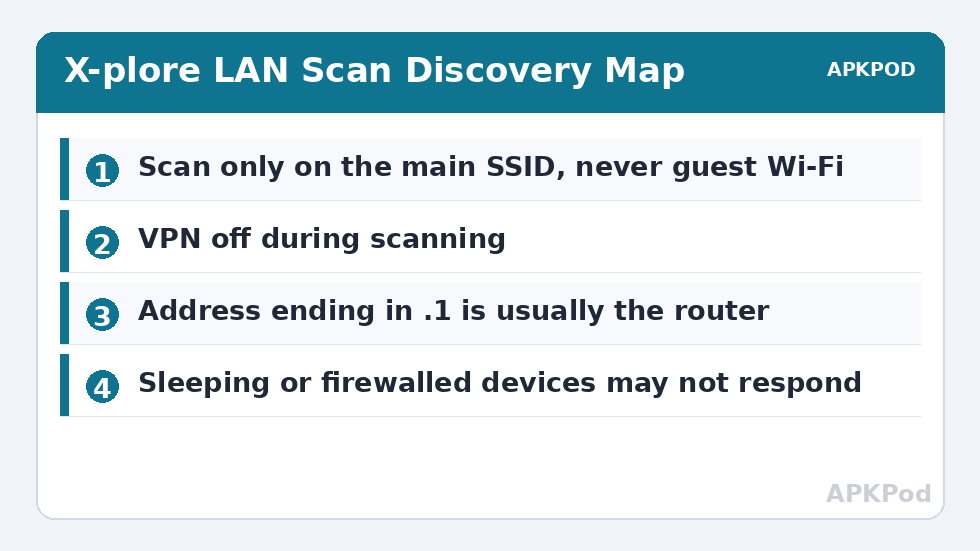
Connect the phone to the Wi-Fi network you want to explore, and make sure it is the main network rather than a guest SSID, because guest networks commonly isolate devices from each other on purpose. Open X-plore, go to the root view, and tap LAN. If no servers are saved yet, look for the scan option in that panel; X-plore offers a network scan that searches the current subnet for devices offering shared folders.
Start the scan and leave X-plore in the foreground while it runs. A scan of a typical home subnet, the familiar range running from .1 to .254, can take a while because the phone has to knock on many doors and wait for replies. Devices that are asleep, powered off, or firewalled may not answer at all, so an empty result for one address does not prove nothing is there; it proves nothing replied.
Read the Results Like a Map, Not a List
When results appear, work through them in a deliberate order. The address ending in .1 is very often the router itself. Low addresses are frequently infrastructure: routers, access points, smart TVs that were set up early. Computers, NAS drives, and printers appear wherever DHCP placed them. Tap a promising result and X-plore will try to show its shared folders; a login prompt means you found a real file server, while an immediate refusal often means the device shares by a different protocol or not at all.
Write down, in a note on the phone, the address and what you believe each responding device is. That small habit is what turns a one-off scan into knowledge you can reuse, and it feeds directly into saving permanent servers later, as described in organising saved LAN servers in X-plore once you are back on your own network.
Identify Devices Without Guessing Wildly
| Clue | What it suggests | Useful next step |
|---|---|---|
| Address ending in .1 | Usually the router or gateway | Check whether it shares a USB drive |
| SMB shares with a computer name | A Windows PC or a Mac | Ask the owner for a login, then save the server |
| Shares named like media or public | Often a NAS drive | Try the NAS account, not your phone password |
| Responds but shows no folders | Printer, TV, or a locked-down device | Note it and move on; it is not your file target |
Names help more than addresses. A result labelled with a person’s laptop name or a NAS brand is immediately meaningful. Where X-plore shows only an address, correlate with what you can see: wake the laptop you suspect and scan again, or switch a device off and watch which entry disappears on a fresh scan. That on-off test is slow but conclusive, and on an unfamiliar network conclusive beats clever.
One caution matters here. Only scan networks you are allowed to use, and only connect to devices you own or have permission to access. Scanning a workplace or a stranger’s network and probing its servers can breach policy even if you never guess a password. The scan shows what is visible; permission decides what you may open.
From Scan Result to a Working Connection
Finding a device and using it are two separate steps. Once you tap a result and reach shared folders with a valid login, save that connection as a named server inside the LAN section so you never need to scan for it again. Add the username and password the device’s owner gave you, and if the share sits inside a subfolder, include that path. The process mirrors adding any server manually, and if the target turns out to be a home-built box, the walkthrough for connecting X-plore to a Raspberry Pi home server shows how a saved entry looks when it is finished.
If nothing you tap will log in, consider protocol rather than persistence. A device found by the scan may offer SMB, while an older box might only offer FTP. Rather than guessing blindly, ask what the device is. If it is your own NAS and the scan finds nothing at all, the fuller setup in accessing NAS storage from X-plore covers checking the NAS’s own sharing settings, which a scan cannot fix from the phone side.
Bottleneck:
Tip:
All figures are estimates under good local conditions — strong signal, no competing traffic, both devices on the same network. Real speeds drop with distance, walls, channel congestion and slow storage on either device. Protocol options (SMB, FTP, SFTP) assume a 5 GHz-class Wi-Fi link.
When the Scan Finds Nothing at All
Check You Are on the Right Network Segment
Guest Wi-Fi, a VPN running on the phone, or a second router creating its own subnet will all hide the devices you want. Disconnect the VPN, join the main SSID, and confirm the phone’s own address in Wi-Fi settings shares the same first three numbers as the devices you expect, for example 192.168.1.x. Guidance on the APKPod homepage collects the other network checks in one place if you need the wider picture.
Wake Devices and Reduce Firewall Silence
A sleeping laptop with a strict firewall may ignore scan probes entirely. Wake it, unlock it, and on a Windows machine confirm the network profile is Private, since the Public profile suppresses exactly the responses a scan listens for. The same profile issue dominates the fixes in connecting X-plore to Windows shared folders over SMB, which is worth reading before a second scan.
Be Patient on Large or Busy Networks
On a network crowded with smart bulbs, plugs, and cameras, results trickle in mixed with devices you will never use for files. Let the scan finish rather than cancelling early, then filter by the only question that matters: which of these could plausibly hold folders? Two or three candidates is a normal answer on a home network; twenty open file servers would be a surprise worth mentioning to the network’s owner.
Make the Scan Worth Doing Twice
A scan pays off most when you treat it as reconnaissance for permanent setup. Save every device you successfully open, label it by place as well as name, such as Office NAS or Aunt Sara Laptop, and delete nothing in haste: an entry that fails today because a laptop is away will work again when it returns. Over time your LAN panel becomes a directory of every network you regularly visit, and scanning becomes something you only do in genuinely new places, which is exactly the job it was designed for.
Frequently Asked Questions
Does the X-plore LAN scan show every device on the network?
No. It shows devices that respond to its probes on your current subnet. Sleeping devices, devices behind guest-network isolation, and devices with strict firewalls may stay invisible even though they are connected.
Is it okay to scan any Wi-Fi network I join?
Only scan networks you own or are authorised to use, and only open devices you have permission to access. On workplace or public networks, scanning and probing servers can breach acceptable-use rules even without logging in.
Why did the scan find my NAS but I still cannot open it?
Discovery and login are separate. The scan found a responding device, but opening its folders still needs the correct protocol, username, and password for that NAS. Check the NAS sharing settings and use its own account details in X-plore.
How long should a LAN scan take?
On a typical home subnet it can take a minute or more, because many addresses must be tested and some reply slowly. Leave X-plore in the foreground and let it finish rather than cancelling early.
Can the scan see devices on a guest Wi-Fi network?
Usually not reliably. Guest networks commonly enable client isolation, which deliberately prevents devices from seeing each other. Join the main network if you need to reach local file shares.