A Mac and an Android phone on the same desk can still feel like they belong to different households. AirDrop does not help, a cable means trusting a prompt and hunting for the right folder, and email collapses the moment a video passes twenty-five megabytes. Sharing a folder from macOS over SMB closes that gap neatly: the Mac offers the folder, and X-plore on the phone browses it like any other location, copying in both directions without anything leaving your home network.
This route is worth setting up properly once, because after that it becomes boring in the best way. You tap the saved server in X-plore, the Mac folder opens, and you get on with moving files. The steps below cover turning on sharing on the Mac, choosing the right account, adding the server in X-plore, and fixing the three mistakes that account for almost every failed first attempt.
Prepare the Shared Folder on the Mac First
Do the Mac side before touching the phone. If sharing is off, or the folder is shared with the wrong permissions, no amount of retyping the password in X-plore will save the session, and you will waste time blaming the wrong device.
Turn On File Sharing in macOS
Open System Settings, go to General and then Sharing, and switch on File Sharing. Click the information button beside it and note two things: the Mac’s network name, which ends in .local, and the list of shared folders. By default your Public folder is shared. That is a fine test target, but for daily use create a dedicated folder, for example one called PhoneExchange inside your home folder, and add it to the shared folders list with the plus button.
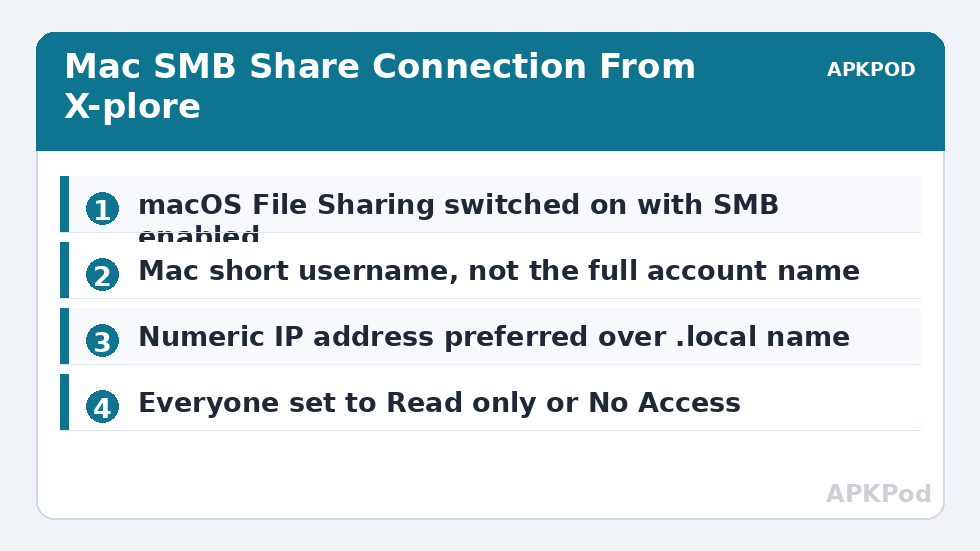
Next to that folder, set your own account to Read & Write if you want to send files from the phone to the Mac. Leave Everyone set to Read only, or No Access if the folder holds anything private. Under Options, make sure Share files and folders using SMB is ticked, and tick the box beside your account name so Windows-style SMB login is enabled for it. macOS will ask for your Mac password to confirm, because enabling that option stores your password in a form SMB can verify.
Find the Mac’s Address and Your Short Username
X-plore needs three facts: the Mac’s IP address, your username, and your password. Find the address in System Settings under Wi-Fi, by clicking Details beside the connected network, or in the Sharing panel itself, which usually shows a line such as smb://192.168.1.23. Prefer the numeric address over the .local name for the saved server, because Android devices sometimes resolve .local names slowly or not at all.
Your username is the short account name, not necessarily the full name shown on the login screen. Open Terminal and type whoami, or check the name of your home folder in Finder. It is usually all lowercase with no spaces. A mismatch here is the single most common reason a correct password gets rejected.
Add the Mac as a LAN Server in X-plore
On the phone, open X-plore and look at the root view. Among the storage entries you will find LAN. Tap it, then use the menu to add a new server. If you have never saved one, the LAN panel offers an Add server option; on some layouts you reach it through the three-dot menu at the top of the LAN view.
- Set the server address to the Mac’s IP, for example 192.168.1.23.
- Leave the port at the SMB default unless X-plore asks; do not invent one.
- Enter the Mac short username and the Mac account password.
- Optionally add the share name, such as PhoneExchange, as the path if you want to land directly in that folder.
- Save the server, give it a recognisable label such as MacBook Home, then tap it to connect.
The first connection should show your shared folders. Tap PhoneExchange and copy a small test file in each direction: one photo from phone to Mac, one document from Mac to phone. Testing small first proves read and write permissions separately, which matters because a folder can easily be readable while writes are still blocked. Once that works, the same saved server supports your larger jobs, and the guidance on the APKPod homepage explains how the built-in calculator can estimate how long those jobs should take before you start them.
What Speed to Expect, With the Arithmetic Shown
SMB itself is not the bottleneck on a modern home network; Wi-Fi is. A 5 GHz Wi-Fi 5 link typically delivers somewhere around 25 to 45 MB/s of real file throughput when the phone is in the same room as the router, while a busy 2.4 GHz connection may manage only 5 to 10 MB/s. Treat those as planning ranges, not promises.
Worked example: you want to copy a 3.6 GB video from the Mac to the phone. At a realistic 30 MB/s, convert the size first: 3.6 GB is about 3,600 MB. Divide 3,600 by 30 and you get 120 seconds, roughly two minutes. If the same copy crawls at 6 MB/s on 2.4 GHz, the maths becomes 3,600 divided by 6, which is 600 seconds, or ten minutes. Same file, same protocol, five times the wait, purely because of the band you are on. If a copy feels impossibly slow, check the band before you blame the share.
| Connection | Typical throughput | Time for 1 GB |
|---|---|---|
| 2.4 GHz Wi-Fi, weak signal | About 5 MB/s | About 200 seconds |
| 5 GHz Wi-Fi 5, same room | About 30 MB/s | About 33 seconds |
| 5 GHz Wi-Fi 6, strong signal | About 50 MB/s | About 20 seconds |
If your numbers are far below the middle row, the checks in fixing slow Wi-Fi transfer speeds in X-plore are the right next step, and they apply to a Mac share exactly as they do to a Windows one.
Bottleneck:
Tip:
All figures are estimates under good local conditions — strong signal, no competing traffic, both devices on the same network. Real speeds drop with distance, walls, channel congestion and slow storage on either device. Protocol options (SMB, FTP, SFTP) assume a 5 GHz-class Wi-Fi link.
When the Mac Share Refuses to Connect
Password Rejected, Again and Again
Stop retyping and verify the three inputs separately. Confirm the short username, confirm the account was ticked under the SMB options on the Mac, and confirm you are using the Mac login password, not an Apple ID password and not the phone’s PIN. If you recently changed the Mac password, re-tick the account under Options so macOS refreshes what it stores for SMB.
The Server Connects but the Folder Looks Empty
You have probably landed in the Mac’s Public folder or at the top-level share list rather than in PhoneExchange. Edit the saved server in X-plore and add the share name as the path, or navigate into the folder manually once connected. Also check on the Mac that the files are actually inside the shared folder and not in a similarly named folder elsewhere, a surprisingly easy mistake with names like Downloads and Shared Downloads.
It Worked Last Week and Stopped Today
Almost always, the Mac’s IP address changed when it rejoined the network. Compare the address in your saved X-plore server with the address the Mac shows today. The durable fix is a DHCP reservation in your router for the Mac, the same advice given for Windows machines in connecting X-plore to Windows shared folders over SMB. You can also read about setting a static IP on Android for reliable LAN connections, which solves the mirror-image problem on the phone side.
Keep the Share Tidy and Safe
Share one exchange folder rather than your whole home directory. Move finished files out of it on the Mac, so the folder stays small and quick to browse on the phone. Never forward SMB, port 445, through your router to the internet; this setup is for your own network only. On a laptop that travels, turn File Sharing off on untrusted networks, or at least remove Read & Write for Everyone, because a share that is harmless at home is an unnecessary exposure in a hotel. Finally, keep the saved server labelled clearly, which becomes more valuable as your list grows and you start to rename and organise saved LAN servers in X-plore instead of memorising IP addresses.
Frequently Asked Questions
Do I need to enable SMB1 on the Mac for X-plore?
No. Modern macOS shares over current SMB versions and X-plore connects to them directly. Do not look for an SMB1 option; if a connection fails, check the username, the SMB account tick box in Sharing options, and the IP address instead.
Why does X-plore reject my correct Mac password?
Usually the username is wrong rather than the password. Use the short account name shown by whoami in Terminal, and make sure that account is ticked under Share files and folders using SMB in the File Sharing options on the Mac.
Can I share a folder from an external drive attached to the Mac?
Yes. Add that folder to the Shared Folders list in the File Sharing settings just like an internal one. Keep the drive awake during transfers, because an external drive that sleeps mid-copy will look like a network failure in X-plore.
Is it safe to leave Mac File Sharing on all the time?
At home, with a strong account password and Everyone set to Read only or No Access, it is a reasonable everyday setting. Turn it off on public or shared networks, and never expose SMB through port forwarding on your router.
Why is my Mac share much slower than copying with a cable?
Because Wi-Fi, not SMB, sets the ceiling. A 5 GHz link in the same room typically delivers around 25 to 45 MB/s, while 2.4 GHz may deliver only a fraction of that. Move closer to the router and confirm the phone is on the 5 GHz band.