X-plore gives you three different ways to move a file without a cable, and they are not three skins on the same thing. LAN mode reaches out to another device’s shared folders. The FTP server turns your phone into a server that a computer connects to. Wi-Fi sharing, the Wi-Fi server mode, puts a simple page in a computer browser for quick uploads and downloads. Choosing badly does not usually fail outright; it just makes a job slower, fiddlier, or less private than it needed to be.
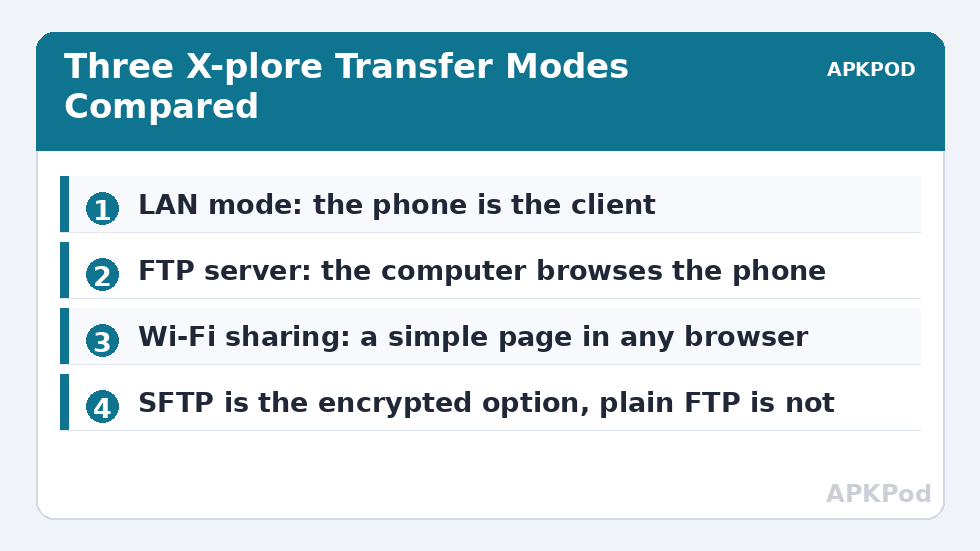
Think of the decision in one sentence each. Use LAN when the files live on a computer or NAS and the phone should go and fetch them. Use the FTP server when a computer should browse the phone’s storage with a full file manager or FTP client. Use Wi-Fi sharing when a person with a browser needs a couple of files quickly and installing nothing matters more than speed or structure. Everything below is the detail behind those sentences.
LAN Mode: The Phone Visits the Computer
In LAN mode, X-plore is the client. You add a server under the LAN entry, an SMB share on a Windows PC or Mac, a NAS, or an SFTP server, and then browse that device from the phone. Nothing on the phone is exposed to the network, which is a real privacy advantage: the phone opens an outbound connection, uses it, and closes it, leaving no listening service behind.
LAN mode suits recurring jobs best. Backups from a NAS, nightly copies from a PC, and streaming a film stored on another machine all benefit from saved servers and predictable addresses. It is also the only one of the three that handles encrypted SFTP neatly, which matters for anything sensitive. Its costs are setup time and dependence on the other device being configured to share in the first place, which is why guides such as accessing NAS storage from X-plore spend most of their length on the far end rather than on the phone.
Where LAN Mode Struggles
If the computer has never shared a folder, or its owner cannot give you a login, LAN mode has nowhere to go. It is also less convenient for handing a file to someone else’s computer, because you are asking that machine to be the server. In those cases, flipping the direction, and letting the phone serve, is usually faster than configuring a stranger’s PC.
The FTP Server: The Computer Visits the Phone
Start the FTP server in X-plore and the phone publishes an address such as ftp://192.168.1.42:2121. Any computer on the network can connect with File Explorer, Finder, or a proper FTP client like FileZilla, then drag whole folder trees in both directions. Of the three modes, this is the heavy lifter: it handles large queues, resumes in decent clients, and keeps filenames and folder structure exactly as they are.
Its weakness is in its name: plain FTP is unencrypted. Logins and files cross your network readable to anyone positioned to watch them. On a trusted home network, for a short session with a password set and the server stopped afterwards, that is a defensible trade for compatibility and speed. For sensitive documents, or any network you do not control, it is the wrong choice, and the comparison with SFTP and SSH transfers in X-plore makes the safer path clear.
Setup details, ports, passive mode, and password habits live in setting up the FTP server in X-plore; read that before your first long session rather than learning passive mode from an error message at midnight.
Wi-Fi Sharing: A Web Page Instead of a Protocol
Wi-Fi server mode trades power for immediacy. X-plore shows an address and, often, a code or password; the other person types that address into any browser and gets a simple page for downloading and uploading files. No client software, no account, no protocol knowledge. For sending a landlord a signed PDF from their own laptop, or grabbing photos off a relative’s phone during a visit, nothing else is as frictionless.
The trade-offs are real, though. Browser transfers are clumsier with hundreds of small files, folder structures may need zipping first, and leaving the page open leaves an open door, so stop the server the moment the job is done. Browser behaviour also varies, which is why fixing the X-plore Wi-Fi server page not loading in a browser exists as its own troubleshooting topic. Think of Wi-Fi sharing as the spare key under the mat: perfect occasionally, never your main security plan.
Side by Side, Honestly
| Question | LAN (SMB/SFTP) | FTP server | Wi-Fi sharing |
|---|---|---|---|
| Who starts the connection? | The phone | The computer | The computer’s browser |
| Encryption available? | Yes, with SFTP | No, plain FTP | Basic, treat as local-only |
| Best at | Recurring jobs, NAS, streaming | Big folder trees to/from a PC | One-off files, no setup |
| Setup effort | Highest, once | Medium | Lowest |
| Needs on the other device | A shared folder and login | Explorer or an FTP client | Any web browser |
Bottleneck:
Tip:
All figures are estimates under good local conditions — strong signal, no competing traffic, both devices on the same network. Real speeds drop with distance, walls, channel congestion and slow storage on either device. Protocol options (SMB, FTP, SFTP) assume a 5 GHz-class Wi-Fi link.
The Numbers Do Not Pick a Winner
People often ask which mode is fastest, expecting a ranking. On the same Wi-Fi, the honest answer is that the radio, not the protocol, decides. A 5 GHz Wi-Fi 5 link typically delivers around 25 to 40 MB/s of usable throughput whatever sensible mode you choose, with SFTP sometimes a little behind because encryption costs processing, and browser transfers sometimes behind that because of how browsers handle files.
Run the shared maths once: a 1.8 GB video is about 1,800 MB. At 30 MB/s it lands in 60 seconds; at 9 MB/s, typical of a congested 2.4 GHz evening, it takes 200 seconds. That threefold swing from band and congestion dwarfs any difference between these modes, a point the APKPod homepage estimator lets you test with your own file sizes. Choose the mode for direction, privacy, and convenience; choose the band and the room for speed.
A Decision Habit That Rarely Fails
Ask three questions in order. First, where do the files start? If they start on a computer or NAS, use LAN. Second, does the other side have nothing installed and no patience? Use Wi-Fi sharing, briefly. Third, everything else, bulk moves, mixed folders, a computer that should do the browsing, belongs to the FTP server, provided the network is trusted. That habit, plus knowing how to work out real transfer speeds in X-plore before a large job, will spare you nearly every mode-related regret, because most regrets come not from a bad protocol but from a good protocol aimed in the wrong direction.
Frequently Asked Questions
Which X-plore transfer mode is the fastest?
On the same Wi-Fi they are usually close, because the radio link sets the ceiling. A good 5 GHz connection typically delivers around 25 to 40 MB/s in any of the three modes, while a weak 2.4 GHz connection will be slow in all of them.
Which mode is safest for private documents?
LAN mode using SFTP, because it encrypts the login and the files in transit. Plain FTP sends data unencrypted and the Wi-Fi sharing page should be treated as a short-lived, local-only tool rather than a secure channel.
When should I pick Wi-Fi sharing over the FTP server?
Pick Wi-Fi sharing for a quick one-off exchange where the other person only has a browser and installing nothing matters. Pick the FTP server for large folders, many files, or repeat sessions with a computer you use often.
Can I use LAN mode to send files from my phone to a PC?
Yes. Once X-plore is connected to a PC or NAS share with write permission, copying works in both directions. LAN mode describes who hosts the share, not which way a particular copy travels.
Do I need different modes on different networks?
Often, yes. At home a saved LAN server is ideal, while at someone else’s house Wi-Fi sharing avoids configuring their computer. Match the mode to the network and the job rather than forcing one method everywhere.