X-plore is normally one of the most stable apps on a television, which is why a freeze feels so alarming: the highlight stops answering the remote halfway down a folder, or the app closes to the home screen every time you open a particular drive. Fixing X-plore freezing, crashing or refusing to open on Android TV is a process of separating three very different culprits — an overloaded TV, a corrupt app cache, and a storage device or share that makes any file manager struggle. Each has a different fix, and applying them in the wrong order, such as reinstalling before you have saved your settings and shares, wastes time and loses configuration you will have to rebuild.
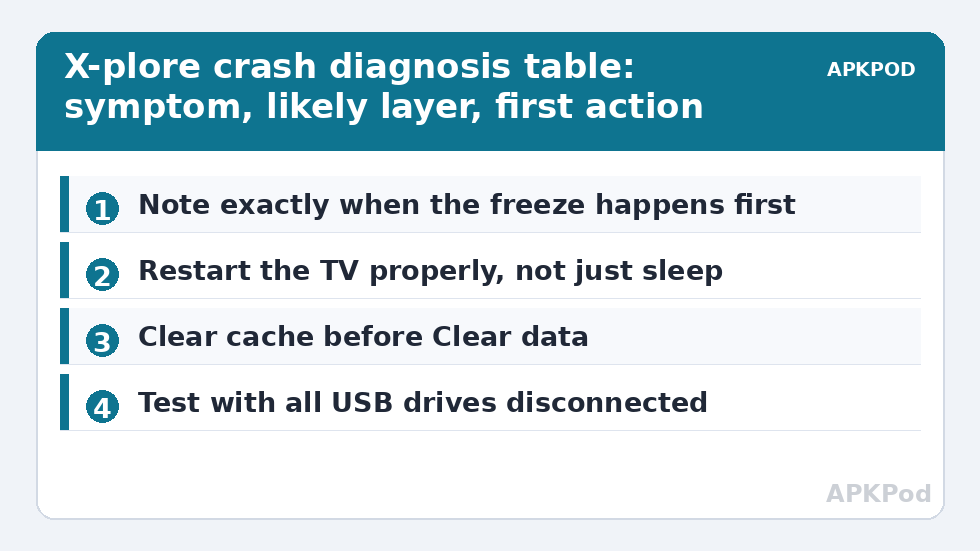
Before changing anything, notice exactly when the failure happens. A crash on launch, before you touch anything, points at the app or the system. A freeze only inside one folder points at that folder’s contents. A crash that arrives while copying points at the destination drive or the network. That one observation, made calmly, halves the work — and it mirrors the general approach across our APKPOD troubleshooting guides: change one thing, test, and only then move on.
Step One: Rule Out the Television Itself
Android TVs with 1 or 2 GB of memory run close to the edge, and a TV that has not fully restarted in months accumulates background apps, pending updates and memory pressure. Restart properly: use the Restart option in Settings, or switch the TV off at the wall for thirty seconds. A nightly “off” on most sets is only sleep, not a restart. After the restart, open X-plore before opening anything else and browse a simple local folder. If it now behaves, the problem was the environment, and the useful habit is a weekly real restart.
Check free storage at the same time. A box with under roughly 300 MB free can make many apps misbehave, because caches and temporary files have nowhere to go. If your set is that full, follow cleaning cached app data on Android TV before blaming X-plore at all — an app cannot be stable on a system that cannot breathe. If storage is the deeper story, finding hidden storage hogs will show where the space actually went, and the companion guide to troubleshooting storage-full errors on 8 GB TVs covers the system-level end of the same problem.
Step Two: Clear X-plore’s Cache, Then Its Data — In That Order
Open Settings, then Apps, find X-plore, and press Clear cache. This removes temporary thumbnails and working files and loses nothing of yours. Relaunch and test thoroughly, including the folder or drive that triggered the problem. A surprising share of “crashing” reports end here, especially after a TV firmware update has left an old cache format behind.
Only if the cache clear changes nothing, consider Clear data. Be clear-eyed about what it costs: X-plore returns to first-run state, so saved LAN servers, cloud sign-ins, favourites and configuration choices will need redoing. Before you press it, note your server addresses and settings somewhere, or export what the app lets you export. After clearing, relaunch, grant storage permission again, and test on local storage before reconnecting any network share — add pieces back one at a time so the trigger, if it returns, identifies itself.
| Symptom | Most likely layer | First action |
|---|---|---|
| Crashes instantly on launch | App data or system state | Restart TV, then Clear cache |
| Freezes in one specific folder | That folder’s contents — a corrupt or enormous file, huge thumbnail load | Open the folder on a PC or via another route; test a different folder |
| Dies during a copy | Destination drive, cable, hub power or network drop | Copy one small file; swap port or use a powered hub |
| Refuses to open after a TV update | Permission or cache mismatch | Re-grant storage permission; Clear cache |
| Slow everywhere, not just X-plore | Whole TV: memory or storage pressure | Restart; free space; remove unused apps |
Step Three: Interrogate the Storage and the Shares
Disconnect every USB device and test X-plore on internal storage alone. If it is stable, reconnect one device at a time. A failing flash drive, a hard drive browning out its USB power, or a file system the TV half-mounted can stall any file manager that tries to list it. Test the suspect drive on a PC, run the PC’s disk check honestly, and try the TV’s other port or a powered hub. Drives that need more power than a TV port comfortably gives are the classic cause of a freeze that arrives a few seconds after the drive is opened.
Do the same for network locations. If X-plore hangs when a particular LAN server or cloud account is opened, the cause is usually a NAS that has changed address, expired cloud credentials, or a share whose password changed. Delete that one saved entry and add it fresh, exactly as you would when setting up NAS shares on a Shield for the first time. Resist deleting all your servers at once; you would lose the information about which one was guilty.
The Enormous Folder Problem
One special case deserves its own note: a folder containing thousands of files, or a video folder where X-plore is generating thumbnails for very large files, can look frozen while the app is simply working. Give it a full minute on a slow box before concluding anything. If a media folder reliably causes this, opening it in list view rather than a thumbnail-heavy view, and keeping media in subfolders of a few hundred files rather than one folder of several thousand, both reduce the load. Organising a movie library into sensibly sized folders was written about for tidiness elsewhere in this category, but this is where those habits pay off in stability too.
Bottleneck:
Tip:
All figures are estimates under good local conditions — strong signal, no competing traffic, both devices on the same network. Real speeds drop with distance, walls, channel congestion and slow storage on either device. Protocol options (SMB, FTP, SFTP) assume a 5 GHz-class Wi-Fi link.
Step Four: Reinstall, and Then Update Deliberately
If cache and data clears, storage checks and disconnection tests all fail, uninstall X-plore and reinstall it fresh from the Play Store. On a TV where X-plore came from a sideloaded installer, reinstall from that same original source — ideally the developer’s own distribution — and check that the version suits your Android TV release. Then update your habits rather than just the app: when X-plore updates in future, reopen it once afterwards and confirm your storage permission and shares survived, and keep the TV’s own firmware current too, because several historic freezes were TV webview and storage bugs, not X-plore bugs at all.
A word on force-stopping: using Force stop in the app info page is a legitimate first aid step when X-plore is genuinely wedged and will not close, and it harms nothing. What it does not do is fix causes. If you find yourself force-stopping daily, work the steps above in order instead of living with it — a daily freeze is data trying to tell you which drive, folder or update is unhappy.
When the Problem Is Not Fixable From the Sofa
Rarely, the fault is a genuinely dying TV storage chip or a firmware build with a broken storage stack, betrayed by several unrelated apps crashing in similar ways. At that point, back up everything you can while the box still cooperates, note the pattern, and treat a factory reset — or the manufacturer’s support — as the honest next step. Do not reset before the backup: a reset erases the very evidence and files you may still be able to save.
Frequently Asked Questions
Will clearing X-plore’s data delete my files?
No. Clear data resets the app itself — settings, saved servers, favourites and sign-ins — but it does not delete the files and folders X-plore manages. Clear cache is even gentler and loses only temporary thumbnails and working files, so always try it first.
X-plore only freezes when I open my USB drive. What does that mean?
The drive, its power supply or its file system is the likely cause. Test the drive on a PC and run a disk check, try the TV’s other USB port or a powered hub, and confirm X-plore is stable on internal storage with the drive disconnected.
Why did X-plore start crashing right after a TV update?
Firmware updates can leave outdated caches or reset permissions. Restart the TV, re-grant X-plore storage permission in Settings, then clear X-plore’s cache. That sequence resolves most post-update crashes without losing your configuration.
Should I reinstall X-plore or factory reset the TV first?
Almost never reset first. Work in order: restart, free space, clear cache, clear data with your settings noted, then reinstall X-plore. A factory reset is the last resort, mainly when many unrelated apps crash the same way — and only after a full backup.
A folder takes a minute to open. Is X-plore frozen?
Probably not. Folders with thousands of files, or large videos needing thumbnails, can take a while on a low-power TV. Give it a full minute, prefer list view for huge folders, and split giant media folders into subfolders of a few hundred files.