An Android TV that started life with 8 or 16 gigabytes does not stay roomy for long. A couple of streaming apps, a game or two, and a season of cached artwork later, the install you actually want fails with a storage warning. Learning how to move apps to USB storage on Android TV with X-plore helps in two different ways: it shows you what Android itself will move to an adopted drive, and it gives you a clean file-level method for moving the media, downloads and installer files that are usually taking far more room than the apps themselves. The honest starting point is that X-plore cannot drag an installed app from internal memory onto a plain removable stick and have it still run. Modern Android controls where installed packages live. What you can do — safely and usefully — is prepare a drive for adoption, move apps through system settings where the TV supports it, and use X-plore to relocate everything around those apps so internal storage stops filling up.
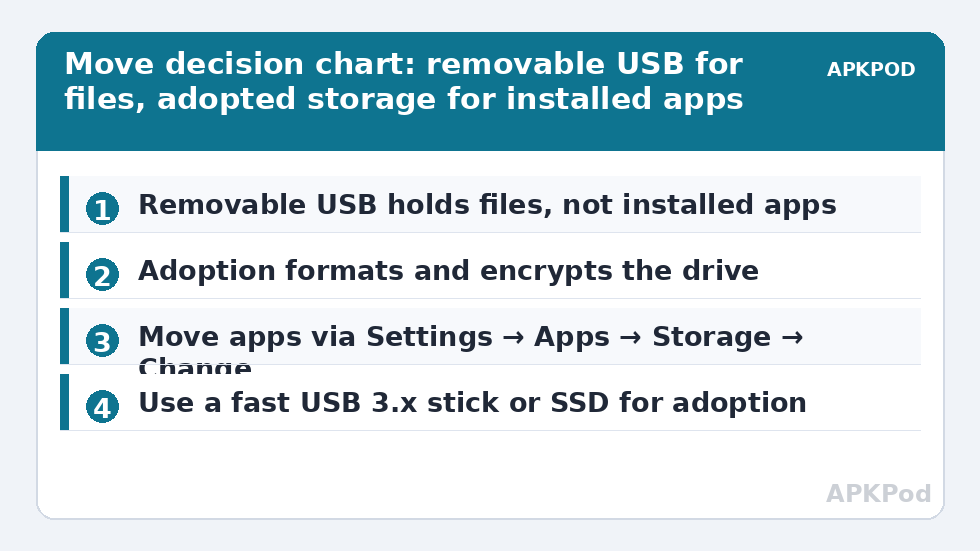
This distinction matters because forum advice often blurs it. A removable drive is excellent for films, recordings, APK installers and backups. An adopted drive is formatted and encrypted, extends internal storage, and lets Android decide which apps can live there. Choosing the wrong mode explains many disappointed moves, as our wider guides on the APKPOD home page return to often.
First, Measure What Is Actually Filling the TV
Before moving anything, open Settings, then Apps, and note the largest apps by total storage. Then open X-plore and run its Disk Map view over internal storage. Disk Map ranks folders visually, separating three kinds of bulk: the app package itself, cache that will regrow whatever you do, and files you created — downloads, recordings, installers and media. Only the first kind needs an app move. The third can simply be copied to USB today, with no adoption and no risk.
As a worked example, suppose Settings shows a game at 2.4 GB, two streaming apps at 900 MB combined, and X-plore shows a Download folder of 1.8 GB and a Movies folder of 3 GB on internal storage. Moving the movies and downloads frees 4.8 GB in minutes. Adopting a drive to move the game frees at most its movable portion, and only after a format that erases the drive. Always take the file win first; it is larger, faster and reversible.
A Short Decision Table
| What you want to move | Right method | Drive mode needed |
|---|---|---|
| Films, photos, recordings, downloads | Copy or move in X-plore, pane to pane | Removable, exFAT preferred |
| APK installers you keep for reinstalling | Move in X-plore to a labelled folder | Removable |
| Installed apps and some app data | System Settings move, or automatic placement | Adopted device storage |
| Cache from streaming apps | Clear cache in the app info page; do not move it | Not applicable |
| Whole-TV backup material | Copy out with X-plore to USB or NAS | Removable |
Preparing a Drive for Adoption, Without Losing Its Contents
Adoption erases the drive completely. So the first X-plore job is evacuation. Plug the drive into the TV, open it in the left pane, open a second destination — internal storage temporarily, another USB drive, or a network share — in the right pane, and copy everything you care about off it. If you are new to that two-pane rhythm, the guide to installing and navigating X-plore on Android TV explains the focus and long-press habits that make it quick with a remote. Check the copies open before you go any further; a backup you have not tested is only a hope.
Drive choice matters more than capacity. Android will warn you if a stick is slow, and you should listen. A cheap flash drive may write at only 5 to 10 MB/s, which makes app updates crawl. A USB 3.x stick from a known brand, or better a small SSD in a USB enclosure, keeps adopted storage responsive. Remember too that most TV USB ports are USB 2.0, with a practical copy rate often around 15 to 30 MB/s, so the port — not the drive’s box claim — sets the ceiling on many sets.
Moving Apps Through Android Settings
With the drive empty and backed up, go to Settings, then System or Device Preferences, then Storage. Select the USB drive and choose the option worded like Erase and format as device storage or Set up as internal storage. Wording varies by brand. Android formats and encrypts the drive, after which it should appear merged with internal storage. Some builds then offer to move data immediately; accept if the drive is fast, and let the TV finish without sleeping or losing power.
After adoption, open Settings, then Apps, choose an app, open its Storage line, and look for a Change button. If present, you can choose the adopted drive as that app’s location. Not every app offers the choice. Developers can declare that an app must stay on true internal storage, and system apps never move. Large games are the most likely candidates to allow it. If there is no Change button, that is a platform limit, not an X-plore failure, and no file manager can override it safely.
What Adoption Changes Day to Day
- The drive belongs to this TV only. It is encrypted with a key held by the TV, so a PC cannot read it and another TV cannot either.
- Do not unplug it casually. Apps living there will vanish or fail until it returns, and repeated removal risks corruption.
- X-plore sees less of it. Adopted storage appears as part of internal storage rather than as a browsable removable volume; you manage files through apps and settings.
- Failure is total for what lived there. If the drive dies, its apps and data go with it. Keep irreplaceable media elsewhere.
For a fuller walkthrough of the adoption decision itself, see how to expand Android TV storage with a USB drive, including when not to adopt at all.
The X-plore Method for Everything Around the Apps
Most households get more relief from this half of the job. Open X-plore with internal storage in the left pane and your removable USB drive in the right pane. Work folder by folder: Download, Movies, Recordings, and any folder a downloader or recorder app created. Long-press OK on a folder to open the menu, choose Copy or Move, and confirm the destination. Move, rather than Copy, is what frees space, but use Copy first for anything irreplaceable, verify it plays from the drive, then delete the internal original.
While you are there, create a tidy structure on the drive: an Installers folder for APKs, Media for films, and Backups for exported files. That habit connects directly to the routine in backing up Android TV app data and settings to USB, because a drive that is already organised is a drive you can back up to without thinking. It also pairs naturally with finding hidden storage hogs on Android TV when the numbers still do not add up after the obvious folders are gone.
Bottleneck:
Tip:
All figures are estimates under good local conditions — strong signal, no competing traffic, both devices on the same network. Real speeds drop with distance, walls, channel congestion and slow storage on either device. Protocol options (SMB, FTP, SFTP) assume a 5 GHz-class Wi-Fi link.
After the Move: Habits That Keep Space Free
Point recorder, downloader and media apps at the USB drive in their own settings where they offer a storage location choice, so new files land there directly. Leave at least 800 MB to 1 GB of internal storage free as working headroom; Android needs room to unpack updates, and installs can fail even when the final app is smaller than the free space shown. Check monthly with Disk Map. If an app you moved to adopted storage updates slowly or stutters, move it back to internal storage and accept the space cost for that one app — responsiveness matters more than an elegant diagram.
Finally, be honest about the ceiling. Moving apps helps a lightly loaded 8 GB box greatly and a box full of large games only a little, because immovable system apps and data remain. If you routinely sit under 500 MB free after both methods, the real answer is media discipline plus, eventually, a device with more storage. Until then, adopted storage for movable apps and X-plore for everything else is the most space you can honestly recover.
Frequently Asked Questions
Can X-plore move an installed app directly onto a removable USB stick?
No. Installed apps are managed by Android, not by file managers. X-plore can move files, media and installers to a removable stick, but moving an installed app requires adopting the drive as device storage and using the Change option in the app’s system settings, if the app offers one.
Why do some apps have no option to move to adopted storage?
Developers can declare an app as internal-only, and system apps are never movable. Widgets, apps with certain services, and many streaming apps commonly restrict moving. That is a platform and developer decision, not something X-plore can override.
Will a slow USB stick make moved apps sluggish?
Yes. Adopted storage is used like internal storage, so a stick with slow writes — often 5 to 10 MB/s on cheap drives — makes launches and updates noticeably worse. Use a fast USB 3.x stick or a small SSD, and move any app that still feels sluggish back to internal storage.
Can I unplug an adopted drive and use it on my PC?
Not without reformatting it, which erases everything. Adopted drives are encrypted for the one TV that adopted them. If you need a drive that travels between TV and PC, keep it as removable exFAT storage instead.
How much internal space should I keep free after moving apps?
Keep roughly 800 MB to 1 GB free. Android needs working room to download and unpack updates, so installs can fail on a nearly full drive even when the app itself appears smaller than the free space remaining.