A USB drive attached to a TV with a built-in tuner quietly becomes an archive nobody organised. Recordings accumulate with names like a channel, a date and a string of numbers, the drive fills during the one series you actually care about, and deleting the wrong folder can break the TV’s own recording index. Learning to manage PVR and tuner recordings on a USB drive with X-plore means working with the TV’s recording system rather than against it: using X-plore to see sizes, rename exported copies, move finished recordings off the drive, and protect the files the tuner app still needs. Done well, the drive stops being a mystery volume and becomes a rotation — record on the TV, keep what matters elsewhere, and always leave headroom for the next timer.
Start by accepting one boundary. Many TVs record in proprietary layouts, sometimes with encrypted or split files that only that TV, or that exact model line, can play. Others record standard transport streams, usually .ts or .m2ts files, that play almost anywhere. X-plore cannot convert an encrypted recording into a portable one, and this guide will not pretend otherwise. What X-plore does brilliantly is show you the truth about the drive: which recording folders are huge, which files are standard and movable, and where your free space went.
Map the Recording Drive Before Touching Anything
Plug the drive in, open X-plore, and put the USB volume in one pane. PVR drives commonly contain one large folder — names vary, but look for the folder whose size roughly equals everything you have recorded — containing subfolders per recording, each with a video file plus small companions: thumbnails, index or information files, and sometimes subtitle or audio sidecars. Do not rename or move files inside those active recording folders. The TV’s recorder indexes them by structure, and a tidy-minded rename inside its database can make a recording vanish from the TV’s list even though the video file still exists.
Note the total size of the recording folder, then use X-plore’s Disk Map on the drive to rank the biggest individual items. On most drives a small number of long HD recordings dominate. Here is the arithmetic that explains why. A typical HD broadcast stream might run at roughly 8 to 15 Mbps. Take 12 Mbps as an example: 12 megabits per second divided by 8 is 1.5 megabytes per second; multiplied by 3,600 seconds gives about 5.4 GB for one hour. A two-hour film at that rate is close to 11 GB. A 64 GB drive that also holds the file system and other media therefore holds perhaps nine or ten such films — far fewer than the channel guide made it feel like.
What the Files on a PVR Drive Usually Are
| Item | Typical sign | Safe handling |
|---|---|---|
| Main recording | Large .ts, .m2ts, .mpg or proprietary file | Delete via the TV’s recording list first |
| Index and info companions | Small files sharing the recording’s base name | Leave with the recording; move only as a complete set |
| Thumbnail images | Tiny .jpg files | Harmless, but pointless to move alone |
| Timeshift buffer | A constantly changing large file or folder | Never delete while the TV is on that channel |
| Exported copies you made | Files in folders you created yourself | Freely rename, move and back up in X-plore |
Delete Through the TV First, Tidy With X-plore Second
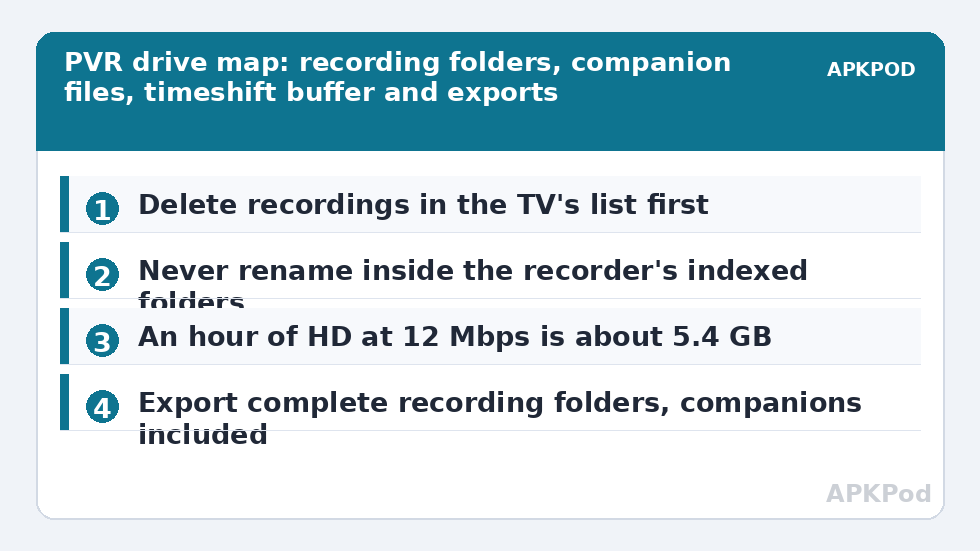
The safe deletion order is always the same. First, open the TV’s own recorded programmes list and delete finished recordings there. That removes both the files and their entries in the recorder’s index, so the two stay in agreement. Second, open X-plore and check the drive: occasionally a deleted recording leaves an orphan folder behind, especially after an interrupted delete or a power cut. An orphan is recognisable because its recording no longer appears in the TV list at all. Only those orphans are safe to delete directly in X-plore.
If the basics of getting a drive recognised are still shaky on your set, work through connecting an external USB drive to Android TV first, and keep our main APKPOD guides nearby for the format decisions — exFAT is the sensible choice for a recording drive that will also visit a PC, remembering that FAT32 cannot hold a single file larger than 4 GB, which one long HD recording easily exceeds.
Exporting Recordings You Want to Keep
For recordings in a standard format, exporting is a simple dual-pane copy. Put the USB recording drive in the left pane of X-plore and the destination — a larger archival drive, or a NAS share you have added under LAN — in the right pane. Create a clearly named folder on the destination first, something like Recordings Archive 2026, then copy the complete recording folder, companions included, not just the large video file. Keeping the set together preserves any chance of the TV, or a PC player, making sense of it later.
Once a copy verifies — play a minute from the destination, skip to the middle and to the last minute — rename the exported video copy into something human: programme name, episode, and original air date. Renaming is safe on your exported copy precisely because it is no longer inside the recorder’s indexed structure. Then delete the original through the TV’s recording list to reclaim the space properly.
When a Recording Will Not Play Anywhere Else
If the exported file has an unusual extension, will not open in a capable PC player, or is accompanied by warnings in the TV manual about recordings being playable only on that set, you are looking at encryption or a proprietary container. Accept it gracefully. Your options are to watch it on that TV, keep the drive as that TV’s archive, or re-record future programmes through a separate recorder that produces standard files. That is a platform limit, similar in spirit to the way the techniques in organising a movie library on an external drive only apply to files you are free to arrange — and quite different from the portable media covered there.
A Rotation Routine That Prevents the Full-Drive Surprise
- Weekly: delete watched recordings from the TV’s list. Two minutes with the remote beats an emergency later.
- Monthly: open X-plore, check the drive’s free space, and export anything you are keeping long-term to the archive destination.
- Always: keep at least 15 to 20 percent of the drive free. A 128 GB drive should keep roughly 20 GB clear, because timers do not check your feelings before a two-hour recording needs 11 GB.
- Never: format, rename inside, or reorganise the recorder’s own folders. If the drive needs formatting, back up exports first and let the TV format it from its own settings.
Bottleneck:
Tip:
All figures are estimates under good local conditions — strong signal, no competing traffic, both devices on the same network. Real speeds drop with distance, walls, channel congestion and slow storage on either device. Protocol options (SMB, FTP, SFTP) assume a 5 GHz-class Wi-Fi link.
This rotation also protects the household’s viewing. A PVR drive that fills mid-recording can, on some sets, generate storage warnings that interrupt programmes, and a drive shared with media duty gets squeezed from both sides. If one drive is doing both jobs, give recordings their own top-level space budget and check it whenever you review the wider box using the storage-full triage for small Android TVs. And when recordings are standard files that you have exported, consider a second copy alongside the general safety net described in backing up Android TV app data to USB — recordings of family events broadcast locally, school concerts and the like are exactly the files people regret losing.
Handling a Drive the TV Wants to Format
Some TVs insist on formatting and registering a drive before recording to it, binding it to that set. Moved to a PC, such a drive may appear unreadable or demand formatting — do not accept the PC’s offer if you still need the recordings. Other sets record happily to a normal exFAT drive readable anywhere. X-plore shows the contents either way when the drive is on the TV, but only the second kind gives a straightforward export path. Knowing which kind your TV uses, before the drive fills with a series finale, is the most valuable fact in this guide.
Frequently Asked Questions
Can I rename recordings inside the TV’s recording folder with X-plore?
It is risky. The TV’s recorder indexes recordings by folder and file structure, and renaming inside that structure can make a recording disappear from the TV’s list even though the video file remains. Rename only copies you have exported to a folder of your own.
Why is one hour of HD recording several gigabytes?
Broadcast HD commonly runs at roughly 8 to 15 Mbps. At 12 Mbps, dividing by 8 gives 1.5 MB per second, which over 3,600 seconds is about 5.4 GB for one hour. A two-hour film at that rate needs around 11 GB of free space.
My exported recording will not play on my PC. Why?
Some TVs encrypt recordings or use a proprietary container so they play only on that set. X-plore can copy the files, but it cannot decrypt them. Standard .ts or .m2ts recordings usually play in a capable PC player; encrypted ones must be watched on the TV that recorded them.
Should I delete recordings in X-plore or in the TV’s menu?
Use the TV’s recorded programmes list first, so its index and the files stay in agreement. Afterwards, use X-plore to remove only orphan folders left behind by recordings that no longer appear in the TV’s list.
How much free space should a PVR drive keep?
Keep at least 15 to 20 percent free — about 20 GB on a 128 GB drive. Timers start without checking, and a single long HD recording can need 10 GB or more, so headroom is what prevents failed recordings.