A shoebox used to be where family memories lived; now it is a USB drive full of folders named by cameras. The photos from three phones, a decade of home videos, scans of older prints — all of it is far better on the big screen than passed around on a handset. Learning to browse photo and home-video libraries from USB on TV with X-plore is mostly about two skills: getting the drive structured so a remote control can navigate it, and knowing which viewer or player to hand each file to. X-plore itself shows images and can pass video to your chosen player, and with a little preparation the whole archive becomes something the family actually opens.
Plug the drive in and open it in X-plore. If the drive is new to this television, the recognition and format basics in connecting a USB drive to Android TV apply first: exFAT for a drive that also visits PCs and Macs, FAT32 only for small legacy sticks — remembering its 4 GB limit rules it out for long home videos anyway. Once the drive lists properly, resist browsing the camera dumps exactly as they came off the devices. Five minutes of structure now saves an evening of scrolling later.
A Folder Structure a Remote Can Survive
Remotes are wonderful at moving down a short list and terrible at wading through four thousand items. Build the library in layers of no more than a few dozen entries each:
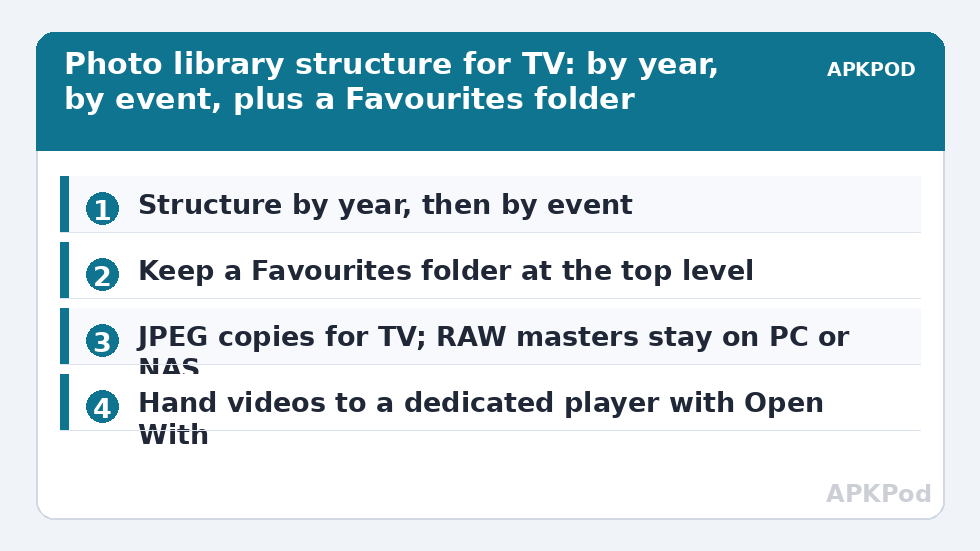
- By year first: top-level folders like 2019, 2020, 2021 keep every list short.
- By event second: inside each year, one folder per occasion — a trip, a birthday, a school term.
- Photos and video together inside the event folder, in the order they happened; splitting them forces needless hopping.
- A single Favourites folder at the top level, holding copies of the few dozen images you show guests, so a slideshow never requires archaeology.
Do this sorting on a PC if the archive is large — a keyboard beats a remote for bulk renaming — then use X-plore for the ongoing additions. When you add to the library from the TV, the dual-pane method shines: new files on a stick in one pane, the year’s folder on the archive drive in the other. Newcomers to that workflow will find the pane basics in installing and navigating X-plore on Android TV, and the rest of the library sits on the APKPOD home page.
Viewing Photos: Thumbnails, Full Screen, and Slideshows
In a photo folder, X-plore can display image thumbnails, which on a television is the difference between browsing and guessing. Open a thumbnail, and the image displays full screen; moving to the next file steps through the folder. For a group viewing, begin at the first image of the Favourites folder and let people narrate — honestly, a manual slideshow at conversation speed beats an automatic one that races past the story behind each picture.
Be realistic about file sizes. A modern phone JPEG might be 3 to 8 MB, which any TV opens instantly. Scanned TIFFs and camera RAW files are another matter: some viewers on TV do not support RAW formats at all, and a 40 MB TIFF can take seconds to render. For the TV copy of the archive, keep standard JPEGs for photos you will actually show, and keep RAW and TIFF masters on the PC or NAS as the archival originals. A quick size check shows why storage is rarely the problem: 5,000 phone photos at an average of 5 MB is 25,000 MB — about 25 GB. Comfortable on a 128 GB drive; impossible if it were 5,000 RAW files at 40 MB, which would be roughly 200 GB.
Fixing Sideways and Stubborn Images
Occasionally a photo displays rotated, usually an older file whose orientation flag a viewer ignores. The fix belongs on a PC: open, rotate correctly, and save a clean copy back to the drive. X-plore’s job in that loop is transport — copy the corrected file over the old one via the two panes — rather than editing, which on a television is nobody’s idea of fun.
Home Videos: Hand Them to a Real Player
X-plore is the librarian; for video, let a dedicated player be the projector. Long-press a video file, choose Open With, and select the player you trust on the TV — the set’s built-in player for simple MP4 files, or a capable installed player for the mixed formats old phones and cameras produced: MOV, AVI, MTS from camcorders, and 3GP from very old handsets. If a treasured format refuses everything on the TV, convert a copy on a PC to a widely supported MP4 with H.264 video; keep the original untouched as the master.
Bandwidth is rarely an issue from local USB, which is this setup’s great virtue compared with streaming the same archive from the cloud. Even a high-quality phone video at 25 Mbps plays trivially from a drive that sustains many times that. The exception is a very old, slow stick: if video stutters from USB but the same file plays from internal storage, the stick is the bottleneck, and the diagnosis in fixing stuttering playback and slow USB reads explains how to prove it before buying anything.
| File type | Typical source | Best TV route |
|---|---|---|
| JPEG, PNG | Phones, scans saved for TV | X-plore image viewing directly |
| MP4 (H.264/H.265) | Modern phones | Open With your usual player |
| MOV, MTS, AVI | Older phones and camcorders | Capable player; convert a copy if refused |
| RAW, TIFF | Cameras, archival scans | Keep as PC/NAS masters; export JPEG copies for TV |
Bottleneck:
Tip:
All figures are estimates under good local conditions — strong signal, no competing traffic, both devices on the same network. Real speeds drop with distance, walls, channel congestion and slow storage on either device. Protocol options (SMB, FTP, SFTP) assume a 5 GHz-class Wi-Fi link.
Protecting the Only Copy
A warning that matters more than any viewing tip: a USB drive plugged into a TV is a terrible sole home for irreplaceable family media. Drives are dropped, formatted by helpful relatives, and quietly fail. Keep the TV drive as the showing copy, with the master archive on a PC or NAS, and a further copy somewhere else for the truly precious material. Use X-plore to refresh the showing copy when you add events — copy the new event folder across, verify it opens, and you are done. The same discipline underpins backing up Android TV app data to a USB drive: USB is the transport and the spare, not the vault.
Privacy deserves one thought as well. A drive browsable by anyone with the remote will be browsed by guests with the remote. Anything genuinely personal does not belong in the family archive folders; X-plore’s Vault exists for keeping selected files encrypted on shared hardware, and sensitive subsets are better kept there or not on the TV drive at all.
A Calm First Session: The Worked Routine
For a first evening with a new archive drive, do it in this order and stop at each checkpoint. One: confirm the drive lists in X-plore and open three random folders. Two: open the Favourites folder, view ten photos full screen, and check none are rotated or absurdly slow. Three: play one video from three different decades — formats age differently. Four: copy one new event folder onto the drive from a phone stick or share, to prove the adding routine works while you are not under time pressure. Households that do this once, unhurried, tend to actually use their archive; households that debut it at a family gathering, untested, tend to watch broadcast television instead.
Frequently Asked Questions
Can X-plore show photos full screen on the TV?
Yes. X-plore displays image thumbnails for browsing and opens JPEG and PNG photos full screen, and moving to the next file steps through the folder — which makes a simple manual slideshow from a Favourites folder easy with just the remote.
Why are some of my photos sideways on the TV?
Usually an older file carries an orientation flag that the TV viewer ignores. Correct it on a PC — rotate and save a clean copy — then use X-plore’s dual panes to replace the file on the drive. The archive copy stays the master.
What video formats from old cameras will play?
MP4 files play almost everywhere. Older MOV, AVI, MTS and 3GP files depend on the player; hand them from X-plore to a capable installed player with Open With, and if a format is refused everywhere, convert a copy to MP4 with H.264 on a PC, keeping the original.
How much space does a family photo library need?
Less than people fear in JPEG form: 5,000 phone photos averaging 5 MB total about 25 GB. Video dominates instead — an hour of phone video can run to several gigabytes — and RAW photo archives are far larger, which is why masters belong on a PC or NAS.
Is the USB drive a safe only copy of family photos?
No. Treat the TV drive as the showing copy. Keep the master archive on a PC or NAS and another copy elsewhere for precious material, refreshing the TV drive with X-plore as you add new events.