The quickest way to turn a locked-down television into a machine you actually control is to install navigate xplore file manager android tv style: from the comfort of the couch, with nothing but the stock remote. X-plore File Manager by Lonely Cat Games is one of the few Android file managers that was designed with a ten-foot interface in mind, so its dual-pane layout, big focus highlights and full D-pad support make it far more usable on a TV than phone-first managers that expect a fingertip. This guide walks through installing it on Google TV and Android TV devices, granting the permissions it genuinely needs, and learning the navigation habits that make the dual-pane view feel natural from three metres away.
Installing X-plore from the Google TV or Android TV Play Store
On a Chromecast with Google TV, a Sony or TCL Android TV, or a box such as the Nvidia Shield or Xiaomi Mi Box, the installation is done entirely from the television’s own store:
- Press the Home button and open the Apps tab (on Google TV) or the Play Store row (on older Android TV launchers).
- Use voice search or the on-screen keyboard to search for X-plore File Manager and confirm the developer is Lonely Cat Games before selecting it.
- Choose Install. The package is small — typically well under 30 MB — so even a nearly full 8 GB TV downloads it quickly.
- Open the app once installed; it appears in your Apps row and can be pinned to favourites for faster access.
If the Play Store on your television does not list X-plore, the usual cause is a very old Android TV build (pre-7.0) or a region-restricted store account rather than the app being incompatible. On Fire TV devices the situation differs: Fire OS uses the Amazon Appstore, where X-plore is also published, and the navigation advice in this article applies the same way after installing it from there.
The First Launch: Permissions X-plore Actually Needs
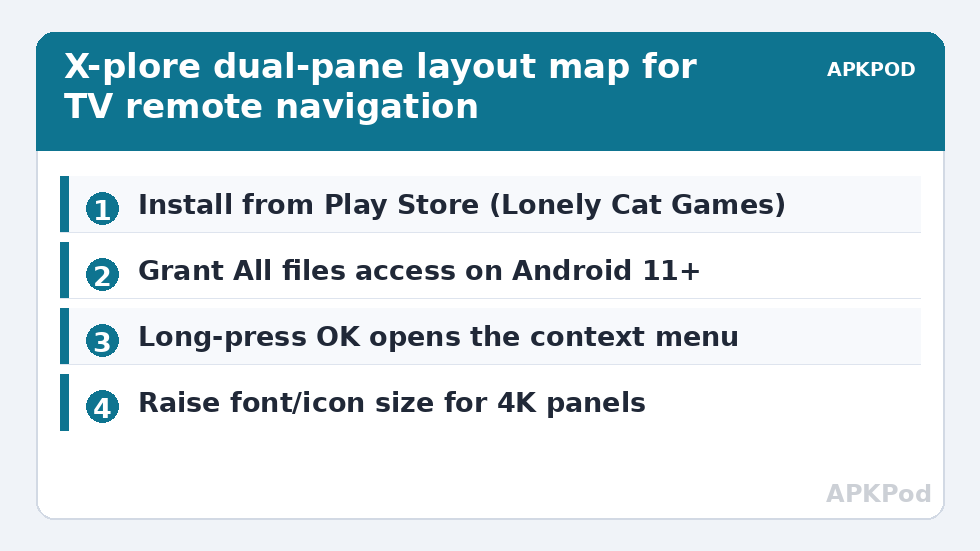
On first launch X-plore shows its dual panes immediately, but moving files requires storage permission. On Android TV 10 and earlier, accept the standard storage prompt. On Android 11 and later, scoped storage means X-plore may direct you to grant All files access through Settings → Apps → X-plore → Permissions, or ask you to pick folders through the system file picker (SAF) the first time you open certain directories such as Android/data. Grant what the prompt asks for the folders you plan to manage; you do not need to unlock anything else.
Two configuration choices are worth making straight away under the app’s Configuration menu (press and hold the Menu or OK button behaviour varies by remote; the three-dot menu inside X-plore opens it):
- Show hidden files — enable it if you maintain media libraries, because thumbnail and subtitle folders often hide behind a leading dot.
- Use X-plore’s built-in video player vs external player — X-plore can hand videos to your preferred player (for example Kodi or VLC) so playback behaves the way you expect.
- Root access toggle — leave this off on a TV. Very few televisions are rooted, and the option changes nothing for normal storage work.
How Dual-Pane Navigation Works with a TV Remote
X-plore splits the screen into two independent folder panes, left and right. On a TV you move the focus highlight with the D-pad, open a folder or file with the centre (OK) button, and go up one level with Back. The key skill is switching panes: pressing Left or Right at the edge of the active pane jumps focus to the other pane, and the highlighted title bar shows which side is active. Set a source folder in one pane and a destination in the other, and copying becomes a two-button operation instead of a copy-paste dance.
A few remote habits make daily use much faster:
- Long-press OK on a file opens the context menu (Copy, Move, Rename, Delete, Properties) on most remotes.
- Menu button (if your remote has one) jumps straight to operations such as New Folder or Paste.
- Number-free selection: highlight a file, then use the context menu’s Mark option to tick several files before copying them as a batch.
- Back at the top level returns you to the device list, where Internal storage, USB drives, LAN shares and cloud accounts all appear as separate roots.
Because televisions render text smaller relative to viewing distance, increase X-plore’s font/icon size in Configuration if you find yourself squinting; the app scales its tree view gracefully on 1080p and 4K panels, and a slightly larger font costs you only one or two visible rows. For a deeper treatment of remote technique, see our dedicated guide on navigating the dual-pane interface with a Smart TV remote, and if you plan to plug in storage right away, read how to connect external USB drives to Android TV through X-plore.
Planning Bigger Jobs: Network and USB Roots
Once navigation feels comfortable, X-plore’s TV usefulness multiplies: the same device list that shows your USB stick also shows LAN (SMB) shares from a PC or NAS, the built-in Wi-Fi file server for phone transfers, and cloud drives. Before starting a large copy from the network, estimate how long it will occupy the TV. A 4 GB film over a healthy 5 GHz Wi-Fi link typically lands in the 8–25 MB/s range on TV hardware, so the job may run anywhere from three to eight minutes:
Bottleneck:
Tip:
All figures are estimates under good local conditions — strong signal, no competing traffic, both devices on the same network. Real speeds drop with distance, walls, channel congestion and slow storage on either device. Protocol options (SMB, FTP, SFTP) assume a 5 GHz-class Wi-Fi link.
That estimate helps you decide whether to copy a file to local storage first or simply stream it in place. If a drive you plug in does not appear in the device list at all, work through the checks in our article on fixing a USB drive that Android TV does not recognise before assuming the stick is faulty.
Troubleshooting the First-Run Problems People Actually Hit
| Symptom | Likely cause | Fix |
|---|---|---|
| X-plore missing from Play Store search | Very old TV firmware or wrong store region | Update TV firmware; check the store account region; use the Amazon Appstore build on Fire TV |
| Folders open but copying fails | Storage permission not granted after an update | Re-grant All files access in Settings → Apps → X-plore → Permissions |
| Android/data folder appears empty | Scoped storage (SAF) restriction on Android 11+ | Use X-plore’s prompt to authorise that specific folder through the system picker |
| Focus highlight hard to see | Small UI scale on a large 4K panel | Increase font and icon size in X-plore Configuration |
| App exits when TV sleeps mid-copy | Aggressive OEM power saving | Exclude X-plore from battery optimisation in TV settings |
With installation, permissions and pane-switching habits in place, the rest of this category builds directly on this foundation — from adopted storage expansion to streaming media straight off a router share.
Install Navigate Xplore File Manager Android TV: The First-Week Routine
Installation is the beginning, not the end. In the first week, prove both of X-plore’s transport routes once, while nothing urgent depends on them: copy one file from a USB drive to internal storage, and browse one folder on a network share or start the Wi-Fi server and fetch one file from a phone. Pin X-plore to the TV’s favourites row so it is one press from the home screen, and set your startup panes to the two locations you actually use. When both routes have worked once in calm conditions, every later guide in this series becomes a variation on a theme you already know. You will find those variations collected in our TV & Storage guides, which assume exactly this foundation.
Frequently Asked Questions
Is X-plore File Manager free to use on Android TV?
Yes. X-plore is free with ads, and a donation removes the ads and unlocks a few extras. Every core TV feature covered in this guide — dual-pane browsing, USB access, LAN shares and the Wi-Fi server — works in the free version.
Can I install X-plore on a Firestick or Fire TV?
Yes, through the Amazon Appstore, where Lonely Cat Games publishes the same app for Fire OS. Navigation with the Alexa remote’s D-pad works the same way as on Google TV; only the store you install from differs.
Why does X-plore ask for All files access on my TV?
Android 11 and later restrict how apps reach storage outside their own sandbox. All files access (or folder-by-folder SAF grants) is what allows a file manager to copy, rename and delete files across internal storage and USB drives, which is the entire point of the app.
My remote has no Menu button. How do I open file options?
Long-press the centre OK button on a highlighted file or folder. X-plore maps the full context menu — copy, move, rename, delete, properties and more — to that long-press on TV devices.
Does X-plore work with a mouse or air remote on TV?
Yes. X-plore responds to pointer input as well as D-pad focus, and an air mouse makes selecting many files quicker. The app remains fully usable with a standard remote if you do not have one.