The X-plore Vault creates a paradox that catches thoughtful people out. You move your most sensitive files into it precisely because they matter, and then those files exist in exactly one place, encrypted, on one phone, behind one password. A lost phone, a failed update or a forgotten password turns protection into permanent loss. The Vault needs a backup, but a careless backup, such as photographing documents back into your gallery, quietly undoes the encryption you wanted.
This guide shows how to keep a safe second copy of Vault contents without weakening their protection: what a good Vault backup looks like, where it should live, and how to test it. It follows naturally from our introduction to using the Vault to encrypt private photos and the password setup in configuring master password protection, both linked from the APKPod homepage.
What a Safe Vault Backup Actually Is
A safe backup of Vault contents has three properties. It is encrypted, so finding the backup does not expose the files. It lives somewhere other than the phone, so losing the phone does not lose both copies. And it can actually be opened by you, with a password you still know, on a day when you are stressed and in a hurry. A backup failing any one of those tests is a decoration, not a backup.
The honest options, compared
| Backup method | Encrypted? | Off the phone? | Watch out for |
|---|---|---|---|
| Encrypted archive uploaded to cloud | Yes, with its own password | Yes | Losing the archive password loses everything |
| Encrypted archive on a home computer or drive | Yes | Yes | Drive failure; keep the drive itself backed up or duplicated |
| Plain copies in a cloud folder | No | Yes | Anyone into the account reads everything |
| Second phone signed into everything | Partly | Yes | Doubles the devices that can expose the account |
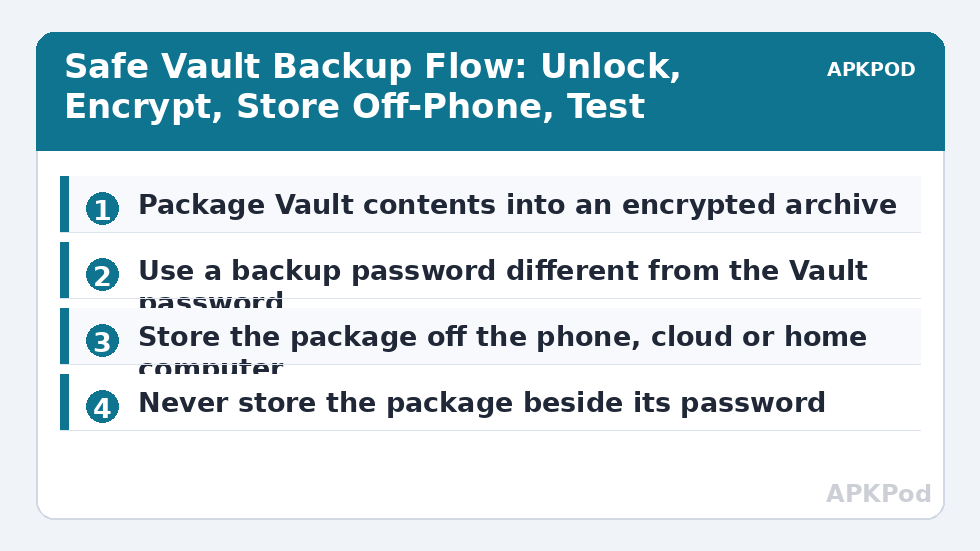
For most people, the first row wins: periodically unlock the Vault, copy its contents into an encrypted package with a reputable archive or encryption tool using a strong, separate password, and upload that package to a cloud account or copy it to a home computer. X-plore moves the package like any other file; the encryption belongs to the package itself.
Bottleneck:
Tip:
All figures are estimates under good local conditions — strong signal, no competing traffic, both devices on the same network. Real speeds drop with distance, walls, channel congestion and slow storage on either device. Protocol options (SMB, FTP, SFTP) assume a 5 GHz-class Wi-Fi link.
The Backup Routine, Step by Step
- Unlock the Vault and review its contents, deleting anything that no longer needs keeping. Backups should be small and current.
- Copy the contents out to a temporary local folder only for as long as packaging takes, on a phone you control, with the screen locked whenever you step away.
- Create the encrypted package with a long passphrase different from the Vault password, and enable filename encryption if your tool offers it.
- Upload or copy the package to its destination, then verify it using the size and spot-check habits from our verification guide.
- Delete the temporary plain copies thoroughly, including from any recently deleted or trash folder the phone keeps.
- Record the package’s password in your password manager, labelled with the package name and date.
Where the Backup Should Live, and Where It Should Not
A cloud account protected by two-factor authentication is a reasonable home, because the package is encrypted before it arrives and the provider stores data it cannot read. A home computer or an external drive kept in a drawer is equally reasonable and avoids the cloud entirely. Two destinations, one cloud and one at home, is better still for truly irreplaceable items such as identity documents and family records.
Places that quietly break the point
Do not store the backup package beside its password: a note in the same cloud folder labelled with the password hands over both halves at once. Do not keep the only backup on an SD card inside the same phone, which shares the phone’s fate. And do not email the package to yourself as your sole copy, since email accounts are frequent breach targets and attachments linger in sent folders you forget exist.
How you store the passwords involved matters as much as where the package lives. Our guide to storing your X-plore master password with a password manager covers the labelling and separation habits that keep Vault, package and account passwords from collapsing into one reused secret.
Test the Backup Before You Need It
An untested backup is a rumour. Once you have created the package, download or copy it back to a different location, open it with its password, and confirm a few files inside are readable and complete. Repeat the test whenever you create a new backup, and glance at older packages twice a year to be sure they still open with the recorded password. If a test fails, fix it that day, while the Vault original still exists to rebuild from. Schedule backups by contents, not by anxiety: after adding important documents, monthly for an active Vault, and always before replacing or resetting your phone.
A Realistic Schedule: What One Reader’s Routine Looks Like
Abstract advice becomes easier to keep when it is attached to a calendar, so here is a routine sized for an ordinary life rather than a security team. On the first Sunday of each month, unlock the Vault, remove anything that no longer earns its place, and build a fresh encrypted package of what remains. Upload it to the cloud account, keep the previous month’s package until the new one has been test-opened, and then delete the older one so the account holds one current backup rather than a confusing crowd of them. Name packages by date, vault-backup-2026-10 for example, so the newest is obvious at a glance.
Twice a year, copy the current package to the home computer or drawer drive as well, and open it there. That slower second copy protects against the day the cloud account itself is the thing you are locked out of, and the act of opening it rehearses the recovery you hope never to need. Before any phone change, repair or long trip where the phone might be lost, step outside the schedule and make an extra package. Phones rarely fail on convenient dates, and the backup that saves you is always the one made shortly before the failure, not the one planned for next month.
Size is not an excuse
Vaults are usually small. Even a Vault holding two hundred scanned documents and photos at an average of 3 MB each totals only about 600 MB, which uploads in minutes on home Wi-Fi and occupies a modest corner of any cloud allowance. The arithmetic matters because it removes the most common objection. For most readers the backup costs less space than a single phone video, so the routine’s real price is ten minutes of attention a month, paid gladly for files chosen specifically because their loss would hurt.
Retire old packages deliberately
Old encrypted packages are not clutter to ignore; each is a complete copy of sensitive material protected by a password you may later change or forget. Keep the current package and at most one previous one, delete the rest from every location, and empty the provider’s trash so the deletion is real. A backup system with a tidy retirement habit stays understandable, and understandable systems are the ones still working in five years.
Frequently Asked Questions
Why does the Vault need a backup if it is encrypted?
Encryption protects files from other people, not from loss. The Vault’s contents exist only on your phone, so a lost phone, failed storage or forgotten password destroys them. A backup stored elsewhere, itself encrypted, protects against loss without giving up protection against prying.
Can I back up Vault files as plain copies in my cloud account?
You can, but you should not for genuinely sensitive material. Plain copies are readable by anyone who gains access to that account. Package the contents into an encrypted archive with its own strong password first, then upload the package through X-plore like any other file.
Should the backup package use the same password as the Vault?
No. Use a different, long passphrase for the backup package and store both passwords in a password manager. If one password is ever exposed or forgotten, separate passwords limit the damage and give you another route back to your files.
How often should I back up my Vault contents?
Back up after adding anything important, at least monthly if you use the Vault actively, and always before replacing, repairing or resetting your phone. Each new package should be opened once as a test before you trust it.
What happens if I forget both the Vault password and the backup password?
Then the files are effectively unrecoverable, by design. No support desk or recovery tool can open properly encrypted data without its password. That hard truth is exactly why this guide pairs every backup with a password stored safely in a manager.