A strange sign-in email at 2 a.m., files you did not upload, a sharing notification for a document you never sent: few tech moments raise the pulse like suspecting a cloud account has been compromised. Panic produces bad decisions, such as deleting everything or, just as badly, doing nothing and hoping. What you need is an order of operations. Contain first, evict second, clean third, and only then rebuild your X-plore connections on ground you trust.
Work through this checklist in sequence, on a device you trust, ideally a computer rather than the phone you suspect. X-plore itself is rarely the problem; it holds tokens for accounts, so an account problem is fixed at the provider, with X-plore tidied last. The routine fits inside the broader cloud security and privacy audit checklist, and the APKPod homepage links the token and password guides referenced below.
Step One: Contain the Account at the Provider
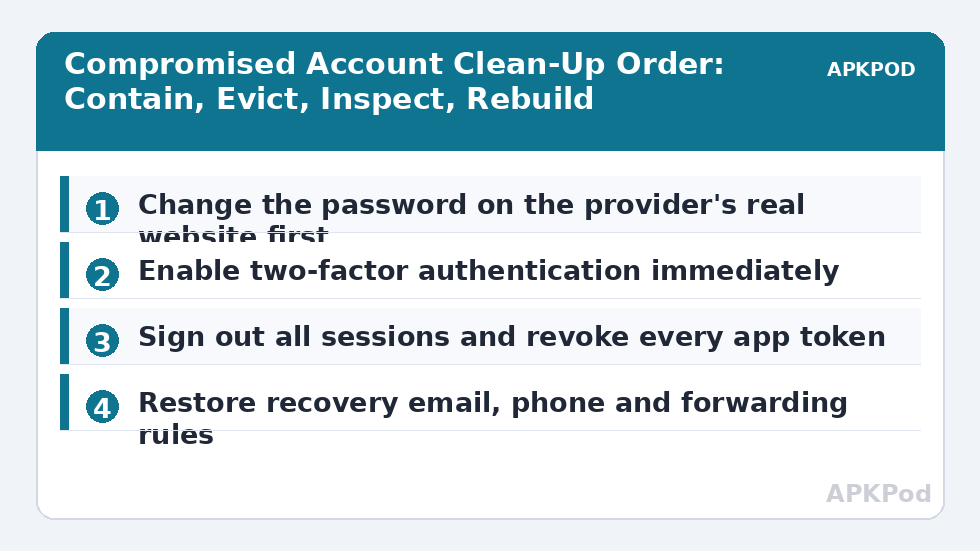
Open the provider’s website directly, by typing its address yourself, never by tapping a link inside the alarming email, which may itself be a phishing message. Change the account password to a long, unique one you have never used elsewhere. Then turn on two-factor authentication if it is not already on; a stolen password alone should never again be enough to enter.
Evict every session and token, including your own
Use the provider’s security page to sign out all sessions and revoke third-party app access, X-plore included. This feels drastic because it is meant to: any token an intruder holds dies at the same moment as yours. You will reconnect your own apps afterwards, one by one, which also gives you a clean inventory of what legitimately holds access. Our detailed guide to how X-plore cloud access tokens work and how to revoke them explains the screens and the reasoning.
Check recovery details before anything else heals
Intruders protect their access by changing the account’s recovery email, phone number and backup codes. Inspect every recovery detail and put back anything that is not yours. Check mail forwarding rules too, in email accounts linked to the cloud account, because a forwarding rule quietly copies your future password-reset emails to the intruder.
Bottleneck:
Tip:
All figures are estimates under good local conditions — strong signal, no competing traffic, both devices on the same network. Real speeds drop with distance, walls, channel congestion and slow storage on either device. Protocol options (SMB, FTP, SFTP) assume a 5 GHz-class Wi-Fi link.
Step Two: Inspect the Damage Honestly
With the doors locked, look at what happened. Review the account’s recent activity and trash: files deleted by an intruder often sit recoverable in the provider’s recycle bin, and restoring them early matters because bins empty themselves after a set period. List every sharing link and shared folder, and revoke anything you do not recognise or no longer need; an intruder’s favourite persistence trick is a quiet link to a folder you check rarely.
| Check | Where | Action if wrong |
|---|---|---|
| Password and 2FA | Provider security page | Change password, enable 2FA, save new backup codes |
| Sessions and connected apps | Provider security page | Sign out everywhere, revoke all app tokens |
| Recovery email and phone | Account settings | Restore your own details, re-secure the recovery mailbox |
| Sharing links and collaborators | Shared items view | Revoke unknown links, remove unknown people |
| Deleted files | Provider trash or recycle bin | Restore promptly before automatic emptying |
| Forwarding rules | Linked email account | Delete rules you did not create |
Step Three: Clean and Rebuild X-plore
Only now return to the phone. Remove every cloud entry for the affected account inside X-plore, because each holds a token from the compromised era; those tokens should already be dead at the provider, and removing the entries ensures no stale connection lingers. Then add the account again, signing in fresh with the new password and completing the two-factor step, so X-plore receives a brand-new token issued after the clean-up.
The phone itself needs a once-over
If the compromise may have started on the phone, through a malicious app or a lost device, check what is installed, remove anything you do not recognise, and update Android and X-plore. If the phone was lost, use the provider sessions list and your Google account tools to sign the device out everywhere, and treat every account that was signed in on it as needing this same checklist, not just the one that showed symptoms.
Tell people who were exposed
If files shared with colleagues, clients or family were accessible, tell them plainly and promptly. They may hold copies, receive phishing from your account’s name, or need to watch their own accounts. A short factual message beats silence, and organisations often have a duty to report such incidents; if the account is a work account, inform your IT contact before doing your own rebuilding beyond the password change.
Step Four: Make the Next Incident Smaller
When the dust settles, reduce the blast radius for next time. Store the new password in a password manager rather than memory or a note. Confirm your Vault and app passwords are different from the cloud password, so one breach never unlocks everything. Review which accounts truly need to live inside X-plore on the phone, and remove the rest; every connected account is a door, and doors you do not use should not exist. Our guide to keeping two Google accounts apart in X-plore shows how deliberate separation limits damage when one account has a bad day.
Signs It Was a False Alarm, and Signs It Was Not
Not every alarming notification means an intruder. Providers send sign-in alerts when you travel, when your mobile network presents a new location, or when you sign in from a fresh browser, and a file you forgot uploading from another device can look like a stranger’s work. Check the provider’s recent-activity page calmly: a sign-in from your own city, on your own device model, at a time you were using the account, is usually you. An unfamiliar country, an unknown device, password or recovery changes you did not make, and sharing activity you cannot explain are the findings that mean business.
While you investigate, avoid two common ways people make real incidents worse. Do not delete the suspicious files before noting their names, dates and locations, because that record helps you judge what was touched and helps any support or workplace investigation. And do not reuse the compromised password anywhere else in a panic-driven tidy-up; accounts sharing that password, email above all, need their own unique replacements, which is why master password protection and unique per-account passwords appear throughout this series as a standing rule rather than a one-off tip.
Write the incident down while it is fresh
Keep a short timeline: when you noticed, what you changed, in what order, and what you found. If the account belongs to an employer, a client or a shared family archive, that record is what others will ask you for. It also disciplines the clean-up itself, because writing a step down forces you to notice whether you actually completed it, including unglamorous items like checking forwarding rules and reviewing shared-folder membership.
Finally, keep perspective while you work. A contained incident with a changed password, revoked tokens and an honest inspection usually ends with your files intact and your accounts stronger than before the scare. The readers who fare badly are rarely the ones who were targeted; they are the ones who saw the warning, felt the sinking feeling, and postponed the first step. You have the order of operations now, so the first step is the only hard one.
Frequently Asked Questions
What should I do first if I think my cloud account is compromised?
Go directly to the provider’s website by typing its address yourself, change the password to a long unique one, and enable two-factor authentication. Then sign out all sessions and revoke third-party app access. Do not start by deleting files or by using links inside the suspicious email.
Should I remove the account from X-plore straight away?
Secure the account at the provider first, including revoking app tokens, which kills X-plore’s token along with any the intruder holds. Afterwards, remove the old entry in X-plore and add the account again so it receives a fresh token under the new password.
Can I get back files an intruder deleted?
Often yes, if you act quickly. Providers move deleted files to a trash or recycle bin that empties automatically after a fixed period. Check the bin early in your clean-up and restore anything that belongs to you before that window closes.
Why check my email recovery and forwarding settings?
Because intruders change recovery details and add forwarding rules to keep access after a password change. If a forwarding rule copies your mail elsewhere, your next password reset goes to the intruder too. Restoring your own recovery email, phone and rules is essential.
The warning email might be fake. How do I check safely?
Never tap links in the email. Type the provider’s address into your browser yourself, sign in, and read the security and recent-activity pages there. If the account shows no strange activity and your details are unchanged, the email was likely phishing and can be reported and deleted.