Few Android changes have confused file-manager users as much as scoped storage. One Android version lets X-plore wander the whole storage freely; the next asks you to grant access folder by folder, refuses certain directories outright, and shows permission prompts that look like the app is broken. It is not broken. Android deliberately redesigned what apps may touch, and X-plore’s prompts are the visible edge of that redesign.
This guide explains scoped storage in plain terms: what Android is protecting, why X-plore asks you to pick a folder and tap Allow, which limits no file manager can remove, and how to grant exactly the access you intend, no more. You will find the wider permissions picture in our cloud security and privacy audit checklist and across the APKPod homepage.
What Scoped Storage Changed
Older Android versions handed an app with storage permission a key to nearly everything: every app’s leftovers, every download, every folder. Scoped storage replaced that master key with compartments. An app gets free run of its own private space and standard shared areas such as photos and downloads through system interfaces, while other places, notably the Android/data and Android/obb folders belonging to other apps, sit behind extra gates or out of reach entirely.
Why Android did it
The motivation was privacy and tidiness. Apps were reading each other’s files, tracking users through shared folders, and leaving debris scattered across storage that no uninstall could clean. Scoped storage means an app’s private files die with the app, a casual file manager cannot rummage through a banking app’s data, and users grant broad access deliberately, through a system picker, rather than by reflex at install time.
Why it feels inconsistent
Rules vary by Android version, by device maker, and by whether X-plore was installed from an app store, because store policies add their own restrictions on broad storage access. Two phones can therefore show different prompts for the same folder. When behaviour differs between your devices, version and source differences are the first explanation, not a fault in either phone.
Bottleneck:
Tip:
All figures are estimates under good local conditions — strong signal, no competing traffic, both devices on the same network. Real speeds drop with distance, walls, channel congestion and slow storage on either device. Protocol options (SMB, FTP, SFTP) assume a 5 GHz-class Wi-Fi link.
Reading the Permission Prompts X-plore Shows
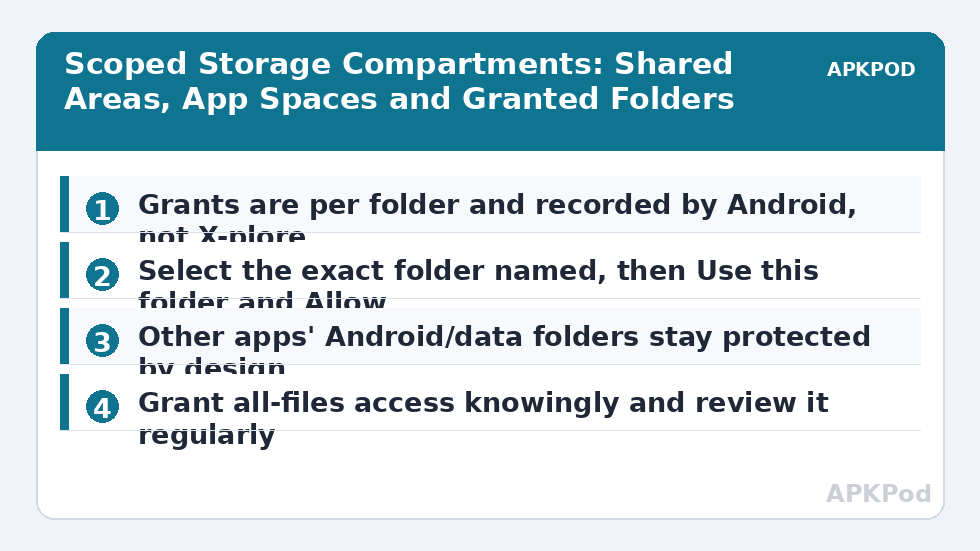
The typical flow runs like this. You browse to a restricted folder, X-plore explains that Android requires your approval, and the system folder picker opens with the correct folder pre-selected. You tap Use this folder, then Allow, and Android records a grant for that specific folder. X-plore can then work there, while folders you never approved stay closed. The grant persists until you revoke it in Android settings or reinstall the app.
| What you see | What it means | Sensible response |
|---|---|---|
| System picker asking you to select a folder | Android wants a per-folder grant | Select the folder X-plore named, then Allow |
| Access denied for Android/data | Another app’s private space is protected | Use that app’s own export or share features instead |
| Request for all-files access | The app is asking for the broadest storage grant | Grant only if you understand and want full file-manager reach |
| SD card needs selecting at its root | Removable storage grants start at the card’s top level | Choose the card itself in the picker, not a subfolder |
Granting Access Deliberately, Not Generously
Treat each prompt as a small decision. Ask what folder X-plore actually needs for the task in front of you, and grant that folder rather than the widest option offered. A grant for your camera folder does not need to become a grant for the entire internal storage. This is the same least-access instinct that makes people cautious about unknown apps, a theme explored in our guide to spotting fake X-plore apps and malware clones, where over-broad permissions on a look-alike app are the danger sign.
All-files access: the honest trade-off
File managers are one of the few app categories with a legitimate reason to request broad access, and a full-featured X-plore experience on some Android versions depends on it. Granting it to the genuine X-plore, from a trusted source, is a reasonable choice many users make. The discipline is to grant it knowingly, to this app, and to review the list of apps holding it in Android settings a few times a year, removing any you no longer use.
The Vault and other special cases
The X-plore Vault lives inside the app’s own protected world, which is why its contents do not appear to other apps or gallery tools; scoped storage actually strengthens that separation. Media folders work through Android’s media interfaces, so photos can appear even where raw folder access is limited. And our earlier guide to encrypting private photos in the Vault explains how that protected space behaves once files move inside it.
Fixing the Prompts That Keep Coming Back
If X-plore asks for the same folder repeatedly, the grant is not being retained. Check that you completed both steps in the picker, selection and Allow, and that you picked the exact folder requested rather than a parent or child. Battery-saving features that aggressively reset app state can also disturb grants on some devices. If one folder stays stubborn, remove the app’s storage grants in Android settings and grant fresh, and keep X-plore updated, because scoped-storage behaviour is an area Google still adjusts between Android releases.
Scoped Storage on SD Cards, TVs and Second Users
The same rules surface in a few places worth knowing. On removable SD cards, Android typically asks you to grant access to the card as a whole by selecting its root in the picker; choosing a subfolder when the root was requested produces the classic loop of repeated prompts. On Android TV devices, the picker exists too but is navigated with a remote, which makes the selection step feel clumsier without changing its meaning: the system is still recording a per-location grant on your behalf. Work profiles and second user accounts on a phone each hold their own grants, so X-plore inside a work profile cannot borrow permissions granted in your personal profile, which is scoped storage doing its compartment job correctly rather than malfunctioning.
There is also a consequence for tidiness that surprises upgraders. Because each app’s private area is its own compartment, uninstalling an app now genuinely removes its private files, and reinstalling does not resurrect them. That is good privacy behaviour and a data-loss trap in one: anything you valued inside an app’s own space must be exported through that app before you uninstall it, because no file manager, X-plore included, can rescue it afterwards from a compartment Android has already swept clean.
The mental model to keep
Picture Android storage as a building of locked rooms rather than one open field. Shared rooms like photos and downloads open with a general pass. Other apps’ rooms need their occupants to hand things out. Your file manager can hold a master pass only when you deliberately issue one through the system’s own prompts. Every confusing dialog becomes predictable once you ask which room you are standing in front of, and whose pass the system is asking you to present.
None of this makes X-plore weaker in any way that matters day to day. Your own folders, media, downloads, SD cards and network locations all remain fully workable; the gates stand around other apps’ private material, which was never really yours to manage. Once the prompts are understood as the system asking on your behalf rather than the app failing, the friction mostly disappears, and what remains is a sensible boundary you control grant by grant.
Frequently Asked Questions
Why does X-plore ask me to select a folder I am already looking at?
Because Android, not X-plore, issues the grant. X-plore can show you the folder, but only the system picker can record your permission for the app to work there. Select the folder the prompt names, tap Use this folder and Allow, and the grant is stored.
Can X-plore open other apps’ Android/data folders?
Generally no, and that is intentional. Scoped storage protects each app’s private data from other apps. To move content out of an app, use that app’s own export, share or backup features rather than expecting a file manager to reach inside its private space.
Is it safe to give X-plore all-files access?
For the genuine X-plore from a trusted source, many users reasonably do, because a file manager’s job requires broad reach. Grant it knowingly, keep the app updated, and review which apps hold all-files access in Android settings a few times a year.
Why do my two phones show different permission behaviour?
Scoped storage rules differ across Android versions and device makers, and store policies can restrict the version of an app you installed. Different prompts on different phones usually reflect those platform differences rather than a broken installation.
How do I take back a folder grant I gave X-plore?
Open Android Settings, find the app permissions or special access area for storage, and remove the grant for the app or folder. Grants also disappear when the app is uninstalled. X-plore will simply ask again if you browse to that folder later.