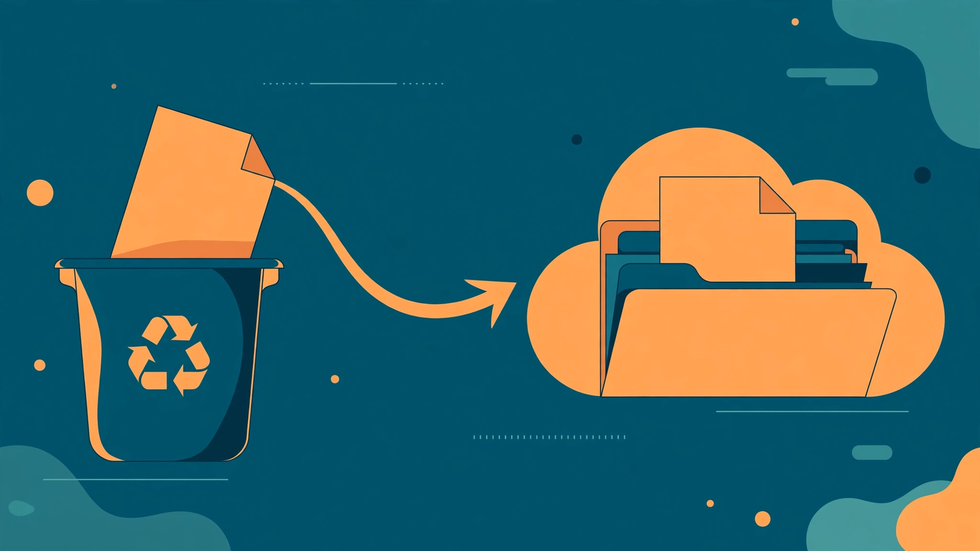
Deleting the wrong file is a universal experience. One careless tap during a cleanup, one folder selected instead of another, and a document or photo you needed is gone. The good news is that in cloud storage, "deleted" rarely means destroyed straight away. Cloud services keep deleted files in a recycle bin or trash folder for a grace period, and during that window recovery is usually a matter of a few taps. X-plore gives you a route to those files, but knowing where the bin lives and how its rules work makes the difference between a quick rescue and a permanent loss.
The first rule of any accidental deletion is to stop. Do not empty any trash folder, do not run a cleanup tool, and do not delete more files in the confusion. The deleted file is safest sitting untouched in the bin while you work out how to restore it. Panic-driven tidying is how recoverable files become unrecoverable ones.
Where Deleted Cloud Files Actually Go
When you delete a file from a cloud location through X-plore, the file normally moves to that provider's trash or recycle bin rather than vanishing. Google Drive, for example, keeps deleted items in its trash, where they remain until you empty the trash or the retention period expires. Other providers have their own equivalents with their own time limits, commonly around thirty days, though this varies and can change. The key point is that deletion is a two-stage process: first to trash, then, only later or by explicit action, to permanent removal.
Local deletions behave differently. A file deleted from your phone's internal storage or memory card through X-plore may go to a local recycle bin if X-plore is configured to use one, or it may be deleted immediately, depending on your settings. This is why the distinction between cloud and local matters so much in a deletion emergency: cloud deletions are forgiving by design, while local deletions may not be. If you are unsure which kind of deletion just happened, check the cloud trash first, since that is the most likely rescue route.
Finding the Trash in Your Cloud Account
Open your cloud provider's trash view. In X-plore's cloud section, the trash or recycle bin may appear as a location within the account, or you may need to open the provider's own app or website to see it. Either route leads to the same place. Once there, you will see deleted files listed with their original names and, helpfully, the date they were deleted. Sort by deletion date if the list is long; your file is most likely near the top if the deletion was recent.
If the file is not in the trash, think carefully before concluding it is gone. Check whether it was deleted from a shared folder, in which case only the owner may be able to restore it, or whether it was deleted from a different account than the one you are checking. Multiple cloud accounts are a common source of confusion: the file may be sitting in the trash of an account you have not opened. Work through each connected account methodically before giving up.
Restoring a File Correctly
Restoring is usually a single action: select the file and choose restore. The file returns to its original location in the cloud, with its original name. After restoring, verify it immediately. Open the file and confirm it is intact and complete, and check that it appears where you expect it in X-plore's cloud view. A restored file that opens correctly is a rescued file; a restored file you never check is an assumption.
Watch out for one subtlety: if a new file with the same name has been created in the original location since the deletion, restoring can create a naming conflict. The provider may rename the restored file, overwrite the newer one, or ask you what to do. If you are offered a choice, restore under a different name and compare the two versions before deciding which to keep. Overwriting a newer file with a restored older one is a second accident layered on top of the first.
When the Trash Does Not Contain Your File
If the trash is empty or the file is absent, there are still avenues worth trying. First, check whether the file exists elsewhere: a local copy on your phone, a copy in another cloud folder, an attachment in an email, or a version shared with someone else who may still hold it. Files often exist in more places than we remember, and a duplicate in an unexpected corner is a legitimate rescue.
Second, check the provider's version history or activity. Some services retain earlier versions of files even after deletion, and some allow account holders to request recovery of recently and permanently deleted items through support, particularly within a short window. This is not guaranteed, and it usually requires contacting support promptly, but it is worth attempting for anything irreplaceable. Be honest with support about when the deletion happened; the sooner it was, the better the chances.
Preventing the Next Accidental Deletion
Recovery is reassuring, but prevention is better. Enable X-plore's recycle bin or delete-confirmation options for local files if they are available, so that local deletions gain the same grace period cloud deletions already have. Slow down during bulk cleanups: delete in small batches, and review each selection before confirming. Most accidental deletions happen during rushed multi-select operations, where one extra file slips into the selection unnoticed.
Another powerful habit is to archive rather than delete when you are unsure. Move doubtful files into a folder called To Review or Archive, and only delete from there after a month of not needing them. This creates a personal grace period on top of the provider's trash, and it turns deletion from an irreversible act into a two-step decision with a cooling-off period built in.
The Shared-Folder Complication
Deletions in shared folders follow different rules, and they cause more confusion than any other case. If you delete a file from a folder someone shared with you, you may only remove your own access, or you may delete it for everyone, depending on your permission level and the provider's model. If a file you need has vanished from a shared folder, contact the folder owner promptly and ask them to check their trash. Owners can usually restore files deleted by collaborators, but only within the retention window, so speed matters.
Similarly, if someone else deleted a file from a folder you own, check your own trash first; their deletion typically lands there. Communicate with collaborators about deletions in shared folders as a matter of policy. A simple agreement — nobody deletes shared files without asking, and deletions go to an archive folder first — prevents most shared-folder losses entirely.
A Calm Recovery Checklist
When a deletion happens, run through this sequence. Stop and do not empty any trash. Identify whether the file was cloud or local. Open the cloud trash for the right account and sort by deletion date. Restore the file and verify it opens. If it is absent, search for other copies and contact the folder owner or provider support promptly. Then, once the emergency is over, enable delete confirmations and set up an archive folder for the future. A checklist turns a stressful moment into a procedure, and procedures are what save files.
A Worked Example: The Deleted Holiday Album
A traveller cleaning up a phone deletes an entire holiday album by mistake, then realises the error within minutes. Because the deletion happened in cloud storage, the album sits in trash, fully intact. Sorting trash by deletion date brings it to the top, restoring returns every photo to its original folder, and a quick check confirms the pictures open correctly. Total recovery time: under five minutes. Had the same deletion happened locally without a recycle bin, or had the trash been emptied in a panic, the same album might have been lost permanently. The difference was entirely in knowing where the bin lives and leaving it alone until the restore was done.
Restore to a Different Folder When the Original Is Gone
If the original folder no longer exists — because it was renamed, moved, or deleted after the file — restoring may recreate it or place the file in an unexpected location. After such a restore, search for the file by name in X-plore and move it to where it belongs. A restored file that you cannot find is only theoretically recovered, so take the extra minute to locate it and confirm it opens before considering the job done.
Frequently Asked Questions
How long do deleted files stay in a cloud recycle bin?
It depends on the provider, but around thirty days is common. Some providers empty trash automatically after that period, so restore promptly rather than assuming the file will wait indefinitely.
Does deleting a file in X-plore permanently erase it immediately?
Usually not for cloud files, which move to the provider's trash first. Local deletions depend on your settings; if X-plore is configured to use a local recycle bin, local deletions get a grace period too.
Can I recover a file deleted from a shared folder?
Often yes, but the folder owner may need to restore it from their trash. Contact the owner quickly, since the retention window applies regardless of who deleted the file.
What if I already emptied the trash?
Recovery becomes much harder, but contact the provider's support promptly for irreplaceable files; some providers can recover recently and permanently deleted items within a short window. Also search for other copies of the file.
How can I make accidental deletion less likely in future?
Enable delete confirmations and a recycle bin for local files, delete in small reviewed batches, and move doubtful files to an archive folder for a month before deleting them outright.