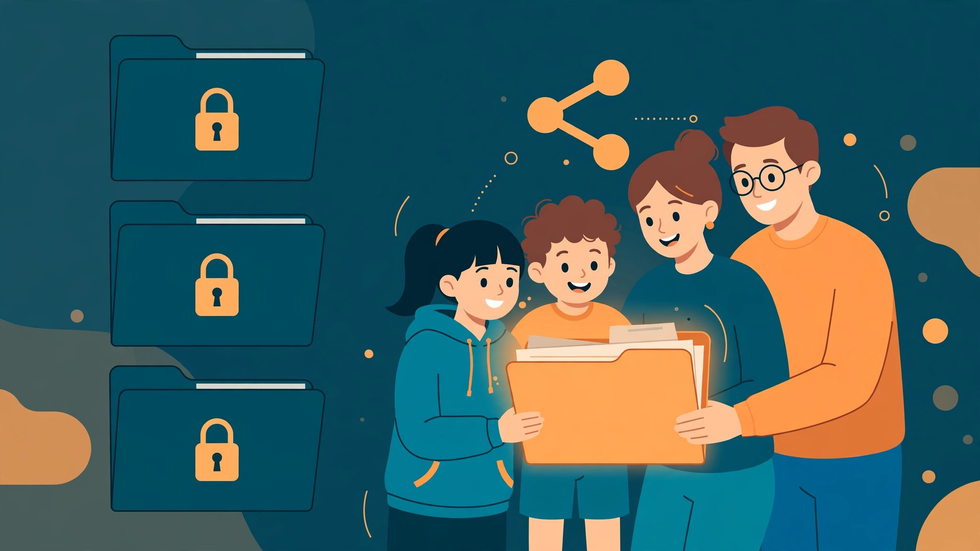
Sharing photos or documents with family should not require handing over the keys to your entire digital life. Yet that is exactly what happens when people share an account password instead of sharing a folder: suddenly everyone with the password can read your email, open your documents, and browse files that were never meant to be shared. The good news is that cloud storage is designed for a better approach. You can share one specific folder, with specific people, at a specific permission level, while everything else in your account stays private. X-plore helps you organise the folder; your cloud provider's sharing controls do the actual sharing.
The principle is simple: share the smallest thing that does the job. A folder of holiday photos needs only that folder shared, not your account. A document the family edits together needs edit access to that document, not to your whole drive. When you keep shares narrow, a mistake or a misunderstanding affects one folder, not your entire storage.
Never Share Your Password — Share the Folder Instead
The single most important rule is never to give family members your cloud account password. Password sharing feels generous and simple, but it grants total access: email, photos, documents, backups, payment-linked services, and the ability to change your password and lock you out. It also destroys accountability, since every action looks like it came from you. If a family member accidentally deletes something, you cannot tell who did it, and the provider's recovery options assume the account holder acted.
Folder sharing avoids all of this. Each family member accesses the shared folder through their own account, so their actions are attributable, their access can be revoked individually, and they see only what you shared. If one person's access needs to end, you remove that person, and nobody else is affected. Set up folder shares even when password sharing feels quicker; the few extra minutes buy you lasting control.
Create a Dedicated Folder for Sharing
Before sharing anything, create a folder specifically for the purpose, and put only the files you intend to share inside it. Do not share an existing folder that also contains private files, assuming family members will only look at the intended ones. People browse, curiosity is natural, and a shared folder invites exploration of everything inside it. A dedicated folder with a clear name, such as Family Holiday 2026, makes the boundary obvious to everyone.
X-plore is useful for preparing this folder: gather the files from wherever they live on your phone or in the cloud, copy them into the new folder, and review its contents before sharing. Check for strays — a screenshot with personal information, a document draft, a photo that was meant for someone else — and remove them. Once the folder is shared, assume everything inside it is visible to every recipient, and review it with that assumption in mind.
Choose View or Edit Access Deliberately
Every share carries a permission level, and choosing it deliberately is half the job. View access lets family members see and download files but not change, rename, or delete them. Edit access lets them add, modify, and delete. For photo sharing, view access is almost always right: family can enjoy and download the pictures, but they cannot accidentally reorganise or delete your originals. For a genuinely collaborative folder — a family event plan, a shared list — edit access makes sense, but limit it to the people who actually need to edit.
Be cautious with edit access in another way: anyone with edit rights can also, on many services, change sharing settings or remove other people's access, depending on the provider's model. Grant edit rights sparingly, to people you trust with that responsibility, and review the share's permission list periodically. Permissions drift over time as folders get re-shared and new people join; a quarterly glance at who can do what keeps the share honest.
Share With Named People, Not Public Links, Where Possible
Sharing with named people — entering their email addresses — is more private than sharing a public link. A link can be forwarded, posted, or discovered, and anyone with it gains access, including people you never intended. Named sharing ties access to specific accounts, so forwarding the invitation does not grant access to a stranger. Use link sharing only when you genuinely need it, for example for a large group where collecting addresses is impractical, and prefer links that require sign-in where the provider offers that option.
If you do use a link, treat it as a credential. Share it through a private channel, not a public post or a group chat with unknown members, and disable or replace the link when its purpose is served. A holiday photo link that stays active for years is an open door you forgot about. Expiring or revoking links after an event is a small habit that closes those doors.
Keep Private and Shared Content in Separate Places
A clean separation between private and shared storage prevents most accidental oversharing. Keep a top-level structure where shared folders live in one place and private material elsewhere, and never nest a private folder inside a shared one. Nesting is a classic trap: sharing a parent folder shares everything inside it, including subfolders you forgot were there. Before sharing any folder, expand it fully and check every subfolder.
This separation also helps when family members upload files to a shared folder. If they add something personal by mistake, it lands in a folder you control and can spot, rather than somewhere private. Review uploads to shared folders occasionally, and move anything misplaced to the right place with a quick message to the uploader. Gentle corrections keep the shared space tidy without making anyone feel policed.
Revoke and Review Access Regularly
Shares should have a lifespan in your mind, even if the provider does not impose one. When a holiday ends, a project finishes, or a family member's need passes, review the share and remove people who no longer need access. Removing access is not unfriendly; it is normal housekeeping, and it limits the damage if any recipient's account is later compromised. Most people will not notice or mind, and those who do can be re-added in seconds.
Also review your account's overall sharing dashboard periodically. Cloud providers typically offer a view of everything you have shared, which often surprises people with forgotten shares from years ago. Work through it once or twice a year, removing stale shares and tightening permissions. Like the device audit, this is ten minutes of work that substantially reduces your exposure.
Teach the Family the Same Boundaries
Finally, share the reasoning, not just the folder. A short explanation — "I shared this folder with you rather than my account so my other files stay private, and please don't forward the link" — helps family members understand the boundary and respect it. Most oversharing happens innocently, from people who did not realise a link could be forwarded or that a folder contained more than they saw. When everyone understands the model, the shared folder works smoothly and nobody's privacy is an accident waiting to happen.
Sharing with family should feel generous, not risky. Narrow shares, named recipients, view access by default, and regular reviews give you exactly that: the people you love can enjoy what you meant to share, and everything else stays yours.
A Worked Example: The Grandparents' Photo Folder
A family creates a folder called Grandparents Photos, copies in the year's best pictures, checks it contains nothing private, and shares it with the grandparents' email addresses with view access. The grandparents can browse and download every photo on their tablet, but they cannot delete or rearrange the originals, and they see nothing else from the account — no documents, no backups, no other albums. When the year ends, the family adds a new folder for the new year and leaves the old share in place, since it costs nothing and the grandparents still enjoy it. The arrangement is generous, bounded, and easy to maintain, which is exactly what family sharing should be.
What to Do When a Family Member Forwards a Shared Link
If a shared link gets forwarded beyond the intended family circle, act quickly but calmly. First, disable or replace the link in your sharing settings, which immediately cuts off access for anyone who received the forwarded copy. Then, if the folder contained anything sensitive, review its contents and consider whether the material needs to change — for example, removing a document that should never have circulated. Finally, let the original recipient know, without blame, that the link was forwarded and that you have replaced it. Most forwarding happens thoughtlessly, not maliciously, and a clear, kind explanation prevents a repeat far better than an accusation.
Frequently Asked Questions
Is it safe to share my cloud account password with family?
No. Password sharing grants total access to email, documents, photos, and account settings, and it lets the holder change your password. Share a specific folder with named people instead.
What is the difference between view and edit access?
View access lets recipients see and download files but not change or delete them. Edit access lets them add, modify, and delete. Use view access for photo sharing and edit access only for genuine collaboration.
Can someone I share a folder with see my other files?
No, if you share only that folder. They see the shared folder and its contents, not the rest of your account — provided you have not nested private folders inside the shared one.
Are shared links safe to send in a group chat?
They carry risk, since anyone who receives the link can forward it. Prefer named sharing where possible, and disable or replace links once their purpose is served.
How do I stop sharing a folder with someone?
Open the folder's sharing settings in your cloud provider, find the person, and remove their access. Other recipients are unaffected, and you can re-add the person later if needed.