Games are the heavyweights of Android TV storage. A single title can arrive as a modest installer and then download several gigabytes of asset packs, and on an 8 GB television two such games end the conversation about installing anything else. Moving game data and OBB folders to USB on Android TV with X-plore is possible in some configurations and a dead end in others, and the honest guide is the one that tells you which you have before you move a single file. This article explains where game data actually lives, why Android 11 and later made casual OBB moving much harder, the adopted-storage route that genuinely works, and the removable-drive tricks that help for emulators and sideload-friendly games without breaking licences.
The basic geography first. A game’s installer and core code live with the app itself, managed by Android. Its large expansion files historically live in Android/obb/<package name>, and its working data — saves, downloaded levels, caches — in Android/data/<package name>. X-plore can see those locations, subject to the Storage Access Framework grants on modern builds. Seeing them, however, is not the same as the game agreeing to run with its files relocated, and the difference between those two facts is where most failed attempts go wrong. The wider storage picture is set out on the APKPOD home page.
The Hard Truth About Moving OBB Files to a Removable Drive
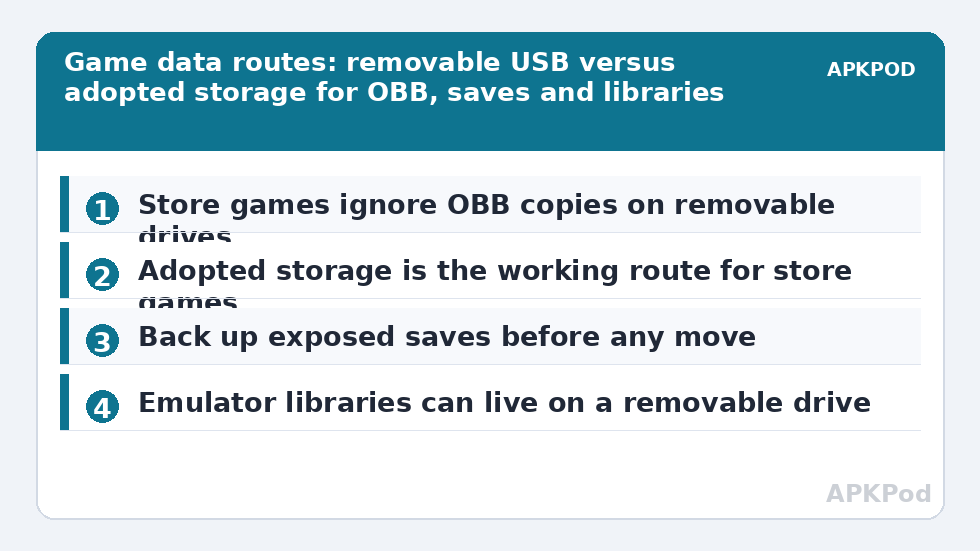
On older Android versions, some games happily read their OBB from an external path, and a generation of forum guides was written around copying the folder to a stick. On current Android TV builds, most Play Store games look for their expansion files in one specific place — their OBB folder on the storage Android assigned them — and a copy sitting on a removable USB drive is simply ignored. The game then either re-downloads the assets (refilling the internal storage you just emptied) or refuses to start until they return. No setting inside X-plore overrides this, because it is the game and the operating system agreeing on a location, not a file manager permission.
Do the experiment safely if you want to test a particular title: copy — never move — its OBB folder to the drive, leaving the original untouched, and see whether the game shows any interest. It will not, in almost all modern cases. That is fine; you have lost nothing but a few minutes, and you now know your route is the one in the next section. What you must not do is delete the internal original on the strength of a hopeful guide and discover the truth at launch time with the assets gone.
The Route That Works: Adopted Storage
Adopting a fast USB drive as device storage changes the geography legitimately. Once adopted, the drive is part of internal storage, and Android itself can place apps and their data there — including game data — because as far as the system is concerned it is internal. The full adoption walkthrough, with its warnings, lives in expanding Android TV storage with a USB drive, and the app-moving mechanics are covered in moving apps to USB storage on Android TV. The game-specific points are these:
- Speed is not optional. A game streaming assets from adopted storage on a slow stick will stutter and load slowly. Use a fast USB 3.x stick on a USB 3.0 port where available, or a small SSD; on a USB 2.0-only television, keep demanding games on true internal storage.
- Reinstalls place data best. Installing a game fresh after adoption lets Android choose placement cleanly; moving an existing install via the app’s Storage settings works when the game allows it.
- The drive must stay attached, always. Removing an adopted drive removes its games mid-library; treat it as a permanent part of the television.
Run the size arithmetic before adopting for games: three large titles at, say, 6 GB, 4.5 GB and 3 GB total 13.5 GB — already beyond what an 8 GB box can hold internally at all, and a serious share of a 32 GB adopted drive once the system and other apps take theirs. Adoption expands the room; it does not make games smaller, and a household that installs everything will fill any drive eventually.
Where a Removable Drive Genuinely Helps Gamers
Emulator and Self-Managed Game Files
Games whose files you manage yourself — legally owned game files used with emulators, homebrew titles, and games distributed as data folders you place manually — are a different story. Those read from wherever you point them, so keeping their libraries on a removable drive works beautifully, following the same one-folder-per-title pattern used for organising an external media library, applied to games. X-plore moves the library, the emulator is pointed at the drive folder, and internal storage stays free. Observe the obvious legal line: only files you own and are entitled to use this way.
Parking Installers and Backups
A removable drive is also the right home for game APK installers you sideload legitimately, and for copies of save data that a game exposes as ordinary files. Copy the saves folder out with X-plore before any risky experiment — reinstalling a game is tedious; losing a hundred-hour save is a different category of event. That backup habit is developed fully in backing up Android TV app data and settings to USB.
| Game content | Removable USB works? | Adopted USB works? |
|---|---|---|
| Play Store game OBB assets | Generally no on modern Android TV | Yes — Android places them there |
| Game saves in Android/data | Copy for backup yes; live relocation usually no | Yes, as part of app data placement |
| Emulator libraries you manage | Yes — point the emulator at the drive | Also yes |
| Sideloaded game installers | Yes, as stored files | Unnecessary |
Bottleneck:
Tip:
All figures are estimates under good local conditions — strong signal, no competing traffic, both devices on the same network. Real speeds drop with distance, walls, channel congestion and slow storage on either device. Protocol options (SMB, FTP, SFTP) assume a 5 GHz-class Wi-Fi link.
A Safe Relocation Checklist
- Identify the game’s package folder names in Android/obb and Android/data with X-plore, and note their sizes.
- Copy any exposed save data to a backup folder on USB before changing anything.
- Decide the route: adoption for Play Store games, removable drive for self-managed libraries.
- After adoption or moving, launch every affected game once and play past its first loading screen — asset checks happen there, not at the icon.
- Keep at least 1 GB of true internal storage free regardless; downloads and updates still stage there. A monthly pass following cleaning cached app data on Android TV keeps game caches from quietly reclaiming the space you just won, and it takes minutes once the big data lives in its proper place.
If a game misbehaves after a move — endless asset downloads, a black screen after the logo — the fix is boring and reliable: uninstall it, confirm its internal folders are gone, reinstall it cleanly in its new home, and restore your backed-up saves if the game uses plain files. Licence-tied saves held in protected app data cannot be restored this way, which is one more reason to back up before, not after, and to test each game on the evening you move it rather than discovering the problem weeks later in front of an expectant audience.
Frequently Asked Questions
Can I just copy the OBB folder to a USB stick and play from there?
On modern Android TV, generally no. Play Store games look for expansion files in their assigned OBB location, ignore copies on removable drives, and usually re-download the assets internally or refuse to start. The working route for those games is adopted storage, where Android itself places the data.
Why did my game re-download gigabytes after I moved its files?
Because at launch it checked its expected internal locations, found the assets missing, and repaired itself by downloading them again. The files on your USB drive were never consulted. Reinstalling the game after adopting storage places the assets where the game expects them.
What drive speed do games need on adopted storage?
As fast as the port allows. Games stream assets continuously, so a slow stick causes stutter and long loads. Prefer a fast USB 3.x drive or SSD on a USB 3.0 port; on USB 2.0-only TVs, demanding games are better kept on true internal storage.
Can emulator game libraries live on a removable drive?
Yes. Libraries you manage yourself — legally owned files used with an emulator — can live on a removable drive, and you simply point the emulator at that folder. X-plore is ideal for building and maintaining that library.
How do I protect my saves before moving game data?
Copy any save files the game exposes in its Android/data folder to a backup folder on USB with X-plore before changing anything. Saves held in protected app data by the game itself may not be copyable on modern Android, which is all the more reason to test moves carefully.