Every owner of an 8 GB streaming box eventually meets the “storage space running out” warning mid-install, and the cleanest escape is to expand android tv storage usb drive xplore owners already use for file work — by adopting a fast USB drive as part of the TV’s internal storage. Adopted storage is an Android feature, not an X-plore feature: the system formats the drive, encrypts it to that one device, and then treats it as internal space where apps and their data can live. X-plore’s role is everything around that decision — checking the drive beforehand, moving media off it, and managing files once the extra space exists. This guide explains when adoption is the right move, how to do it without losing data, and the limits nobody mentions until it is too late.
Adopted Storage vs Removable Storage: Pick Deliberately
| Adopted (internal) storage | Removable storage | |
|---|---|---|
| Apps can install to it | Yes — apps and app data move there | No — media and files only |
| Readable on a PC | No — encrypted to this TV | Yes — exFAT/FAT32 volumes mount anywhere |
| Removing the drive | Breaks every app stored on it | Safe after eject |
| Best candidate | Fast flash drive or SSD, permanently attached | Any drive you shuttle between devices |
| Failure impact | High — a dying adopted drive takes its apps with it | Low — files are copyable elsewhere |
Adopt when the TV itself is full and you install a lot of apps; keep a drive removable when its job is carrying films and files between the TV and a computer. Never adopt a drive that already holds your only copy of anything — adoption formats it.
Choosing a Drive That Will Not Embarrass You Later
Adopted storage performance is bounded by the drive. Android itself will benchmark the drive during setup and warn if it is slow, and you should believe the warning: a bargain-bin flash drive with 8 MB/s writes makes app launches and updates miserable. Sensible choices:
- USB 3.x flash drives from known brands advertising real sustained write speeds — look for drives marketed for dashcams or ReadyBoost-style use, which use better NAND.
- A small USB SSD (128–256 GB) is the gold standard: fast, cool, and more durable than any stick. On a Chromecast with Google TV it connects through the same powered USB-C hub you use for other peripherals.
- Spinning hard drives work but are a poor fit: they are slow to spin up after sleep, draw more power, and a bump during a write is riskier. Keep HDDs as removable media drives instead, as described in connecting external USB hard drives to Android TV.
Capacity beyond 128 GB is rarely useful for adopted storage — apps simply are not that big on TV — so spend money on speed and endurance rather than terabytes.
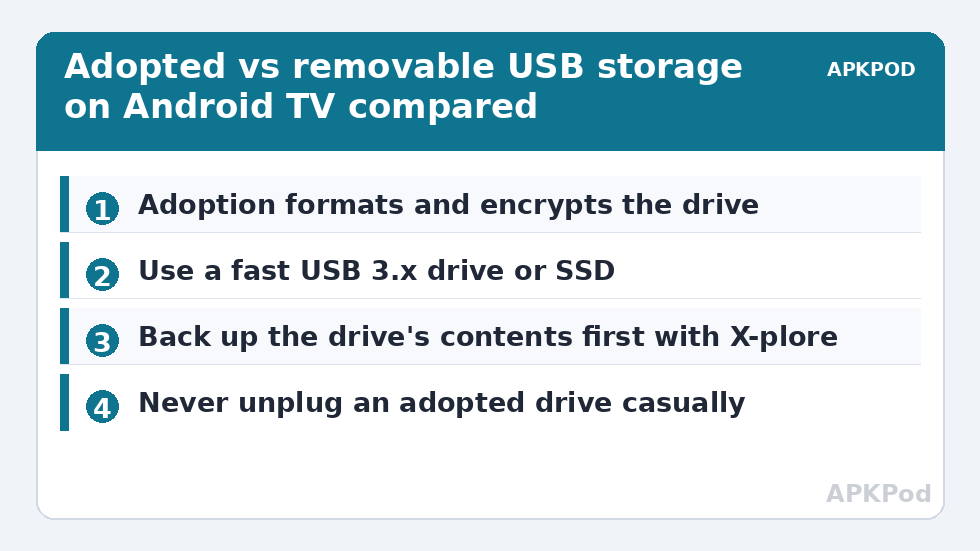
Preparing with X-plore, Then Adopting the Drive
Before the system formats anything, use X-plore to empty the candidate drive: copy its contents to internal storage, a LAN share or another USB device, and verify the copies open. Then run the adoption from the TV’s settings:
- Insert the drive and open Settings → Device Preferences → Storage (on Google TV: Settings → System → Storage).
- Select the USB drive and choose Erase & format as device storage (wording varies slightly by brand).
- Wait through the format and the speed test. If Android warns the drive seems slow, cancel and use a better drive — the warning is accurate.
- When asked, choose Move now or Move later for migrating existing data; moving now shifts eligible apps and data in one pass.
- Reopen X-plore: the adopted volume now appears merged into internal storage rather than as a separate USB entry, and your free space reflects the addition.
After adoption, use X-plore’s Disk Map to see where space actually goes on the enlarged volume, and keep an eye on the split between apps and media. If the TV later complains despite the extra room, the cause is usually cache bloat rather than the volume itself — see cleaning cached app data on Android TV and the fuller triage in troubleshooting storage-full errors on 8 GB boxes.
Moving Media Between the TV, the Drive and the Network
Adopted storage is encrypted, so a PC cannot read the drive — but X-plore bridges the gap: anything on the adopted volume can still be copied through X-plore to a LAN share, a cloud drive, or a second removable USB stick. When planning a large evacuation (for example before replacing the TV), estimate the transfer time first so the job is not started five minutes before the TV is needed:
Bottleneck:
Tip:
All figures are estimates under good local conditions — strong signal, no competing traffic, both devices on the same network. Real speeds drop with distance, walls, channel congestion and slow storage on either device. Protocol options (SMB, FTP, SFTP) assume a 5 GHz-class Wi-Fi link.
Living with Adopted Storage: Rules That Prevent Tears
- The drive lives with the TV now. Unplugging it to “borrow” it for a PC breaks the apps stored on it and can corrupt the volume; if you must remove it, first move apps back or accept reinstalling them.
- Back up APKs of anything sideloaded. If the adopted drive dies, store-downloaded apps reinstall easily; sideloaded ones need their APKs, which you can keep on a network share using the method in backing up Smart TV apps to a USB flash drive.
- A factory reset orphans the volume. Resetting the TV loses the encryption key, so the adopted drive must be reformatted afterwards — copy anything irreplaceable off it through X-plore first.
- “Forget” the storage properly if you retire the drive: Settings → Storage → the adopted drive → Forget, after migrating data back, so the TV stops expecting it at boot.
Expand Android TV Storage USB Drive Xplore Owners Should Revisit Quarterly
Adoption day is not the last decision — it starts a small maintenance relationship with that drive. Once a quarter, glance at the adopted volume in Settings → Storage: if free space is shrinking while your app list is static, a cache-heavy app is inflating (deal with it the way the cache routine teaches), and if apps stored on the drive begin launching noticeably slower than those on internal flash, the drive is ageing and deserves replacement while migration is still easy and voluntary. Plan that replacement like the original adoption: new fast drive in, adopt, let the store reinstall the heavy apps, copy media through X-plore.
Two life events deserve a sentence each. Selling or gifting the TV: use Settings to forget the adopted storage and factory reset, because the encrypted drive is useless to the buyer and your data should not travel with it. Replacing the TV yourself: nothing on the adopted drive is portable — that was the bargain — so export anything personal through X-plore to network or removable storage before the old set leaves the house. More scenarios like these are filed under our TV & Storage guides.
Frequently Asked Questions
Can I adopt a USB drive on the Chromecast with Google TV?
Yes, provided the drive is attached through a powered USB-C hub, since the Chromecast has no USB-A port. The option appears under Settings → System → Storage once the drive is detected.
Will adopted storage make my TV faster?
No — it makes it roomier, not faster. A fast SSD as adopted storage keeps app performance roughly equal to internal flash; a slow stick makes updates and launches noticeably worse, which is why Android’s setup warning deserves respect.
Can I still use the adopted drive on my PC afterwards?
Not without reformatting it, which erases everything. Adopted storage is encrypted with a key held by the TV, so Windows and macOS see an unreadable volume.
What happens if the adopted drive fails?
Every app and file stored on it is lost, and the TV will prompt you to forget the missing storage. Apps from the Play Store can simply be reinstalled; locally stored media cannot, which is why important media belongs on removable or network storage instead.
How do I undo adopted storage?
Open Settings → Storage, select the adopted drive, and choose the option to format it as portable/removable storage — after first copying off anything you need through X-plore, because formatting erases the drive.