
Storage problems are never caused by the files you know about. They are caused by the 3.8 GB folder three levels deep that some app built in 2024 and never cleaned. Lists cannot find that folder; pictures can. The xplore disk map visualize large files feature draws your storage as proportioned blocks — big files literally look big — and turns “my phone is full” from a mood into a map with an obvious first target.
Disk Map is a root in X-plore’s tree. Open it for internal storage or a specific folder and it scans, then renders the contents as nested rectangles sized by the space they occupy. A video folder swallows half the screen. A cache directory glows as a fat slab beside the thin sliver of your actual documents. You navigate by tapping blocks to descend into them.
Xplore Disk Map Visualize Large Files: Reading the Picture
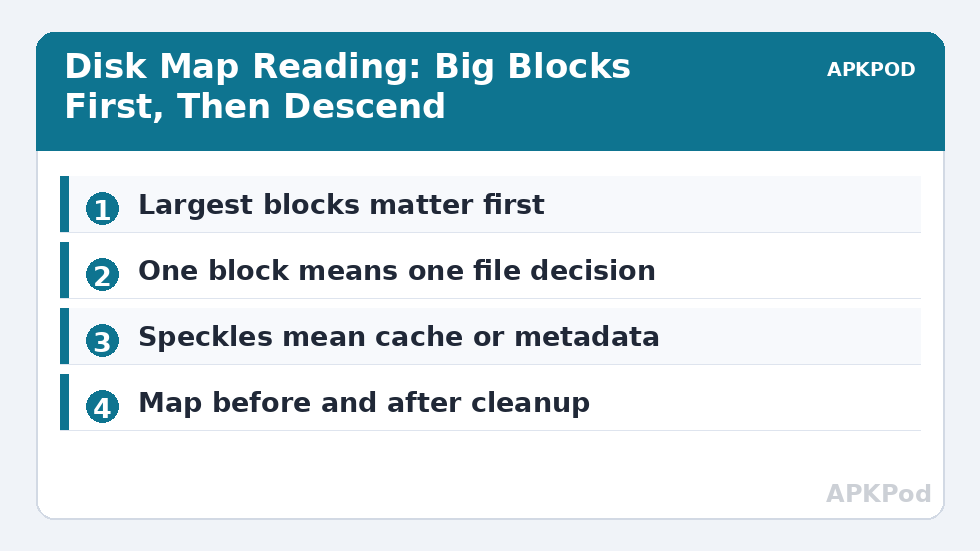
Read a disk map the way you would read a pie chart, except the slices are actionable. The largest blocks are the only ones that matter for the first pass; reclaiming 4 GB from one forgotten folder beats deleting two hundred small files anywhere else. Descend into the biggest block, then its biggest child, and within three taps you are usually staring at the culprit: a messaging app’s video cache, an offline map pack for a country you have left, a game’s downloaded assets.
The map also exposes shape, not just size. A folder made of one enormous block is a single file decision. A folder made of ten thousand specks is a metadata or thumbnail problem — many apps store thousands of tiny files whose count slows backups and file operations even when their total size is modest. The remedies differ: delete or move the big file; clear or relocate the speckled app data. The map tells you which disease you are treating before you prescribe.
Disk Map shines brightest in a before-and-after discipline. Run it, note the worst branch, clean with intent, run it again. The second picture proves the cleanup and catches the classic disappointment: deleting a cache that an app rebuilds to the same size within a day. Pair that verification loop with the criteria hunting in our search guide and you can both see the problem and retrieve the specific files involved.
From Map to Action, Safely
| Map shows | Likely culprit | Sensible first move |
|---|---|---|
| One giant media block | Forgotten video or screen recording | Move it to SD/NAS via the dual pane, or delete |
| Fat app-data slab | Offline downloads or cache growth | Clean inside the app first; file-level delete second |
| Thousands of speckles | Thumbnails or message media metadata | Check .thumbnails and app media folders |
| Huge archive block | Old backup ZIPs | Verify contents, then relocate or prune versions |
| Big unknown folder | Abandoned app data | Identify the owner app before touching anything |
Two cautions keep the map honest. First, size is not guilt: your photo library is large because it is precious, and the map’s job is to find the large and worthless, a judgement only you can make. Second, deleting from inside app-managed data can orphan the app’s own records; prefer the app’s internal clear-cache or clear-downloads controls for its data, and reserve direct deletion for files and folders you own outright.
Scanning cost is real, too. A full map of a packed 256 GB phone takes time and should be run while the phone is idle and charged. Mapping a single suspicious folder is far faster and is usually all a maintenance session needs. Start narrow, widen only when the picture demands it — the same discipline as the rest of the Dual-Pane Tips toolkit.
Disk Map on TV, Tablets and Small Screens
The map’s readability depends on the canvas. On a television it is glorious: the biggest blocks are sofa-legible, and a D-pad walk down the heavy branch is a genuinely pleasant way to audit a TV box whose storage fills mysteriously with app caches and forgotten downloads. On a small phone the same map asks for discipline — rotate to landscape, and resist descending into branches whose labels you cannot read; a mis-tap into the wrong block wastes the scan’s clarity. Tablets sit in the sweet spot, and anyone maintaining a family’s shared tablet will find the monthly map the fastest health check the device gets.
Small-storage devices benefit disproportionately. On a 32 GB phone or an 8 GB TV box, the map is not an optimisation tool, it is a survival instrument: the top block is very often a third of everything the device can hold, and knowing its name is the entire game. If you maintain devices for less technical family members, teach them exactly one skill — open the map, read the biggest block, tell me what it says — and you can diagnose their storage from a phone call.
What Disk Map Cannot Tell You
The map shows size, not value, and not cause. It cannot say whether the 6 GB folder is a cache an app will rebuild tomorrow or the only copy of a wedding. It cannot attribute a folder to its owning app when the name is opaque — that identification is detective work with search and the App Manager as your other witnesses. Use the map as the prosecution’s opening statement, never as the verdict, and its pictures will keep telling the truth.
There is one more quiet use: capacity planning. Before a trip, a big download or a system update, a glance at the map tells you whether the space exists and where it would come from if it did not — which folder you would move, which cache you would clear — decided calmly in advance instead of negotiated with a progress bar at midnight.
Screenshot the map. It sounds excessive until the second month, when the comparison between last month’s picture and this month’s tells you the growth rate of every major branch — the podcast folder gaining a gigabyte a month, the game swelling with each update. Growth rates turn storage from a series of emergencies into a forecast, and forecasts are what let you buy the right size of SD card, or the right phone, next time. Two screenshots a quarter is the whole cost of never being surprised by a full disk again.
Bottleneck:
Tip:
All figures are estimates under good local conditions — strong signal, no competing traffic, both devices on the same network. Real speeds drop with distance, walls, channel congestion and slow storage on either device. Protocol options (SMB, FTP, SFTP) assume a 5 GHz-class Wi-Fi link.
Making Disk Map a Routine, Not an Emergency
The users who never see a storage-full warning share a habit: a monthly two-minute map. Open Disk Map, glance at the top three blocks, and ask one question — is anything big here that I do not recognise? Unrecognised growth caught at 800 MB is a shrug; caught at 8 GB it is an afternoon. Combine the glance with the hidden-layer awareness from our hidden files guide, because several of the worst offenders live in dot-folders the map will happily show you once you know how to read them.
That is the whole practice: a picture, a question, a small action, repeated monthly. Storage management stops being a crisis genre and becomes weather — noticed, expected, unremarkable.
Frequently Asked Questions
What is Disk Map in X-plore?
Disk Map is a built-in view that draws a folder or storage device as proportioned blocks, so the largest files and folders are visually the biggest. Tapping a block descends into it.
Why use Disk Map instead of sorting a folder by size?
Sorting shows one folder at a time. Disk Map shows the whole tree’s proportions at once, exposing heavy folders buried several levels deep that sorting would never surface.
Is it safe to delete the biggest things Disk Map shows?
Size is not guilt. Delete or move files you own and recognise as worthless; for app-managed data, prefer the app’s own cache and download controls so its records stay consistent.
Disk Map scanning is slow. How do I speed it up?
Map a specific folder instead of the whole device, and run full scans while the phone is idle and charging. Narrow scans are usually all a cleanup session needs.
What does a folder of thousands of tiny blocks mean?
It usually indicates thumbnails, message metadata or many small cached files. The total size may be modest, but the file count can slow operations, and the fix is cache cleanup rather than hunting individual files.