Quotas fail quietly. The backup that stopped three weeks ago, the upload that never completed, the “storage full” warning buried in an app you rarely open — by the time you notice, the file you need is the one that is not there. Learning to manage storage limits auto sync cloud xplore setups properly starts with an honest correction: X-plore is not a sync engine, and treating it like one is the root of most cloud storage confusion on Android.
X-plore gives you on-demand access to cloud accounts. You browse remote folders, download what you need, upload what you choose, and copy between providers — all when you open the app and ask. That is a file manager’s job, and it is a different job from a dedicated sync or backup app that watches folders continuously and mirrors changes in the background. This guide explains how to work well within that reality: tracking each provider’s limits, structuring uploads so quotas last, and deciding what genuinely needs automatic backup elsewhere.
What X-plore Does — and Does Not Do — in the Background
Precision here saves real disappointment later. In X-plore, transfers happen when you start them. If you copy a folder to a cloud account, the copy runs as an operation you initiated; if you never open the app, nothing quietly uploads last night’s photos. There is no two-way folder pairing quietly reconciling your phone and the cloud in both directions, and no conflict resolution deciding which of two edited copies should win.
| Capability | X-plore | Dedicated backup/sync app |
|---|---|---|
| Browse and open cloud files on demand | Yes — this is its core strength | Often limited or indirect |
| Manual upload, download, and cloud-to-cloud copy | Yes, with progress and control | Varies |
| Automatic background backup of new photos/files | No — not a continuous backup service | Yes, this is its purpose |
| Two-way sync of a folder pair with conflict handling | No | Yes, in true sync apps |
| Works across many providers in one interface | Yes | Usually one provider only |
None of that is a criticism. On-demand access has a real advantage: the cloud copy is exactly what you put there, and your phone storage is not consumed by a local mirror of everything. The mistake is only in assuming automation that is not running. If a folder matters, pair X-plore’s manual control with a genuine automatic backup for that folder — the pattern set out in the guide to backing up phone photos to cloud storage — and use X-plore for everything else. The rest of this cloud security category follows the same rule: know which tool actually does which job.
Manage Storage Limits Auto Sync Cloud Xplore: Know Your Real Quotas
Every free tier has a ceiling, and the ceilings differ enough that “the cloud” is never one number. As a typical, changeable picture — providers adjust tiers, and you should always confirm the figure inside your own account — free allowances have historically sat in ranges like these:
- Google Drive: a shared allowance across Drive, Gmail, and Photos on a Google account — mail attachments consume the same space as your files, which surprises many people.
- Microsoft OneDrive and Dropbox: smaller free tiers, where a handful of phone videos can end the conversation.
- MEGA: a comparatively generous free allowance, which is why it often becomes the overflow destination.
- Self-hosted ownCloud/Nextcloud: your limit is your own disk, minus everything else on it.
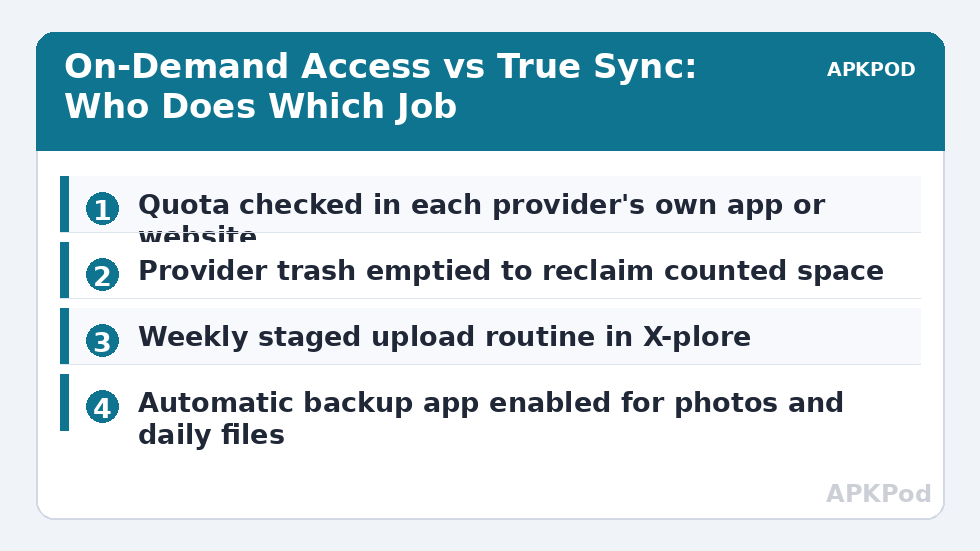
Two habits keep quotas honest. First, check usage inside each provider’s own app or website occasionally, not inside a file manager — the provider’s number is the one that decides whether an upload succeeds. Second, remember that trash counts. Deleted files usually sit in a provider’s trash or recycle bin, still consuming quota, until emptied or aged out. A “full” account is often a full trash folder wearing a disguise.
Bottleneck:
Tip:
All figures are estimates under good local conditions — strong signal, no competing traffic, both devices on the same network. Real speeds drop with distance, walls, channel congestion and slow storage on either device. Protocol options (SMB, FTP, SFTP) assume a 5 GHz-class Wi-Fi link.
A Manual Upload Routine That Behaves Like a System
Since X-plore will not sync for you, build a small routine instead of relying on memory:
- Fix a rhythm. A weekly session — clear the camera folder, upload documents, empty provider trash — beats heroic annual clean-ups.
- Stage before uploading. Gather files into one local folder first, review it, then upload the batch. Staging is where duplicates and accidental inclusions get caught.
- Upload largest value first. If a quota runs out mid-batch, the irreplaceable items should already be safe, not queued behind screenshots.
- Verify in the provider’s own interface. Spot-check that key files open from the web or the provider app. An upload listed in X-plore that you have never opened from the cloud side is an assumption, not a backup.
- Prune on a schedule. Old installers, duplicate exports, and screen recordings are the usual quota thieves. The guide to managing Dropbox and Box storage in X-plore covers the same pruning discipline for those providers.
Phone Storage: The Other Half of the Limit
Cloud access through a file manager also interacts with local space in ways worth understanding. Files you open from the cloud may be cached on the device so they open faster next time; over months, caches across apps grow into real gigabytes. X-plore’s own storage view helps you find what is consuming the phone, and large local folders you have already uploaded are candidates for removal — after verification, never before.
Downloads deserve the same discipline as uploads. A film downloaded “for the flight” and forgotten is indistinguishable from clutter three months later. Keep a single downloads staging folder, clear it in the same weekly rhythm, and let the cloud remain the long-term home. Moving batches between providers to balance free space — say, shifting an archive folder from a nearly full account to one with room — is a manual copy in X-plore, and the cloud-to-cloud transfer guide covers how to run it without losing track of what has moved.
When You Truly Need Automatic Sync
Some data should never depend on a weekly routine. Photos of family, documents you would need after losing the phone, anything created daily — these belong in a real automatic backup: the provider’s own app with backup enabled, or a dedicated sync tool for specific folders. Set it up once, confirm it is actually running by checking that a new photo appears in the cloud without you touching anything, and then let X-plore do what it does best around it: organising, moving, encrypting, and retrieving across all your accounts from one dual-pane view.
That division of labour is the mature setup. Automation guards the irreplaceable and the everyday; the file manager gives you deliberate control over everything else. Confusing the two — in either direction — is how files get lost and quotas get wasted.
Frequently Asked Questions
Does X-plore automatically sync folders with the cloud in the background?
No. X-plore provides on-demand access: browsing, downloading, and uploading happen when you initiate them in the app. It is not a continuous two-way sync engine or an automatic backup service, so folders you never open the app to upload will not appear in the cloud by themselves.
How can I check how much cloud storage I have left?
Check inside each provider’s own app or website, where the authoritative usage figure lives. Remember that some quotas are shared — Google’s allowance covers Drive, Gmail, and Photos together — and that files sitting in a provider’s trash usually still count until you empty it.
Why does my account say storage is full when I deleted files?
Deleted files typically move to the provider’s trash or recycle bin and continue consuming quota there. Empty the trash in the provider’s interface, and also check for large forgotten items such as videos, old backups, and shared folders counting against your allowance.
What is the best way to keep uploads organised without a sync app?
Use a fixed routine: stage files in one local folder, review the batch, upload the most valuable items first, and verify key files open from the provider’s own interface. A short weekly session prevents both quota surprises and the slow drift of unfiled uploads.
Which files should I put in a real automatic backup instead?
Anything created often or impossible to replace: daily photos, important documents, and records you would need immediately after losing the phone. Use the provider’s backup app or a dedicated sync tool for those, and use X-plore for deliberate organisation and transfers across accounts.