There are legitimate reasons to install an app that is not in your television’s store — a beta you are testing, an open-source app distributed from its developer’s own site, or your own backup of an app you own — and the cleanest couch-friendly method is to sideload apk firestick google tv xplore wifi style: push the file over your home network into X-plore File Manager and install it from there. This guide covers the transfer-and-install workflow on Fire TV and Google TV using only software you already control. One boundary up front and without exception: install only APKs you obtained legally — from the app’s official developer page, a reputable open-source repository such as F-Droid, or your own backups of apps you own. Sites promising “free” versions of paid apps distribute pirated, frequently malware-laced files, and no app is worth handing a television on your home network to strangers.
Before You Start: What Sideloading Actually Changes
Sideloading does not root or jailbreak anything. You are simply allowing the TV to install an app from a file instead of from a store, the same mechanism Android phones have always had. Two consequences follow, and both are manageable:
- No automatic updates. Store apps update themselves; sideloaded apps do not. You are responsible for replacing the APK when the developer ships a fix, which is a strong argument for sideloading sparingly.
- You are the vetting process. The Play Store’s screening is absent, so the source of the file is your only protection. Stick to official sources and verify developer-published checksums when they are offered.
Also confirm the app is built for TV at all: a phone-only app will install but may demand a touchscreen. It is not a failure of the method — it is a mismatch of the app.
Step 1: Allow Installs from X-plore
Both platforms gate installation per app, so X-plore needs explicit permission to act as an installer:
- Google TV / Android TV: Settings → Apps → Special app access → Install unknown apps → X-plore → toggle Allow. Some builds also require enabling Developer options first (Settings → System → About → tap Android TV OS Build seven times), but the per-app toggle is the essential one.
- Fire TV / Firestick: Settings → My Fire TV → Developer Options → Install unknown apps → X-plore → On. If Developer Options is missing, open About and click the Fire TV device name seven times to reveal it.
Grant this only to X-plore, not to browsers or random downloaders — the fewer apps that can install software, the safer the box stays.
Step 2: Send the APK to the TV over Wi-Fi
With the APK saved on your phone or PC from its legitimate source, move it to the TV using X-plore’s built-in Wi-Fi server, which avoids USB sticks entirely:
- On the TV, open X-plore and start its Wi-Fi file server (from the menu; it shows an address such as 192.168.1.50:1111 and lets you set a password — set one, even at home, as a habit).
- On the phone or PC browser, open that address, log in, and upload the APK into a folder you can find again, such as Download.
- Stop the Wi-Fi server on the TV when the transfer finishes.
APKs are small — even a heavy app is usually under 200 MB — so the upload takes seconds on a home network. If you are instead sending a large media file alongside, estimate the job before you start it:
Bottleneck:
Tip:
All figures are estimates under good local conditions — strong signal, no competing traffic, both devices on the same network. Real speeds drop with distance, walls, channel congestion and slow storage on either device. Protocol options (SMB, FTP, SFTP) assume a 5 GHz-class Wi-Fi link.
The same server approach, run in reverse, is how you later pull files off the TV; transferring files between phone and Smart TV with X-plore covers that workflow in full. If X-plore is not yet on the television, install it first using our installation and navigation guide.
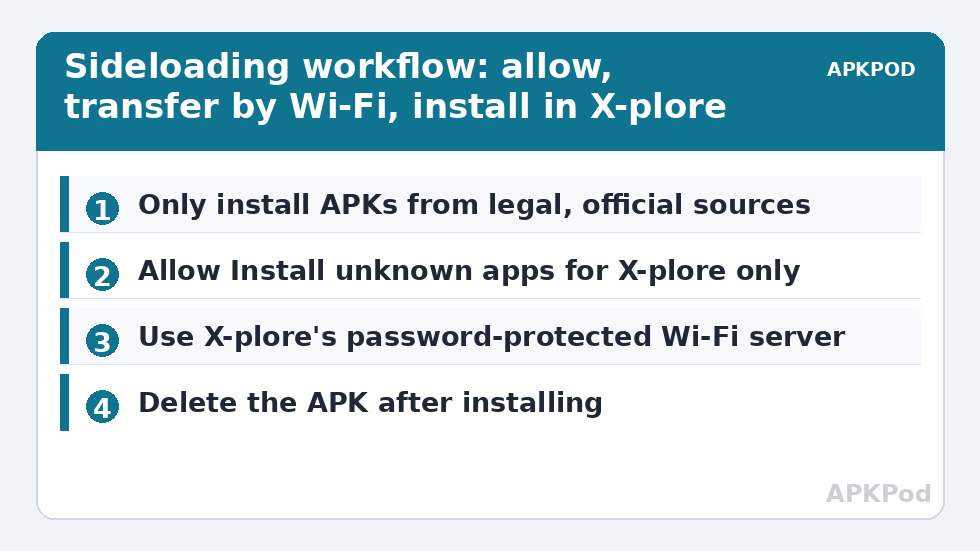
Step 3: Install from Inside X-plore
In X-plore, navigate to the folder holding the APK, highlight it, and press OK. X-plore hands the file to the system package installer, which shows the app’s name, icon and requested permissions — read that screen; a flashlight app asking for your contacts is a file to delete, not install. Confirm Install, wait for “App installed”, and find the app in the TV’s Apps row. Fire TV sometimes files sideloaded apps only under “Your Apps & Channels” rather than the home row; Google TV may need the app pinned manually. If the installer reports a parsing error, the APK is corrupt, built for a newer Android than the TV runs, or split into multiple APKs (app bundles need their own installer) — re-download from the official source rather than hunting for a “fixed” copy elsewhere.
Staying Safe After the Install
- Delete the APK from the TV once installed; the app remains, and the loose installer file is just clutter and temptation for accidental reinstalls of an outdated version.
- Keep a copy of the APK on your PC or NAS with its version in the filename, so a future TV replacement can be rebuilt quickly — the same habit as backing up installed TV apps to a USB drive.
- Revoke the install permission if you sideload rarely: turn X-plore’s “Install unknown apps” back off between uses.
- Never sideload banking or password-manager apps from files. Those should only ever come from the official store, full stop.
Sideload APK Firestick Google TV Xplore WiFi Transfers: Staying Organised
Sideloading stays safe and sane when it stays documented. Keep a single folder on the TV — Sideload — and inside it, alongside each installed app, a plain-text note (X-plore’s built-in editor is enough) recording the app’s name, version, where you obtained it, and the date. When an update matters, that note tells you exactly where the legitimate new version lives, and you repeat the Wi-Fi transfer with the fresh file rather than accepting an update from anywhere else. Uninstall cleanly from the TV’s app settings when an app is retired, and delete its leftover folder in X-plore afterwards; sideloaded apps leave the same orphans as store apps.
Also learn to recognise the phone-app-on-TV compromise honestly: check each sideloaded app for a leanback (TV) interface by simply using it for a day. Apps that need touch will fight the remote forever; note them in your file and stop expecting the next update to fix a design that was never aimed at televisions. Habits like these are the difference between a curated box and a junk drawer, and they recur throughout our TV & Storage guides.
Keep the same discipline for removals as for installs: an app you sideloaded and abandoned still holds storage, still may run background services, and still widens the box’s attack surface by existing. The quarterly pass through Settings → Apps, deleting what you no longer recognise a purpose for, is the sideloading equivalent of locking up after yourself.
Frequently Asked Questions
Is sideloading legal on my own Firestick or Google TV?
Yes. Installing software you obtained legally onto hardware you own is lawful in most jurisdictions, and both Amazon and Google ship the permission toggles described here. The legal problem is pirated APKs, not the act of sideloading itself.
Why is “Install unknown apps” missing on my Fire TV?
Developer Options is hidden until you reveal it: go to Settings → My Fire TV → About and click the device name seven times. The Install unknown apps list then appears under Developer Options.
The installer says “App not installed”. What went wrong?
The usual causes are a corrupt download, an APK built for a higher Android version than the TV runs, or a split APK that needs all its parts installed together. Re-download from the developer’s official source and check the stated minimum Android version.
Will sideloaded apps appear on the TV home screen?
Apps designed for TV (with a leanback launcher entry) appear normally. Phone-only apps often do not get a home tile; you can still launch them from Settings → Apps or from X-plore’s App Manager list.
Can a sideloaded app harm my TV or network?
A malicious one can, which is why source discipline matters more than any setting. Install only from official developer pages or established open-source repositories, read the permission screen before confirming, and remove the install permission when you are done.