The film is on your phone, the screen you want is the television, and no cable in the house fits both — this is exactly the gap the transfer files phone to smart tv xplore workflow exists to close. X-plore File Manager includes a built-in Wi-Fi file server, so the phone and the TV can swap files over your home network in both directions: push tonight’s downloads to the TV, or pull recordings and photos off the TV onto the phone. No cloud upload, no account, and no leaving the sofa once it is set up. Here is the complete setup, the transfer itself, and the speed realities that decide whether a file is worth moving or better streamed.
How the Wi-Fi Server Works
X-plore’s Wi-Fi server turns whichever device runs it into a small local file host. Start the server on one device and it displays an address — something like http://192.168.1.42:1111 — which the other device opens in a browser (or reaches from its own X-plore) to browse, upload and download files. Two design points matter:
- It only exists while you run it. The server is off by default and stops when you stop it; nothing is exposed on your network the rest of the time.
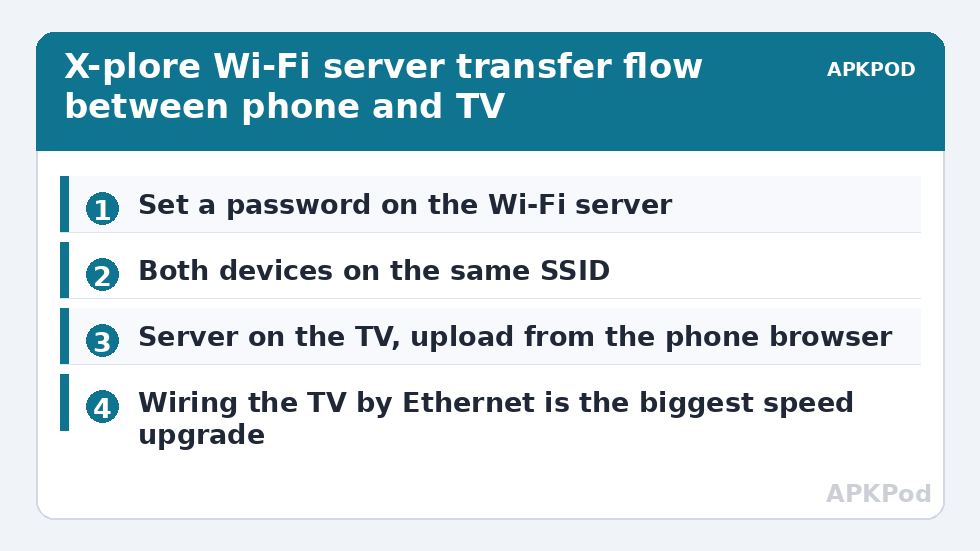
- It is password-protectable. X-plore lets you set credentials for the server. Use them, even on a home network — it takes ten seconds and makes the feature safe to use in shared housing or on a guest network.
Both devices must be on the same Wi-Fi network, and the router must not isolate clients from each other (some guest networks do — use your main SSID).
Direction One: Phone to TV (the Common Case)
- On the TV, open X-plore, start the Wi-Fi server from the menu, set or confirm the password, and note the address shown.
- On the phone, connect to the same Wi-Fi, open a browser, enter the TV’s address, and log in.
- Navigate to the destination folder on the TV (Download, or a folder on the USB drive), choose Upload, and select the files from the phone.
- Watch the transfer complete, then stop the server on the TV.
- Find the files in X-plore on the TV and press play, or copy them onward to USB storage with the dual-pane method from navigating X-plore with the TV remote.
Running the server on the TV and uploading from the phone is the most reliable arrangement, because the phone’s browser upload interface is far easier to drive than a TV remote. The reverse — server on the phone, browsing from the TV’s X-plore Web access — also works and suits pulling a file when the phone is in another room.
What Speeds to Expect, Honestly
Local Wi-Fi transfers between a phone and a TV are bounded by the weakest radio in the chain, and television Wi-Fi hardware is often mediocre. Labelled as typical figures from common home setups:
| Scenario | Typical real speed | 2 GB file takes about |
|---|---|---|
| Phone and TV both on 5 GHz, strong signal | 15–30 MB/s | 1–2 minutes |
| TV on 2.4 GHz, phone on 5 GHz | 4–8 MB/s | 4–8 minutes |
| TV wired by Ethernet, phone on 5 GHz | 20–35 MB/s | About 1–2 minutes |
| Either device at the edge of router range | 1–3 MB/s, unstable | 10+ minutes, may stall |
If a transfer matters, wire the TV by Ethernet (or through the USB hub’s Ethernet port on a Chromecast) — it is the single biggest upgrade to every network feature in this category. Before starting a large push, run the estimate for your actual file size and link type:
Bottleneck:
Tip:
All figures are estimates under good local conditions — strong signal, no competing traffic, both devices on the same network. Real speeds drop with distance, walls, channel congestion and slow storage on either device. Protocol options (SMB, FTP, SFTP) assume a 5 GHz-class Wi-Fi link.
Direction Two: TV to Phone, and Sharing the Other Way
Start the Wi-Fi server on the TV exactly as before, then browse its address from the phone and download instead of uploading — this is how you rescue screenshots, recordings from TV apps, or a downloaded file that landed on the wrong device. For households that move files weekly, two refinements pay off: give the TV a reserved IP address in the router so the server address never changes, and keep a dedicated “Inbox” folder on the TV so uploads never scatter. When the files live on a PC or NAS rather than the phone, skip the server entirely and browse the share directly from the TV over LAN/SMB or DLNA, as covered in accessing router media folders from a Smart TV and using cloud drives on the big screen. And if the television itself is not yet set up with X-plore, begin with installing X-plore on Android TV.
When the Server Will Not Connect
- Address unreachable: the devices are on different networks (main vs guest SSID) or the router has AP/client isolation enabled — disable isolation or use the main network.
- Login rejected: the password was changed and the browser cached old credentials; clear the site data for that address or use a private tab.
- Transfer stalls at the same percentage: the TV is writing to a nearly full internal volume — check free space with the triage in fixing storage-full errors on 8 GB TV boxes, or upload to the USB drive instead.
- Server not visible after TV sleep: the TV dropped Wi-Fi in standby; wake it fully and restart the server.
Transfer Files Phone to Smart TV Xplore Habits for Weekly Use
If you move files weekly, three small investments remove all remaining friction. First, reserve the TV’s IP address in your router’s settings, so the Wi-Fi server address you bookmark on the phone never changes under you. Second, agree on one landing folder on the TV — Inbox — and always upload there, sorting later on the TV itself with the dual panes; uploads scattered across five folders are how files get “lost” on a device with no search habits. Third, verify arrivals by size: X-plore shows file sizes on both ends, and a film that is 200 MB smaller on the TV than on the phone is a truncated transfer to redo, not a mystery to debug later.
Run the direction that suits the moment without ceremony: the server takes twenty seconds to start, and stopping it when you finish is the whole security model. Households that adopt the Inbox habit find the TV stops accumulating mystery files entirely, which quietly improves every other routine — backups, cleanups, storage checks — catalogued in our TV & Storage guides.
A final courtesy rule for shared houses: the Wi-Fi server makes the TV’s folders reachable from any browser on the network while it runs, so start it when you are about to transfer and stop it when the progress bar finishes — a habit as automatic as locking a door on the way out. If children or guests use the TV, the password you set is the difference between a useful feature and an open shelf, and it costs you four characters typed once per session.
Frequently Asked Questions
Do the phone and TV need internet for the Wi-Fi server?
No. The transfer happens entirely on your local network; the router only routes between your two devices. It works during an internet outage as long as the local Wi-Fi is up.
Is the X-plore Wi-Fi server safe to leave running?
It is designed to be started when needed and stopped afterwards. Set a password, use it on your private network, and stop it when the transfer finishes — with those habits it is a safe, convenient tool.
Can I transfer files from a PC to the TV the same way?
Yes. Start the server on the TV and open its address in the PC’s browser to upload or download. For regular PC-to-TV traffic, browsing a shared folder over SMB from inside X-plore avoids the browser entirely.
Why is my transfer much slower than my internet speed test?
Internet speed is irrelevant locally. The ceiling is the slower of the two devices’ Wi-Fi links to the router — and TV Wi-Fi chips, especially on 2.4 GHz, are slow. Wiring the TV by Ethernet changes transfers dramatically.
Can I send files to a Firestick this way too?
Yes. X-plore’s Wi-Fi server works the same on Fire OS, and the Firestick’s storage constraints make the “upload, watch, delete” pattern especially useful there.