Few TV problems waste an evening like a drive full of films that the television simply refuses to see, so a methodical fix usb drive not recognized android tv xplore checklist beats random replugging every time. When a USB drive does not appear — not in the TV’s storage settings and not in X-plore File Manager’s device list — the cause sits somewhere along a short chain: power, port, partition, file system, or permissions. Work the chain in order and you will find it, usually within ten minutes and usually without reformatting anything.
Step 1: Rule Out Power and Port Problems First
Hard drives fail to mount on TV far more often from hunger than from corruption. A 2.5-inch portable HDD can demand more current at spin-up than a television’s USB port guarantees, and the symptom is classic: the drive’s light blinks, it may click, and it never appears — or it appears and vanishes when a copy starts. Test in this order:
- Try the drive in a different USB port on the TV; ports are not always equal, and one may be a low-power service port.
- Try a flash drive you know works in the suspect port. If the flash drive also fails, the port or the TV’s USB stack is the problem, not your HDD.
- Connect the HDD through a powered USB hub. If it mounts instantly and stays mounted, power was the issue — run it through the hub permanently. On a Chromecast with Google TV, the hub is mandatory anyway, and its power adapter quality decides stability.
- Listen for clicking. A drive that clicks even on a PC with known-good power is dying; copy its contents off anywhere you can, urgently.
Step 2: Check Partitions and File Systems on a Computer
If power is fine, plug the drive into a PC and look at how it is built. Android TV is picky in three specific ways:
| What the PC shows | Why the TV ignores it | Remedy |
|---|---|---|
| Partition scheme is GPT with many small partitions (old DVR/PVR disk) | Recorder-specific layout the TV cannot interpret | Back up, then repartition to a single exFAT volume |
| File system is ext4, HFS+ or APFS | Not readable by typical Android TV builds | Copy data off, reformat to exFAT |
| Drive was adopted storage on another Android device | Encrypted to that device’s key | Only that device can read it; otherwise reformat and lose the contents |
| File system flagged dirty / needs repair | Removed mid-write previously; TV refuses a dirty volume | Run the PC’s disk check and repair, then Safely Remove before retrying |
| Multiple partitions, files on the second | Many TVs mount only the first partition | Consolidate to one partition |
The full reasoning behind choosing exFAT over FAT32 or NTFS for TV use is set out in connecting external USB drives to Android TV, and if reformatting becomes unavoidable, follow the safe formatting procedure — after backing up, because formatting erases.
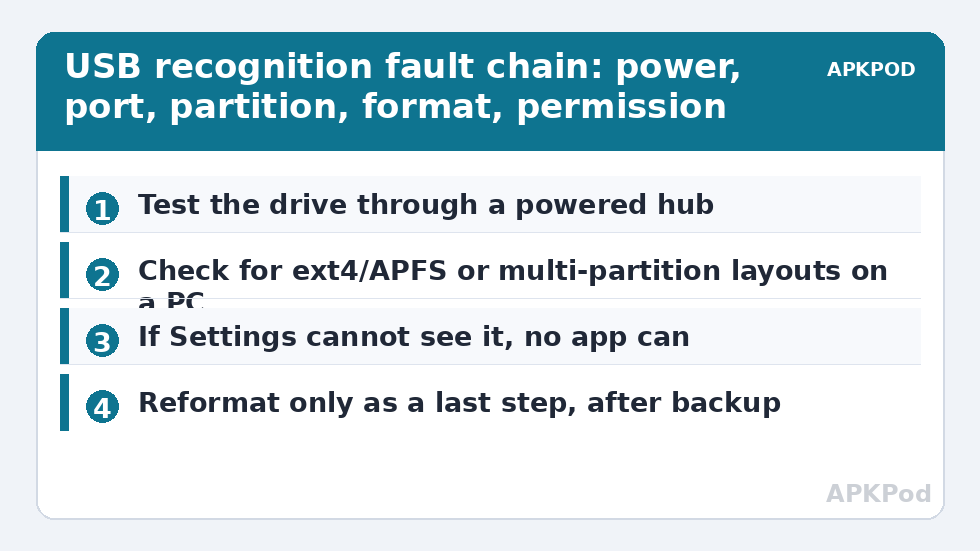
Step 3: Make the TV and X-plore Look Again
Software state causes its share of invisible drives. Restart the TV fully (a real restart from Settings, not sleep), insert the drive only after the home screen settles, and wait a full thirty seconds — large drives take time to index. Then open the TV’s Settings → Storage and confirm whether the system itself lists the drive. This distinction matters:
- Listed in Settings but not in X-plore: an app problem. Force-stop X-plore, reopen it, and re-check the device list; verify X-plore’s storage permission is still granted, because TV updates sometimes reset it. If the folder you need sits behind scoped storage, the fix in fixing SAF permission denied on Android TV applies.
- Not listed in Settings either: the system never mounted it, so no app can see it — return to Steps 1 and 2; the fault is power, partition or file system, and reinstalling X-plore will not change it.
- Listed with a wrong or tiny capacity: the TV mounted only the first of several partitions, or the volume is corrupted; repair or repartition on the PC.
Step 4: The Odd Cases — Sleep, Hubs and Case Sensitivity
Three stragglers catch people out. First, drives that vanish after the TV sleeps: some sets cut USB power in standby and remount lazily on wake, so the drive “disappears” mid-library until the next restart; disabling USB sleep in the TV’s power settings, where offered, stabilises it — and setting up reliable auto-mounting at boot reduces the rest. Second, hubs that pass storage but not hot-plug events: plug the drive in before powering the hub and TV. Third, filename chaos after a successful mount — files sorted oddly or some invisible in one player but visible in X-plore — is usually a character-encoding or leading-dot issue, not a mount problem at all. If the drive mounts and you plan a large reorganisation copy, estimate it first:
Bottleneck:
Tip:
All figures are estimates under good local conditions — strong signal, no competing traffic, both devices on the same network. Real speeds drop with distance, walls, channel congestion and slow storage on either device. Protocol options (SMB, FTP, SFTP) assume a 5 GHz-class Wi-Fi link.
Fix USB Drive Not Recognized Android TV Xplore Cases: The Ten-Minute Rule
Give any recognition problem ten structured minutes before you give it an evening. Minutes one to three are physical: different port, known-good flash drive in the suspect port, the problem drive through a powered hub. Minutes four to seven are on the PC: partitions, file system, dirty flag, repair. Minutes eight to ten are the TV’s software state: full restart with the drive inserted, then the Settings-versus-X-plore comparison that tells you whether you are chasing a mount or a permission. If the chain produces no suspect in ten minutes, the odds shift sharply toward a failing drive — and failing drives change the priority from fixing to rescuing.
Rescue, when it comes to it, has an order: documents and photos first (irreplaceable, usually small), then your app-backup kit, then media you cannot re-download, and only then the big replaceable films — smallest and most precious first is the wrong order only for pride. Copy in short batches, because a dying drive often survives many small reads after it starts failing long ones, and verify rescued files open on the PC before formatting or discarding anything. Everything in this triage, and the maintenance that prevents it, is gathered in our TV & Storage guides.
Keep a known-good test kit near the TV and every future diagnosis halves: one small flash drive formatted exFAT and confirmed working, one short quality USB cable, and the powered hub. When any drive misbehaves, the kit lets you swap exactly one variable at a time — drive, cable, port, power — which is the whole scientific method of this article compressed into a drawer. Label the test drive so nobody formats it into service as a movie stick; its value is precisely that its state is known and boring.
Frequently Asked Questions
The drive works on my PC but not on the TV. Where do I start?
With power and file system, in that order. Plug the drive into the TV through a powered hub; if that fails, check on the PC whether the volume is exFAT or FAT32 — ext4, APFS and multi-partition recorder layouts are the most common reasons a healthy drive is invisible to a TV.
X-plore shows the drive but the TV’s video player does not. Why?
The player app lacks storage permission or cannot handle that file system path, while X-plore has its own access granted. Grant the player storage permission in the TV’s app settings, or open the video from X-plore and choose the player with Open With.
Will reformatting the drive fix recognition?
Only if the cause is the file system or partition layout — and it erases everything, so back up first and treat it as the last step, not the first. Power problems and dirty volumes survive a reformat untouched.
My drive keeps disconnecting during long copies. What is failing?
Almost always power droop under sustained load or the TV sleeping mid-transfer. Use a powered hub, keep the TV awake during big jobs, and split very large copies into batches.
Can X-plore mount a drive Android TV itself cannot?
No. X-plore works with volumes the system has mounted (or SAF folders you grant); it cannot conjure an unreadable partition into life. Fix the mount at system level first, then manage files in X-plore.