Streaming apps are hoarders: every thumbnail row, preview trailer and half-watched episode leaves residue, so a regular clean cached app data android tv xplore routine is the difference between an 8 GB box that breathes and one that nags about storage every week. X-plore File Manager gives you the two views this job needs — the system’s per-app storage numbers to decide what to clear, and a real file browser to remove the leftovers apps forget about. This guide separates the caches that are safe to delete blindly from the data that deletes your logins and downloads with it, then turns the whole thing into a ten-minute habit.
Cache, Data and Downloads: Know What You Are Deleting
| Type | What it holds | Safe to clear? | Cost of clearing |
|---|---|---|---|
| App cache | Thumbnails, image rows, temporary stream segments | Yes, always | Apps rebuild it; first browse afterwards is slightly slower |
| App data / storage | Logins, settings, watch history, offline downloads | Only deliberately | Resets the app to first-run state |
| Downloaded media inside apps | Offline films/episodes from streaming services | Your call | Gone until re-downloaded |
| Orphan folders in Android/data and Download | Remains of uninstalled apps, stray files | Yes, after a quick look inside | None if the owning app is really gone |
| System / other volumes | TV firmware caches, thumbnails database | Via TV settings only | Leave manual deletion alone here |
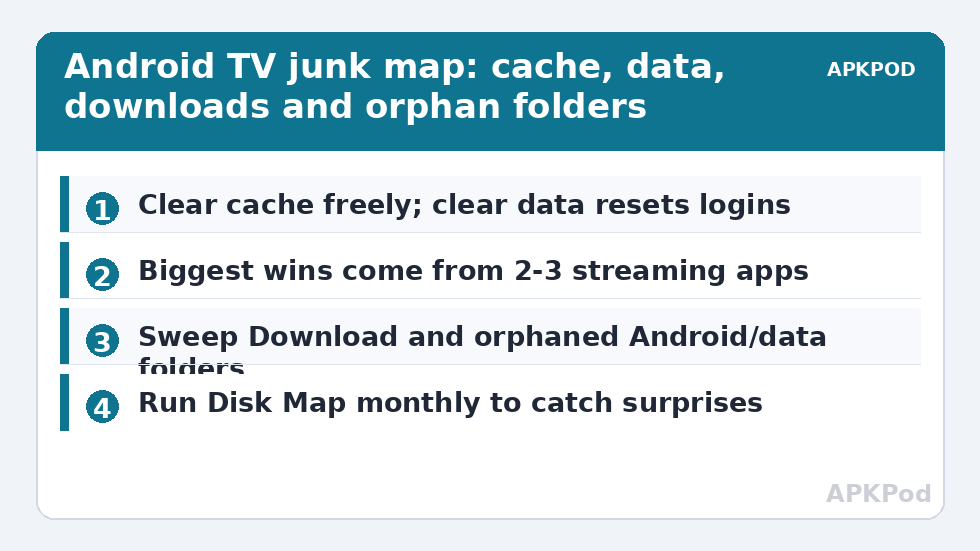
The rule that prevents all tears: clear cache freely from the TV’s app settings; clear data only when you accept signing in again; and use X-plore for the orphaned folders neither button reaches.
Step 1: Find the Offenders with the System’s Numbers
Open Settings → Apps (on Google TV: Settings → Apps → See all apps) and sort by size if the build offers it, or open the biggest streaming apps one by one. On a typical neglected box, two or three video apps hold 60–80% of all cache — thumbnail grids for huge catalogues are heavier than people expect, commonly 300 MB to over 1 GB per app. For each offender, open its info page and press Clear cache. Do not touch Clear data unless the app is misbehaving as well (see the last FAQ). Repeat down the list until the cache total is a few hundred megabytes, then check Settings → Storage to see the freed space.
Step 2: Sweep the Leftovers with X-plore
Now open X-plore and work three locations:
- Internal storage → Download: APKs you installed from, half-finished transfers, exported files you forgot — delete or move them to USB. Moving keepers out is where the dual-pane method from navigating X-plore by remote shines: Download in one pane, USB drive in the other.
- Internal storage → Android/data: look for folders belonging to apps you have uninstalled (the folder name is the app’s package name — if the app is gone from Settings → Apps, its folder is an orphan). Accessing this area on Android 11+ may require the SAF grant walkthrough in fixing SAF permission denied errors; grant it and proceed.
- X-plore’s Disk Map: run it over internal storage for a visual ranking of the largest folders — it reliably surfaces one surprise (a recorder app’s cache, a game’s asset dump) that settings pages summarise away.
If the cleanup is part of a wider rescue of a completely full box, pair this routine with the storage-full triage for 8 GB TVs, which covers system-level offenders beyond app caches. And to stop the biggest media offenders refilling the box, offload their downloads to a drive as described in connecting external USB drives.
What Not to Delete, However Tempting
- Folders of apps you still use, inside Android/data — that is their real data, not junk.
- .thumbnails at the root of a USB media drive can be deleted safely (it regenerates), but the similarly named system thumbnail store on internal storage is best left to the TV.
- Anything in the root of internal storage you cannot identify. Files named by apps you do not recognise might belong to the TV’s own services; if Disk Map does not make its ownership obvious, leave it and clear known caches instead.
- The X-plore Vault folder, if you use Vault — it holds encrypted personal files; manage it from inside Vault as in using X-plore Vault on a Smart TV, never by deleting its container.
Making It a Routine Instead of a Rescue
Cache creep is predictable: heavy streaming households refill a cleaned box in six to ten weeks. A light monthly pass — clear the top two apps’ caches, empty Download, glance at Disk Map — takes under ten minutes and prevents the storage-full cliff entirely. Before a big sweep that involves moving media off the box to a PC or NAS, estimate how long the copying will take so it does not collide with the evening’s viewing:
Bottleneck:
Tip:
All figures are estimates under good local conditions — strong signal, no competing traffic, both devices on the same network. Real speeds drop with distance, walls, channel congestion and slow storage on either device. Protocol options (SMB, FTP, SFTP) assume a 5 GHz-class Wi-Fi link.
Clean Cached App Data Android TV Xplore Sweep: The Monthly Ten Minutes
Compressed into a repeatable card, the routine is: Settings → Apps → the top streaming app → Clear cache; repeat for the next two; X-plore → Download → delete or evict; X-plore → Disk Map → one glance at the top five folders; done. Ten minutes, once a month, ideally on a fixed day so it actually happens. What you are buying is not just space — it is the early-warning system. A cache that returns to a gigabyte within days of clearing, in an app you barely open, is that app telling you it is buggy; the escalation is Clear data once, and if the behaviour persists, replacing the app. Without the routine, that signal drowns in the general fullness and you meet it later as a failed update on the night you wanted to watch something.
Pair the sweep with one transfer habit and the box stays healthy almost by itself: anything you download to keep — a film, a recording, a big APK — leaves internal storage for the USB drive or the NAS within the week, timed with the estimator so it never ambushes an evening. The full maintenance philosophy, including the quarterly items this monthly card deliberately omits, is set out across our TV & Storage guides.
While you are in the app info pages, glance at each big app’s total storage line, not just its cache: an app whose data dwarfs its cache is storing something real — downloads, a music library, game assets — and that changes the conversation from cleaning to managing. Note those two or three data-heavy apps in your phone so next month’s sweep starts with knowledge instead of archaeology. Storage hygiene compounds: the second sweep is always faster than the first, and by the third you will know your box’s habits better than its manufacturer does.
Frequently Asked Questions
Will clearing cache sign me out of Netflix or YouTube?
No. Sign-ins live in app data, not cache. Clearing cache only removes thumbnails and temporary files; the app may browse a little slower the first time while it rebuilds its image rows.
How much space does cache clearing realistically free?
On a neglected 8 GB box, commonly 1–2.5 GB across all apps — often a quarter of usable storage. The biggest wins come from two or three catalogue-heavy streaming apps, not from dozens of small ones.
Why does the cache come back so fast?
Because that is its job: the app re-downloads artwork and previews as you browse. Fast regrowth is normal and harmless as long as it stabilises; a cache that grows without bound points to a buggy app worth reinstalling.
Can X-plore clear all apps’ caches at once?
Android does not expose a one-tap clear-all to third-party apps on TV builds, so the per-app Clear cache in system settings is the correct tool. X-plore’s role is the file-level sweeping — orphan folders, Downloads and Disk Map analysis — that settings cannot do.
When should I use Clear data instead of Clear cache?
When an app is corrupt as well as bloated: crashing on launch, refusing to sign in, or holding a cache that instantly regrows to gigabytes. Clear data resets it completely — you will sign in again and lose offline downloads stored inside that app.