A family television is a shared terminal in the middle of the house, which is precisely why the xplore vault feature smart tv media files combination earns its place: X-plore’s Vault encrypts chosen photos, videos and documents behind a password, so personal media can live on the TV’s drive without being browsable by everyone who picks up the remote. The Vault is not a separate app — it is an encrypted container inside X-plore File Manager, protected by a password you set, using AES encryption. This guide covers setting it up on TV hardware, the honest limits of what it protects against, and the backup discipline that keeps a forgotten password from becoming lost memories.
What Vault Actually Does (and Does Not)
When you add a file to Vault, X-plore encrypts it into its protected store; the file disappears from normal folders and is visible only after you unlock Vault with your password. That delivers three real protections on a television:
- Casual privacy: guests, children and visitors browsing the TV’s photos app or file manager see nothing of the Vault’s contents.
- App privacy: other apps on the TV cannot index or preview Vault files, so private photos do not surface in screensavers or gallery widgets.
- Protection if the drive travels: files encrypted in Vault on a USB drive are unreadable on a PC without X-plore and your password.
It does not turn the TV into a safe against a determined attacker with unlimited time, and it does not encrypt anything outside its container — a copy of the same photo left in the regular gallery is exactly as exposed as before. Vault is a privacy lock for shared living-room hardware, and used as that, it is genuinely effective. Setting it up happens on the TV itself after installing X-plore and granting its permissions.
Setting Up Vault on the Television
- Open X-plore and find Vault in the device list/menu (it appears alongside the storage roots).
- On first use, create the Vault and set a password you will actually remember — on a TV you will type it with a D-pad on an on-screen keyboard, so a strong-but-typeable passphrase beats a symbol salad you will mistype five times.
- X-plore may offer fingerprint unlock on phones; on most TVs you will use the password each time, and Vault locks again when closed or after its timeout.
- To add files: browse to them in a pane, open the context menu with long-press OK (the technique from navigating X-plore by remote), and choose the option to add/move to Vault, then confirm.
- Verify by closing Vault, reopening the original folder — the files should be gone from normal view — then unlock Vault and play one file to prove the round trip works.
Organising Private Media on a Shared TV
A few habits keep Vault pleasant over years rather than a junk drawer. Keep the set small and deliberate: identity documents you need on the big screen, family photos not meant for the shared library, personal videos. Large media libraries belong in normal folders or on cloud accounts you control, as in accessing cloud storage on the Smart TV. Playback from inside Vault works through X-plore’s hand-off to your video player for the duration of viewing; when you close Vault, access closes with it. If you keep Vault content on a USB drive rather than internal storage, that drive can move between your devices with X-plore installed — but treat the drive itself with the care described in connecting external drives to Android TV, and never “tidy” the Vault’s container folder from outside the app.
The Password Warning That Matters Most
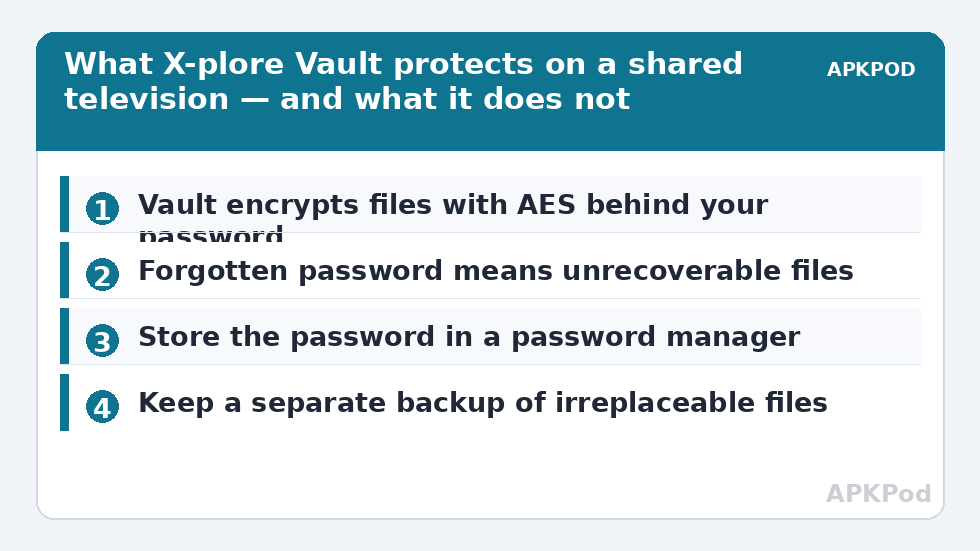
Encryption is indifferent to your intentions: if you forget the Vault password, the contents are gone — there is no recovery email, no support reset, because any backdoor would defeat the encryption. So engineer against your own memory:
- Store the password in your password manager (on your phone, not on the TV) at the moment you create it.
- Keep an unencrypted backup of anything irreplaceable somewhere only you control — a home NAS folder or a personal cloud account — because encryption protects privacy, not against loss.
- Never experiment with “password reset” tricks found on forums; brute-force utilities marketed for this are scams or malware more often than not.
Moving Vault-protected material between the TV and your other devices still uses X-plore’s ordinary transfers once the files are decrypted and exported; for planning a large export, the same estimate applies as for any other network copy:
Bottleneck:
Tip:
All figures are estimates under good local conditions — strong signal, no competing traffic, both devices on the same network. Real speeds drop with distance, walls, channel congestion and slow storage on either device. Protocol options (SMB, FTP, SFTP) assume a 5 GHz-class Wi-Fi link.
Xplore Vault Feature Smart TV Media Files: A Sensible Policy
Decide, once, what belongs where — because a privacy tool used inconsistently protects nothing. A workable household policy has three tiers. Vault tier: the small set that is nobody else’s business — personal photos and videos, scanned documents you genuinely need on the big screen, anything involving children that you do not want surfacing in a screensaver. Normal tier: the shared library — films, family photos meant to be seen, music — living in ordinary folders or on the USB drive. Cloud tier: the archive of record, the copy that survives the TV; Vault is a lock, not a backup, and anything in the Vault tier that exists nowhere else is one forgotten password from being a sad story rather than a private one.
Write the policy into behaviour with two rituals. When new personal media reaches the TV, it goes into Vault during the same session — not “later”, because later is how gallery apps index it first. And once a year, on a day you will remember, unlock Vault, confirm the password still comes from your password manager rather than your luck, and export a fresh backup copy of its contents to your archive. Rules, tiers and rituals like these — the unglamorous layer that makes features actually work — are the connective tissue of our TV & Storage guides.
One scenario deserves explicit words: the television itself being sold, gifted or sent for repair. Before it leaves your hands, open Vault and export everything in it to storage you control, then remove the Vault contents and, as part of the factory reset you should always perform, let the container die with the installation. An encrypted store protects files at rest on a working system; it is not a promise about a device in a stranger’s workshop with unlimited time. The export takes minutes through X-plore, and it converts a lingering worry into a completed task.
Frequently Asked Questions
Can my family see Vault photos in the TV’s gallery or screensaver?
No. Vault files are encrypted inside X-plore’s container and are not exposed to the TV’s media indexers, so they do not appear in gallery apps, photo frames or screensavers. Only files you left outside Vault are visible that way.
I forgot my Vault password. Can I recover the files?
Realistically, no — that is what encryption means. There is no reset mechanism. This is why the password belongs in your password manager and irreplaceable files need a separate backup under your control.
Does Vault work on a USB drive connected to the TV?
Yes. You can keep the Vault store on external storage, which is handy on an 8 GB TV, and the encrypted container travels with the drive, readable only through X-plore with your password.
Is Vault strong enough for financial documents?
Vault uses proper AES encryption and is well suited to privacy on shared hardware. For your only copy of critical documents, use it as one layer among several — an encrypted backup at home or in a personal cloud — rather than the sole repository.
Can I watch a Vault video on the TV without removing it from Vault?
Yes. Unlock Vault, open the video, and X-plore hands it to your player for viewing; the file remains encrypted at rest and Vault re-locks when closed or timed out.