A D-pad is honest but slow: ticking forty files for a batch copy, or dragging through a thousand-photo folder, is where a pointer earns its keep — provided you configure mouse toggle pointer speed xplore tv settings so the cursor glides instead of skating. “Mouse toggle” here means the pointer modes built into TV hardware and remotes — the LG-style air mouse, the virtual mouse toggled on Fire TV and Android TV remotes (popularised by Mouse Toggle apps and built into some boxes), and plain USB or Bluetooth mice — all of which X-plore File Manager happily accepts alongside D-pad focus. This guide covers connecting a pointer, tuning its speed at the system level and inside the TV’s accessibility settings, and using it inside X-plore without losing the remote habits that still work better.
Your Pointer Options on Android TV, Ranked by Effort
| Option | Hardware needed | Feel in X-plore | Notes |
|---|---|---|---|
| USB or Bluetooth mouse | Any spare mouse; USB port or pairing | Precise, fast, full scroll-wheel support | Best for big organising sessions; wheel scrolls panes quickly |
| Air mouse / gyro remote | Aftermarket remote with dongle | Good once sensitivity is tamed | Pointing drifts on some models; recalibrate per its manual |
| Mouse Toggle-style virtual mouse | None — uses the stock remote | Slow but always available | A mode you switch on for fiddly dialogs, off for normal browsing |
| Phone trackpad apps | Phone on same network | Variable | Handy in a pinch; latency depends on Wi-Fi |
Pairing a Bluetooth mouse: Settings → Remotes & Accessories → Pair accessory, put the mouse in pairing mode, select it. A USB mouse (or its 2.4 GHz dongle) simply works when plugged in, including through the powered hub a Chromecast needs for storage anyway — the same hub advice as connecting external drives to Android TV. Inside X-plore the pointer clicks to open, right-click typically acts as Back or a context action depending on the build, and the wheel scrolls the focused pane — test your particular mouse’s right-click behaviour once in a safe folder.
Tuning Pointer Speed So It Stops Fighting You
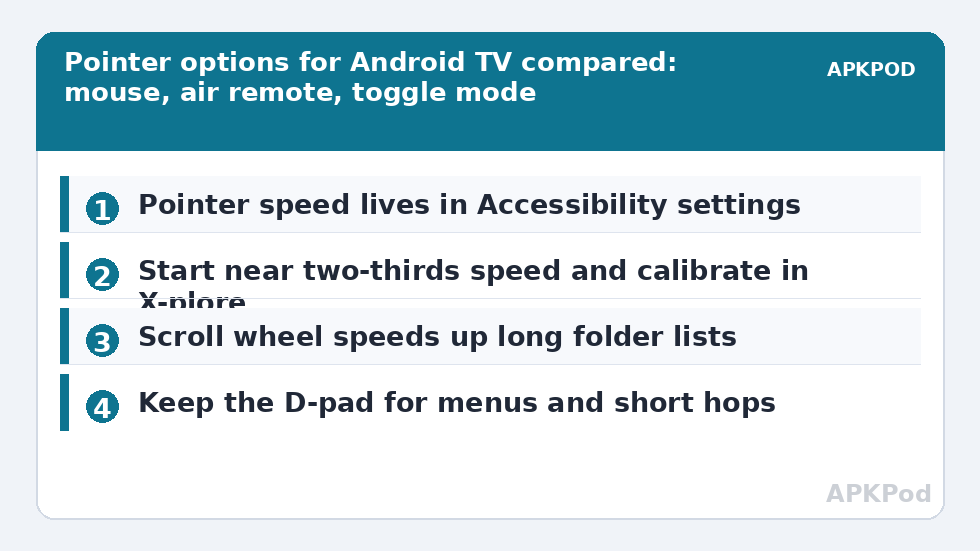
Android TV exposes pointer speed in Settings → Device Preferences → Accessibility (on some builds under System or Remotes & Accessories) as a slider. The right value is a compromise: too high and the cursor overshoots filenames on a 55-inch screen; too low and crossing the dual-pane layout takes three swipes. A reliable tuning method:
- Set the slider to roughly 60–70% of maximum as a starting point.
- In X-plore, practise the two moves you will repeat: crossing from the left pane to a file at the right pane’s far edge, and landing on a single filename mid-list.
- Adjust in small steps — if you overshoot filenames, drop the speed; if crossings feel like hauling, raise it. Five minutes of this calibration repays itself in every later session.
- If your mouse has a physical DPI button, set DPI first (medium) and fine-tune with the slider; high-DPI gaming settings are twitchy on a TV interface.
Keep the D-pad as your primary instrument for menus and short hops — the comparison in navigating X-plore by remote still stands — and treat the pointer as the specialist for marking batches, scrubbing long folders, and any dialog with a tiny keyboard or slider.
Using the Pointer Inside X-plore Productively
- Batch marking: click files to position, use the context menu’s Mark, and scroll with the wheel instead of fifty D-pad presses — the difference on a 200-file folder is dramatic.
- Precision renaming: clicking into a filename field and editing text beats the on-screen keyboard waltz for fixing subtitle names alongside their videos (the pairing task from setting up external subtitles).
- Disk Map and properties dialogs: dense information screens are simply easier to read and dismiss with a pointer.
- Vault and cloud sign-in screens: code entry and consent checkboxes are pointer-friendly; see accessing cloud storage on the TV.
For very large transfers you have set up with the pointer, remember the copy itself is the slow part, not the clicking — estimate it before committing the evening:
Bottleneck:
Tip:
All figures are estimates under good local conditions — strong signal, no competing traffic, both devices on the same network. Real speeds drop with distance, walls, channel congestion and slow storage on either device. Protocol options (SMB, FTP, SFTP) assume a 5 GHz-class Wi-Fi link.
When the Pointer Misbehaves
- Cursor stutters or lags: almost always the TV’s 2.4 GHz interference or a low mouse battery; move the dongle to a short USB extension away from the TV’s HDMI ports, or re-pair Bluetooth after charging.
- Double-clicks when you single-click: lower pointer speed slightly and test the mouse on a PC — a worn switch double-fires everywhere, not just on TV.
- Pointer vanishes in some apps: several streaming apps hide the cursor by design; X-plore shows it, and the home launcher may or may not — that inconsistency is normal.
- Mouse Toggle mode will not switch off: use its documented button combination (varies by app/build) rather than force-stopping, which can leave the accessibility service in a confused state until a restart.
Configure Mouse Toggle Pointer Speed Xplore TV Settings Worth Revisiting
Pointer tuning is not set-and-forget, because the pieces around it move. Television firmware updates occasionally reset accessibility values; a new TV changes the viewing distance and therefore the speed that feels right; a different mouse brings a different sensor and DPI personality. The revisit takes two minutes: open X-plore, run the pane-crossing test from the tuning section, and nudge the slider until a single crossing and a mid-list landing both feel unremarkable. Unremarkable is the goal — the pointer should disappear as a topic entirely.
Households diverge here, and that is fine: some keep the mouse permanently paired on the coffee table and run X-plore almost entirely by pointer, while others summon toggle mode twice a month for a settings dialog and live by D-pad the rest of the time. Both are correct; the failure mode is the middle — a badly tuned pointer that makes every session slightly annoying and quietly discourages the maintenance this category exists to encourage. Keep the dongle or mouse somewhere deliberate, keep its batteries fresh, and the specialist tool stays a pleasure. Similar small-ergonomics thinking appears throughout our TV & Storage guides, because on a television the interface is the experience.
Consider also the humble scroll wheel’s effect on the rest of the household: the person who organises the library is rarely the only person affected by how pleasant organising is. A tuned pointer lowers the activation energy of every maintenance task in this category — the cache sweep gets done, the backup kit stays fresh, the subtitles get renamed — because none of them begin with a sigh anymore. Ergonomics is not decoration on a television setup; it is the mechanism by which all the other good habits survive contact with real evenings.
Frequently Asked Questions
Does X-plore support a mouse on Android TV natively?
Yes. X-plore responds to pointer clicks, the scroll wheel, and focus highlighting, so a USB or Bluetooth mouse works without any helper app. You can mix pointer and D-pad freely in the same session.
Where exactly is the pointer speed setting?
On most Google TV and Android TV builds: Settings → Device Preferences → Accessibility → Pointer speed (some brands place it under System). Set it to about two-thirds, then fine-tune by practising pane crossings in X-plore.
What is “mouse toggle” on a Firestick or Android TV remote?
It is a mode — built into some boxes or added by a utility app — that turns the remote’s D-pad into a virtual mouse cursor you switch on for pointer-only dialogs and off for normal navigation. It is slower than a real mouse but always in your hand.
Why does my cursor drift with an air remote?
Gyro remotes recalibrate their centre regularly; resting the remote on a cushion mid-use or low batteries cause drift. Set it down flat for a few seconds to re-centre (per its manual) and replace the batteries before blaming the TV.
Is a keyboard worth adding too?
If you rename files, edit text in X-plore’s editor, or type server addresses often, yes — a small Bluetooth keyboard or keyboard-mouse combo removes the last slow part of TV file management. For playback-only households, the remote and an occasional mouse suffice.