Your media does not all live in neat MP4s: some of it sits in disc images, some on a NAS, some on a drive plugged into the router — and you want it on the television. Learning to play iso network video files android tv xplore users keep in odd corners of their storage is really about understanding hand-offs: X-plore File Manager finds and opens the file, a player app does the decoding, and the network or disc format decides whether the experience is smooth or a stuttering slideshow. This guide explains what actually happens with ISO images, which players cope, and how to choose between streaming in place and copying locally.
The ISO Problem, Stated Plainly
An ISO is a disc image — a container holding a DVD or Blu-ray file structure, not a video file in itself. Android TV players differ sharply in what they do with one:
| Approach | What happens | Verdict |
|---|---|---|
| Open ISO in Kodi | Kodi understands disc images and presents menus or the main title | Best in-place option for DVD ISOs |
| Open ISO in VLC | VLC handles many DVD ISOs; Blu-ray menus generally not | Good second choice |
| Extract the ISO on a PC | Pull out the main title as MKV/MP4 once, play anywhere forever | The permanent fix for a disc you watch often |
| Expect any player to open it | Most lightweight players refuse or show a black screen | Not a fault — ISOs are containers, not videos |
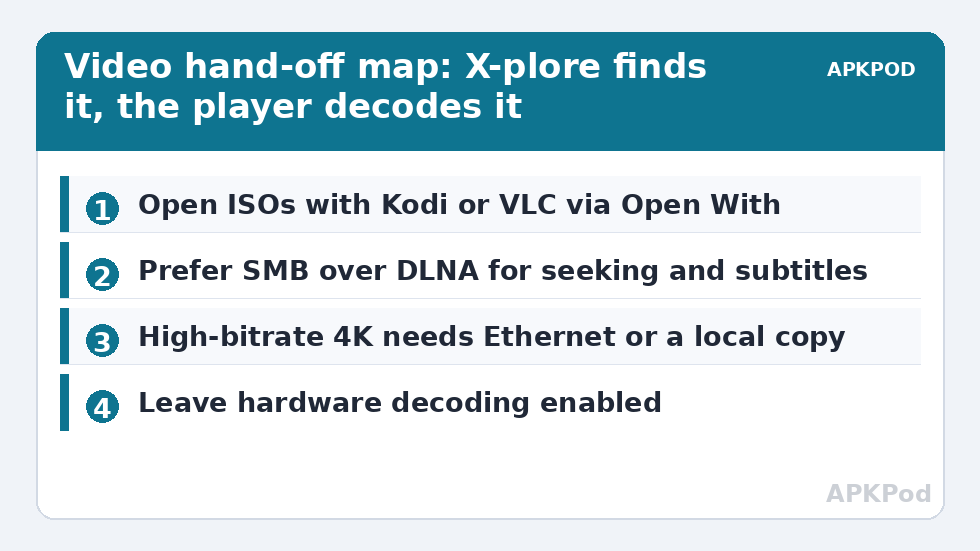
From X-plore, highlight the ISO, use Open With, and choose Kodi or VLC explicitly rather than letting a default player guess. If a disc turns out to be copy-protected commercial media, make your personal backup copy on a PC with the tools and rights you have there; X-plore’s job in this guide is playback logistics for files you legitimately hold — the same boundary as elsewhere in this category, for example backing up your own TV apps. For a disc you rewatch yearly, extracting the main feature once beats fighting menus forever.
Streaming Video from Network Storage: The X-plore Route
For ordinary video files (MKV, MP4, AVI) sitting on a PC share, NAS or router drive, X-plore offers two routes. The SMB/LAN route: add the share in X-plore’s LAN section once, then browse it like a local folder and press play — X-plore streams the file to your chosen player. The DLNA route: browse the media server the router or NAS advertises; simpler, but DLNA cannot carry sidecar subtitles reliably and offers poorer seeking, as detailed in accessing router media folders via DLNA. Prefer SMB for anything you scrub through, and reserve DLNA for casual watching. External subtitle behaviour over the network follows the rules in setting up external subtitles on Android TV — the file must sit beside the video with a matching name, and SMB serves it far more reliably than DLNA.
Bandwidth Reality: When Streaming Works and When It Does Not
A video stream needs sustained throughput above the file’s bitrate, with headroom for Wi-Fi’s mood swings. Labelled typical requirements:
- 1080p rips at 8–15 Mbps: stream happily on 5 GHz Wi-Fi in the same room as the router.
- 4K at 20–40 Mbps: fine on Ethernet or excellent 5 GHz; marginal on crowded Wi-Fi.
- 4K remuxes at 50–80+ Mbps: Ethernet or copy locally. TV Wi-Fi hardware rarely sustains this, and no player setting fixes physics.
- Anything over 2.4 GHz: cap your expectations at 1080p, and even that will rebuffer when the microwave runs.
The copy-locally fallback is a dual-pane job in X-plore — share in one pane, internal storage or USB in the other — and the time it takes is worth knowing before you commit to it five minutes before a film:
Bottleneck:
Tip:
All figures are estimates under good local conditions — strong signal, no competing traffic, both devices on the same network. Real speeds drop with distance, walls, channel congestion and slow storage on either device. Protocol options (SMB, FTP, SFTP) assume a 5 GHz-class Wi-Fi link.
Do the arithmetic once and the pattern for your house becomes obvious: which shelves stream, which get copied. Households that do this weekly usually end up wiring the TV, which upgrades every network feature mentioned in transferring files between phone and TV as well.
Player Hand-Off Settings That Prevent Weirdness
- Set one default player in X-plore for video so OK always behaves identically; choose per-file with Open With only for exceptions like ISOs.
- Hardware decoding on: in Kodi/VLC, leave hardware acceleration enabled — TV chips are built for it; software decoding of 4K will stutter regardless of network.
- Refresh-rate switching (Kodi on capable TVs): matching the panel to 24p content removes the judder people misdiagnose as network lag.
- Audio passthrough if you run a soundbar/AVR; otherwise let the player decode, because a TV that cannot decode a DTS track produces silent films, not an error.
Play ISO Network Video Files Android TV Xplore Library Nights
The difference between a library that works on guests-night and one that buffers through it is preparation measured in single minutes. Build the habit of the pre-copy queue: when you choose tonight’s film in the afternoon — from the NAS, from an ISO, from anywhere awkward — copy or extract it to the TV’s local storage or USB drive then, not at showtime. X-plore makes this a two-pane, three-press job, and by evening the riskiest link in the chain (the network, the disc format, the player’s mood) has already been retired. Keep a standing “Tonight” folder so the queue has a home and yesterday’s pre-copy gets deleted rather than accumulating.
Two in-playback details reward setting once. In your player, confirm the default audio track preference — multi-track files on a NAS default to the first track, which may be a commentary or a dub — and confirm subtitle defaults match the library rules you set for external files, so a local copy and its streamed twin behave identically. Do those things and format archaeology becomes invisible: the sofa sees a film start, every time. The rest of our TV & Storage guides exist to make the whole storage layer feel this uneventful.
A word about audio, the silent half of “the file will not play”. When a network video opens without sound, the file is usually fine and the player is being handed a track it cannot decode — a DTS or TrueHD stream into a television that licences neither. The fix order is: try the player’s alternate audio track (many files carry a compatible stereo or AC3 track alongside), then enable passthrough if a soundbar or AVR that can decode it is attached, then let the player software-decode in its settings. X-plore’s role is unchanged throughout — it found the file honestly; the decoding negotiation belongs to the player and the amplifier.
Frequently Asked Questions
Why does my ISO open to a black screen in the default player?
Because most lightweight players cannot interpret a disc image at all. Open it from X-plore with Open With and choose Kodi or VLC, both of which understand DVD ISO structures; for a disc you watch often, extract the main title to MKV on a PC instead.
Is it better to stream from my NAS or copy the film to the TV first?
Stream if your sustained network speed comfortably exceeds the file’s bitrate — most 1080p qualifies. Copy first for high-bitrate 4K or on weak Wi-Fi; the copy is a one-time cost and playback becomes bulletproof.
Seeking is painfully slow over DLNA. Is that normal?
Yes. DLNA was designed for simple playback, and scrubbing support is poor. Use an SMB share browsed inside X-plore for anything you seek through, and keep DLNA for start-to-finish watching.
My 4K file stutters but the same file plays from USB. Why?
The network path is the bottleneck — almost always TV Wi-Fi. Wire the TV by Ethernet, move the router closer, or copy the file locally; the comparison with USB already proved the file and the player are fine.
Can X-plore itself play videos without another app?
X-plore can hand playback to its configured player and has basic internal playback for some formats, but a dedicated player (Kodi or VLC) gives you codec support, subtitle handling and refresh-rate control. Treat X-plore as the librarian and the player as the projector.